How Do I Access My Property Website?
Last updated: September 20, 2026
Overview
A Tonomo property website (also called a listing website or single-property website / SPW) is a dedicated landing page for one specific property listing that agents can generate for their real estate clients. It's essentially a mini-website that showcases all the media for a single property in one branded place.
Once the Portal admin has manually or automatically enabled the Property Website, the initial setup is ready for the client. This automatically includes all the files on the delivery page, as well as a branded and unbranded link. Tonomo also provides a button that allows the client to customize the page.
Where to Find This Section?
To navigate to your Property Website Admin Panel, you can either use the Order Details section or the Delivery page.
Using Order Details
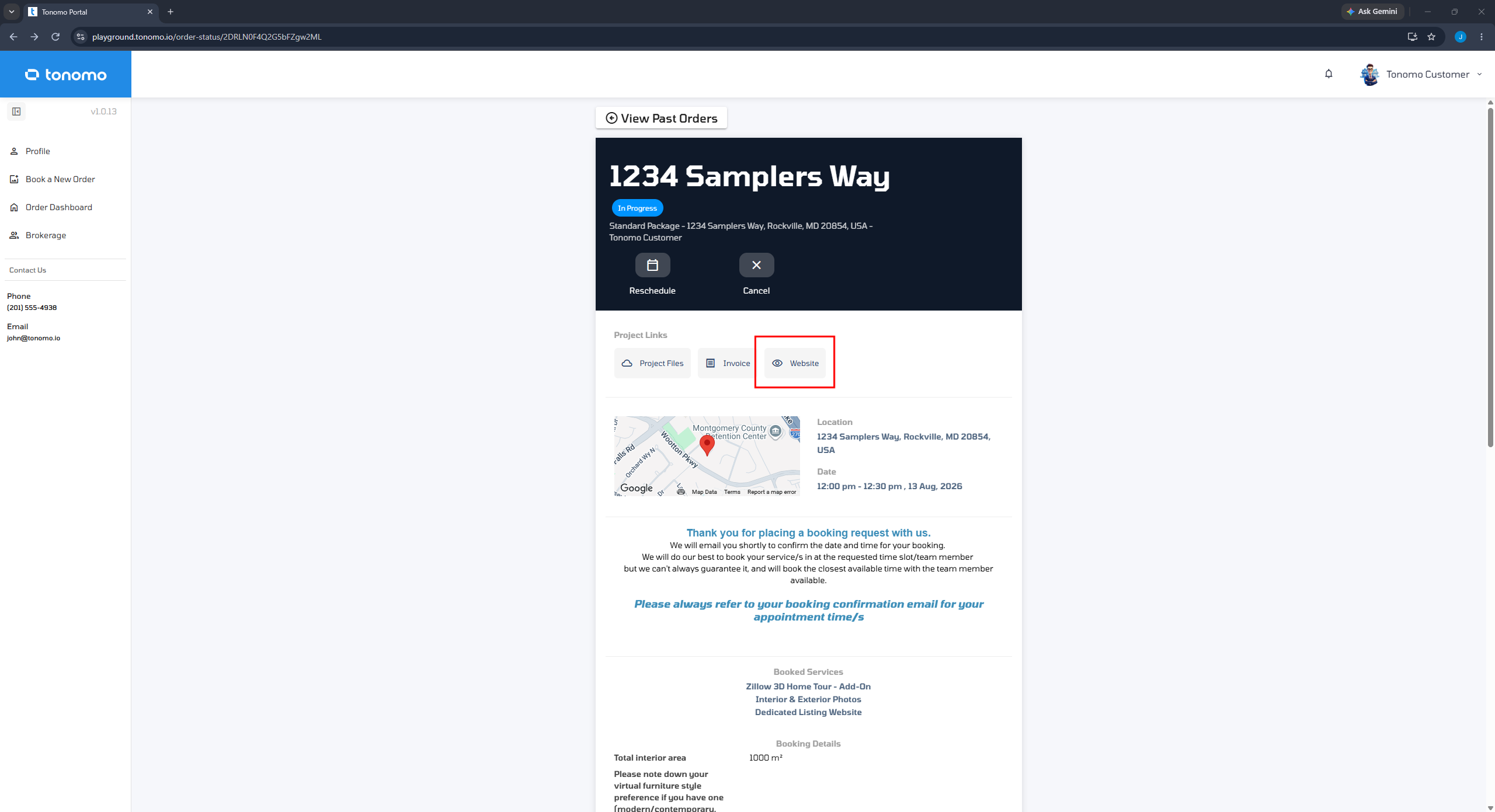
In the Order Details section, customers will see a Website button that they can click to be redirected to their Property Website Admin Panel.
Using the Delivery Page
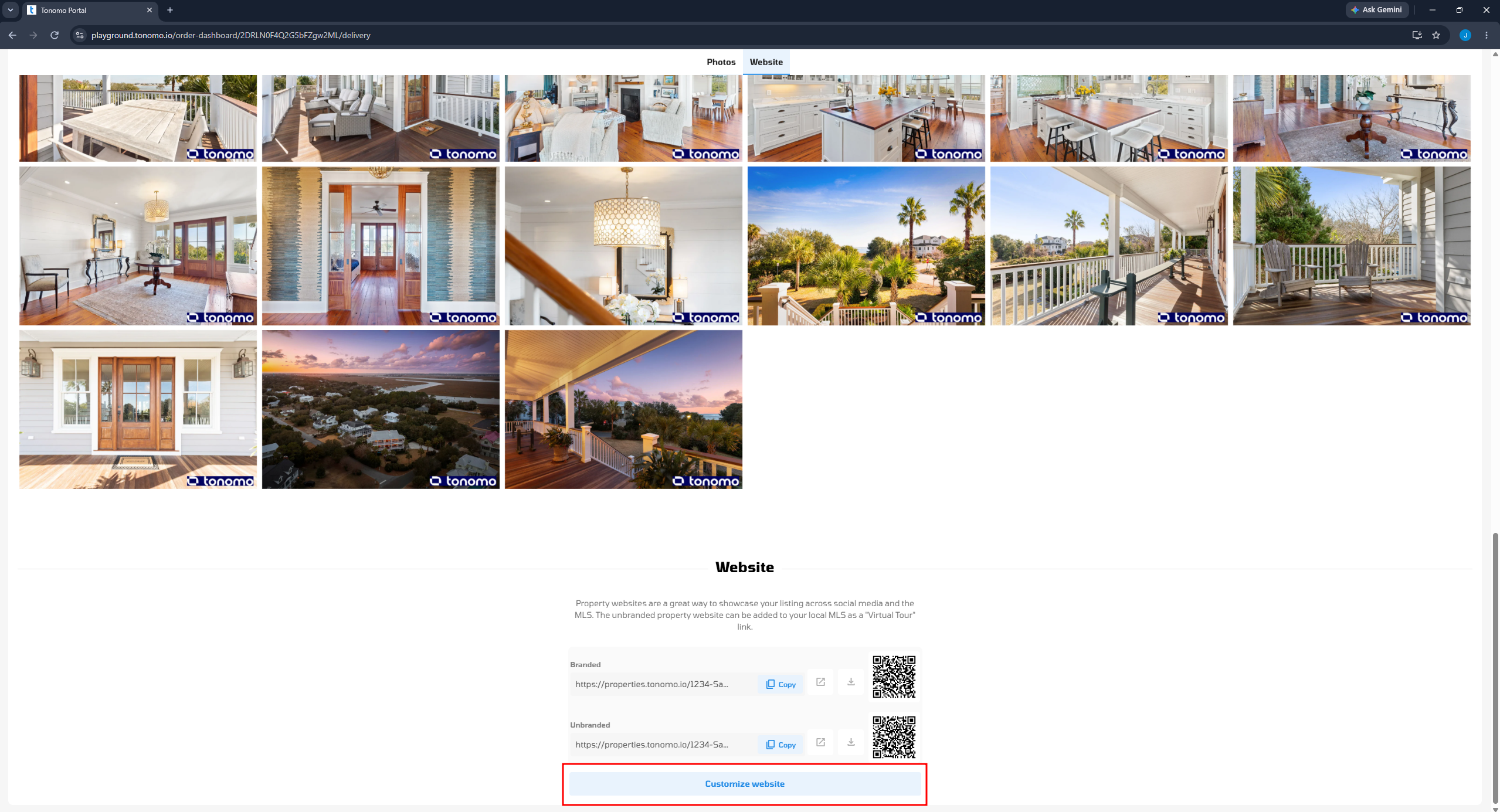
On the Delivery page, there will be a dedicated section for the Property Website. Within this section, you'll find a Customize Website button that the client can click to be redirected to the Property Website Admin Panel.
Property Website Admin Panel
Overview
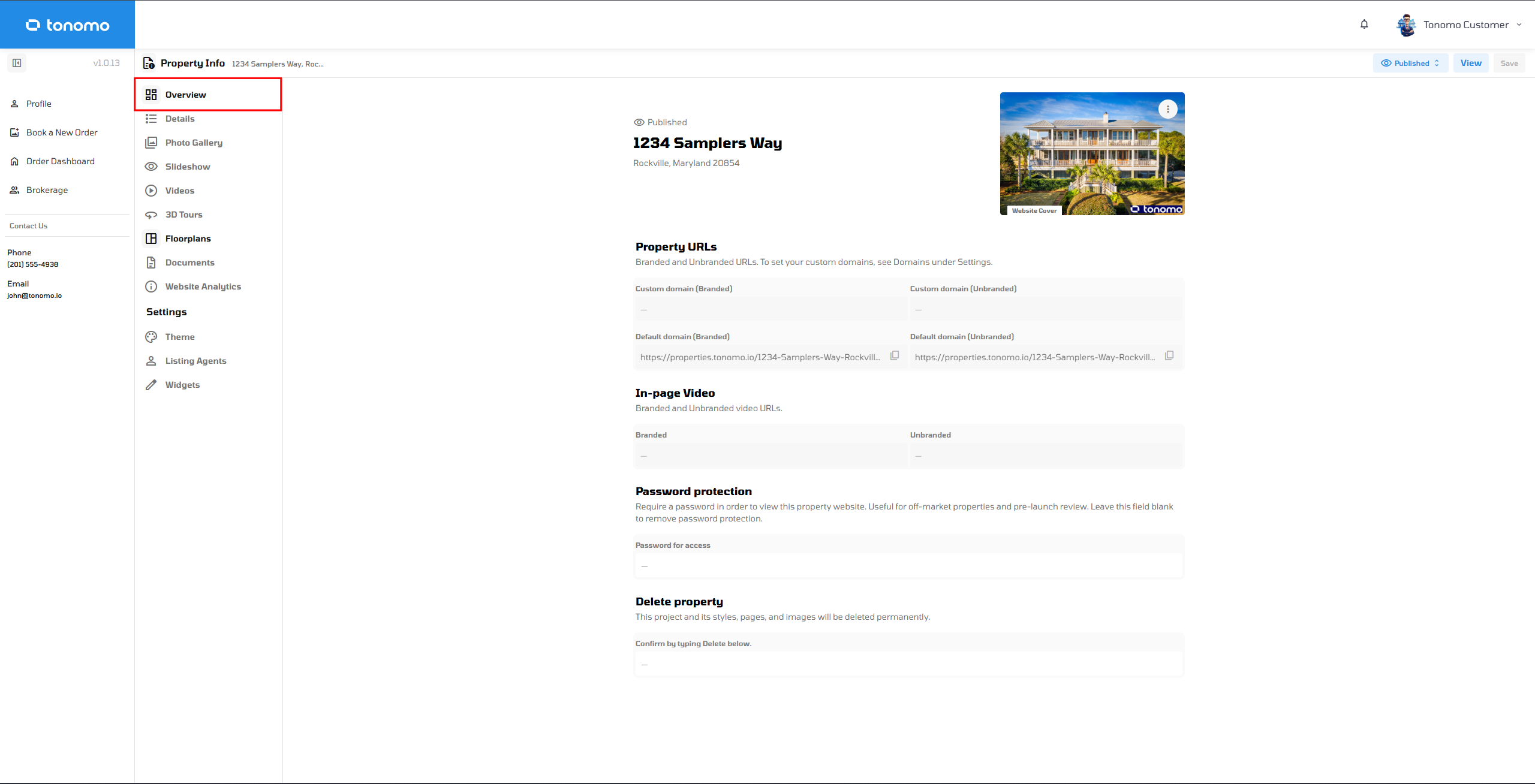
The Overview page provides a centralized summary of the property's website and its current configuration. From this page, you can quickly review the publication status, access branded and unbranded website URLs, manage password protection, and perform administrative actions such as deleting the property website. It serves as the primary location for verifying that the property website is properly configured and ready to be shared with clients.
Details
The Details page allows you to view and manage the property's information displayed on the property website. From this page, you can update the property address, property details, room information, size and dimensions, additional property attributes, amenities, and the property location on the map. Keeping these details accurate ensures the property website provides complete and up-to-date information for potential buyers.
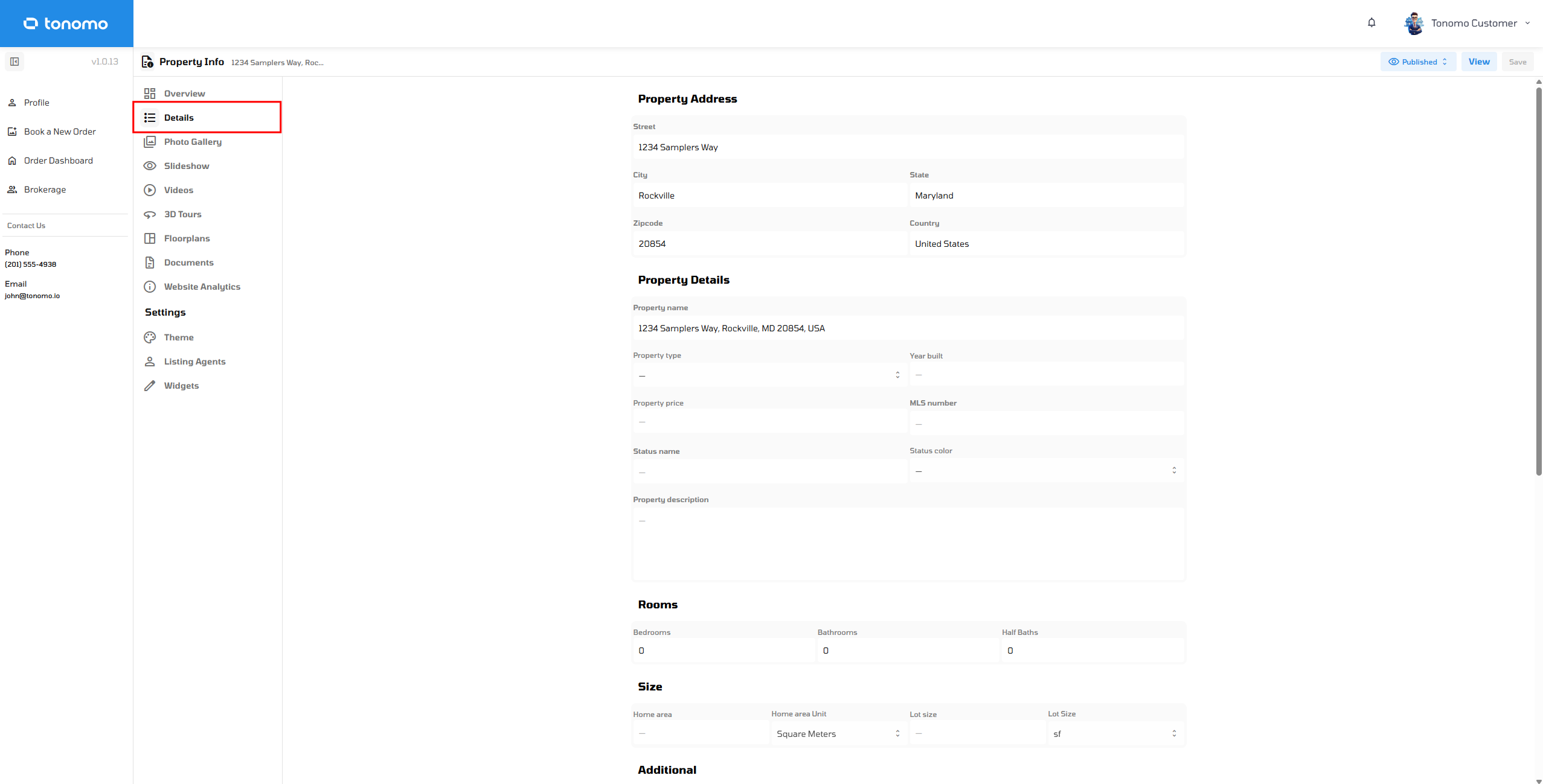
Photo Gallery
Upon selecting "Sync Delivery Files" in the Orders Management interface, all photos will be displayed in this section. Furthermore, users will have the option to add and manage specific photos for showcasing on the listing website.
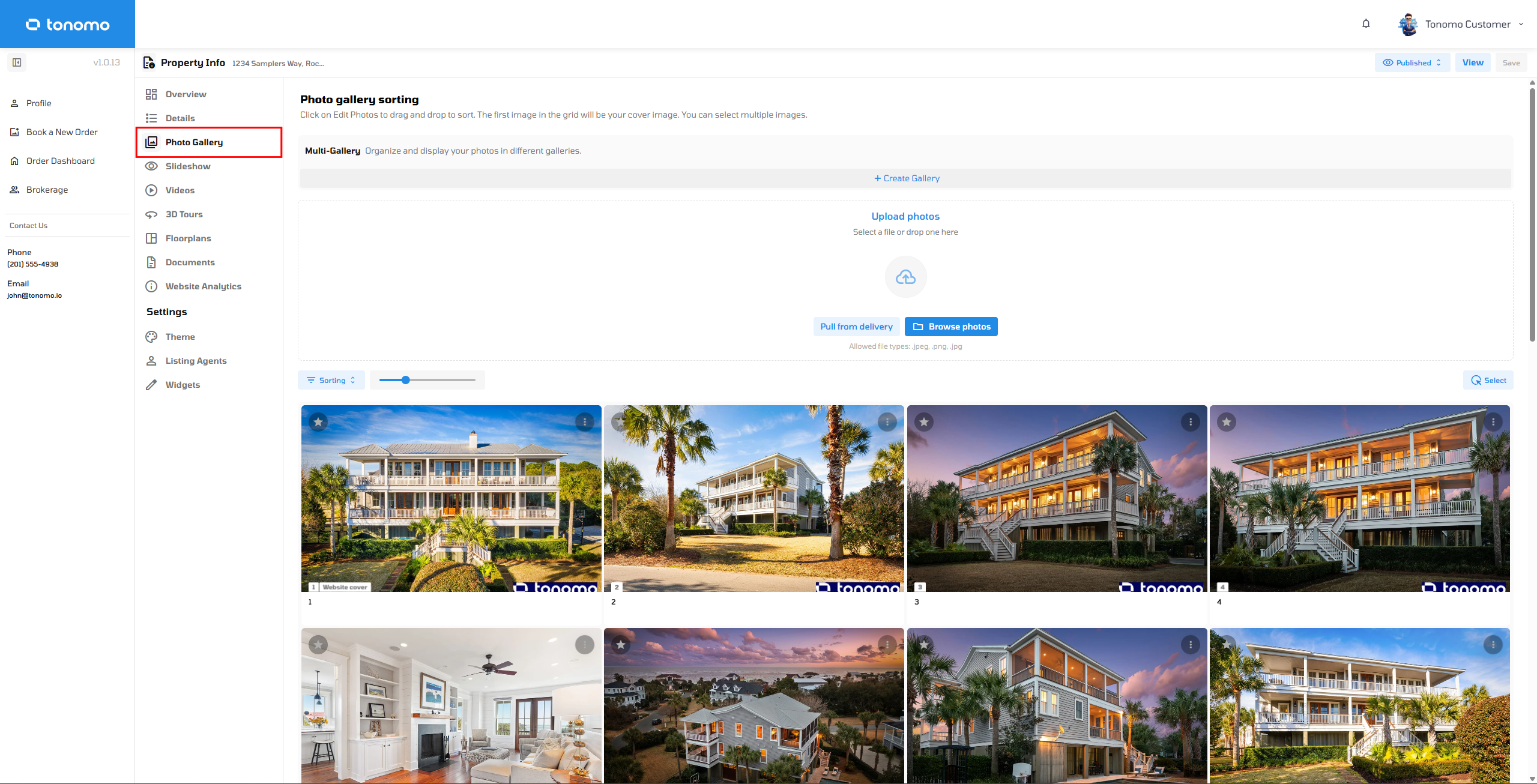
Slideshow
Create a photo slideshow that you can enable as a cover on the Listing website. You have an option to pull photos from Photo Gallery or upload new photos to add to the Slideshow.
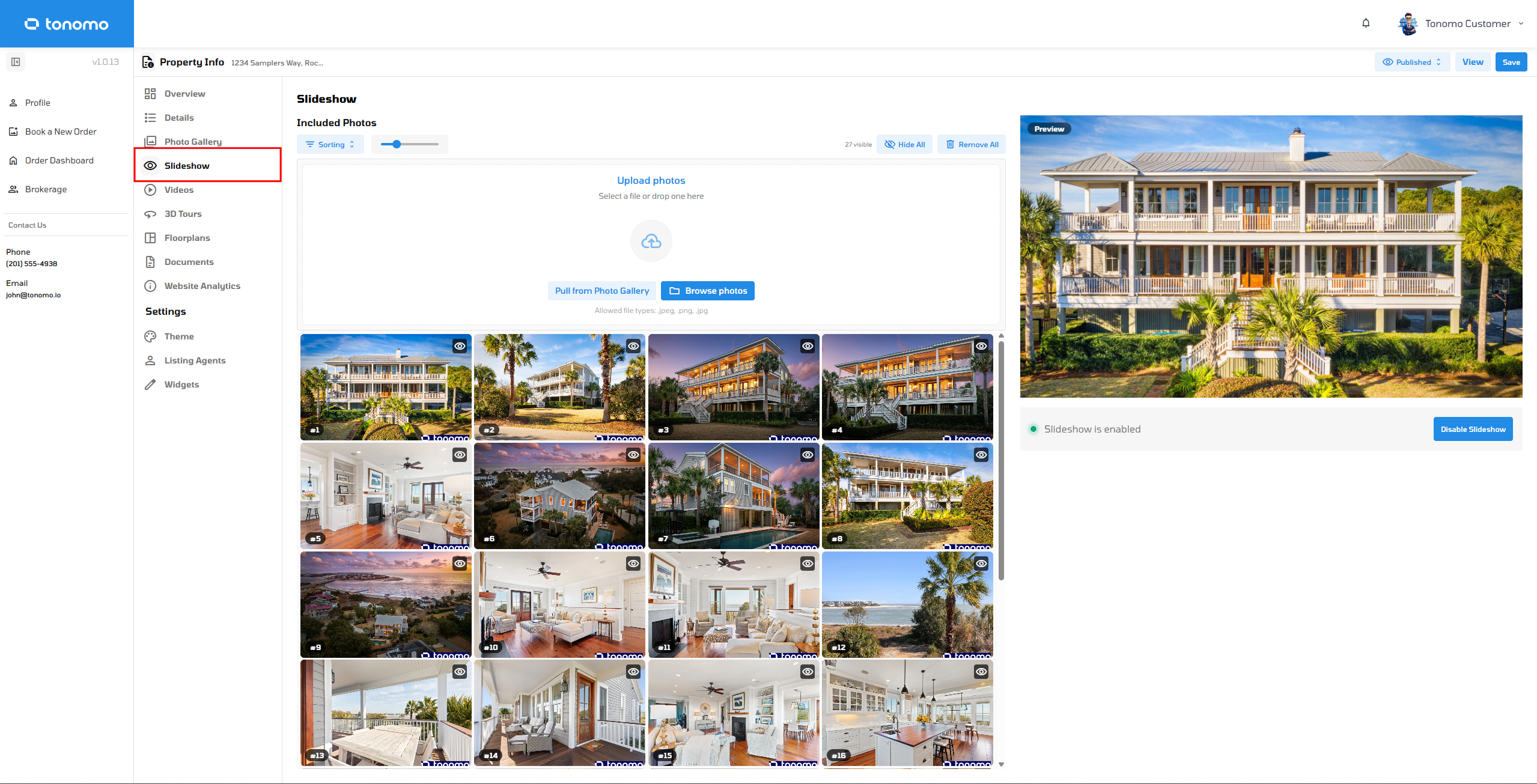
Please see this video explaining how Slidshow works.
Videos
Upon selecting "Sync Delivery Files" in the Orders Management interface, all videos will be displayed in this section. Furthermore, users will have the option to add and manage specific videos for showcasing on the listing website.
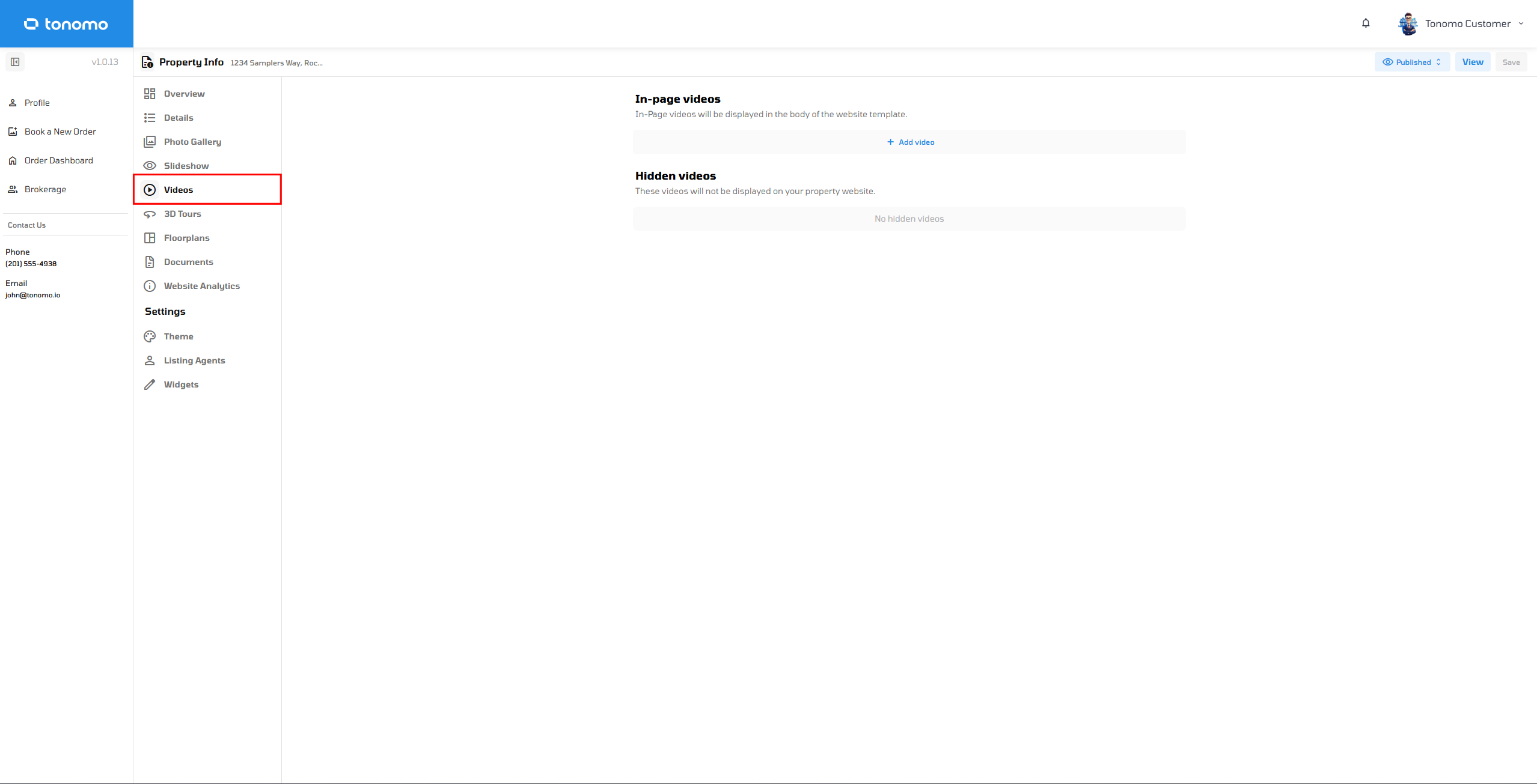
Note: If the user/admin has already set up the video settings on this tab, resyncing the delivery files in the orders management interface will reset the video settings back to default.
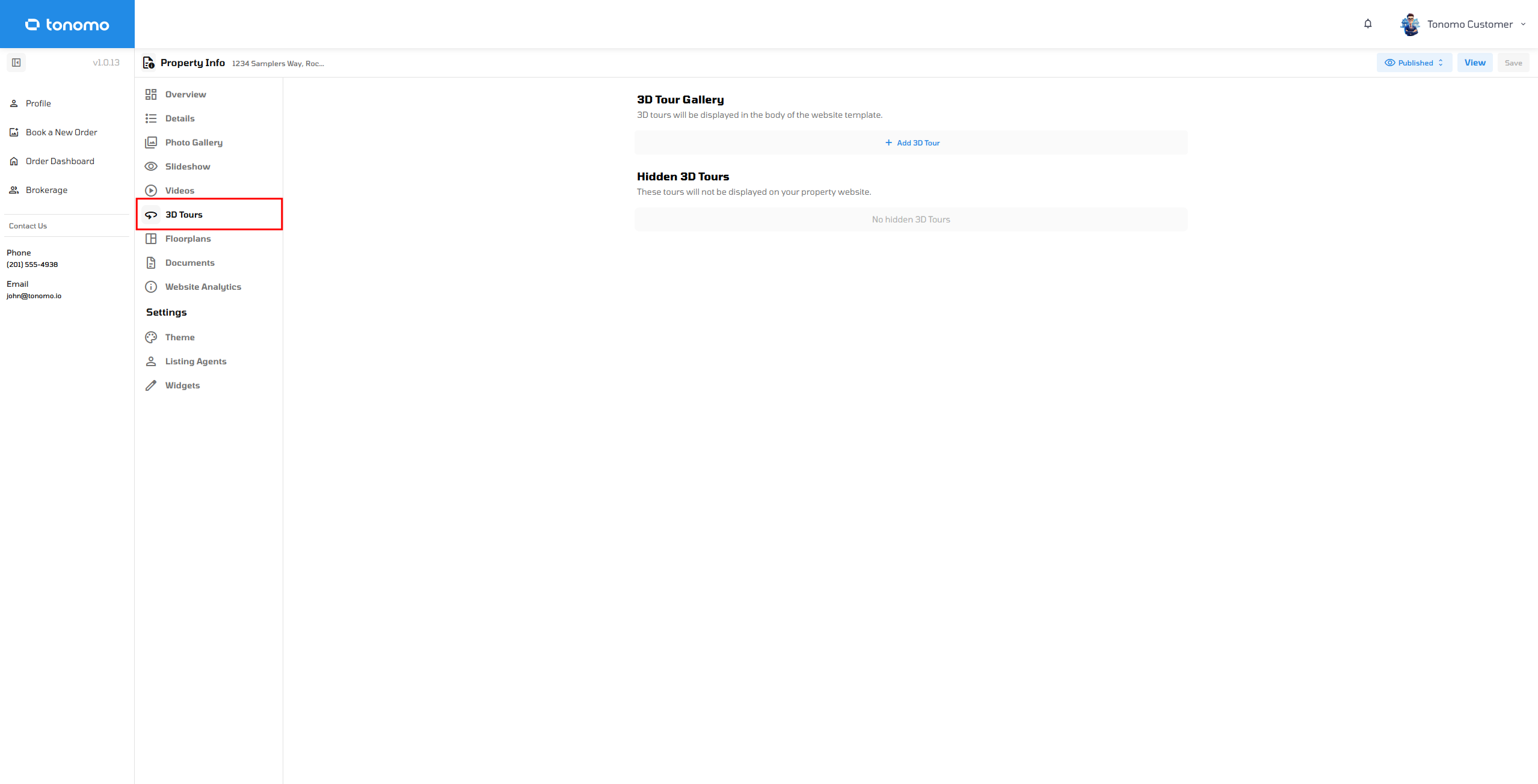
3D Tours
Upon selecting the "Add 3D Tour" button, users gain the ability to input their virtual tour URL and modify the title.
Floorplans
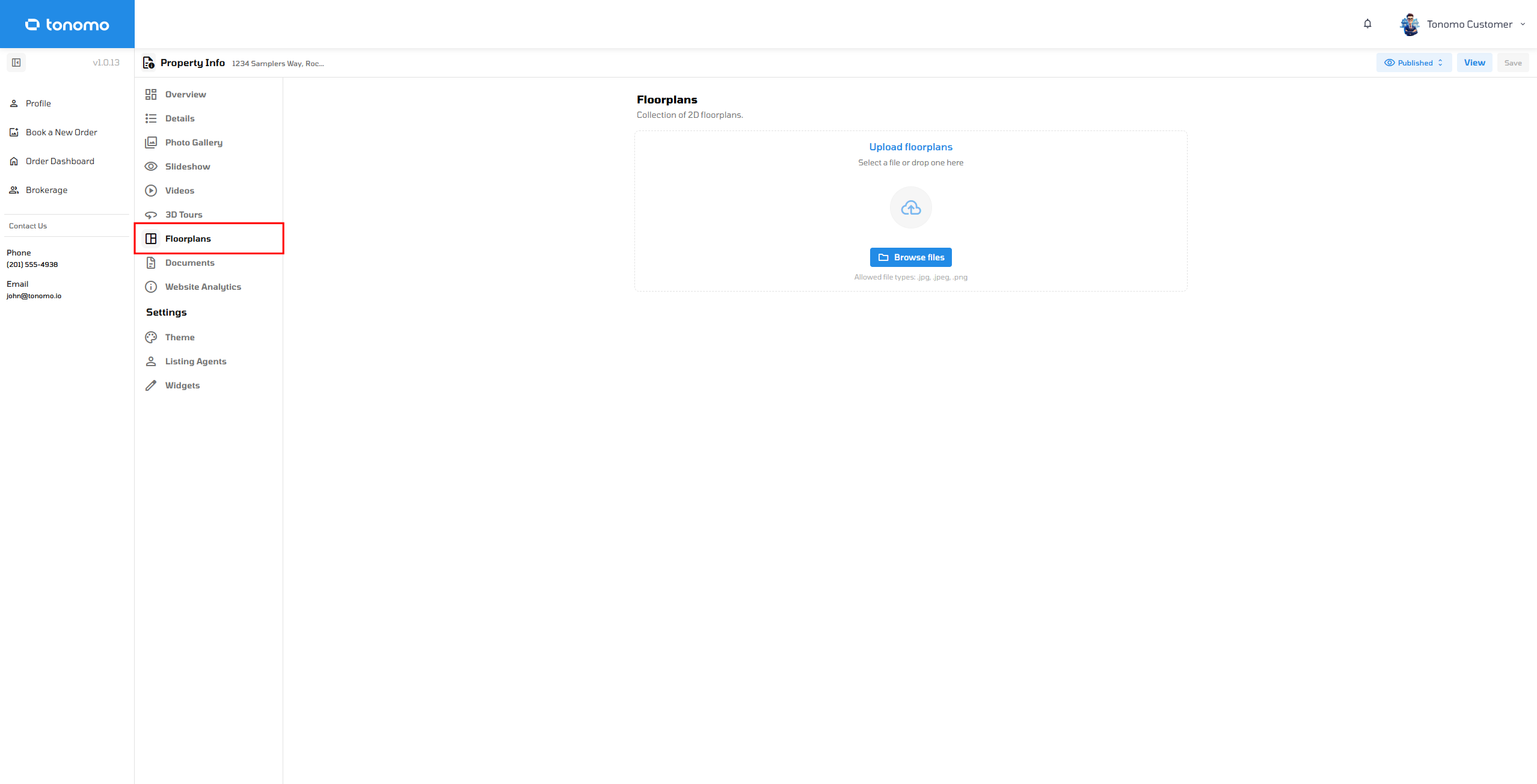
Interactive Floor plans for Listing Websites
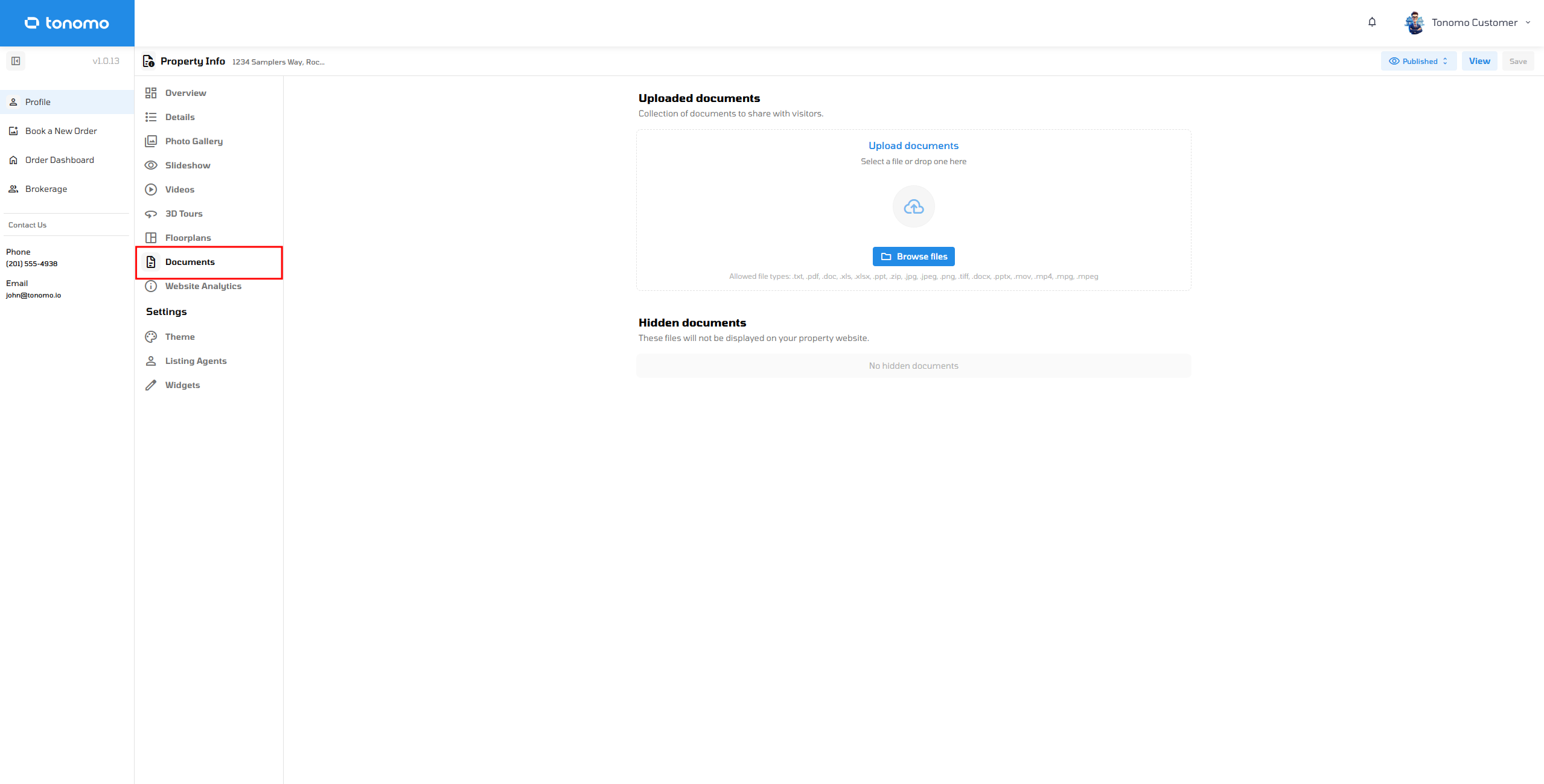
Documents
This section provides users with the capability to upload documents for sharing with visitors. Additionally, users have the option to conceal the document from public view, ensuring it remains exclusively accessible for their personal viewing.
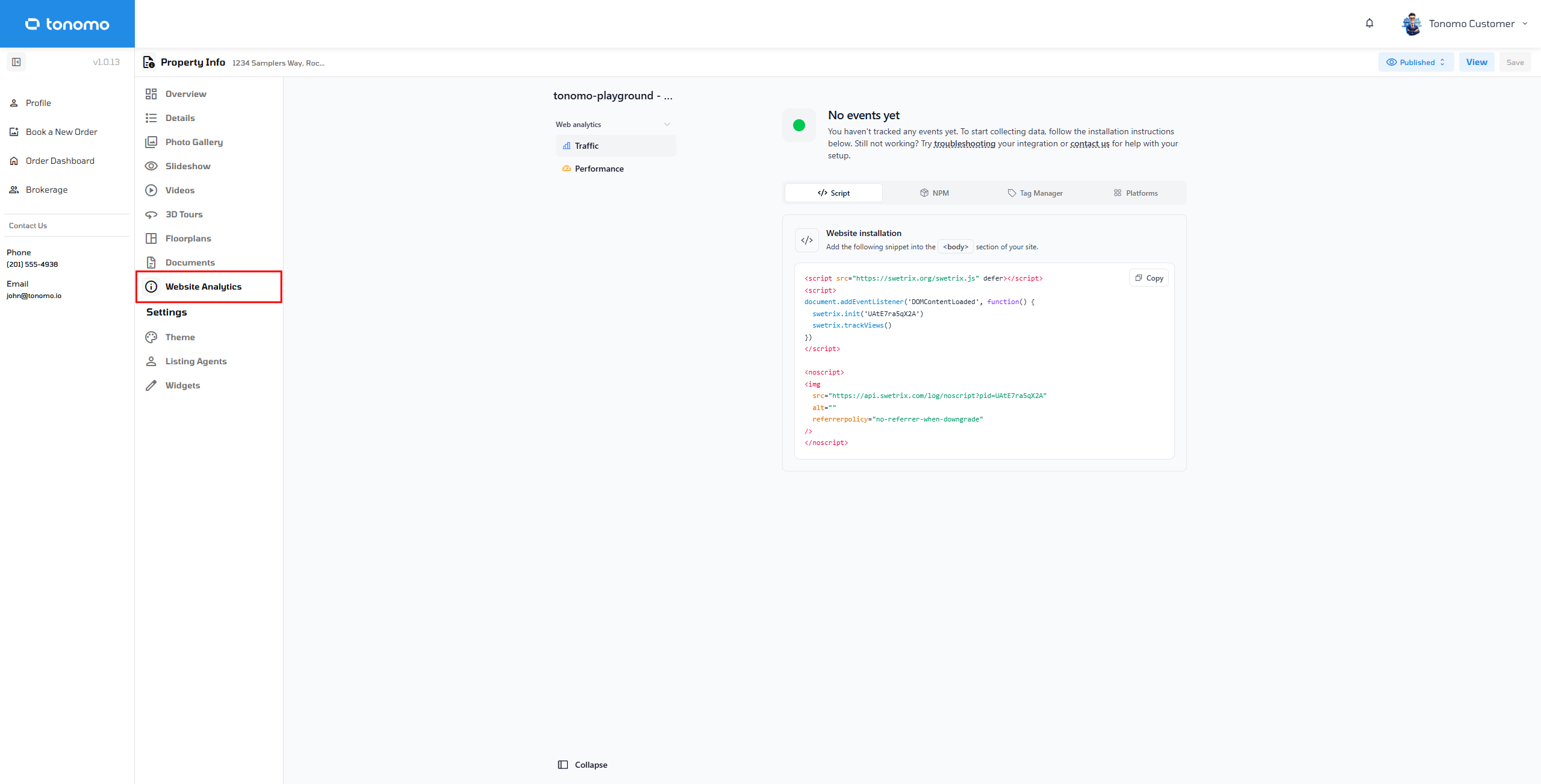
Website Analytics
The Website Analytics page provides performance insights for your property website. It allows you to monitor website traffic and visitor engagement, helping you understand how potential buyers interact with the listing. Use this page to track key website metrics, measure the effectiveness of your marketing efforts, and gain valuable insights into your property's online performance.
Settings
Theme
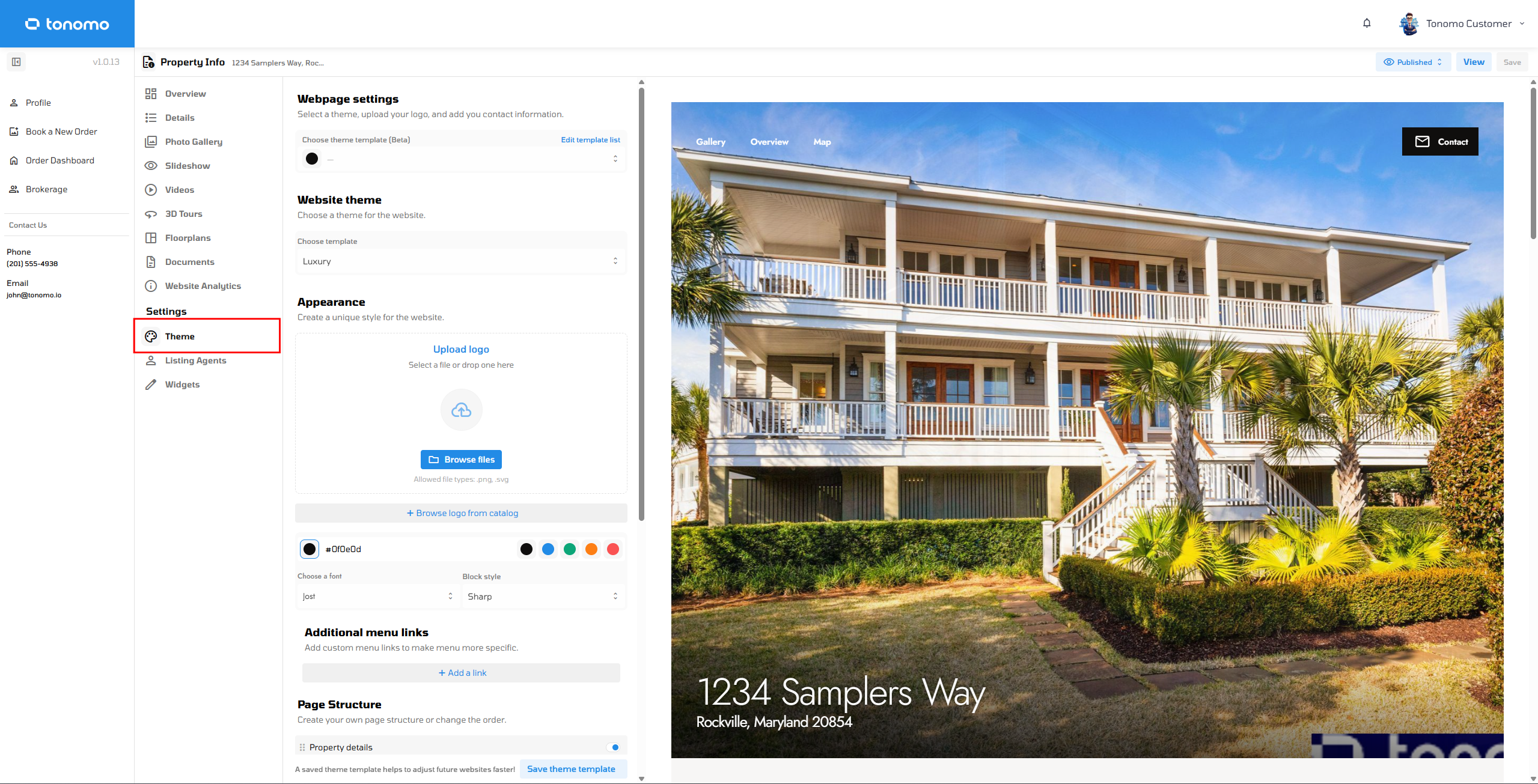
The property websites are fully customizable, offering a seamless way to add value to the exceptional service you already deliver. These changes will automatically apply to future websites created for that customer.
When changing the website theme, make sure the "Listing Agents" tab is filled with the agent involved. This ensures that the theme settings are automatically saved for that agent.
Listings Agents
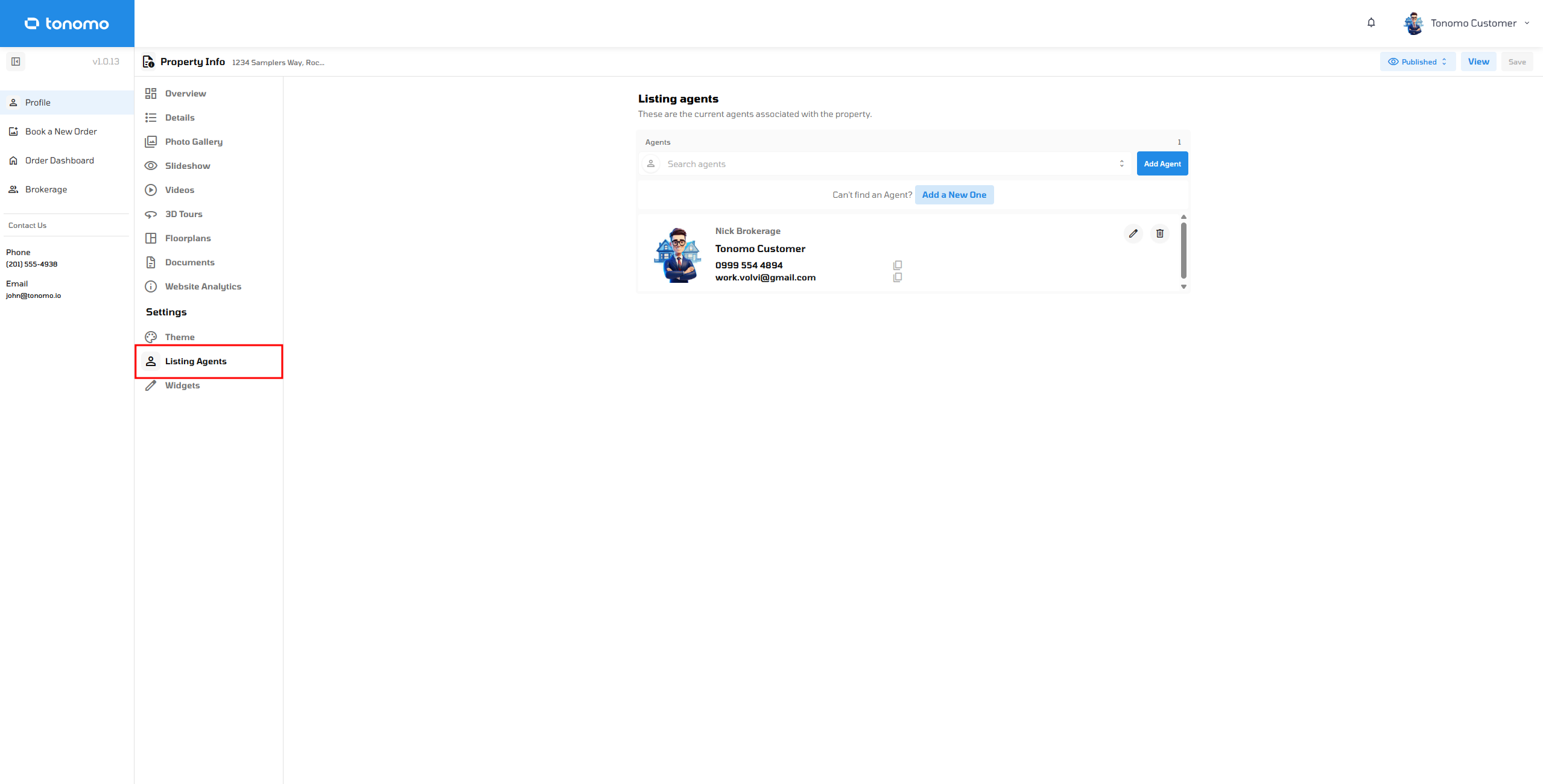
Manage your agent by adding or removing it in this section. This will also allow you to change the details of the agent, including the profile photo, team logo, full name, and more.
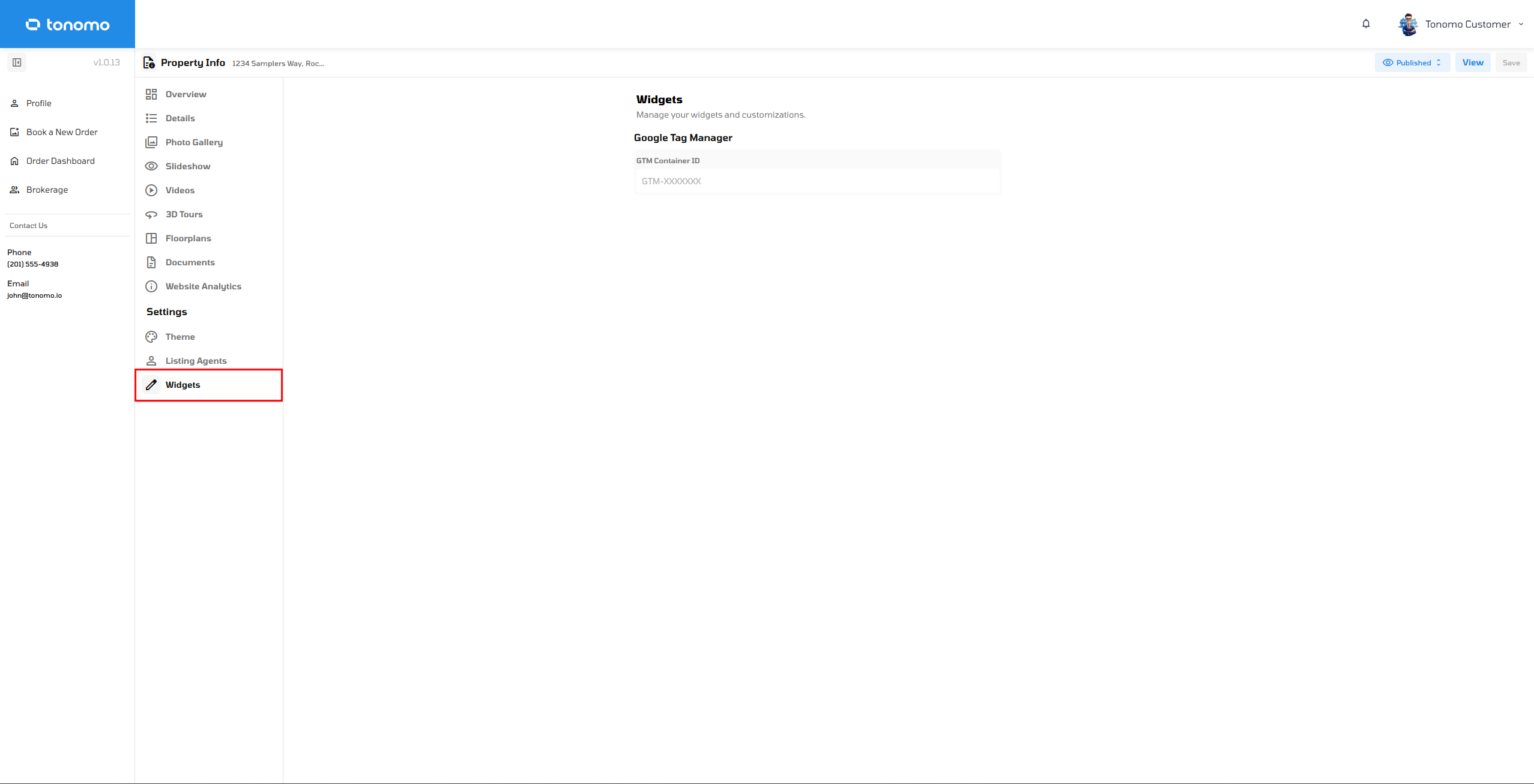
Widgets
Add JavaScript snippets to display on the client's listing portal.