
What Are The Different User Types In Tonomo?
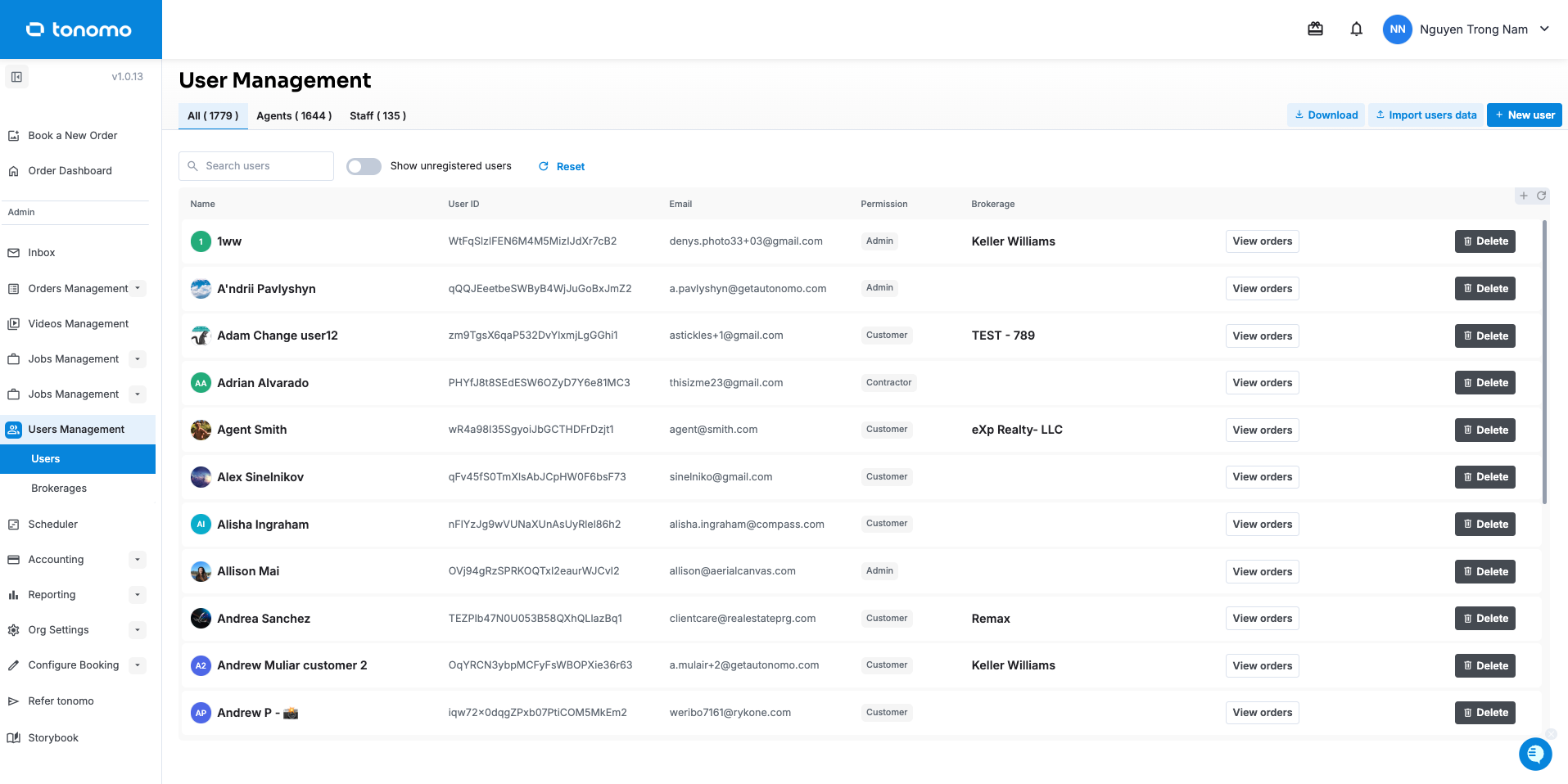
Everyone with a profile in your Tonomo portal is a user: your own team and your customers (agents). Each user has one permission level that decides what they can see and do: Admin, Staff, Contractor or Customer. Your team members can also have a role, such as Project Manager or Photo Editor, which organizes your team and unlocks a few role-based features. You manage all users in Users Management > Users.
At a glance
Four permission levels: Admin (everything), Staff (runs orders and users, no company settings), Contractor (works on orders, limited editing) and Customer (books and pays).
Brokerage managers are customers with extra access to their own brokerage. See How Do I Group And Manage Clients Into Brokerages?
Unregistered users are customer profiles that exist in Tonomo (imported or created by your team) but haven't signed in yet.
Roles (Project Manager, Photo Editor, Video Editor and more) are for team members only.
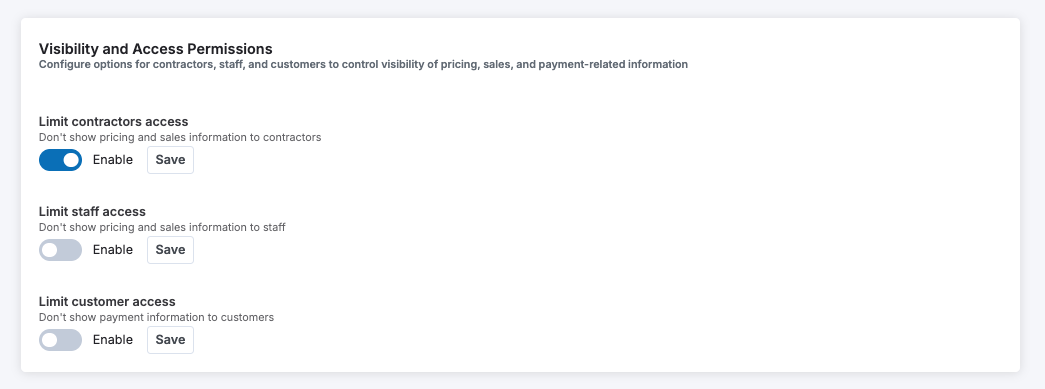
Three switches in Configure Booking > General > Visibility and Access Permissions hide pricing and payment information from contractors, staff or customers.
Only admins can invite team members, change company settings or make someone an Admin.
What is a user?
A user is anyone with a profile in your portal. Users are created when:
someone signs up on your portal with a phone number, Google or email and password,
your team adds them with New user in Users Management > Users,
you import your customer list, or
you invite a team member from Org Settings > Team.
Users fall into two groups:
Your team: admins, staff and contractors, such as owners, photographers, editors and project managers.
Your customers: agents and other clients who book and pay for orders.
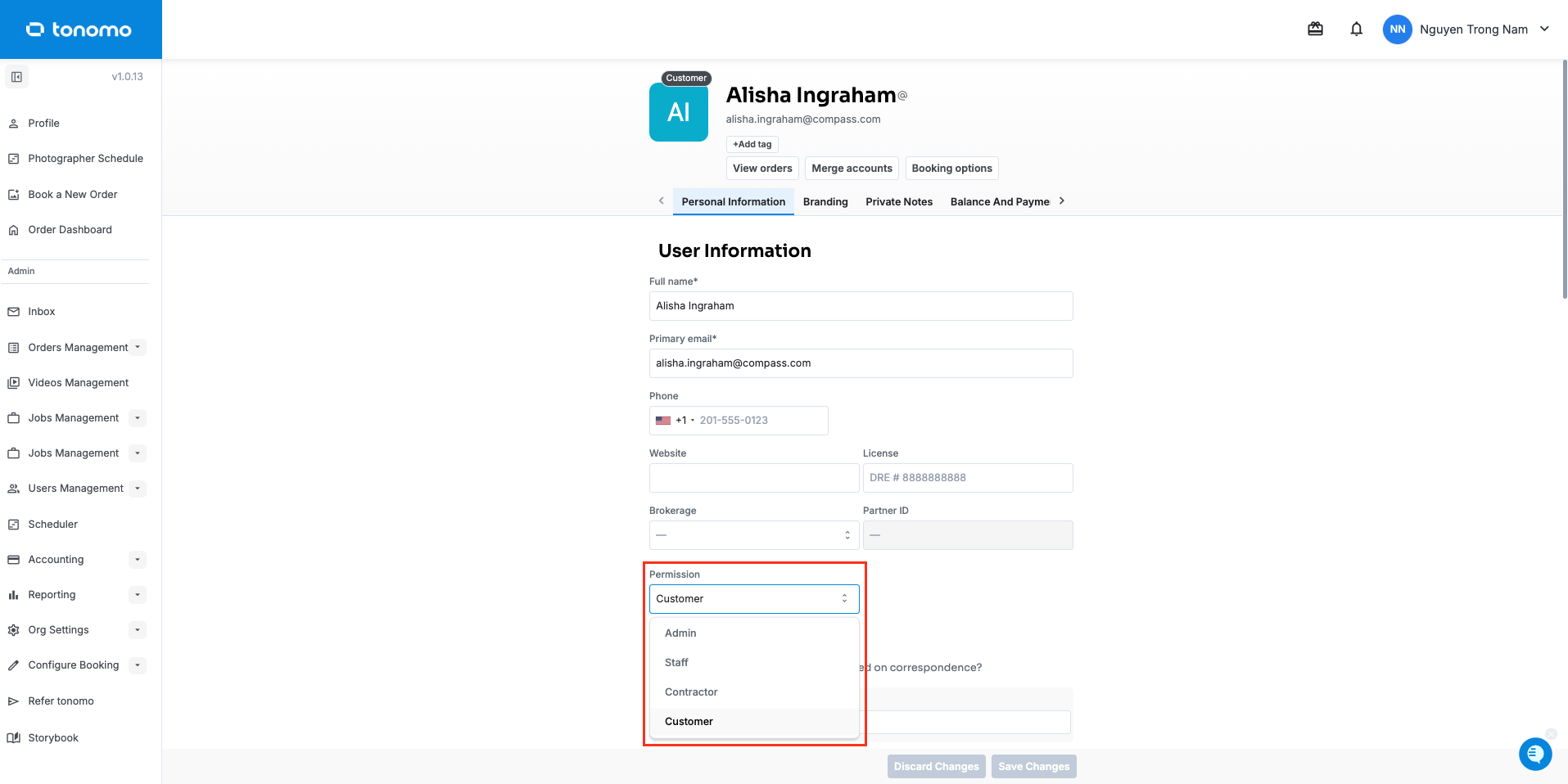
Each profile shows its permission level as a badge on the profile picture. A profile that hasn't signed in yet shows Unregistered.
What are the permission levels?
Permission | Who it's for | In short |
|---|---|---|
Admin | Owners and managers | Full control: every page, every setting, every user. |
Staff | Office team, project managers, editors | Processes orders, manages customers and the schedule. Can't change company settings, billing cycles or admin accounts. |
Contractor | Freelance photographers and editors | Sees and works on orders, but can't change an order's status, payment status, project manager or team. No Users Management or Scheduler. |
Customer | Agents and other clients | Books orders, sees their own orders and invoices, pays, and manages their own profile. |
Set someone's level in Permission on their profile (Personal Information tab), or choose it when you add them. Staff can give the Staff, Contractor or Customer level. Only an admin can make someone an Admin.
What can each permission level see in the menu?
Menu item | Admin | Staff | Contractor | Customer |
|---|---|---|---|---|
Profile | Yes | Yes | Yes | Yes |
Photographer Schedule | Yes | Yes | Yes | No |
Book a New Order | Yes | Yes, unless Limit staff access is on | Yes, unless Limit contractors access is on | Yes |
Order Dashboard | Yes | Yes | Yes, unless Limit contractors access is on | Yes (their own orders) |
Inbox | Yes | Yes | Yes, unless Limit contractors access is on | No |
Orders Management (Orders (Beta), Archived Orders) | Yes | Yes | Yes. Archived Orders is hidden when Limit contractors access is on | No |
Videos Management | Yes | Yes | Yes | No |
Jobs Management (when Jobs is on) | Yes | Yes | No | No |
Users Management (Users, Brokerages) | Yes | Yes | No | No |
Scheduler | Yes | Yes | No | No |
Accounting | Yes | No | No | No |
Reporting | All reports | All reports. Only Mileage Reporting and Contractor Reporting when Hide Reporting tab is on | Mileage Reporting and Contractor Reporting | No |
Org Settings | Yes | No | No | No |
Configure Booking | Yes | No | No | No |
Brokerage | Only if they're in a brokerage | Only if they're in a brokerage | Only if they're in a brokerage | When they're in a brokerage |
Customers also see your phone number and email under Contact Us in their menu.
What can each permission level do?
Task | Admin | Staff | Contractor | Customer |
|---|---|---|---|---|
Change an order's Order Status, Payment Status, Project Manager or Team | Yes | Yes | No, read-only | No |
Add or edit users | Yes | Yes, but not admins | No (can view profiles) | Own profile only |
Delete users | Yes | No | No | No |
Merge duplicate customer accounts | Yes | Yes | No | No |
Set a customer's Billing Cycle | Yes | No | No | No |
Set a new password for someone | Anyone | Customers and themselves | Customers and themselves | No (they reset their own) |
See a customer's saved payment methods | Yes | Yes | No | Their own |
Private Notes on a customer | Add, edit and delete any | Read all, add, edit and delete their own | Read all, add, edit and delete their own | Never sees them |
Create and edit brokerages | Yes | Yes | View only | Managers only, for their own brokerage |
Tag customers | Yes | Yes | See tags only | Never sees them |
Invite team members and change company settings | Yes | No | No | No |
Which profile tabs does each user have?
Tab | Customer profiles | Team profiles (Admin, Staff, Contractor) |
|---|---|---|
Personal Information | Yes | Yes |
Branding | Yes | No |
Private Notes | Yes, for your team only | No |
Balance and Payments | When account credits are on for your portal (customers don't see it if Limit customer access is on) | No |
Staff Settings | No | Yes (staff see it on their own profile only) |
Password | Only for accounts that sign in with email and password | Same |
Connected Apps | No | Only on an admin's or staff member's own profile, when connected apps are available |
Notification Preferences | Yes. Your team can change it, and the customer can change their own | Same. Contractors see it on their own profile only |
What do the limited-access switches do?
Go to Configure Booking > General and find the Visibility and Access Permissions card ("Configure options for contractors, staff, and customers to control visibility of pricing, sales, and payment-related information"). Each switch has its own Enable toggle and Save button. All three are off by default, and only admins can change them.
Switch | Description in Tonomo | What it changes |
|---|---|---|
Limit contractors access | "Don't show pricing and sales information to contractors" | Contractors lose Book a New Order, Order Dashboard, Archived Orders and Inbox, and can't open booking or invoice payment pages. Orders (Beta) only shows orders where they're on the Team. The Amount and Accounting Status columns and the Invoices & payments section of Order Details are hidden. The order status page hides the invoice. |
Limit staff access | "Don't show pricing and sales information to staff" | Staff lose Book a New Order and can't open booking or invoice payment pages. The Amount and Accounting Status columns and the Invoices & payments section of Order Details are hidden, and the order status page hides the invoice. Staff still see every order. |
Limit customer access | "Don't show payment information to customers" | Customers don't see payment status, Pay buttons, invoice links or amounts due on their order status page, delivery page and Order Dashboard. Their profile hides Billing and Payments and the Balance and Payments tab. |
Tip: If contractors need to hold time in the schedule, an admin can reserve a time slot for them, or they can block the time in their own Google Calendar.
To hide most reports from staff, switch on Hide Reporting tab ("Hide reporting pages from staff members") in the Booking card of the same page. Staff then only see Mileage Reporting and Contractor Reporting.
What are staff roles for?
Roles organize your team and show what each person is responsible for. Set a role in Role on a team member's profile (next to Permission). Roles are only for admins, staff and contractors, not customers.
Available roles:
Account Executive
Creative Specialist
Customer Success
Operations Coordinator
Operations Specialist
Photo Editor
Project Manager
Video Editor
Some roles do more:
Project Manager: in Orders (Beta), the Project Manager column lists team members with this role. In the project chat, mention @Project Manager to notify everyone with that role at once, without tagging them one by one. This works for every role.
Video Editor: only team members with this role can be picked as an order's video editor.
What can customers do?
Customers (agents) can:
create and update their profile, including contact details and their Branding,
book new orders, see past and upcoming orders on Order Dashboard, open invoices and pay them,
reschedule or cancel bookings, if your booking flow allows it,
keep saved cards, use account credits and share their referral code.
Customers never see Private Notes, customer tags, or your team's menus. They can't change their own Brokerage, Dedicated staff members, Preferred photographers, Available booking flows or Billing Cycle. Your team sets those.
A brokerage manager is a customer who can also book for other agents in their brokerage, see their orders and manage the brokerage's members. See How Do I Group And Manage Clients Into Brokerages?
Frequently asked questions
Can staff see admin accounts? Staff can't edit admins' profiles, change their role or permissions, or make anyone an Admin. Only admins can.
Can a contractor see what an order costs? Yes, unless you switch on Limit contractors' access. Then the price, invoice, and payment details are hidden from them, and they only see orders they're assigned to.
Why can't a staff member see the Scheduler or Users Management? Check their Permission. Contractors don't get those pages. Change them to Staff if they need them.
What's the difference between a permission and a role? The permission decides what someone can access. The role describes their job and is used for features like @role mentions and the Project Manager column.
Can I hide payment information from my customers? Yes. Switch on Limit customer access in Configure Booking > General > Visibility and Access Permissions.
Related articles