How to Connect Tonomo to Claude or ChatGPT with the Tonomo MCP
Last updated: August 8, 2026
Overview
You can now connect Claude or ChatGPT directly to your Tonomo account using the new Tonomo MCP (Model Context Protocol). This integration lets your favorite AI assistant securely access your Tonomo data so you can chat with it, pull reports, and get quick answers without leaving your AI tool.
This is the first release of the Tonomo MCP and is currently in early beta. Future releases will expand functionality to include scheduling updates, booking management, and invoicing directly through your AI assistant.
What You Can Do (Current Beta)
In this first version, the Tonomo MCP allows you to:
Pull data from your Tonomo portal
Ask your AI assistant questions about your orders, clients, and schedule
Get quick summaries and insights without logging into the portal
Coming soon in future releases:
Update scheduling and photographer availability
Handle booking creation and edits
Manage invoicing and payments
Before You Start
Please make sure you have:
An active Tonomo account with admin access
A Claude or ChatGPT account (Pro or higher plan may be required for custom connectors)
A few minutes to complete the setup
Step 1: Get Your Tonomo MCP Server Address
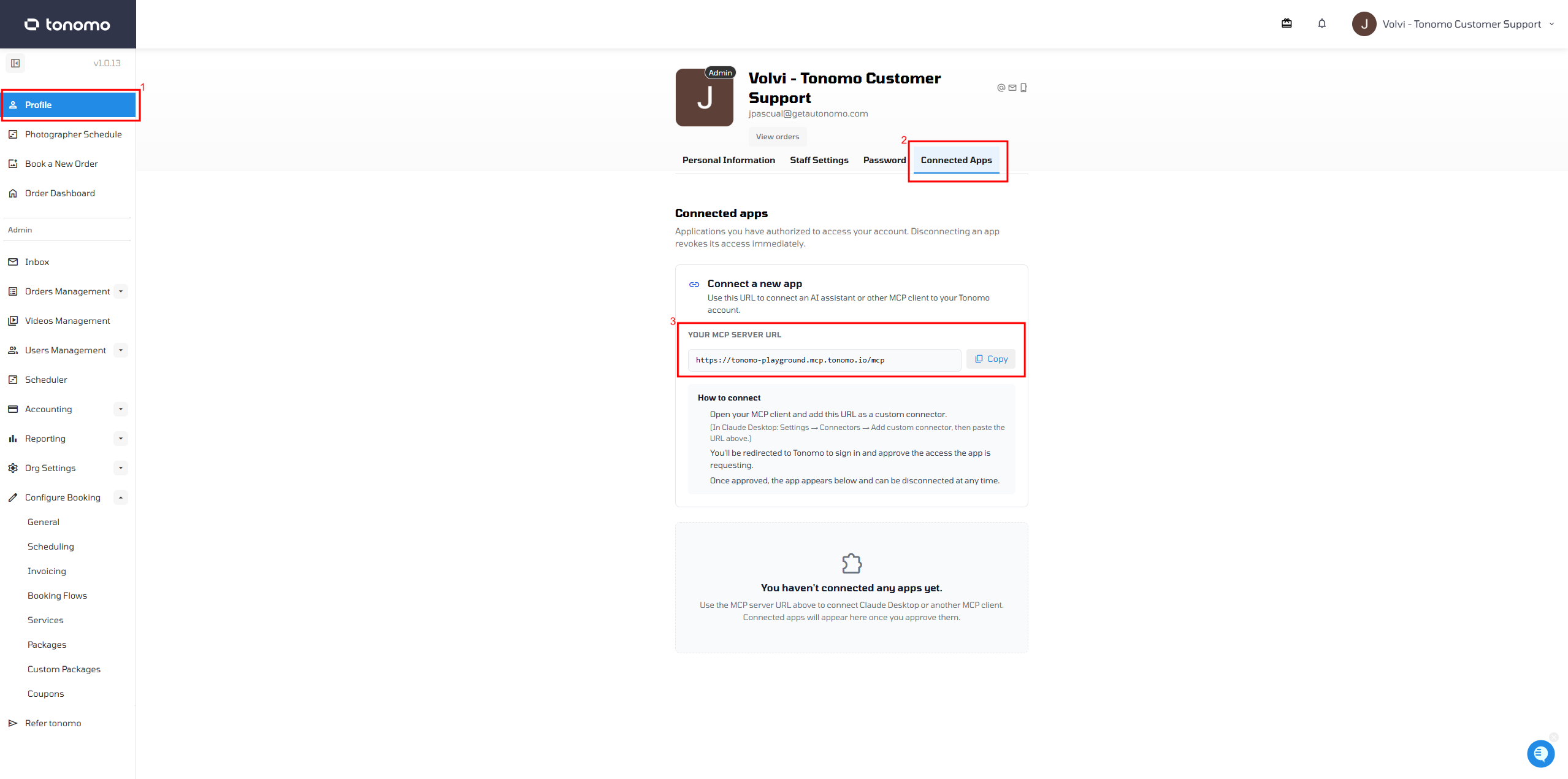
Log in to your Tonomo portal
Click on your profile in the top right corner
Select Connected Apps from the menu
Locate your unique MCP server address on this page
Click Copy to copy the server URL to your clipboard
Step 2: Add Tonomo as a Custom Connector
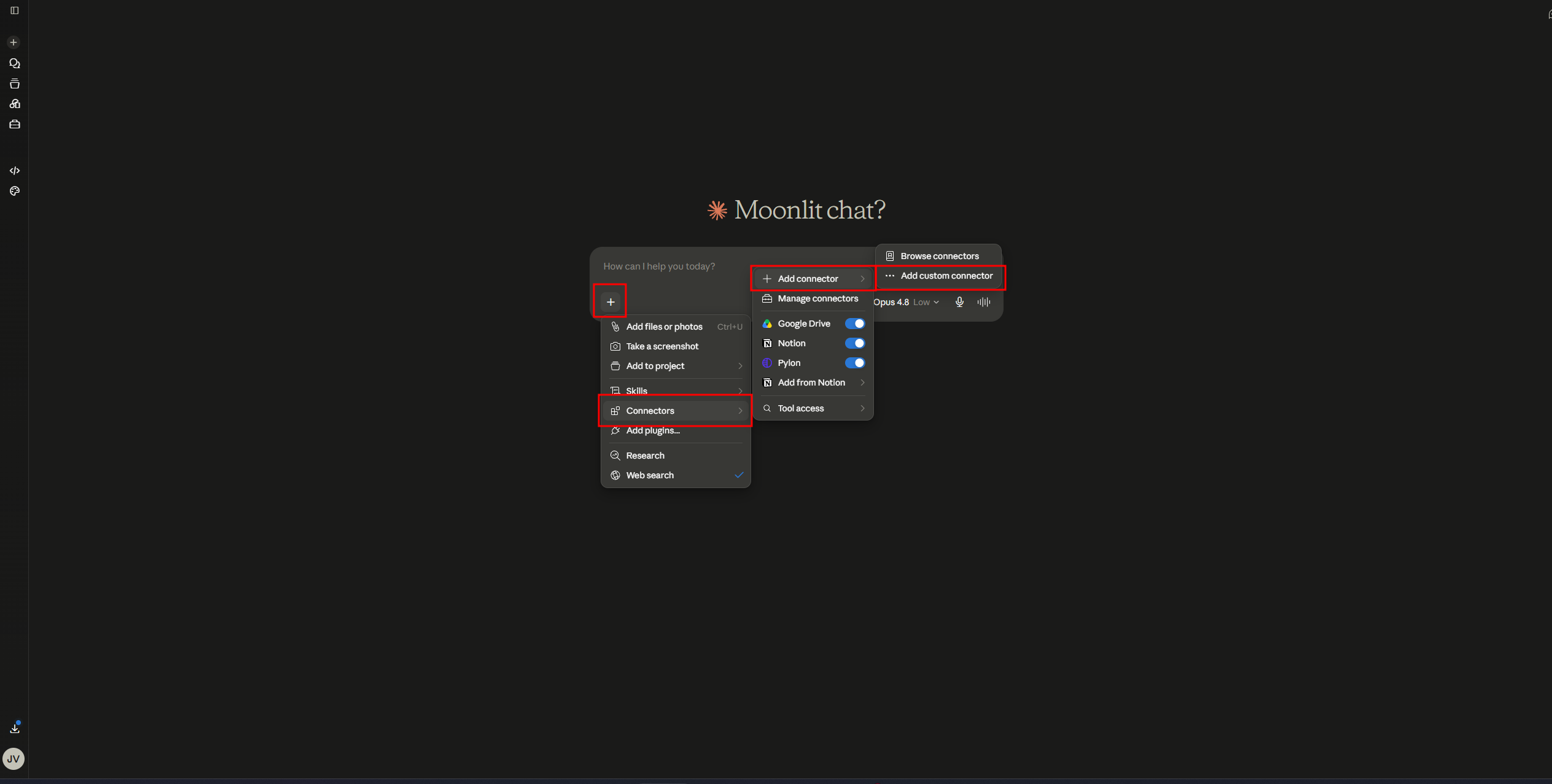
The steps below show how to connect Tonomo to Claude. The process for ChatGPT is nearly identical.
Open Claude and go to Settings
Navigate to the Connectors section
Click Add, then select Add Custom Connector
Enter a name for the connector (for example, "Tonomo Portal")
Paste the server URL you copied from Tonomo into the URL field
Click Add
Step 3: Connect and Authorize
Once the connector is added, click Connect
Wait a few seconds while Claude runs the verification process
When the authorization screen appears, click Allow
Your Tonomo MCP is now fully connected
Step 4: Start Using It
You can now chat with your Tonomo data directly through Claude. Here are a few example prompts to get started:
"Pull the last 5 orders from Tonomo"
"Show me all pending orders from this week"
"Which photographer has the most orders this month?"
"Summarize my delivery activity for the past 30 days"
When Claude needs to use the Tonomo tool, you'll see a prompt to approve the action. You can click Always Allow to skip this prompt for future requests.
ChatGPT Setup
The setup process for ChatGPT is essentially the same. Please go to Settings → Connectors in ChatGPT, add a custom connector, paste your Tonomo MCP URL, and authorize the connection.
Beta Notice
The Tonomo MCP is currently in early beta, so you may encounter occasional issues or limitations. Please share any feedback or bugs with our team, as your input will directly shape the next release.
Frequently Asked Questions
Is my data secure? Yes. The MCP uses standard OAuth authentication, and you can revoke access at any time from your Tonomo Connected Apps page.
Can I connect more than one AI assistant? Yes. You can add the same MCP server URL to both Claude and ChatGPT (or other MCP-compatible tools).
How do I disconnect the MCP? Please go to Settings → Connectors in your AI assistant and remove the Tonomo connector, or revoke access from Profile → Connected Apps in Tonomo.
Can staff or contractor accounts use the MCP? Currently, the MCP is available to accounts with admin-level access. Wider access will be considered based on beta feedback.
Need Help?
If you run into any issues during setup or while using the Tonomo MCP, please reach out to our support team. We're here to help make sure everything works smoothly.