How Do I Filter Orders In Order Management?
Last updated: October 14, 2026
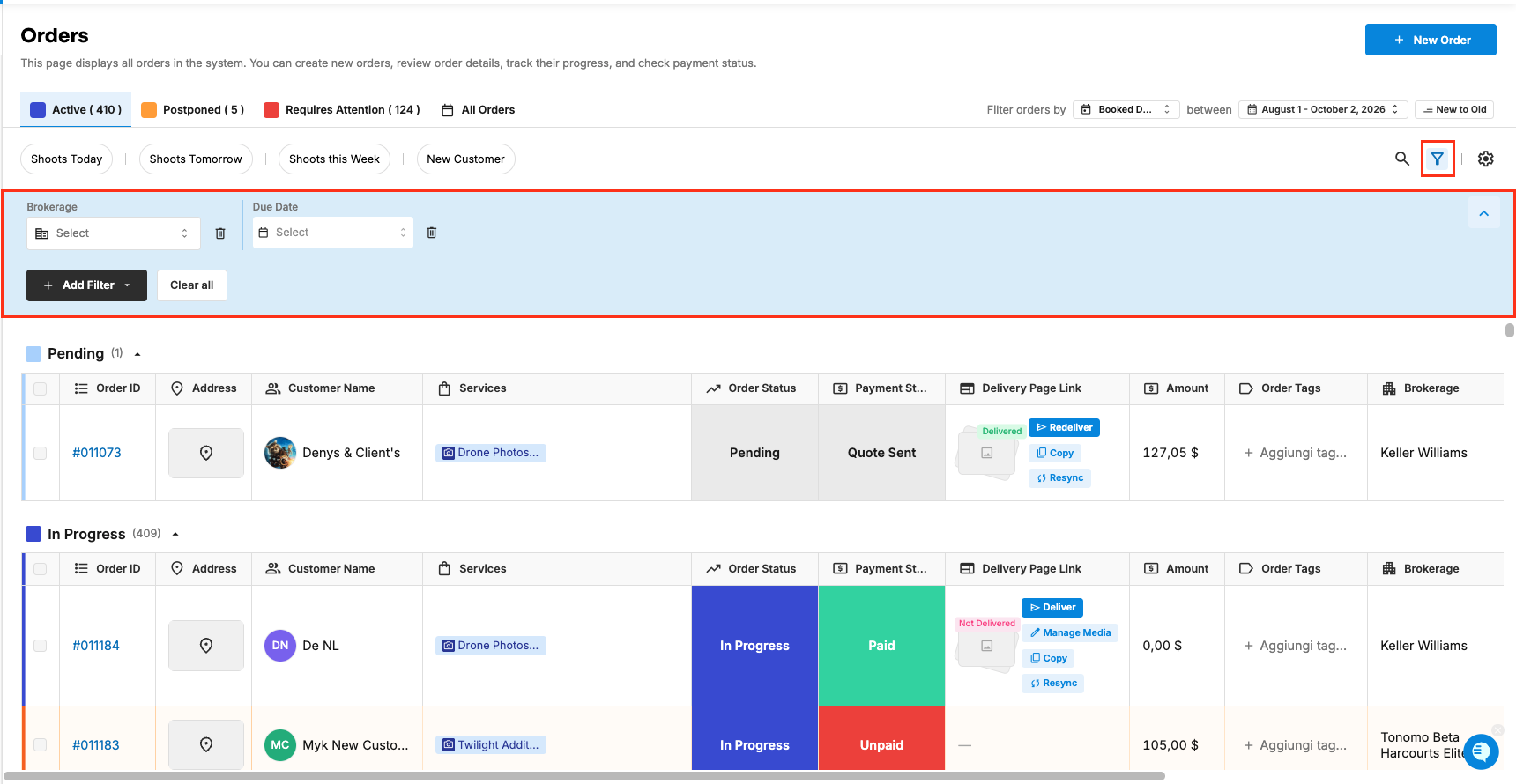
Tonomo's Orders (Beta) page gives you several ways to find the orders you want: views (All Orders, Active, Postponed, Requires Attention), quick filters (shoots today, tomorrow or this week, and new customers), a date range that controls which orders load, a search across your whole order history, and filters for customer, service, team, project manager, order and payment status, brokerage, booking flow and tags. Tonomo remembers your filters, so the page opens the way you left it.
At a glance
Views: All Orders, Active, Postponed, Requires Attention.
Quick filters: Shoots Today, Shoots Tomorrow, Shoots this Week, New Customer.
Filter orders by Booked Date, Shoot Date or Due Date between two dates. By default it's orders booked from the start of the month two months ago up to today.
New to Old / Old to New flips the sort.
Search orders looks through all your orders, regardless of the date range.
Filters: Customer Name, Shoot Date, Due Date, Service, Team, Project Manager, Order Status, Payment Status, Brokerage, Booking Flows, Tags.
Which views are there?
View | Shows |
|---|---|
All Orders | Every order in the date range, grouped by month |
Active | Pending and In Progress orders |
Postponed | Postponed orders, ready to reschedule |
Requires Attention | Unscheduled orders (no shoot date) and Escalated orders |
How do the quick filters work?
Quick filter | Shows |
|---|---|
Shoots Today | Orders shooting today |
Shoots Tomorrow | Orders shooting tomorrow |
Shoots this Week | Orders shooting this week |
New Customer | First-time customers' orders |
Choosing a shoot-date quick filter switches the date range to those shoot dates.
How do I choose which orders load?
Use Filter orders by and between:
Choose Booked Date, Shoot Date or Due Date.
Choose the date range.
Click New to Old or Old to New to flip the order.
By default, the page loads orders booked from the first day of the month two months ago up to today, newest first. Widen the range to see older orders.
Example: to plan next week, choose Shoot Date between next Monday and Sunday, sorted Old to New.
How do I search?
Type in Search orders, for example an address, customer name or service. Search covers your entire order history, not just the orders in the date range.
Which filters can I add?
Open the filters and combine any of these:
Filter | Use it to |
|---|---|
Customer Name | See one customer's orders |
Shoot Date / Due Date | Narrow to a date range |
Service | See orders with particular services |
Team | See a team member's orders |
Project Manager | See the orders someone manages |
Order Status | For example Pending, In Progress, Delivered, Postponed, Cancelled |
Payment Status | For example Unpaid, Quote sent, Invoice sent, Promised payment, Partially paid, Paid, Refunded |
Brokerage | See one brokerage's orders |
Booking Flows | See how many orders a booking flow (for example a brokerage's) brings in |
Tags | See orders with a tag, like Rush |
Does Tonomo remember my filters?
Yes. Your view, filters, sort, and date range are saved, so the page opens the way you left it, and they're also in the page's web address, so you can bookmark a filtered view or share it with a teammate.
Frequently asked questions
Why can't I find an older order? Widen the date range, or search. Search finds it whatever the range. Archived orders are in Orders Management > Archived Orders.
How do I see only unpaid orders? Add the Payment Status filter and choose Unpaid.
How do I see what's due this week? Choose Filter orders by Due Date between the start and end of the week, or add the Due Date filter.
Related articles