How Do I Use the Orders (Beta) Page?
Last updated: October 9, 2026
Orders (Beta) is Tonomo's order list, where your team manages every order day to day. Open it from Orders Management > Orders (Beta). Orders are grouped into views (All Orders, Active, Postponed and Requires Attention), with quick filters for upcoming shoots and new customers, a date range, a search across your whole history, and filters for almost anything. You can update status, assign people, sync and deliver files, and act on many orders at once, all without leaving the list.
At a glance
Views: All Orders (grouped by month), Active, Postponed, Requires Attention (Unscheduled and Escalated).
Quick filters: Shoots Today, Shoots Tomorrow, Shoots this Week, New Customer.
Filter orders by Booked Date, Shoot Date or Due Date between two dates. The default is orders booked from the start of the month two months ago up to today.
Search orders covers your entire order history.
In each row: change Order Status and Payment Status, assign Project Manager and Team, and Sync Files, Deliver and Copy the delivery link.
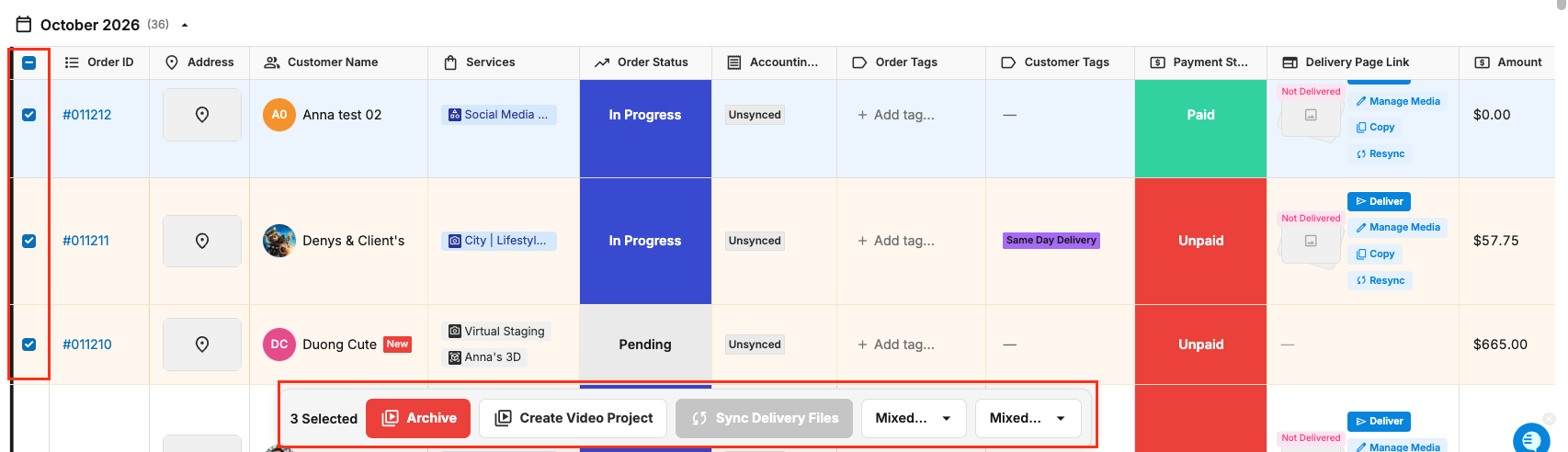
Bulk actions: change status or payment status, Archive, Sync Delivery Files, Create Video Project.
New order creates a blank order. Settings chooses your columns.
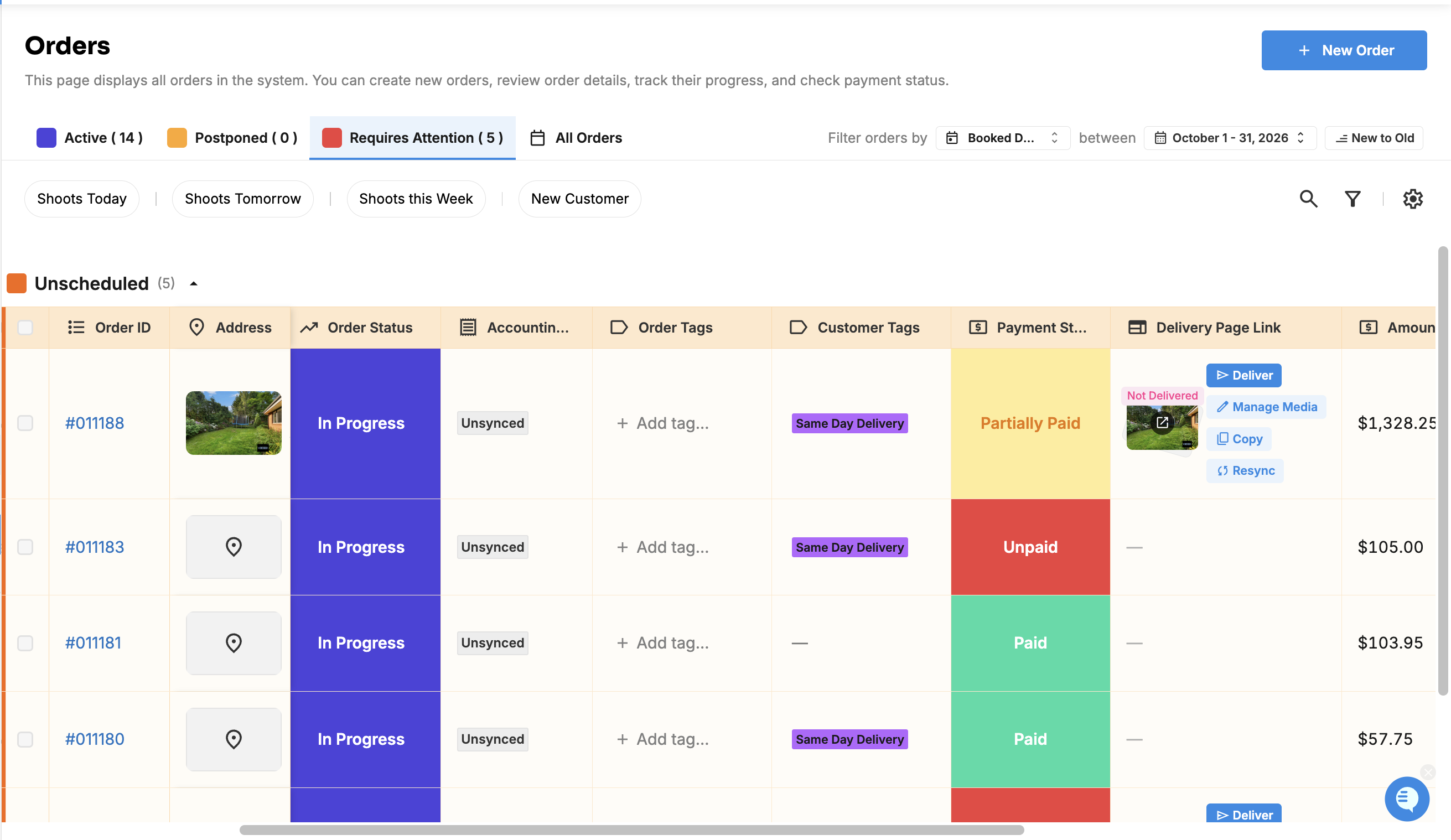
Which views are there?
View | Shows | Grouped by |
|---|---|---|
All Orders | Every order in the date range | Month. The grouping follows your sort, for example, by shoot month when sorting by shoot date. |
Active | Pending and In Progress orders | Status |
Postponed | Postponed orders, ready to reschedule | |
Requires Attention | Orders that need action | Unscheduled (no shoot date yet) and Escalated |
Expand or collapse a group with the arrow on its right.
Quick filters
Shoots Today, Shoots Tomorrow, Shoots this Week and New Customer (first-time customers, who have a New tag). Choosing a shoot-date quick filter switches the date range to those shoot dates.
Which views are there?
View | Shows | Grouped by |
|---|---|---|
All Orders | Every order in the date range | Month. The grouping follows your sort, for example by shoot month when sorting by shoot date. |
Active | Pending and In Progress orders | Status |
Postponed | Postponed orders, ready to reschedule | |
Requires Attention | Orders that need action | Unscheduled (no shoot date yet) and Escalated |
Expand or collapse a group with the arrow on its right.
Quick filters
Shoots Today, Shoots Tomorrow, Shoots this Week and New Customer (first-time customers, who have a New tag). Choosing a shoot-date quick filter switches the date range to those shoot dates.
Which orders does the page load?
To stay fast, the page loads orders within a date range. Set it with Filter orders by and between:
Filter orders by: Booked Date, Shoot Date or Due Date
between: the start and end dates
New to Old / Old to New: flips the sort
By default: orders booked from the first day of the month two months ago up to today, newest first.
Search is different. Search orders looks through your whole order history, by address, customer name, service and more, whatever the date range.
Which filters can I use?
Customer Name, Shoot Date, Due Date, Service, Team, Project Manager, Order Status, Payment Status, Brokerage, Booking Flows and Tags. Combine as many as you need.
Order statuses: Pending, In Progress, Postponed, Delivered, Cancelled. Payment statuses: Unpaid, Quote sent, Invoice sent, Promised payment, Partially paid, Paid, Refunded, Partially refunded, Cancelled. If you've renamed statuses in Org Settings > Customization, your names are shown instead.
Your view, filters, sort and date range are remembered, so the page opens the way you left it. See How Do I Filter Orders In Order Management?
What can I do in each row?
Column | What you can do |
|---|---|
Order ID | Click to open Order Details |
Address | The property address. This column and Order ID stay pinned on the left. |
Customer Name | Click to see phone and email. First-time customers show New. |
Shoot Date / Booked Date | When it's shot and when it was booked |
Services | Click to open Project Chat |
Order Status | Change it in the row |
Payment Status | Change it in the row |
File Links | Open the Raw Files, Final Files or Uploaded files folder. Warns if files are Unsynced or Dropbox folders failed to create. |
Delivery Page Link | See the cover photo and delivery state (Delivered / Not Delivered), then Sync Files (or Resync), Deliver (or Redeliver), Copy the link, or Manage Media for uploaded files |
Amount | The order total |
Order Tags | The order's tags |
Project Manager / Team (hidden by default) | Assign people in the row |
Due Date (hidden by default) | Set when it's due |
Brokerage, Booking Flows, Customer Order Link, Property Website (hidden by default) | More detail and links |
Show or hide columns in Settings. See How Do I Choose Which Columns Show in Order Management?
How do I deliver an order from the list?
In the order's Delivery Page Link cell:
Click Sync Files to pull the edited files from Dropbox. It shows Syncing Files while it runs. If Auto-sync delivery files from Dropbox is on, this happens automatically.
Click Deliver to deliver the order (or Redeliver to send it again).
Click Copy to copy the delivery page link.
For orders using Direct Upload, use Manage Media instead of syncing. See How Do I Upload And Deliver Media Directly On Tonomo?
How do I update many orders at once?
Tick the orders you want. A bar shows how many are Selected, with these actions:
Action | What it does |
|---|---|
Order status | Set the same status on all of them. If they differ, it shows Mixed order statuses. |
Payment status | Set the same payment status. If they differ, it shows Mixed payment statuses. |
Archive | Move them to Archived Orders |
Sync Delivery Files | Sync all of them from Dropbox. You need Dropbox connected, and every selected order must have a delivery link. |
Create Video Project | Add them to Video Management (on desktop) |
How do I create an order from here?
Click New order to create a blank order for a customer, which skips your booking rules. For most orders, use Book a New Order or the Scheduler instead. See How Do I Create an Order For a Customer?
How do I tag orders?
Use Order Tags to label orders, for example Rush, VIP or Re-shoot, then filter by Tags. Each tag name must be unique.
Frequently asked questions
Why don't I see older orders? Widen the date range, or just search. Search covers every order.
Is there an order limit? No. Choose what loads with the date range.
Where are archived orders? In Orders Management > Archived Orders.
Can I still use the old Orders list? Some accounts also have the classic Orders list. New accounts use Orders (Beta).
Related articles