How Do I Create an Order For a Customer?
Last updated: October 14, 2026
Your team can create orders for customers in Tonomo in three ways: through the booking flow (the same booking page customers use), through the Scheduler (a quicker flow that lets you override scheduling rules), or manually with + New Order (a blank order with no restrictions). You can also reserve a timeslot before you have the property details. Almost all orders should go through the booking flow or the Scheduler. Use the manual method only as an exception.
At a glance
Booking flow method: Book a New Order. It applies your scheduling rules, pricing and payments.
Scheduler method: Scheduler > + Create > Create a new order. It's quicker, and you can override skillsets and availability.
Manual method: + New Order in Orders Management. It creates a blank order with no restrictions.
Reserved timeslot: hold a photographer's time now, then turn it into an order with Go to Booking.
Delivery-only orders: use Tonomo just to deliver media while you're onboarding.
Customers can also book themselves on your booking page.
Which method should I use?
Method | Use it when | Scheduling rules | Pricing and payments |
|---|---|---|---|
Booking flow | Most orders | Applied: service areas, skillsets, availability | Applied |
Scheduler | You know the photographer and time, or need to override | You can override skillsets and availability | Applied |
Manual (+ New Order) | Exceptions, for example a weekend shoot you don't normally take | Not applied | Not applied (see below) |
If you find yourself creating lots of manual orders, contact Tonomo support. There may be a feature that does what you need.
How do I book through the booking flow?
This calculates how long your team needs from each service's and package's scheduled time, and assigns the photographer using your service areas, skillsets and availability.
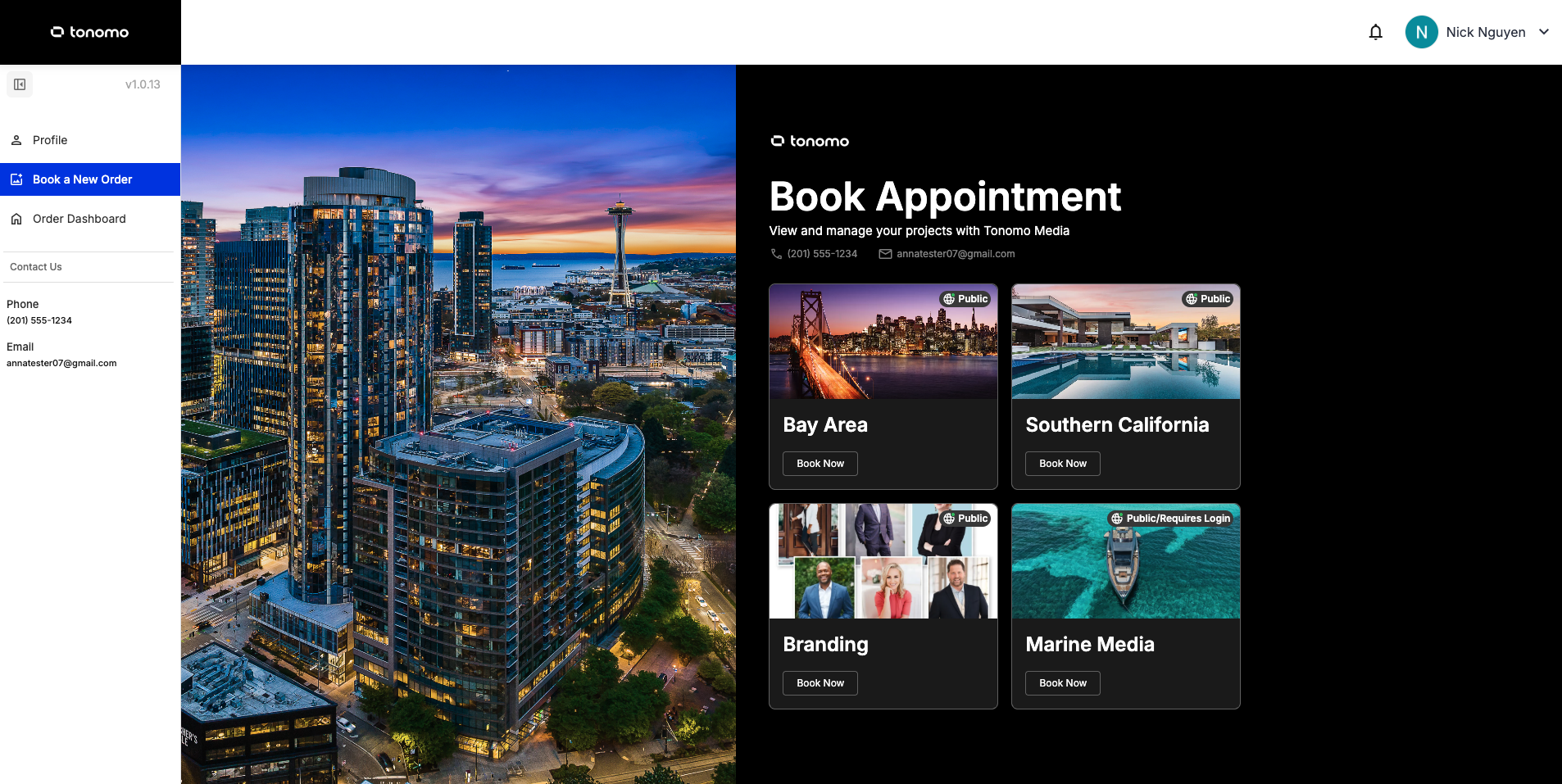
Click Book a New Order in the top left, then choose the booking flow. It's the same button your customers use.
Enter the property address and total square footage, then click Confirm.
Choose the services or packages and click Continue to details.
Choose any tiers, answer the questions, and click Continue.
Add any add-ons from the pop-up and click Add.
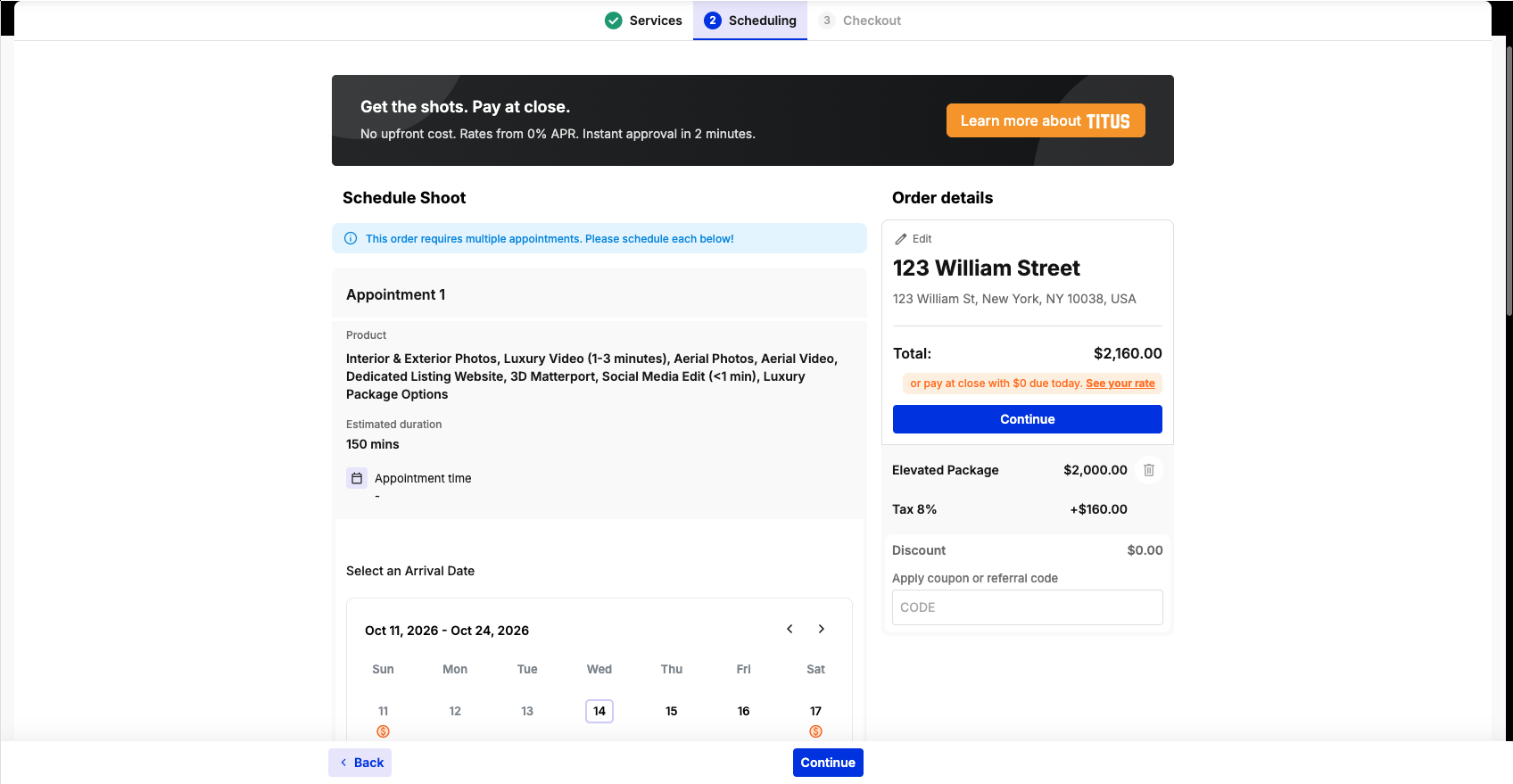
Choose the date and time, plus a specific photographer if you want. As an admin you can pick the photographer, and booking flows can allow customers to choose too. Only photographers qualified for the job appear, based on availability, skillset and service area. Answer any final questions and click Continue.
In Customer info, choose:
I'm placing a booking for a new agent: fill in their details and choose the right Listing Agent & Branding.
I'm placing a booking for an existing agent: search for them, so you don't need to re-enter their details.
Admin-only options, which customers don't see: enter payment details or skip payment, and turn off confirmation emails, texts and calendar invites (useful for test orders).
Tick the Terms of Service box and click Submit Order.
How do I book through the Scheduler?
A streamlined booking with fewer options and distractions, such as thumbnails and descriptions, so your team can book quickly.
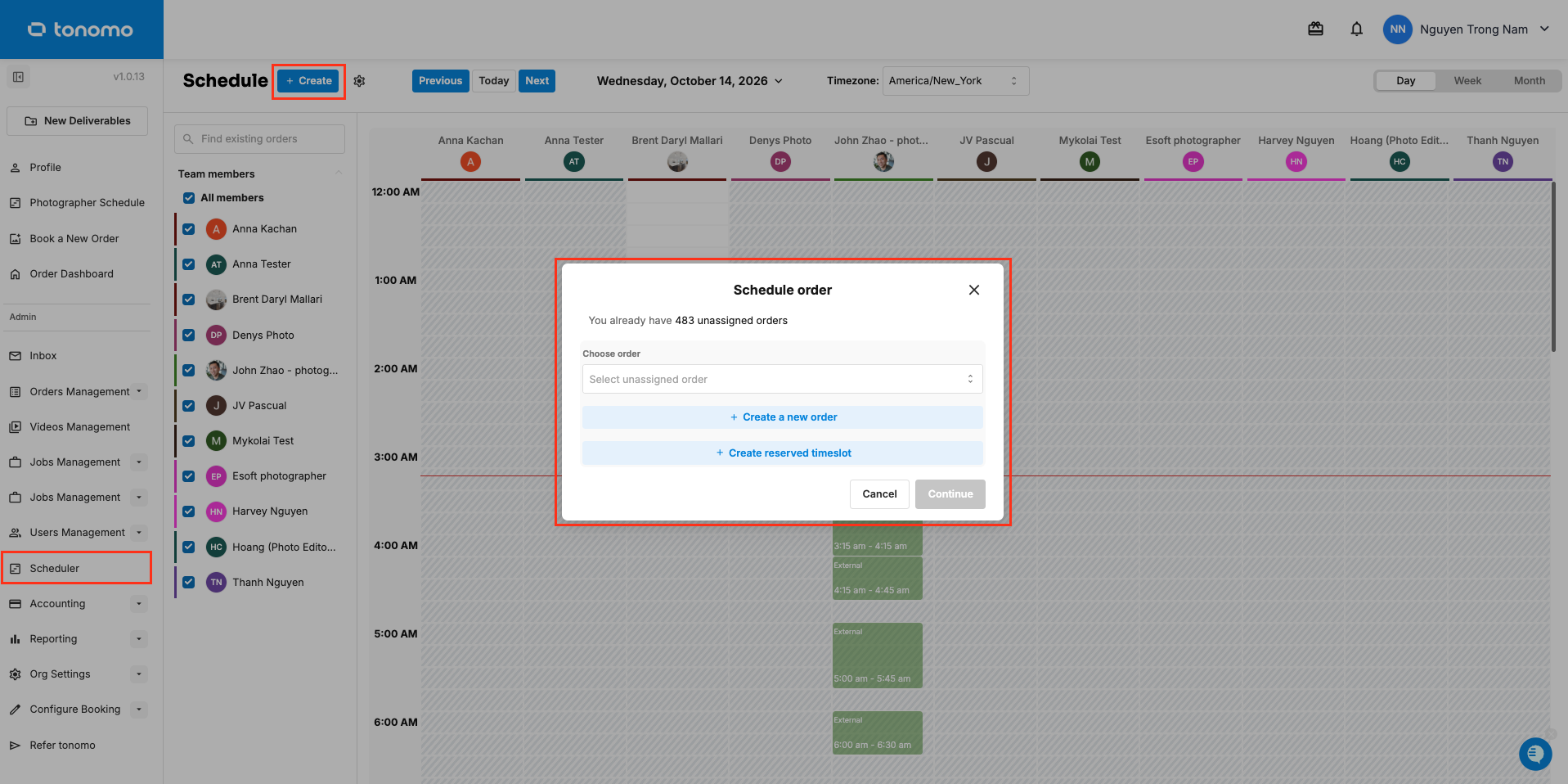
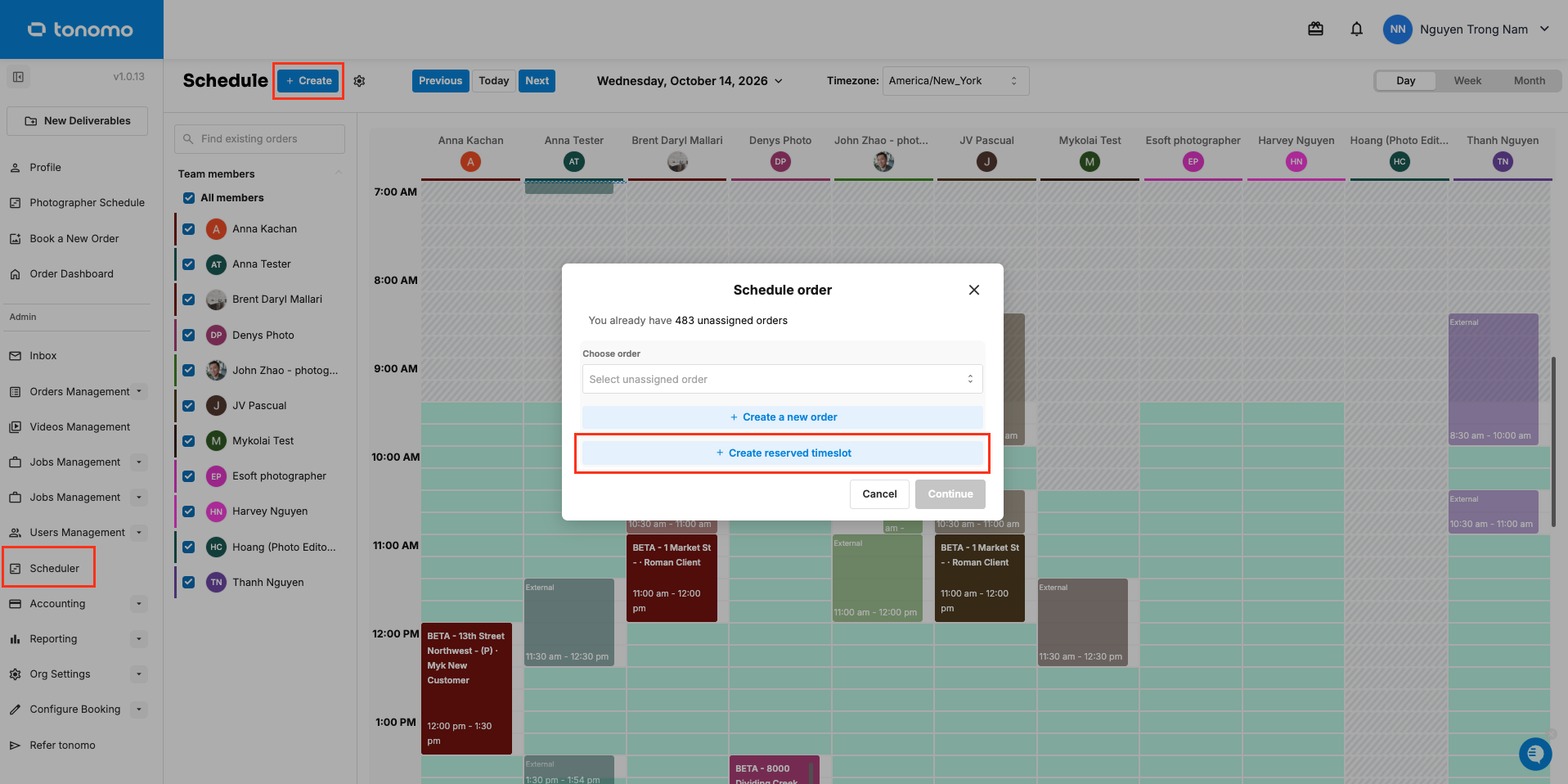
Click Scheduler in the left menu, then + Create in the top left.
In Schedule order, click Create a new order.
Choose a new customer, or search for an existing one, and enter their contact details if needed. Choose the Booking Flow for the order.
Choose the location, packages or services, and answer the booking flow's questions.
Choose the time slot:
"0/1" or "1/1" above a photographer shows whether they have the skillsets for the shoot.
Grey hash marks show when a photographer isn't working, and the travel time between events.
Green shows when a photographer is available and has the drive time needed.
You can override any of this and assign someone without the skills, or who isn't available.
To add the order without an appointment, click Cancel when asked to set one. The order then appears under Unscheduled.
This method assumes the contact you enter is the order's only booking agent. To change that or add more, use the booking flow method.
See How Do I Create an Appointment or Reserved Timeslot in the Scheduler?
How do I create an order manually?
We don't usually recommend this. Use it when you just need to get an order into the system without the normal restrictions, for example a weekend shoot when you don't normally work weekends.
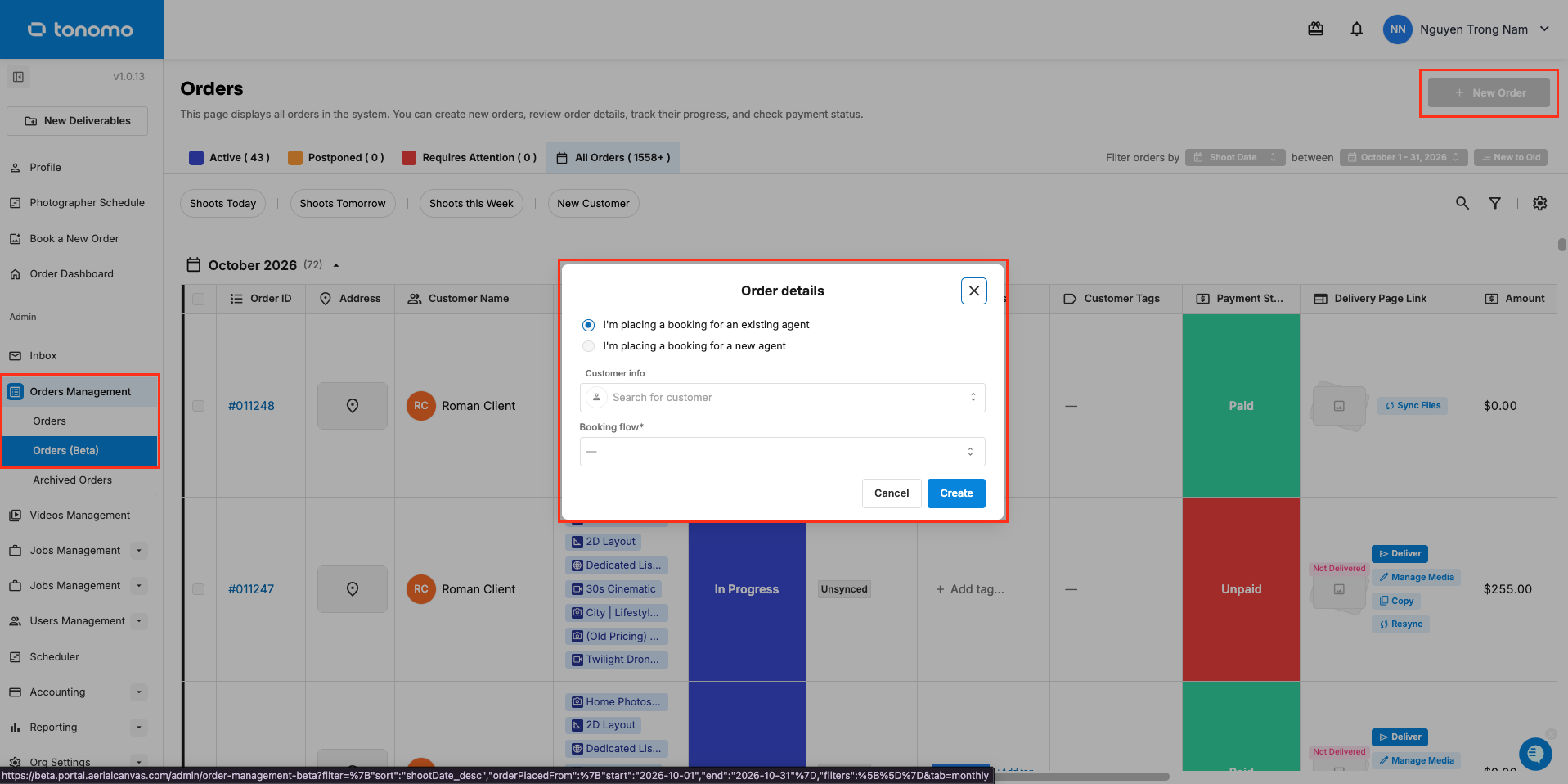
In Orders Management, click + New Order.
Add the customer's details or search for an existing customer, and choose the booking flow.
Tonomo creates a blank order in the Pending section. Fill in everything yourself: property details, services and packages, schedule, and so on.
Manual orders skip these rules:
Pay-before-delivery: customers can get their files without paying
Deposits
Service areas
Skillsets
Invoice amount calculation
Because of the risk of human error, keep manual orders as the exception, not the rule.
How do I reserve a timeslot without property details?
A reserved timeslot holds a date, time and photographer for a customer before you have the property details.
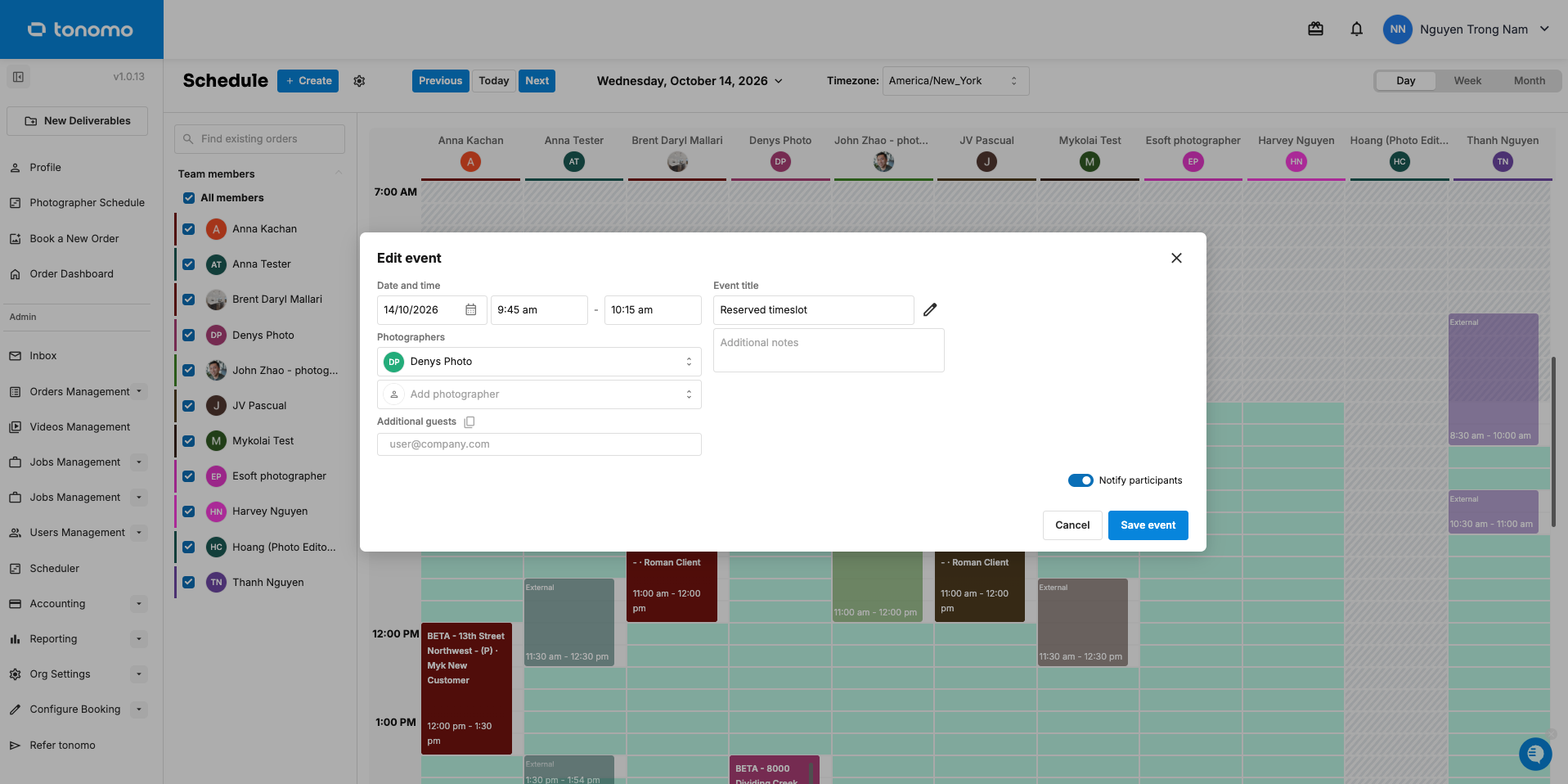
In the Scheduler, click + Create in the top left, then Create reserved timeslot.
Choose the date, time and photographer on the calendar.
Add details if you want, for example a note on why the time is reserved.
When you're ready to book it:
Click the reserved event and select Go to Booking. You can change the booking flow first if needed.
The booking flow opens with the reserved time already set as the appointment.
Either finish the booking yourself, or send that page's link to the agent so they can complete it.
Or turn it into a blank order. After converting, Go to Booking is no longer available, so you'll need to enter the order details manually.
Frequently asked questions
Can customers book for themselves? Yes. Share your booking page link. See How Do I Create a Booking Flow?
Can I stop the confirmation email for a test order? Yes. When booking as an admin, turn off confirmation emails, texts, and calendar invites.
Related articles