
How Do I Change Which Files Get Delivered?
After an order's delivery files have synced, you can change what your client gets. Use Edit links in Order Details to add, edit or remove delivery links, for example to drop the 2D Layout folder for one order or add a link to a service that isn't in Tonomo. On the order's delivery page, Edit Photos lets you reorder the photo gallery and hide photos you don't want shown, without deleting them.
At a glance
Edit links: in Order Details > Delivery tab > Deliverable Files, for Dropbox orders. Sync the delivery files first so the dialog lists them.
Add link takes a Title and a URL. Links are grouped by type (Website, Floor Plans, Video, 3D Tour, PDF and so on).
Edit Photos (on the delivery page): drag photos into order, set Photos per row, and hide or show photos. Then Save.
Hidden photos disappear from the gallery and the preview link, but stay in the client's downloads.
If the order has a listing website, Tonomo updates it when you save link changes, and asks whether to apply photo changes to it.
Direct Upload orders don't use Edit links. Change their files in the Direct Upload area instead.
How do I add a link?
Go to Orders Management > Orders (Beta) and click the order's Order ID. Order Details opens on the right.
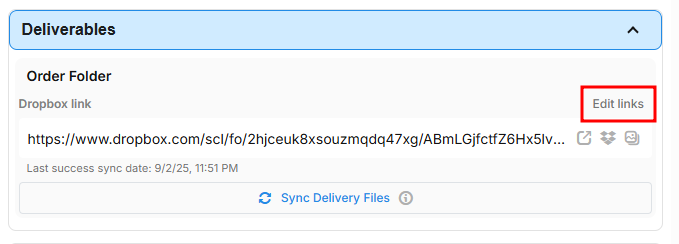
Open the Delivery tab. In Deliverable Files, click Edit links. (The button appears once the order has a Dropbox delivery folder, and is greyed out while a sync is running.)
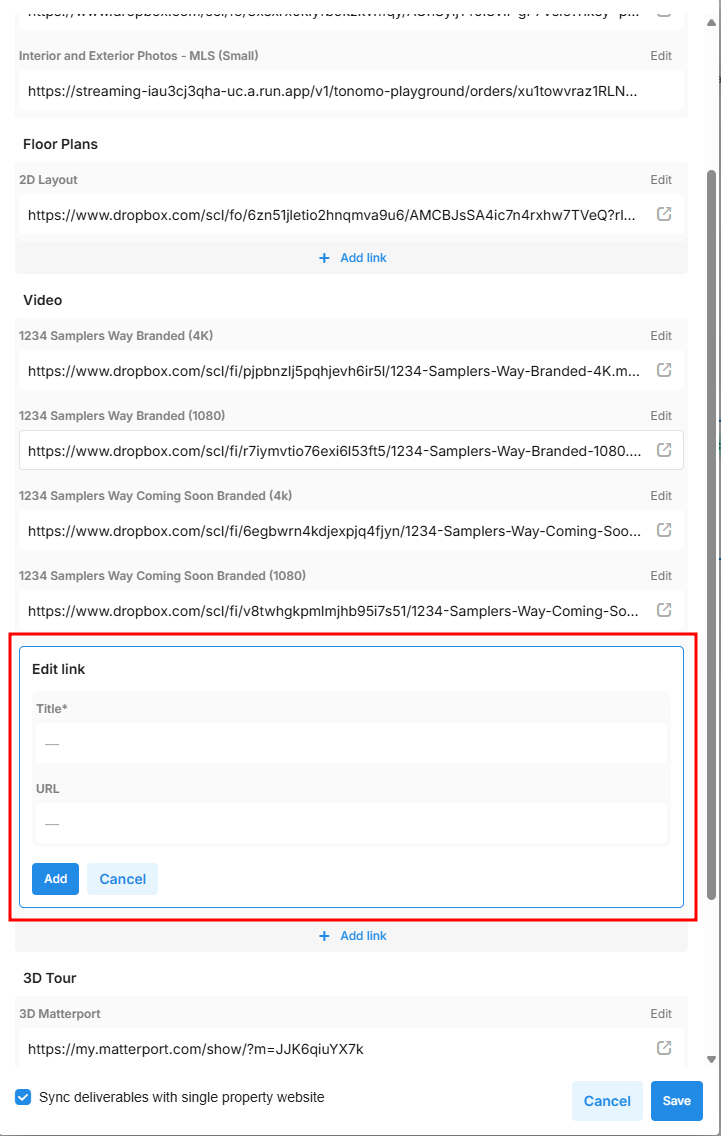
Find the group the link belongs in, such as Video or 3D Tour, and click Add link.
Enter a Title your client will understand, for example Drone video.
Enter the URL. It can be a YouTube link, a Dropbox share link, or any other public web address.
Click Add, then Save at the bottom of the dialog.
The Photos group comes from your Dropbox sync, so it has no Add link button.
How do I edit or remove a link?
In Order Details > Delivery, click Edit links.
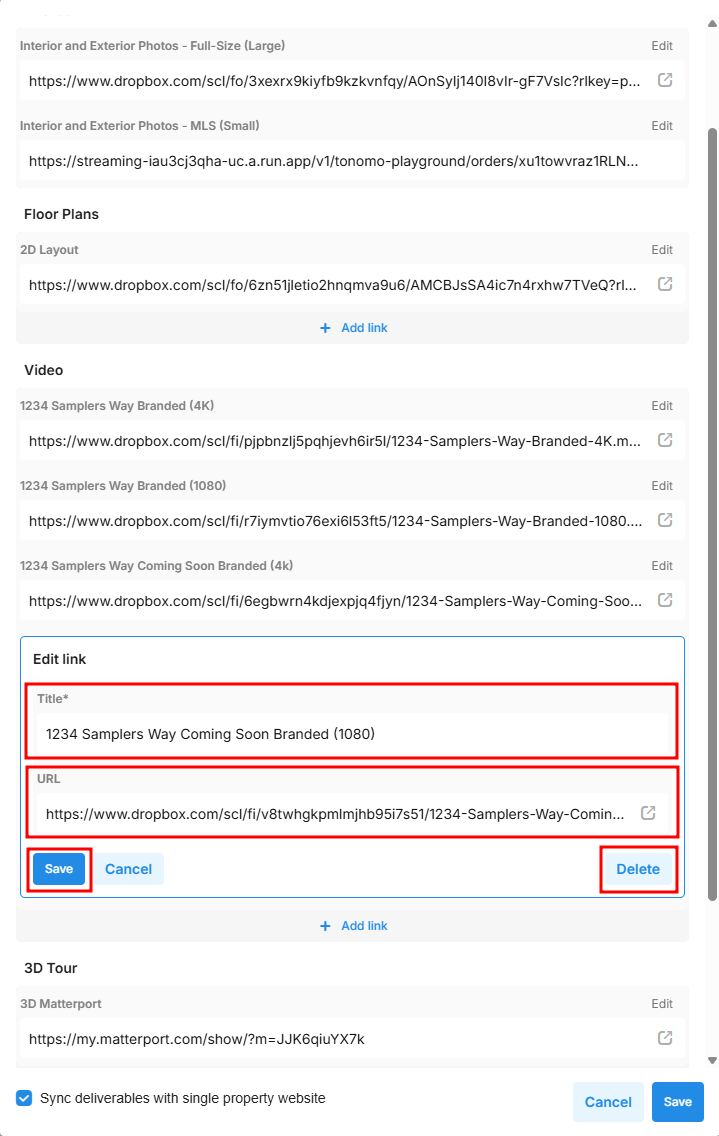
Click Edit above the link you want to change.
Change the Title or URL and click Save, or click Delete to remove it.
Click Save at the bottom of the dialog. Cancel closes it without changes.
Example: the client didn't order a floor plan this time, but the 2D Layout folder was created. Delete that link under Floor Plans so it doesn't show on their delivery page.
Removing a link doesn't remove the files from Dropbox. If the files are still in the order's Dropbox delivery folder, the link comes back on the next sync, including an automatic sync. To keep it off for good, move or delete those files in Dropbox, or remove the link again after each sync.
How do I reorder photos?
Open the order's delivery page (for example, View Delivery in Order Details).
Click Edit Photos.
Drag the photos into the order you want.
Use the Photos per row slider (1 to 12) to make the gallery easier to work with.
Click Save.
How do I hide photos from the gallery?
On the delivery page, click Edit Photos.
To hide one photo, click the eye icon on it (Hide this photo). Click it again to show the photo (Show this photo).
To hide several, select them, then under Bulk action click Hide Selected Photos in Gallery (or Show Selected Photos in Gallery).
Hidden photos are marked Hidden.
Click Save, or Cancel to discard your changes.
What hiding does:
The photo is no longer shown in the delivery page gallery or the preview link.
The photo stays in the client's downloads, so they still receive every file.
A hidden photo is never used as the cover image.
Photos stay hidden when the delivery files are resynced from Dropbox, even if a photo is re-edited and replaced.
Edit Photos works for both Dropbox and Direct Upload deliveries. It isn't shown on the customer preview link.
Do my changes update the listing website?
If the order has a listing website:
Link changes: when you save Edit links, Tonomo updates the website with the new links.
Photo changes: when you save Edit Photos, Tonomo asks: Apply these photo changes to the listing website too? Confirm to update the website with the same order and hidden photos. Photos you hid directly on the listing website stay hidden.
See How Do I Set Up a Single Property Website?
Frequently asked questions
Does hiding a photo delete it? No. It's only hidden from the gallery and the preview link. The file stays on the order and in the client's downloads.
Why can't I see Edit links? It shows in Order Details > Delivery once the order has a Dropbox delivery folder, and it's disabled while a sync is running. Direct Upload orders don't have it: open the Direct Upload area with Edit instead.
Can I hide videos or files? Edit Photos works on the photo gallery. To remove a video or file link, use Edit links.
Will my link changes survive the next sync? A link you removed comes back on the next sync (manual or automatic) if its files are still in the Dropbox delivery folder. Move or delete those files in Dropbox to keep it off.
Related articles