
How Do I Deliver Files to Clients?
Tonomo delivers your finished photos, videos, floor plans and tours to clients on a branded delivery page. With Dropbox connected, Tonomo creates a folder for every order, your team uploads the final files there, and Sync delivery files turns them into the delivery page, with web-sized copies of every photo made for you. You can sync each order by hand, sync many orders at once, or switch on Auto-sync delivery files from Dropbox so Tonomo picks up new files about every five minutes. When the order is ready, move it to Completed to send the delivery email.
At a glance
Set up: connect Dropbox in Configure Booking > General > Dropbox, then enter your Dropbox delivery folder path (for example /Tonomo) and click Save.
Folders are created automatically when an order moves to In Progress and has a customer, an address, a calendar event, and at least one service. You can also click Create Folder Structure in the order's Delivery section.
One folder per service inside the order's folder. Upload full-size files only. Tonomo makes the smaller web/MLS copies.
Sync: Sync delivery files in Order Details > Delivery, Sync Files / Resync on Orders (Beta), or tick several orders and click Sync Delivery Files.
Auto-sync (off by default): Tonomo checks your Dropbox delivery folder about every five minutes and syncs any order whose files were added or changed. It doesn't email the client or change the order status.
Deliver: moving the order to Completed opens the Project Complete email so you can check it and click Send.
Pay before download: with Lock files until order is paid on, clients can preview their files but can't download them until the order is paid.
Not using Dropbox? See How Do I Upload and Deliver Media Directly in Tonomo?
What does Tonomo do when I deliver files?
Tonomo can help you save time and deliver your project files to your customers in a beautiful and professional manner.
Integrates with Dropbox and automatically creates the folder structure based on the services that are booked.
Automatically processes your full-size images and delivers different resolutions to your customers.
Creates a beautiful photo and video gallery that agents can access through their customer portal.

How do I set up Dropbox for delivery?
To get started you need to connect your Dropbox account, which you can do under Configure Booking > General, in the Dropbox card. Click Connect and sign in to Dropbox.

Next, enter your root folder in Dropbox delivery folder path. What we mean by "root folder" is a folder where all of your Tonomo orders and files are going to live. This might be called "Projects", "Orders", or "Deliverables." Type it as a folder path that starts with a slash, for example /Tonomo or /Projects/Deliverables, then click Save.
Dropbox delivery folder must be switched on for Tonomo to create delivery folders. For more Dropbox settings, see How Do I Connect Dropbox To Tonomo?

What does an order need before Tonomo creates its folders?
Before we create Dropbox folders for you, an order must have:
A customer
An address
A calendar event (a booked appointment)
At least one service
If your order comes through the normal booking flow, you will have all of this information and you can proceed with delivering the order. We point this out, however, because it's possible to create an order manually as an admin without entering all of this information. So it's possible to have an order missing these prerequisites. See How Do I Create an Order for a Customer?
Until the folder exists, the order's Delivery section shows Dropbox folder not created yet. and lists what's needed.
Where do I find the order's Dropbox folder?
Once an order meets the above prerequisites, we create its Dropbox folders when it moves to In Progress. If you need them sooner, click Create Folders Structure in the order's Delivery section.
To find the folder, go to Orders Management > Orders (Beta), click the order's Order ID to open Order Details on the right, and open the Delivery section.

This is not the link you will send to customers. This is the link your staff will use to upload the assets for the order. Click Final files to open the order's delivery folder in Dropbox (Raw files opens the RAW folder, if you use RAW folders).
Within that folder you will see one folder for each of your services, for example "Home Photos," "2D Layout," and "Drone Video." Your staff upload the assets that go into each folder directly.
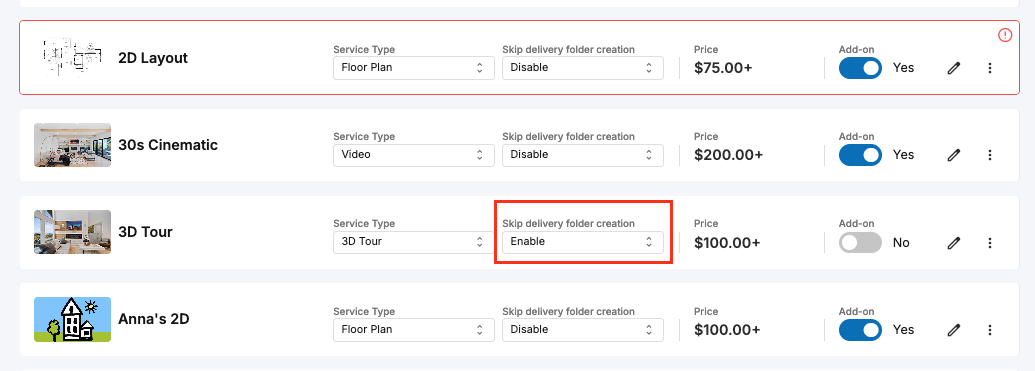
If you do not want us to create a folder for a service, say Twilight Photos, where you prefer to just include the Twilight Photos in the same folder as the Listing Photos, you can control this under Configure Booking > Services. Find the service and set Skip delivery folder creation to Enable.
How does Tonomo know what's in each folder? It uses each service's Service Type (Photos, Video, 3D Tour, Floor Plan, Website or 360 Panorama). If you add a folder yourself, put the type in its name so Tonomo recognizes it, for example "Photos", "Video" or "Reel", "Floor Plan" or "2D", "3D" or "Matterport", "360" or "Pano".
Your staff only need to upload full-size assets. When you sync, Tonomo makes web-sized copies itself. Your Dropbox folders stay exactly as you uploaded them. On the delivery page, each photo folder offers two downloads: Full-Size (Large) and MLS (Small) (called Web (Small) outside the US).
How do I deliver video?
There are two ways you can deliver video assets. You can just upload the file in full and the agent can download it. But you can also give them a Vimeo or YouTube link (and you can of course do both!)
Whether you deliver with a Vimeo/YouTube link or a file, we'll display that video on the asset delivery page so that everything is presented in one, sleek location.

For us to preview your video file on the delivery page, upload it in a common video format such as .mp4, .mov or .webm.
To add a Vimeo or YouTube link, just copy the URL and, in Dropbox, click Create > More > Shortcut, and add it to the same Dropbox folder where you uploaded the whole file.

If you offer both a YouTube/Vimeo link and full files for download, we preview the YouTube/Vimeo link by default. To preview the full files instead, click Edit links in the order's Delivery section, delete the YouTube/Vimeo link under Video, and click Save.

How do I create the delivery page?
Once your assets have been uploaded and you're ready to deliver to your client, go back to the Delivery section of Order Details and click Sync delivery files. You can also click Sync Files (or Resync) in the Delivery Page Link column on Orders (Beta).

When you click this button, we do a few things. First, we make the web-sized copies of your full-size photos and get everything organized. Give this between a few seconds and a minute or so depending on the number of images. While it runs, you'll see Syncing. When it's done, you'll see Last successful sync date.
Second, we create a formatted delivery page so that your customers can get a beautiful preview of your work before they download. Click View Delivery to see it.
Good to know: each sync rebuilds the page's links from the Dropbox folder ("Synchronization will override previously created links"). Links you added yourself with Edit links are kept.
How do I send the delivery to my client?
If you're ready to deliver the order, change the Order Status to Completed (at the bottom of Order Details, or in the Order Status column on Orders (Beta)).
Tonomo then opens Send project completion email to customer? with your Project Complete email, including the delivery link, ready to edit:
Send emails it now (or schedule it for later).
Don't Send completes the order without emailing.
Go Back cancels, and the order goes back to its previous status.
If you haven't synced yet, the popup warns you: "You have not synced your files."
This popup only appears when Send Project Complete Email is switched on in Configure Booking > General. Click Edit Template there to change the wording. See How Do I Edit My Email Templates?
Need the link itself? In the Delivery Page Link column on Orders (Beta), click Copy ("Delivery page link copied"). To send the email again later, click Deliver (or Redeliver) in the same column, or Send Project Complete Email in the order's Activity Log section.
How do I sync multiple orders' delivery files at once?
Sync multiple ready-to-deliver orders at once instead of processing them individually.
Go to Orders Management > Orders (Beta).
Tick the box next to each order you want to sync.
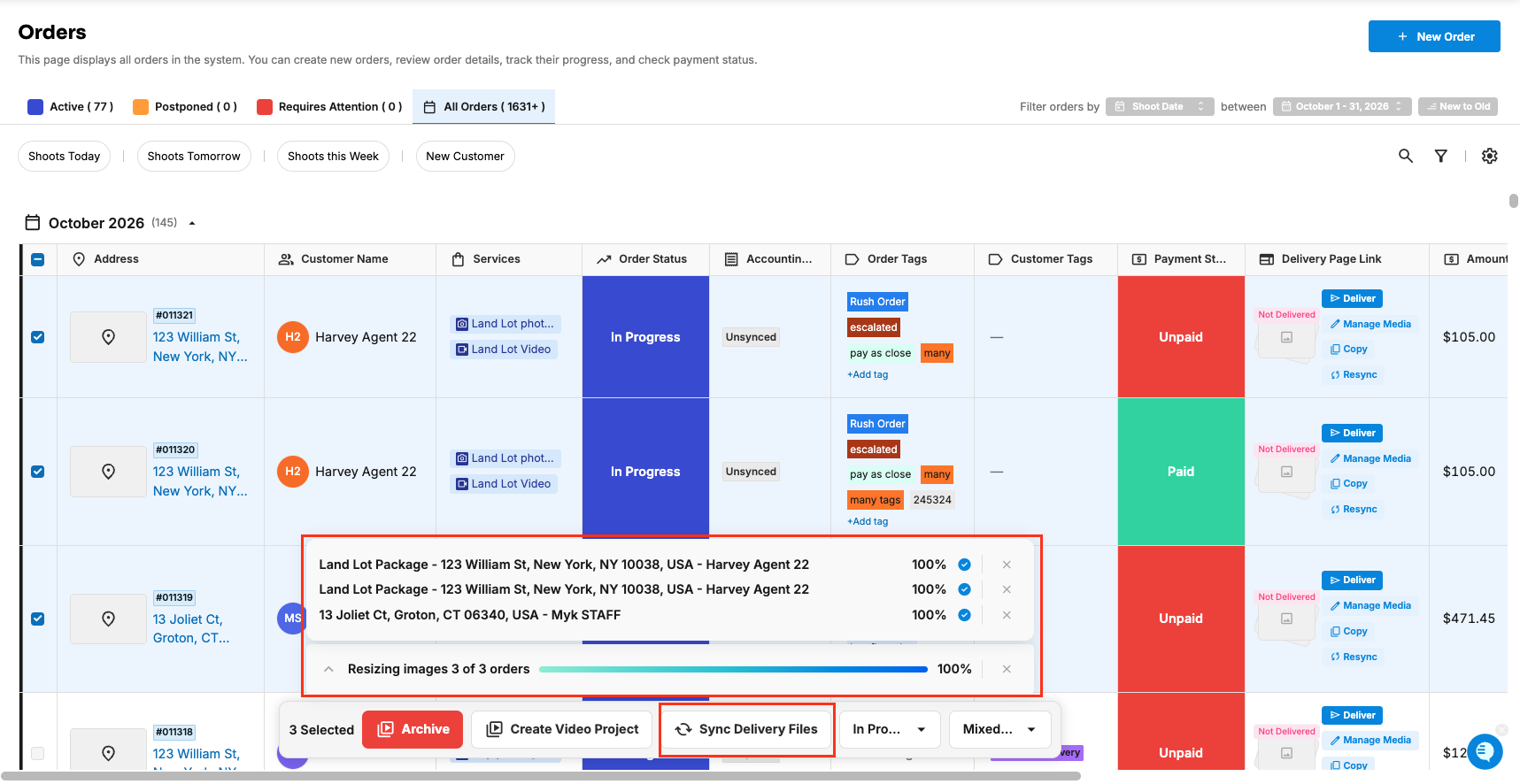
As you select orders, a bar appears at the bottom of the screen with a Sync Delivery Files button.
Click Sync Delivery Files to process all selected orders at once.
Wait for the sync to finish.
The button only works when every selected order already has its Dropbox folder. If one doesn't, point at the button to see which ("Create folders for the order: …").
Can Tonomo sync delivery files automatically?
Yes. Switch on Auto-sync delivery files from Dropbox , and you don't need to click Sync each time.
Go to Configure Booking > General and find the Dropbox card.
Make sure the Dropbox delivery folder is on (the auto-sync setting only shows when it is).
Under Auto-sync delivery files from Dropbox ("Automatically sync new or updated files from the Dropbox delivery folder to the delivery page"), switch on Enable.
How it works:
About every five minutes, Tonomo checks your Dropbox delivery folder for files that were added, changed or deleted.
When an order's folder has changed, Tonomo syncs that order, the same as clicking Sync delivery files.
Corrected files are picked up. If an editor replaces a photo with a fixed version, the next check re-processes it.
It only works for orders whose delivery folder Tonomo created or linked, inside your Dropbox delivery folder path. Keep the folder names Tonomo made, or include the service type in names you add (see above).
It only reacts to changes made after you switch it on. For files that were already there, click Sync delivery files once.
It doesn't email the client or change the order status. You still deliver by moving the order to Completed.
Manual sync still works any time, for example if you don't want to wait.
Example: your editor drops the last 25 photos into the order's "Home Photos" folder at 2:00. By about 2:05 they're on the delivery page, and you move the order to Completed to send the email.
Can clients preview files before they pay?
Yes. If you use Tonomo's Integrated Payments and your customers must pay before downloading their assets, switch on Lock files until order is paid in the booking flow (Configure Booking > Booking Flows, Payment Settings card). Tonomo lets clients preview their assets but blocks downloads ("Downloads are disabled until the project is paid") until the order is marked Paid or Promised payment.
To lock or unlock one order, use Lock deliverable files until order is paid at the bottom of its Delivery section.
Customers whose Billing Cycle is Weekly or Monthly aren't locked ("Deliverables are not restricted by payment for this agent").
To show a watermark while the order is unpaid, see How Do I Add a Watermark to Photos?
To hide the preview too, switch on Hide preview section until order is paid in the same card.
Frequently asked questions
Why wasn't a Dropbox folder created for my order? The order needs a customer, an address, a calendar event and at least one service, and it's created when the order moves to In Progress. Check the warning in the order's Delivery section, or click Create Folders Structure.
Does moving an order to Completed email the client automatically? It opens the Project Complete email for you to check first. Click Send to email it, or Don't Send to complete the order quietly. If Send Project Complete Email is off, no email is offered.
Do I need to resize photos for MLS? No. Upload full-size photos. Tonomo makes the smaller copies when it syncs, and your Dropbox folders aren't changed.
Will auto-sync send the delivery before I'm ready? No. Auto-sync only updates the delivery page. The client gets the delivery email when you send it.
I replaced a photo in Dropbox. Will the client see the new one? Yes, after the next sync. With auto-sync on, that's within about five minutes. Otherwise click Sync delivery files.
Related articles