
How Do I Add a Watermark to Photos?
Watermarking helps prevent clients from screenshotting and using deliverable photos before they've paid for the order. Tonomo offers this at two levels: a text watermark set per booking flow, and a logo watermark set per brokerage. The text watermark only shows while an order is unpaid and its files are locked. The brokerage logo replaces the text for that brokerage's agents, and on Dropbox deliveries it stays on the web-size photos even after payment.
At a glance
Text watermark: Configure Booking > Booking Flows > Edit > Payment Settings > Watermark text.
It only works when Lock files until order is paid is on for the booking flow (and for the order).
The watermark shows until the order is Paid or Promised payment, then disappears.
Logo watermark: Users Management > Brokerages > the brokerage > Delivery tab > Add Photos Watermark (PNG or JPG), with Position, Padding and Size (1–50%).
Not watermarked: 360 photos and floor plans. Full-size downloads are never watermarked.
Customers on a Weekly or Monthly billing cycle aren't locked, so they don't see the text watermark.
Everyone who opens a locked delivery page sees the watermark, including your own team.
How do I set a watermark text per booking flow?
This applies a text watermark to the delivery photos of any unpaid order placed through that booking flow.
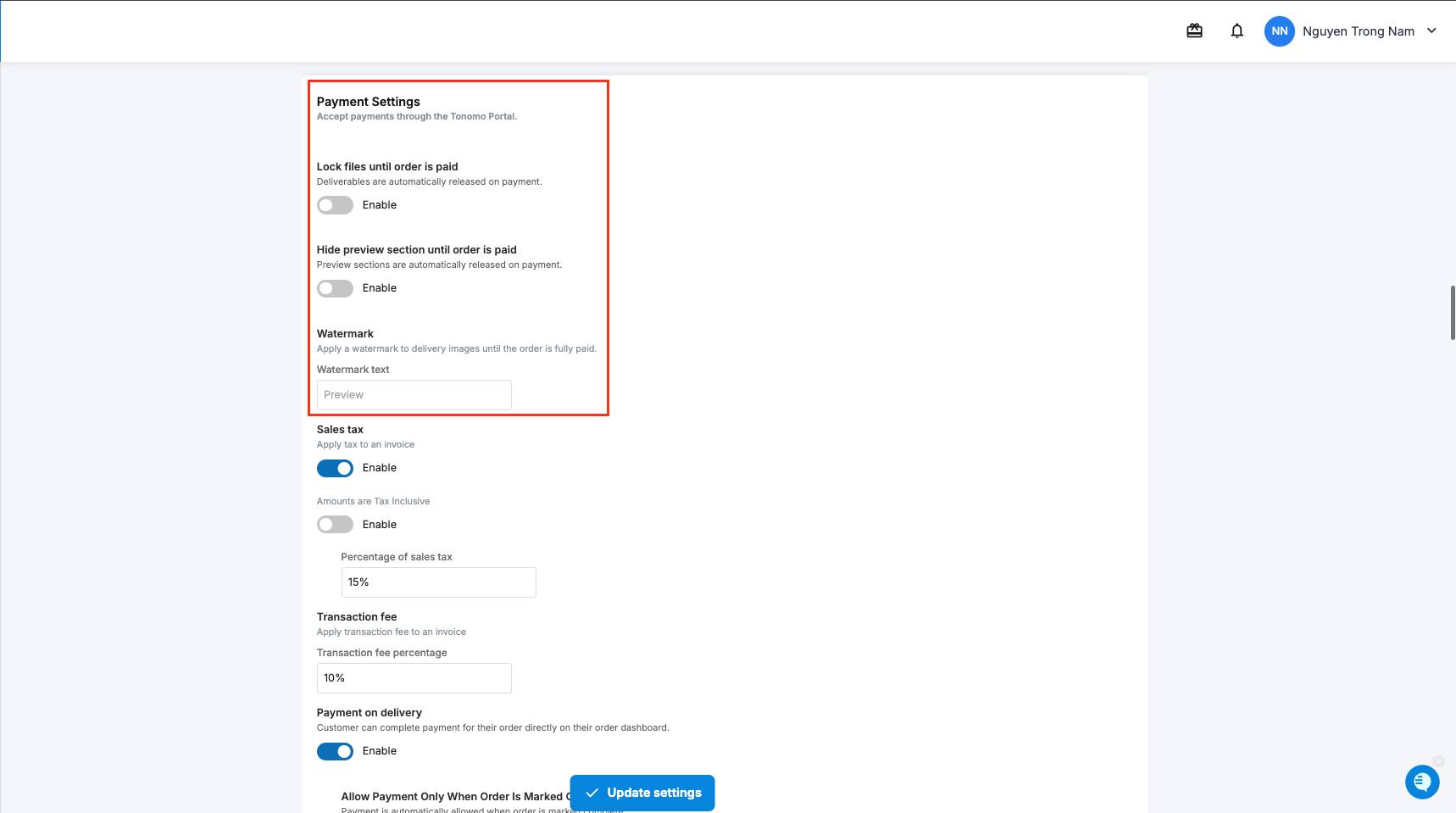
Go to Configure Booking > Booking Flows, click the menu on the booking flow you want to update and choose Edit.
On the Settings tab, find the Payment Settings card and its Watermark section ("Apply a watermark to delivery images until the order is fully paid.").
Enter the text you want to appear as the watermark in Watermark text, for example Preview or your studio name.
Click Update settings at the bottom of the page.
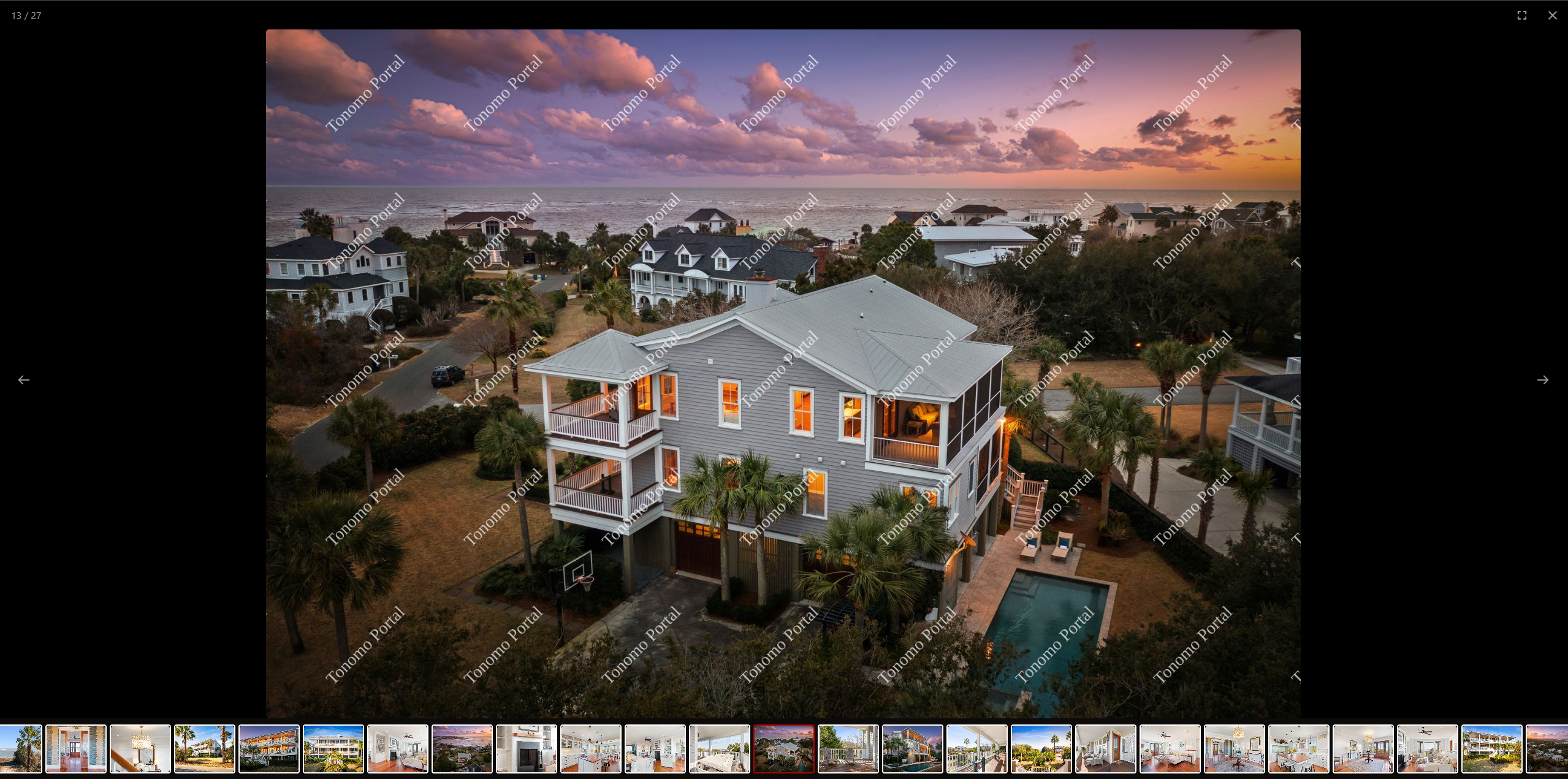
Once saved, the text is repeated diagonally across the photos on the delivery page of every unpaid order placed through that booking flow.
When does it reach existing orders?
Dropbox deliveries: the next time the order's delivery files sync. Click Sync delivery files if you don't want to wait.
Direct Upload deliveries: only photos uploaded after you set the watermark get it. While a locked order waits for watermarked versions, its older photos show as loading placeholders, never clean. Re-upload them to fix that.
Note: This watermark only applies while the order is unpaid. Once the order is marked Paid (or Promised payment), the watermark disappears, and the client can download the files without it.
Why isn't my watermark showing?
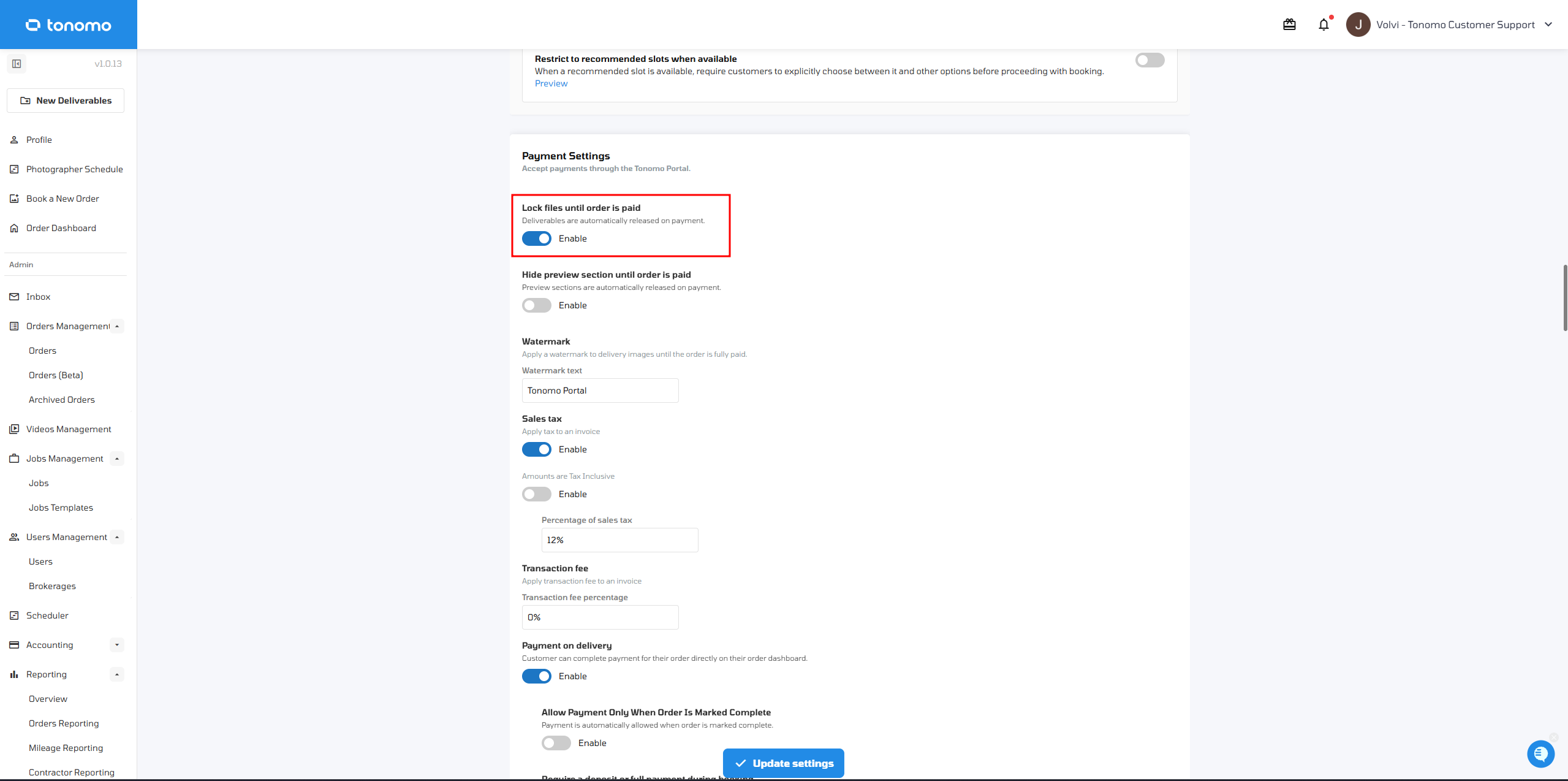
The booking flow watermark only appears if Lock files until order is paid is enabled. It's in the same Payment Settings card ("Deliverables are automatically released on payment."). If this setting is disabled, the watermark feature won't work, even if you've added watermark text to the booking flow.
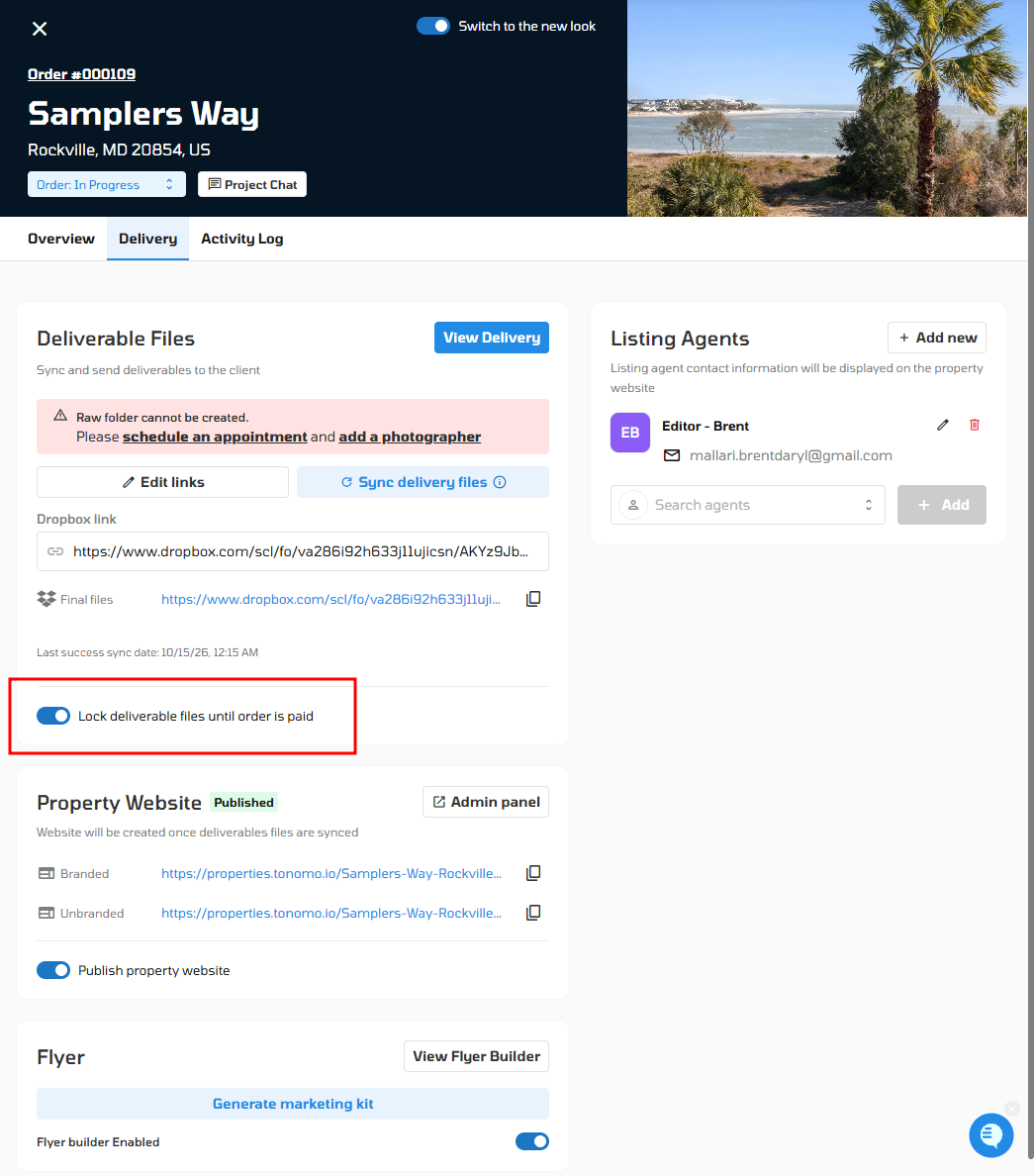
Important: Admins can also turn this off on a specific order. Go to Orders Management > Orders (Beta), click the order's Order ID to open Order Details, and open the Delivery section. Switching off Lock deliverable files until order is paid there removes the watermark from that order entirely, regardless of the booking flow's watermark settings.
Other reasons you might not see it:
The order was booked before you turned the lock on. Each order keeps the lock setting it was booked with. Switch on Lock deliverable files until order is paid for that order.
The customer's Billing Cycle is Weekly or Monthly. Their orders aren't locked ("Deliverables are not restricted by payment for this agent"). Their files also unlock automatically when the order is moved to Completed.
The photos are 360 photos or floor plans. They're never watermarked.
How do I use a brokerage logo as the watermark?
Brokerages can use their own logo or image instead of the booking flow's text watermark. It applies to photos for every agent in that brokerage.
Go to Users Management > Brokerages, and select the brokerage you want to update.
Open the Delivery tab.
Under Add Photos Watermark ("Watermark will be applied to all [brokerage] photos."), click Upload Image and choose a PNG or JPG.
Customize it as needed:
Position: Center, Top, Right, Bottom, Left, Top Right, Bottom Right or Bottom Left.
Padding: Horizontal padding and Vertical padding.
Size: 1% to 50%.
Check the previews on the right, then click Save Watermark.
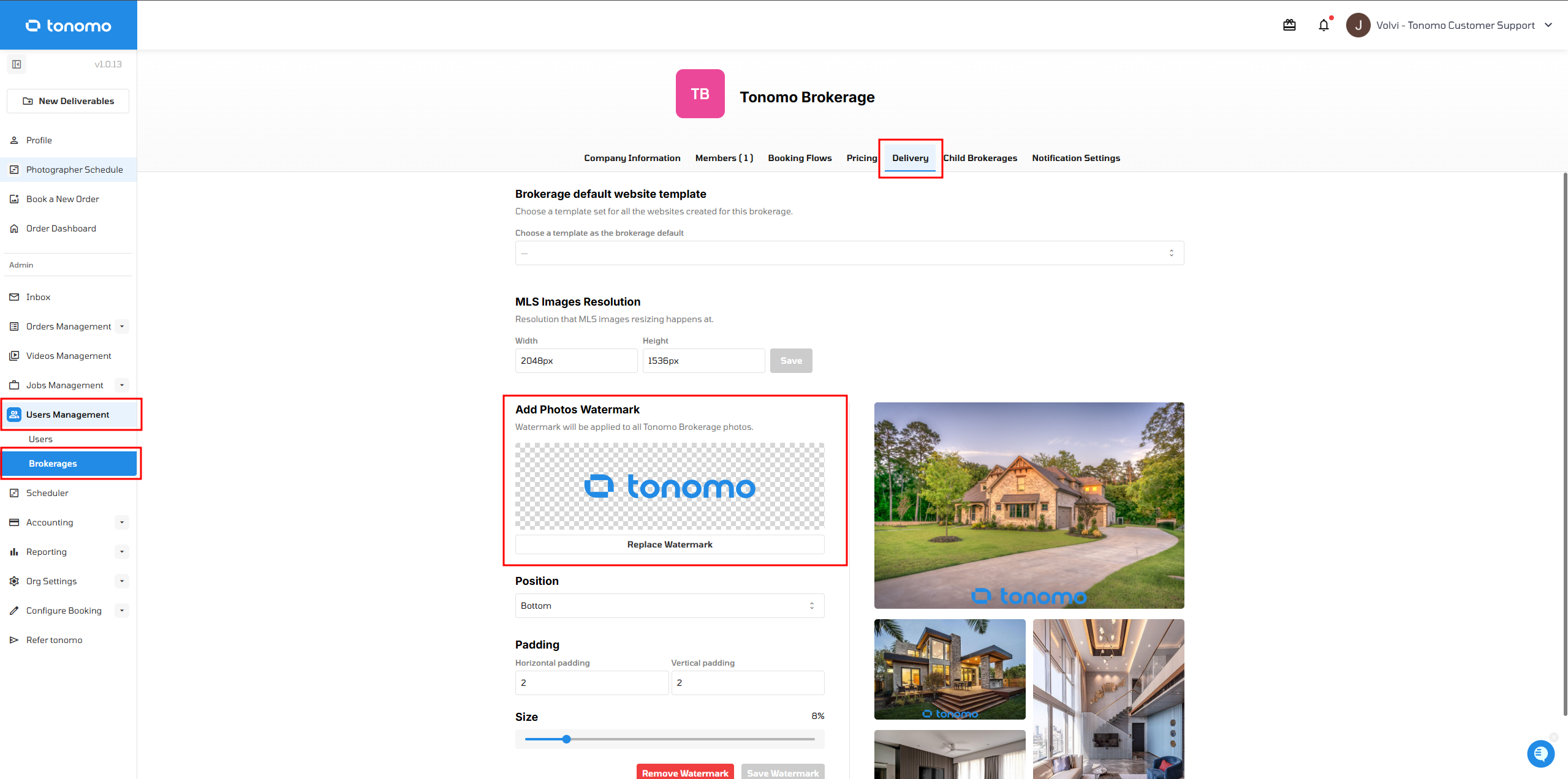
To change it later, click Replace Watermark. To stop using it, click Remove Watermark.
Important: This option is only available for brokerages. How long the logo stays depends on how you deliver:
Dropbox delivery | Direct Upload delivery | |
|---|---|---|
When the logo shows | Always, on the web-size (MLS) photos and gallery thumbnails, paid or not | Only while the order is locked and unpaid, like the text watermark |
After payment | Stays on the web-size/MLS photos the client downloads. Full-size downloads are clean | Disappears |
With a booking flow text watermark | While unpaid, the preview shows the logo and the text together | The logo is used instead of the text |
Frequently asked questions
Does the watermark go on the files the client downloads? The text watermark is only on the preview while the order is unpaid. Once it's paid, downloads are clean. A brokerage logo on a Dropbox delivery stays on the web-size/MLS downloads, but never on full-size files.
Can I change the watermark text later? Yes. Dropbox orders pick up the new text the next time they sync. Direct Upload photos keep the watermark they were uploaded with, so re-upload them if you need the new one.
Do my team and I see the watermark too? Yes. A locked, unpaid delivery page shows watermarked photos to everyone, including admins.
Are videos, 360 photos and floor plans watermarked? No. Only regular photos are watermarked.
How do I remove the watermark for one client who paid another way? Mark the order Paid (or Promised payment), or switch off Lock deliverable files until order is paid in the order's Delivery section.
Related articles