
How Do I Upload And Deliver Media Directly On Tonomo?
Direct Upload is Tonomo's built-in alternative to Dropbox. You upload finished photos, videos, floor plans, 360° photos, 3D tour links and other files straight into Tonomo's own storage, then deliver them to your client from the same page, without leaving the platform. You can use it on its own, alongside Dropbox (importing files from the order's Dropbox folder), or with Dropbox kept just for RAW files. Start from New Deliverables in the left menu: link the files to an existing order, or create a new order on the spot when the shoot happened without a booking.
At a glance
Who can use it: every portal, no setup needed. Admins, staff and contractors.
Start: click New Deliverables in the left menu, choose Link to an existing order or Create for a new order, then Next.
Deliver without a booking: Create for a new order asks for the client, booking flow and address, and Tonomo creates the order for you. It then appears in Order Management like any other order.
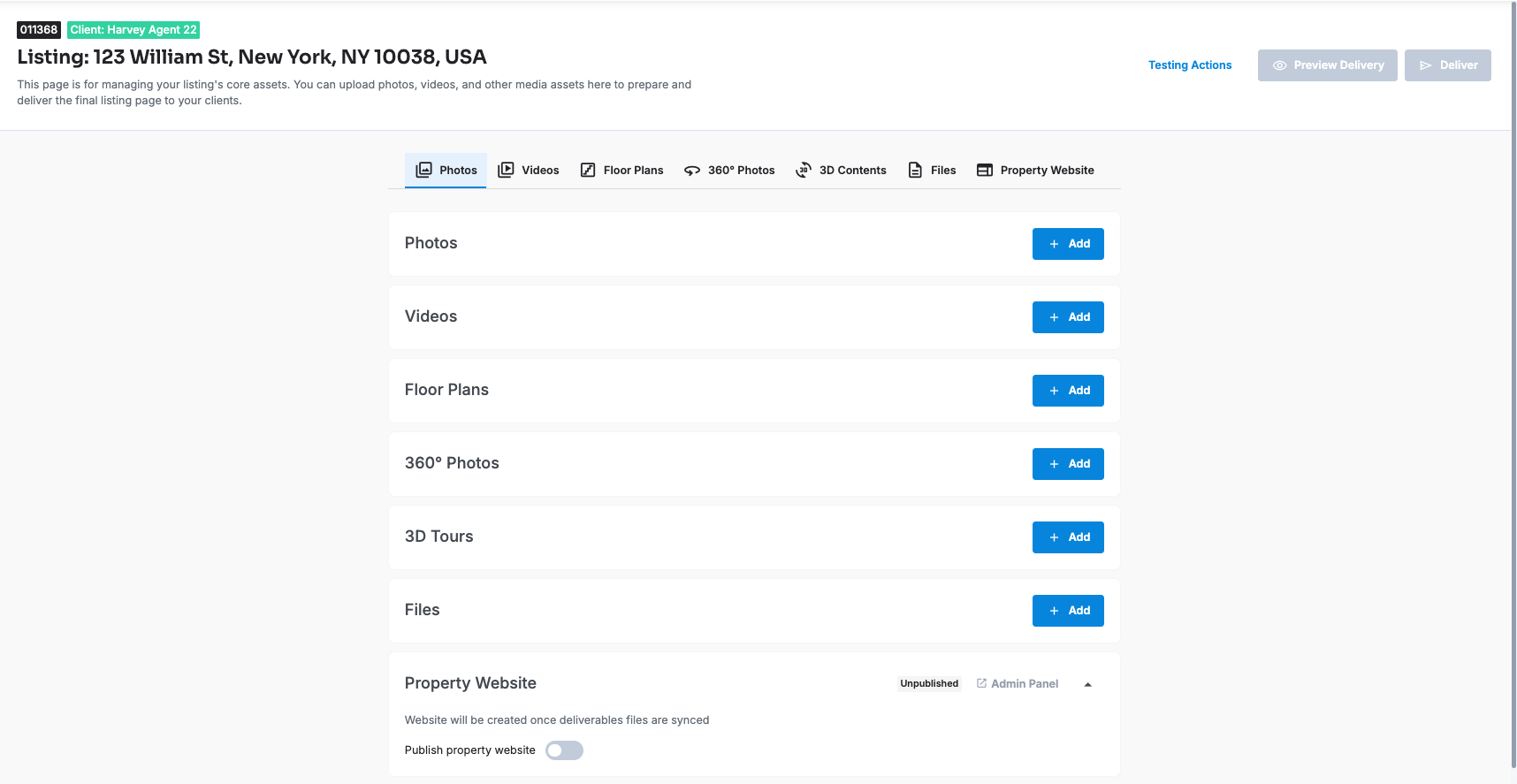
Sections: Photos, Videos, Floor Plans, 360° Photos, 3D Tours, Files and Property Website.
Formats: photos and floor plans JPG or PNG; 360° photos JPG (2:1); videos MP4, MOV, FLV, AVI, MKV, WMV or TS, or a YouTube or Vimeo link; 3D tours by link; files such as PDF, Word, Excel, PowerPoint, ZIP and images. Upload full-resolution files; Tonomo resizes them for the web.
Deliver: Preview Delivery, then Deliver. Review the invoice, send the delivery email (now or later), and Tonomo marks the order complete.
Import instead of uploading: pull in new files from Dropbox, Esoft or CubiCasa when you create the deliverables, or later with Sync from.
Final files only: keep Dropbox for RAW files and switch off Dropbox delivery folder so final files go through Direct Upload.
Photos you upload can be used for flyers and the listing website, and videos show on the listing website too.
Who can use Direct Upload?
Direct Upload is on for every Tonomo portal, with nothing to switch on. (It used to be a beta that Tonomo Support enabled for you.) Every admin, staff member, and contractor sees the New Deliverables button in the left menu, the Edit button for Direct Upload deliverables in Order Details, and the Uploaded files links in Order Management.
How do I upload deliverables for an existing order?
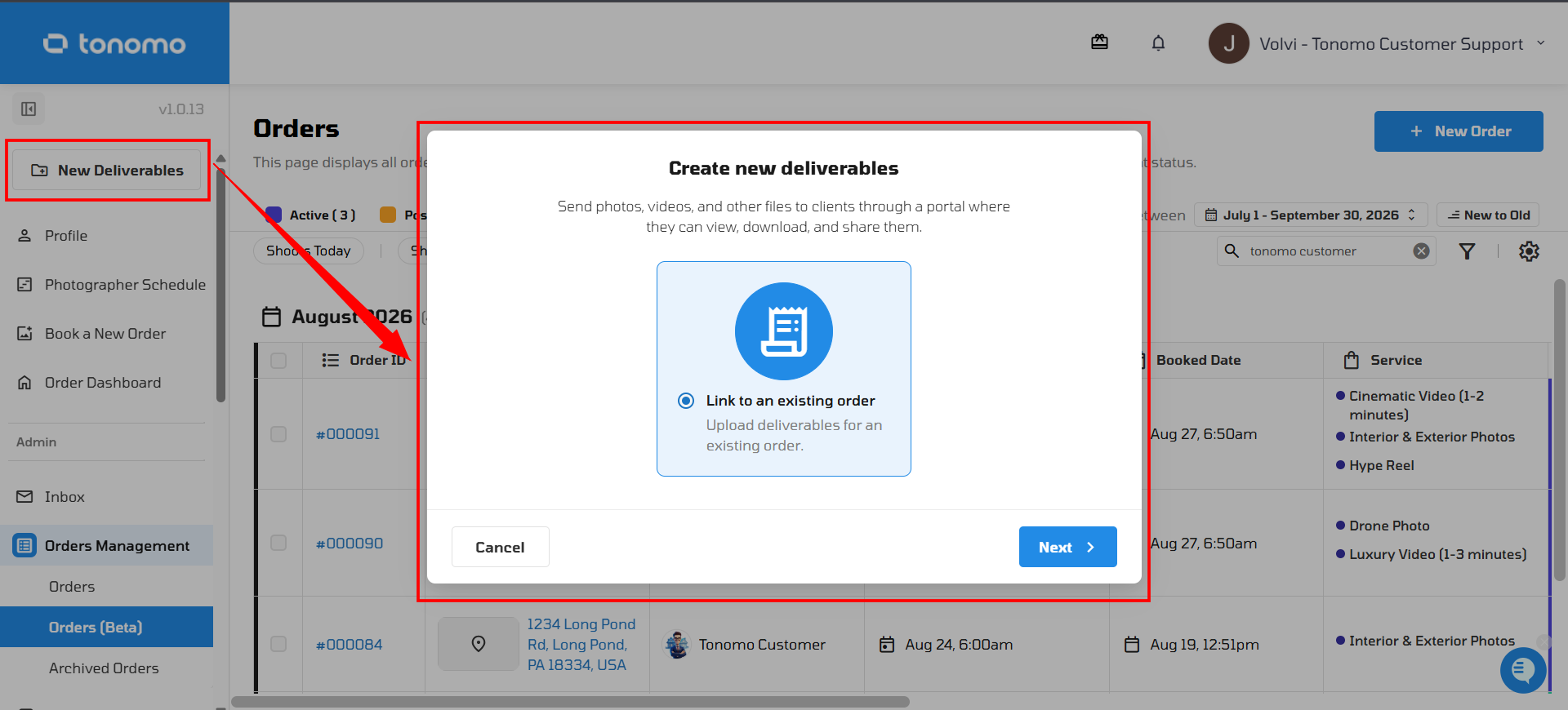
Click New Deliverables in the left menu.
Choose Link to an existing order and click Next.
Under Select an order, search by Order ID, property address, or client name, and pick the order.
If Tonomo finds new files for the order in Dropbox, Esoft, or CubiCasa, it offers to import them (see below).
Click Create.
This opens the order's Direct Upload page, headed Listing: and the address.
Can't find the order? When the search shows No results found, click Create a New Order and fill in the same details as below.
How do I deliver media when there's no order yet?
Sometimes the shoot happens before anyone books, for example a quick re-shoot or a job arranged by phone. You can create the order from Direct Upload and go straight to uploading:
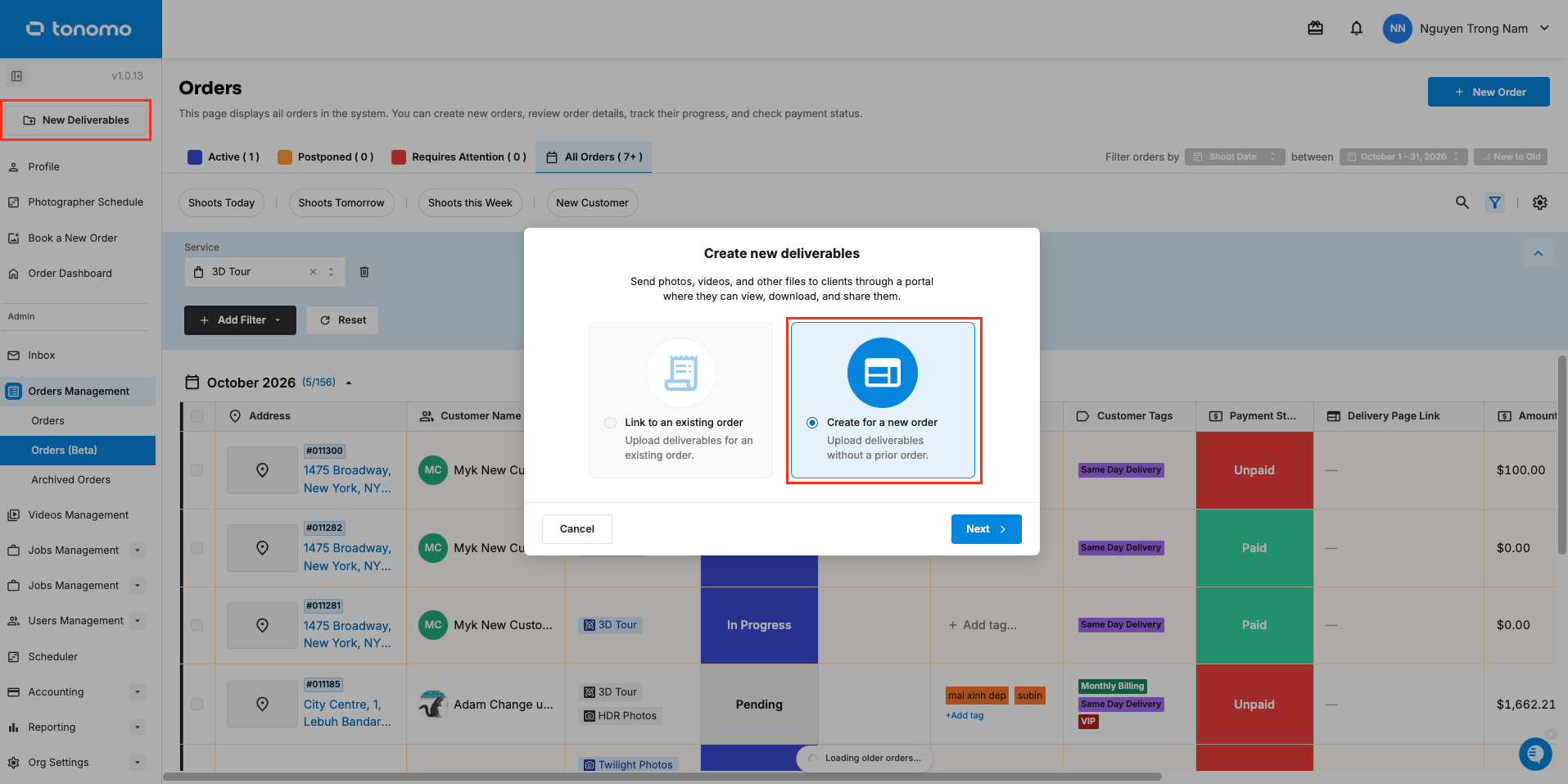
Click New Deliverables in the left menu.
Choose Create for a new order (Upload deliverables without a prior order) and click Next.
Under Client Info, search for an existing client, or add a new one with their Client Full Name and Email. Tonomo warns you if the email already belongs to an account.
Choose a Booking Flow.
Enter the property address under Input the property address for this order.
Click Create.
Tonomo creates the order and opens the upload page. The order shows up in Order Management like any other order, with the status Pending (or In Progress if Move booked orders to in progress is on in Configure Booking > General). It starts with an empty, unpaid invoice. You add the line items when you deliver.
How do I upload my media?
On the order's Direct Upload page, find the section, for example, Photos. Use the tabs at the top to jump between sections.
Click Add (or the + icon, for example, Add Photos).
Drag your files into the window, or click Browse Files. For Videos, you can also choose Link under Upload from and paste a YouTube or Vimeo link. 3D Tours are added by link only (for example, Matterport, Kuula or iGuide).
Click Add Files.
Upload full-resolution files. Tonomo automatically resizes them for the web.
Section | What it takes |
|---|---|
Photos | JPG, JPEG or PNG |
Videos | MP4, MOV, FLV, AVI, MKV, WMV or TS files, or a YouTube or Vimeo link |
Floor Plans | JPG, JPEG, or PNG |
360° Photos | JPG or JPEG, equirectangular (2:1) only |
3D Tours | A link to the tour |
Files | TXT, PDF, DOC, DOCX, XLS, XLSX, PPT, PPTX, AI, ZIP, JPG, JPEG, PNG or TIFF |
Can I rearrange or rename files?
Yes.
Rearrange: click the rearrange icon on the section (for example Rearrange Photo Order) and drag the files into order.
Rename: point at a file and click Edit, then change the Display title.
Download or delete: point at a file to show the Edit, Download and Delete icons. Photos can be downloaded in print or web quality.
Several at once: select files to open a bar with Edit, Delete and download options.
What are the 360° Photos and Files sections?
360° Photos: kept separate from your regular photos. On the delivery page, your client gets a 360 section where they can drag to look around the full 360-degree image.
Files: for other files, such as PDFs and other documents, archives and images like floor plans. Clients click Download to save them to their computer. (The listing website only lists PDFs.)
How do I preview and deliver?
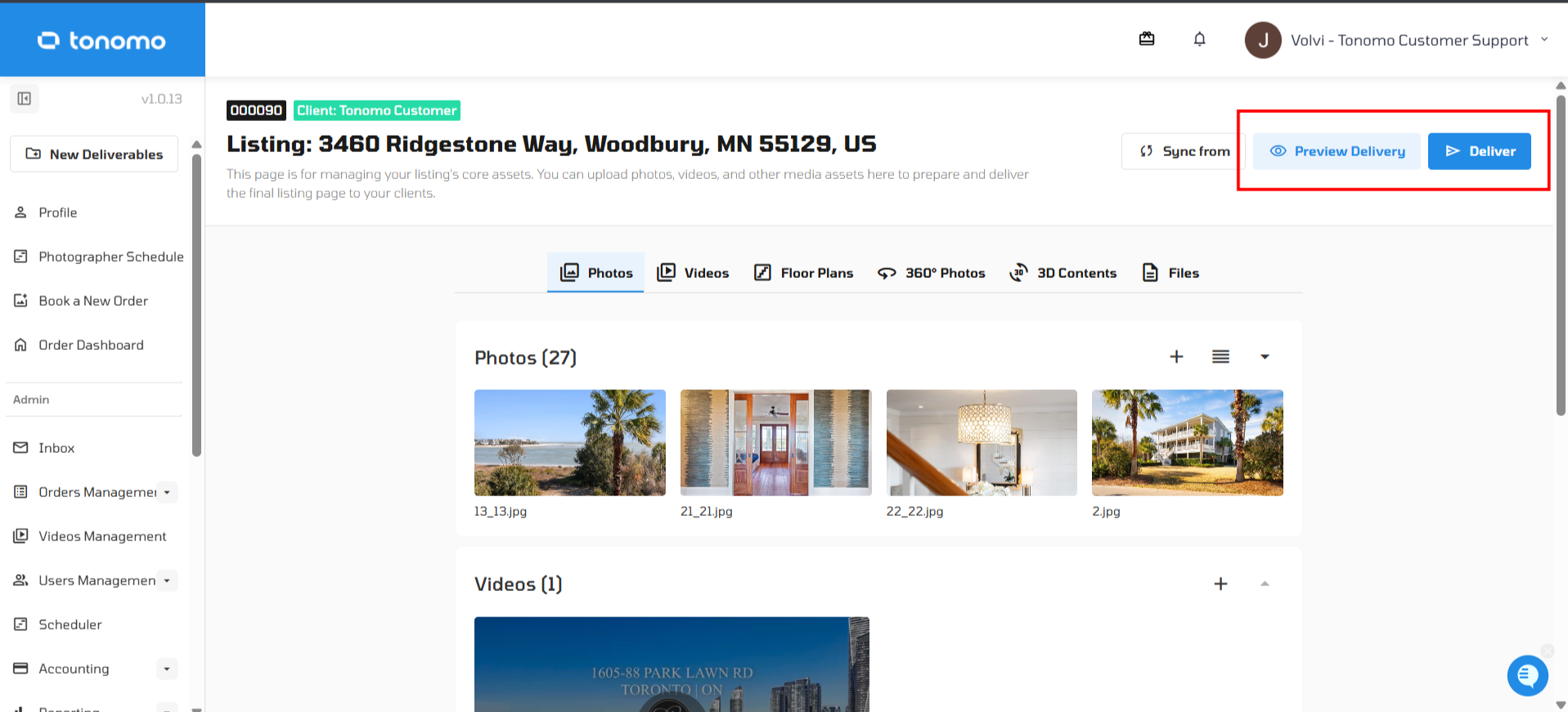
Click Preview Delivery to see exactly what the delivery page will look like to your client. (Preview and Deliver become available once something is uploaded.)
Click Deliver. The Deliver Project window opens.
1. Review Invoice: check the order invoice. Add, edit or delete line items, download the PDF, or copy the invoice link with Share invoice link. Click Next.
2. Send Deliver Mail: check the delivery email. To send it later, switch on Send Later and pick a date and time (up to 3 days ahead).
Click Send Deliverables.
Tonomo sends (or schedules) the email and marks the order complete. If the order has a listing website, Tonomo fills it with the delivered media.
Not ready to deliver yet? That's fine. Your files are already saved to the order. Come back to the Direct Upload page later (see below) and click Deliver when you're ready.
How do I import files from Dropbox, Esoft or CubiCasa?
If you use Dropbox, Esoft or CubiCasa alongside Direct Upload, you can import files instead of uploading them again. The integration must be connected.
When you create the deliverables:
Click New Deliverables, choose Link to an existing order and pick the order.
If Tonomo finds new files, it shows an Import from card, for example "12 photos found for this order" under Photo source for Dropbox.
Switch on the card (Toggle on to skip manual upload) and click Create.
Dropbox imports cover photos, floor plans, 360° photos and videos from the order's Dropbox folder.
Later: on the Direct Upload page, click Sync from. Each connected source shows New content available or No update available. Click the sync icon next to a source, or Sync All.
How do I add more files later?
You have two options:
Upload in Tonomo: open the order's Direct Upload page and add files to any section, as above.
Add them in Dropbox: put the new files in the order's Dropbox folder, then click Sync from on the Direct Upload page and sync Dropbox.
If the order has a listing website, Tonomo offers to update it after each change.
Can I keep Dropbox for RAW files and deliver through Direct Upload?
Yes. Go to Configure Booking > General > Dropbox and switch off Dropbox delivery folder. Tonomo then stops creating Dropbox delivery folders, and your final files are delivered through Direct Upload. Dropbox RAW folders keep working as before. See How Do I Connect Dropbox To Tonomo?
Where do I find an order's uploaded files later?
In Order Management: the File Links column on Orders (Beta) shows up to three links per order:
Link | What it opens |
|---|---|
Raw Files | The order's Dropbox folder for RAW files |
Final Files | The order's Dropbox folder for final files. Not shown if Dropbox delivery folder is off. |
Uploaded files | The order's Direct Upload page, where you can upload more or revise files |
You can also click Manage Media in the Delivery Page Link column.
In Jobs: an editor's job shows the order's uploaded files with the number of files (for example "12 uploaded files"), or Add Final Files if nothing has been uploaded yet. Either link opens the order's Direct Upload page, so editors can upload finished files straight from the job. See How Do I Work on a Job?
How do I edit deliverables after creating them?
On Orders (Beta), click the order's Order ID to open Order Details.
On the Delivery tab, in Deliverable Files, click Edit.
The order's Direct Upload page opens in a new tab so you can make changes. View Delivery next to it opens the delivery page.
Can I use uploaded media for flyers and listing websites?
Yes. The Flyer Builder can use photos you uploaded with Direct Upload, and your uploaded photos and videos can appear on the order's listing website. The Direct Upload page has a Property Website section with Admin Panel and Publish property website. When you change the media, Tonomo offers to update the listing website too. See How Do I Set Up a Single Property Website?
Frequently asked questions
Do I still need Dropbox? No. You can deliver everything with Direct Upload. Many teams keep Dropbox for RAW files and deliver final files through Direct Upload.
Can I deliver to a client who hasn't booked? Yes. Use New Deliverables > Create for a new order. Tonomo creates the order for you, and you add the invoice items when you deliver.
Does delivering send an email and complete the order? Yes. Send Deliverables sends the delivery email (or schedules it with Send Later) and marks the order complete.
Do I need to resize photos before uploading? No. Upload full-resolution files; Tonomo resizes them for the web.
Can I import files that are already in Dropbox? Yes. When you create the deliverables, Tonomo offers to import new files it finds for the order. Later, use Sync from.
Related articles