How Do I Add a Meta Pixel or Other Tracking Code to a Listing Website?
Last updated: October 29, 2026
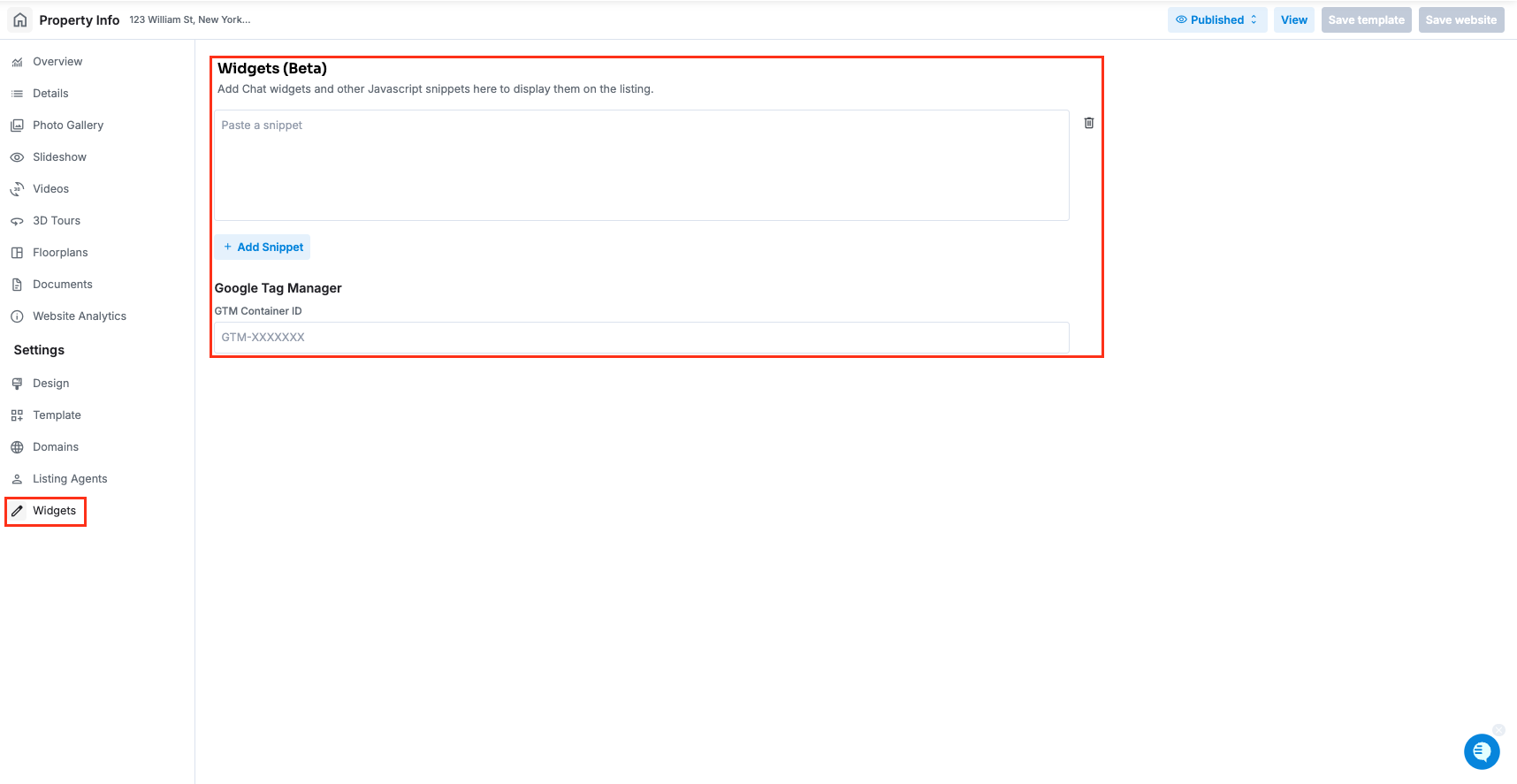
You add tracking code to a Tonomo listing (property) website with Widgets, a page in the website's Admin panel. Paste a code snippet, such as a Meta (Facebook/Instagram) Pixel or a chat widget, with Add Snippet, or enter a Google Tag Manager container ID, then click Save website. The code then loads on that listing's website, so you can measure visits, build retargeting audiences and track conversions. Tonomo doesn't have a dedicated Meta Pixel field, so this guide uses the Meta Pixel as the worked example.
At a glance
Where: open the order's listing website Admin panel, then Widgets. The page is titled Widgets (Beta).
Who: Admins can add snippets and a Google Tag Manager ID. Customers (agents) can open Widgets on their own listing websites and add a Google Tag Manager container ID only.
Snippets: Add Snippet adds a box. Paste the full code, add more boxes if you need them, then click Save website.
Google Tag Manager: Enter the GTM Container ID in the format GTM-XXXXXXX.
Per website: widgets are saved on each listing website separately. To track several listings, add the code to each one.
Not the same as the portal-wide Widgets (Beta) in Configure Booking > General, which adds code to your booking, order dashboard and delivery pages instead.
Why add a Meta Pixel to a listing website?
If you run Meta (Facebook/Instagram) ads that send traffic to a Tonomo listing website, a Meta Pixel on the listing lets you:
measure visits from your ads
build retargeting audiences of people who viewed the listing
track conversions in Meta Ads Manager
What do I need?
An active Meta Ads / Meta Business account with a Pixel already created
Your Meta Pixel ID (a long number, found in Meta Events Manager)
Admin access to your Tonomo portal
Step 1: How do I get my Meta Pixel code?
Open Meta Events Manager (business.facebook.com/events_manager).
Select your Pixel from the list of data sources.
Choose to set it up by installing the code manually. (Meta's button names change from time to time.)
Copy the full base code Meta gives you. It looks like this, with your own Pixel ID in place of YOUR_PIXEL_ID:
<!-- Meta Pixel Code -->
<script>
!function(f,b,e,v,n,t,s){if(f.fbq)return;n=f.fbq=function(){n.callMethod?
n.callMethod.apply(n,arguments):n.queue.push(arguments)};if(!f._fbq)f._fbq=n;
n.push=n;n.loaded=!0;n.version='2.0';n.queue=[];t=b.createElement(e);t.async=!0;
t.src=v;s=b.getElementsByTagName(e)[0];s.parentNode.insertBefore(t,s)}(window,
document,'script','https://connect.facebook.net/en_US/fbevents.js');
fbq('init', 'YOUR_PIXEL_ID');
fbq('track', 'PageView');
</script>
<noscript><img height="1" width="1" style="display:none"
src="https://www.facebook.com/tr?id=YOUR_PIXEL_ID&ev=PageView&noscript=1"/></noscript>
<!-- End Meta Pixel Code -->
Tip: your Pixel ID appears twice in the code: once inside fbq('init', '…') and once in the noscript image address. Both must match.
Step 2: How do I add the pixel to the listing website?
Go to Orders Management > Orders (Beta) and click the order's Order ID. Order Details opens on the right.
On the Delivery tab, in Property Website, click Admin panel. The website's dashboard opens in a new tab.
In the left menu, click Widgets. The page is titled Widgets (Beta): "Add Chat widgets and other Javascript snippets here to display them on the listing."
Click Add Snippet. A box appears that says Paste a snippet.
Paste the entire Meta Pixel code from Step 1 into the box.
Click Save website at the top of the page.
To remove a snippet later, click the bin icon next to it, then Save website.
Note: widgets are set per listing website. To track several listings, add the same pixel to each one. You can also use different Pixel IDs for different listings if you want separate audiences.
Can I use Google Tag Manager instead?
Yes. If you manage your tracking in Google Tag Manager, enter your container ID instead of pasting each snippet:
On the same Widgets page, under Google Tag Manager, enter your GTM Container ID, for example GTM-AB12CD3.
Click Save website.
The ID must start with GTM- followed by capital letters and numbers. Then add the Meta Pixel (and any other tags) inside Google Tag Manager.
Don't add the pixel twice. If the pixel is already in your Google Tag Manager container, don't also paste it as a snippet, or every visit will be counted twice.
Agents can do this themselves. When a customer opens their own listing website, they see a Widgets page with Google Tag Manager only. They can add their own container ID there without asking you.
Step 3: How do I check the pixel is working?
Make sure the website is published, then use any one of these methods on the live listing page.
Method 1: Meta Pixel Helper extension (easiest)
Install the Meta Pixel Helper Chrome extension.
Open your published listing website in Chrome. Avoid incognito windows and Brave for this test, because they can block the pixel.
Click the Meta Pixel Helper icon in your toolbar.
You should see your Pixel ID with at least one PageView event.
[Screenshot: Meta Pixel Helper | alt: "Meta Pixel Helper extension showing the pixel as active on a listing website"]
Method 2: browser developer tools, Elements tab
On the listing page, right-click anywhere and choose Inspect.
Go to the Elements tab.
Press Ctrl+F (Cmd+F on a Mac) and search for your Pixel ID. You should find at least one match.
Method 3: browser developer tools, Network tab
Open the developer tools and switch to the Network tab.
Reload the listing page.
Filter for facebook. You should see a request for fbevents.js and a tracking request to facebook.com/tr.
Method 4: Meta Events Manager, Test Events
In Meta Events Manager, open your Pixel and go to Test Events.
Enter the listing website address and open it.
Browse the listing as a visitor would. PageView events should appear within a few seconds.
What can I do once the pixel is set up?
Build a retargeting audience:
Open Meta Ads Manager and go to Audiences.
Create a Custom Audience with Website as the source.
Select your Pixel.
Choose All website visitors, or narrow it to one listing with a rule like URL contains your listing's address or domain.
Set how long people stay in the audience (up to 180 days), name it, and create it.
Meta can fill the audience with past visitors the pixel has already recorded within that time window.
Track contact clicks as leads: a PageView tells you someone visited. If you want to count clicks on the listing's contact button as a Lead event, that needs a custom event snippet. Contact Tonomo support to discuss it.
What's the difference between listing website widgets and portal widgets?
Listing website Widgets | Portal Widgets (Beta) | |
|---|---|---|
Where | A listing website's Admin panel > Widgets | Configure Booking > General |
Loads on | That one listing website | Your customer-facing portal pages: booking, order dashboard and delivery |
Options | Snippets and a Google Tag Manager ID | Snippets |
Use it for | Ad tracking and chat on a listing | Tracking or chat across your whole booking portal |
To track people who book with you rather than people viewing a listing, add your pixel to the portal Widgets (Beta) instead: paste it with Add Snippet and click Save.
Frequently asked questions
Is there a dedicated Meta Pixel setting? No. Paste the pixel code as a snippet in Widgets, or add it through Google Tag Manager.
Do I need to add the pixel to every listing? Yes. Listing website widgets are saved per website. Paste the same code on each listing you want to track.
Can agents add their own tracking? Agents can add a Google Tag Manager container ID on their own listing websites. Pasting snippets is admin-only.
My pixel doesn't show up. What should I check? Make sure you clicked Save website, that the website is Published, that you pasted the whole code (including the opening and closing script tags), and that both copies of your Pixel ID match. Test in a normal Chrome window, not incognito.
Can I add a chat widget the same way? Yes. Paste the chat provider's JavaScript code with Add Snippet and click Save website.
Related articles