How Do I Use Project Chat On an Order?
Last updated: October 14, 2026
Project Chat is your team's workspace for each order in Tonomo. It's where you move each service through its stages, assign editors, tick off checklists, and talk about the job with your team. Agents never see it. Open it from any order on the Orders (Beta) page. Each service also has its own chat and activity log for focused conversations.
At a glance
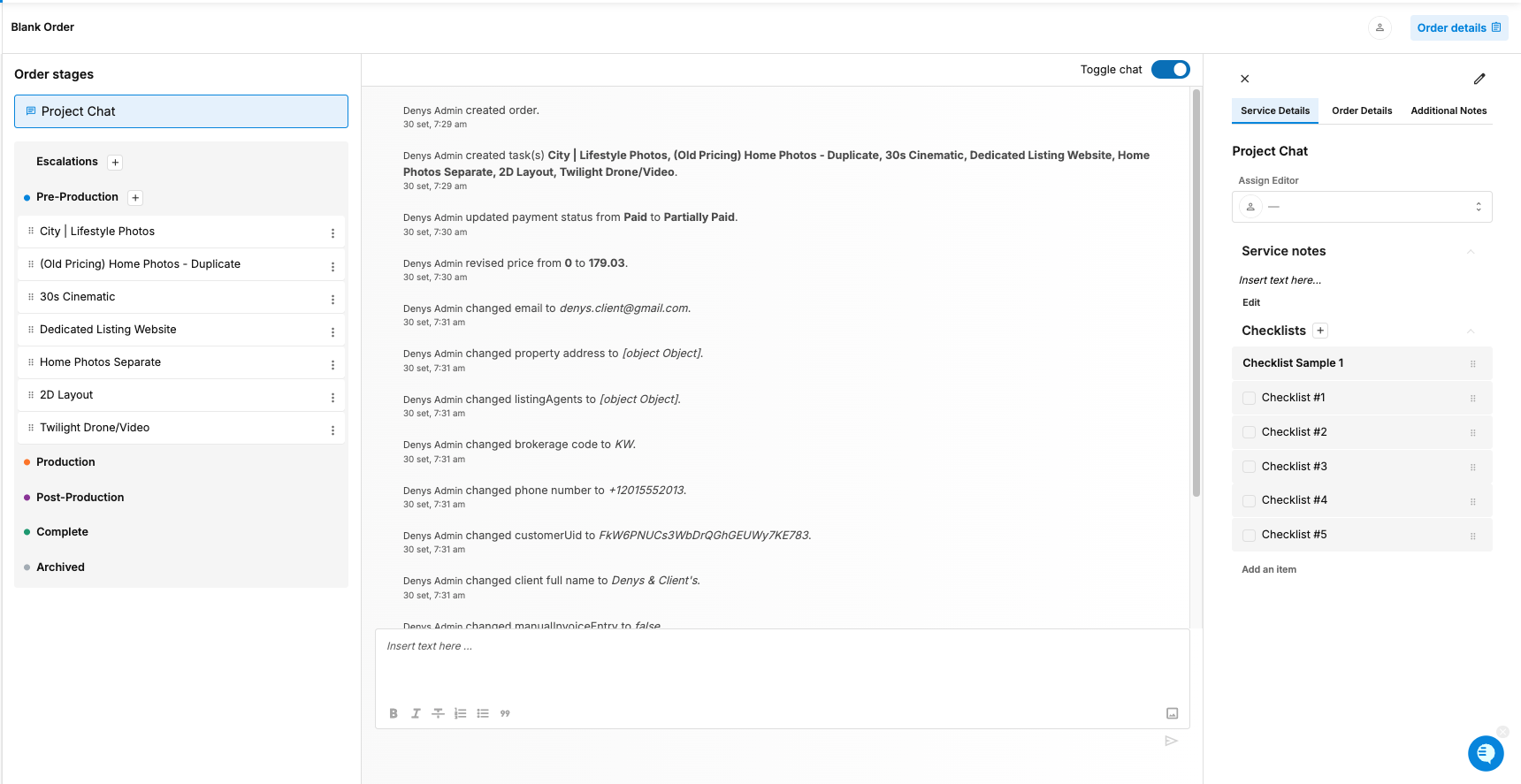
Open it from Orders (Beta) by clicking an order's Services, or with the Project Chat button in Order Details.
Left: each service and its stage. Drag to move a service between stages.
Centre: the order's internal chat, with an activity log toggle.
Right: Service Details, Order Details and Additional Notes.
Tag a teammate with @name, or a whole role such as @Project Manager or @Video Editor.
Click a service for its own chat, activity log, checklist and editor.
How do I open Project Chat?
From Orders Management > Orders (Beta):
Services: click the order's Services cell.
Order details: click the Order ID to open Order Details, then click Project Chat next to the order status.
How do I move a service through its stages?
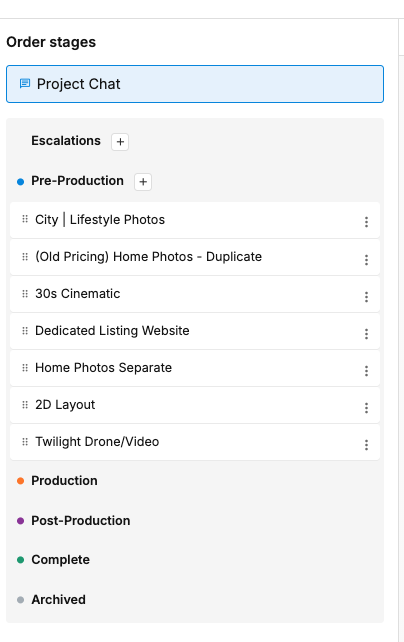
On the left, each service on the order shows its stage: Pre-Production, Production, Post-Production, Complete or Archive (for a service the agent cancelled). Drag a service into the next stage as the project moves on.
You can rename the stages in Org Settings > Customization. Only the names change, not how they work. See How Do I Rename Order, Payment, and Service Statuses?
How do I chat with my team?
The centre is the order's chat (also called Order Chat), for your team only. Agents never see these messages. The large box shows the history, and you type in the box at the bottom. It works like Slack or any messaging app.
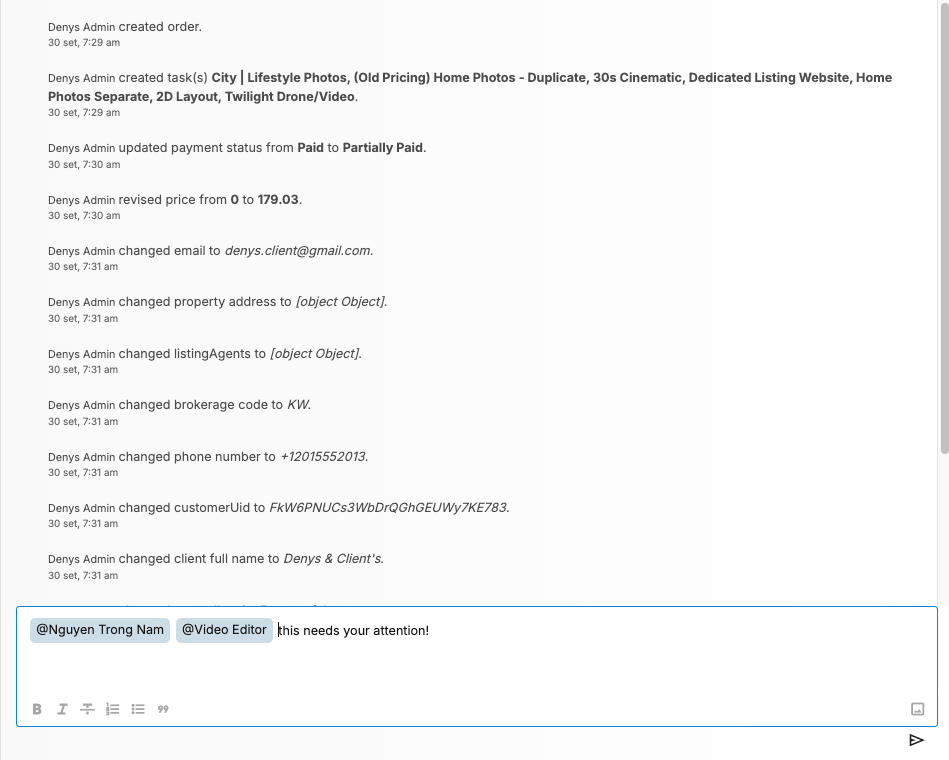
Tag a teammate: type @ and their name, for example @JohnSmith, to notify them.
Tag a role: for example, @Project Manager or @Video Editor, to notify everyone in that role.
Reply in a thread or upload images into the chat.
What's the activity log?
Use the toggle at the top to show or hide it. When it's on, Tonomo adds a note to the chat whenever someone changes the order, for example "Volvi – Tonomo Customer Support changed property square footage to 2000". When it's off, you only see the messages people wrote.
How do I see one service's conversation?
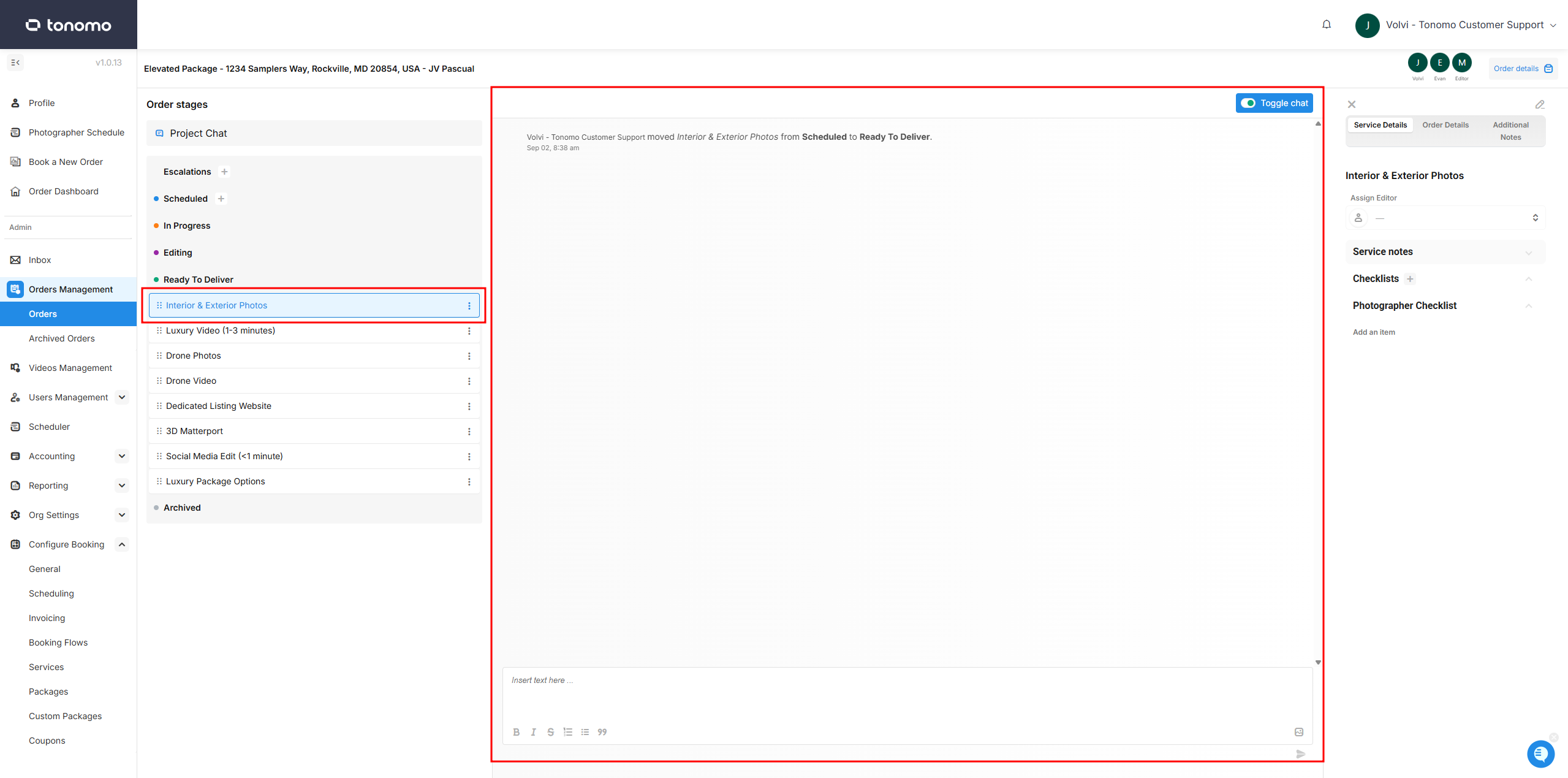
Click a service to open its own chat and activity log. This is useful for focused conversations, and to see who moved the service to a new stage. You can also see the service's checklist and assign a different editor from here.
What's on the right?
Three tabs:
Service Details: Assign Editor, Order Notes and Checklists. Staff and Admins can edit them and tick items off as work is done.
Order Details: the order's information. See How Do I Use the Order Details Section?
Additional Notes: a free notes field.
To pre-set checklists, add them to each service's Task Configuration, or create a Project Chat checklist for every order. See How Do I Add a Checklist To Project Chat?
Frequently asked questions
Can agents see Project Chat? No. It's internal to your team.
Is Project Chat connected to Jobs? Yes. If you use Jobs Management, each job's chat is this order's Project Chat, plus a tab for each service. See How Does Job Chat Work?
How do I flag a service as urgent? Edit the service and switch on Set as escalation. See How Do I Flag an Urgent Order Using Escalation?
Related articles