How Does Job Chat Work?
Last updated: September 28, 2026
Every job in Tonomo has a chat on its details page. It is the order's Project Chat, not a separate conversation. The first tab is the order's Project Chat (labelled with the job's name), followed by one tab for each service the job covers. Anything said in a job's chat also shows on the order, so the whole team stays in the same conversation. Use @mentions to notify a teammate.
At a glance
The chat is on the right of the Job Detail page, or below the details on smaller screens.
Tabs: the order's Project Chat first, then one tab per service on the job.
It's the same conversation as the order's Project Chat. Nothing is hidden in a side channel.
@mention a team member to notify them.
A dot on a tab means there are unread messages.
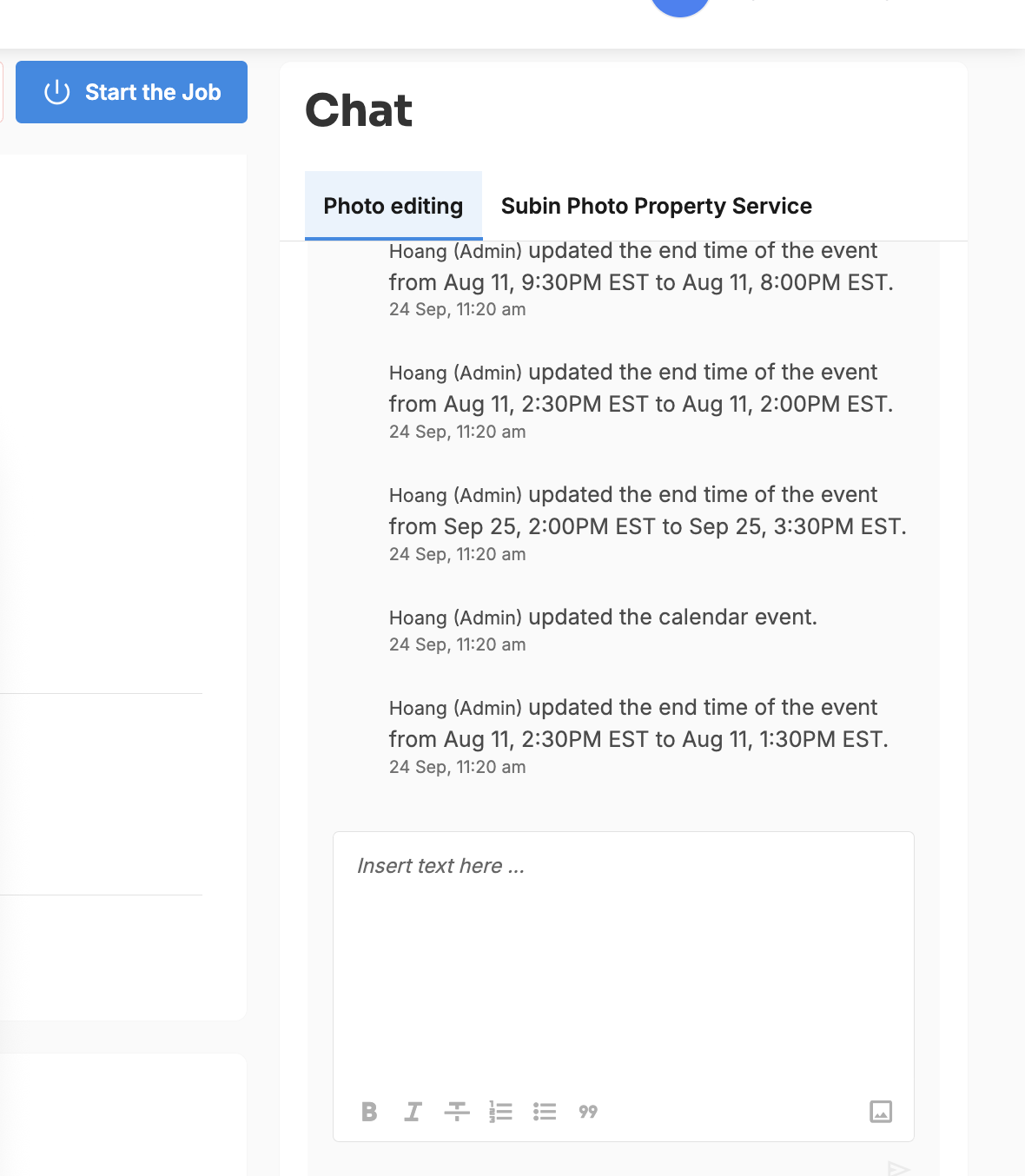
What are the chat tabs?
Project Chat: the order's main conversation, shown under the job's name.
One tab per service: for example Home Photos or Twilight Photos. These are the same service conversations your team uses from the order.
If there are more tabs than fit, use the scroll arrows to see them all.
Who can see job chat messages?
Everyone with access to the order's Project Chat, because job chat and Project Chat are the same conversation. Customers can't see Project Chat.
How do I get someone's attention?
Type @ and pick a team member. They're notified about your message.
Reacting with a thumbs up also notifies the person who wrote the message.
Frequently asked questions
Is job chat separate from Project Chat? No. It's the same conversation, so messages appear in both places.
Why is there a dot on a tab? It has messages you haven't read yet.
Can I update a service's status from the chat? Not possible
Related articles
How Do I Work on a Job?
How Do I Escalate a Job?
Project Chat
Slack Integration