Add Additional Customers to Calendar Event and CC Email
Last updated: October 21, 2026
There are two ways to keep extra people, like a co-listing agent or an assistant, in the loop on an order. Add them as Additional guests on the calendar event so they get the shoot invite, and add them to the order's Email List so Tonomo copies (CCs) them on the emails it sends the customer. Guests are set in the Scheduler's Edit event window. The Email List is in the Customer section of Order Details.
At a glance
Calendar invite: Scheduler → pencil icon → Additional guests → Save event.
Email copies: Orders (Beta) → Order ID → Order Details → Customer → Email List.
The Email List is copied on emails that go to the customer. It isn't added to emails that only go to your team.
The Email List starts with the customer's Additional emails from their profile, and you can change it per order.
When you create a new calendar event, Tonomo adds the customer, the Email List and the customer's profile emails as guests.
Only Admin and Staff users can edit orders.
How do I add guests to the calendar event?
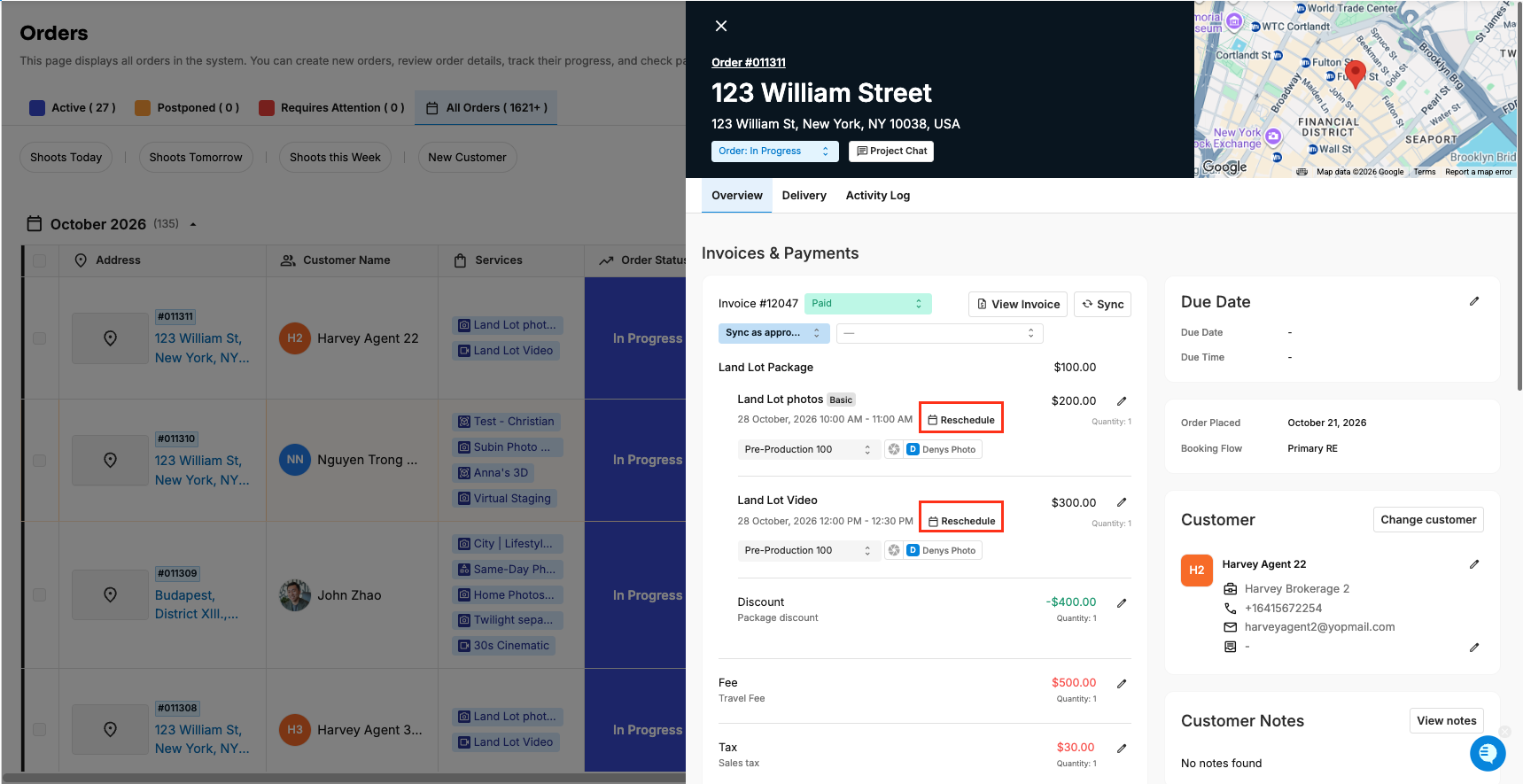
Go to Orders Management > Orders (Beta) and click the order's Order ID. Order Details opens on the right.
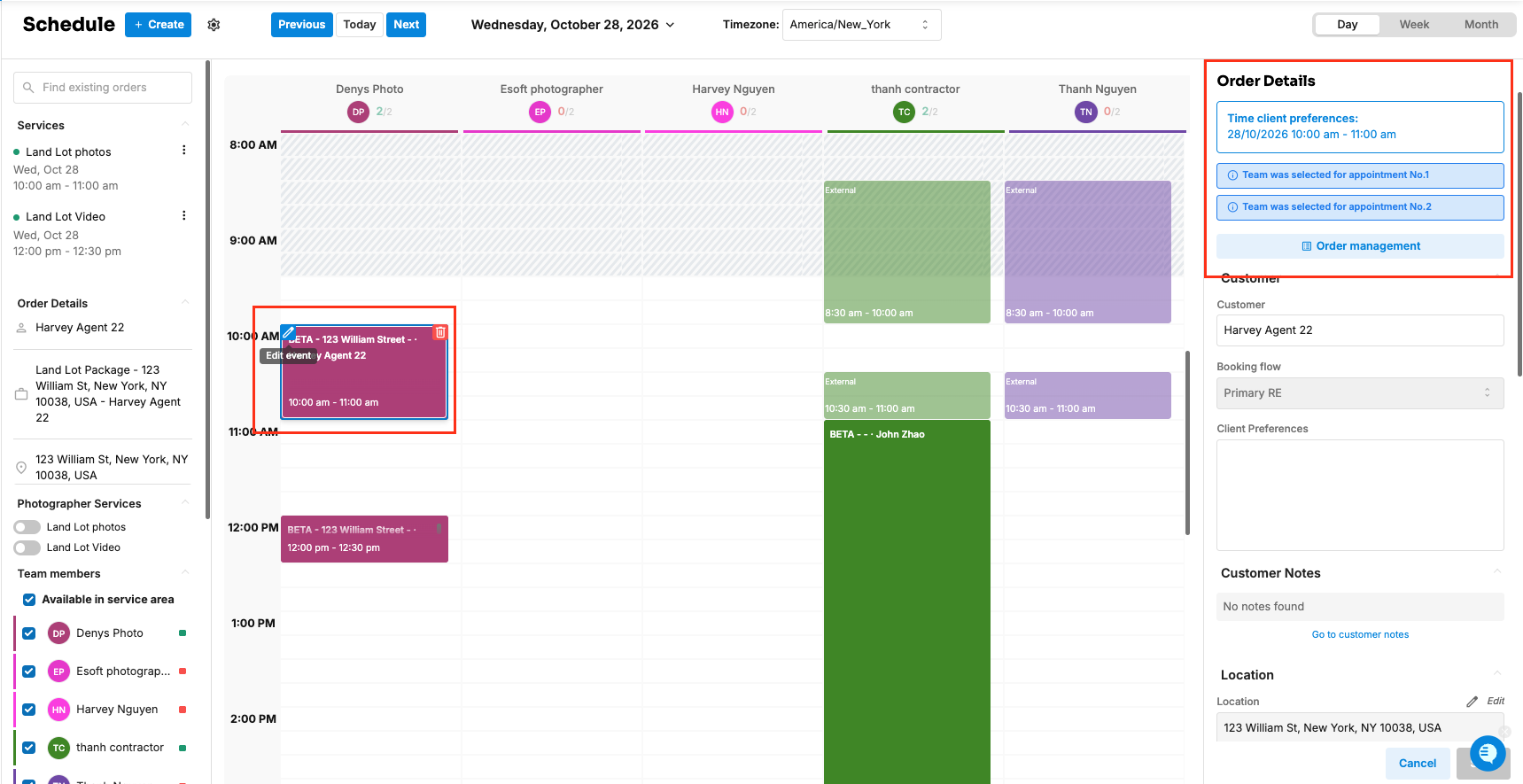
Open the appointment in the Scheduler:
New layout: in Invoices & payments, click Reschedule next to the scheduled service.
Original layout: in the Schedule section, click Open in scheduler.
Point at the event and click the pencil icon (Edit event).
In Additional guests:
To add someone: type their email address and press Enter or type a comma. Repeat for each address.
To remove someone: click the X on their email.
To copy everyone's emails: click the copy icon (Copy email list to clipboard).
Leave Notify participants on if you want new guests to get the invite now.
Click Save event.
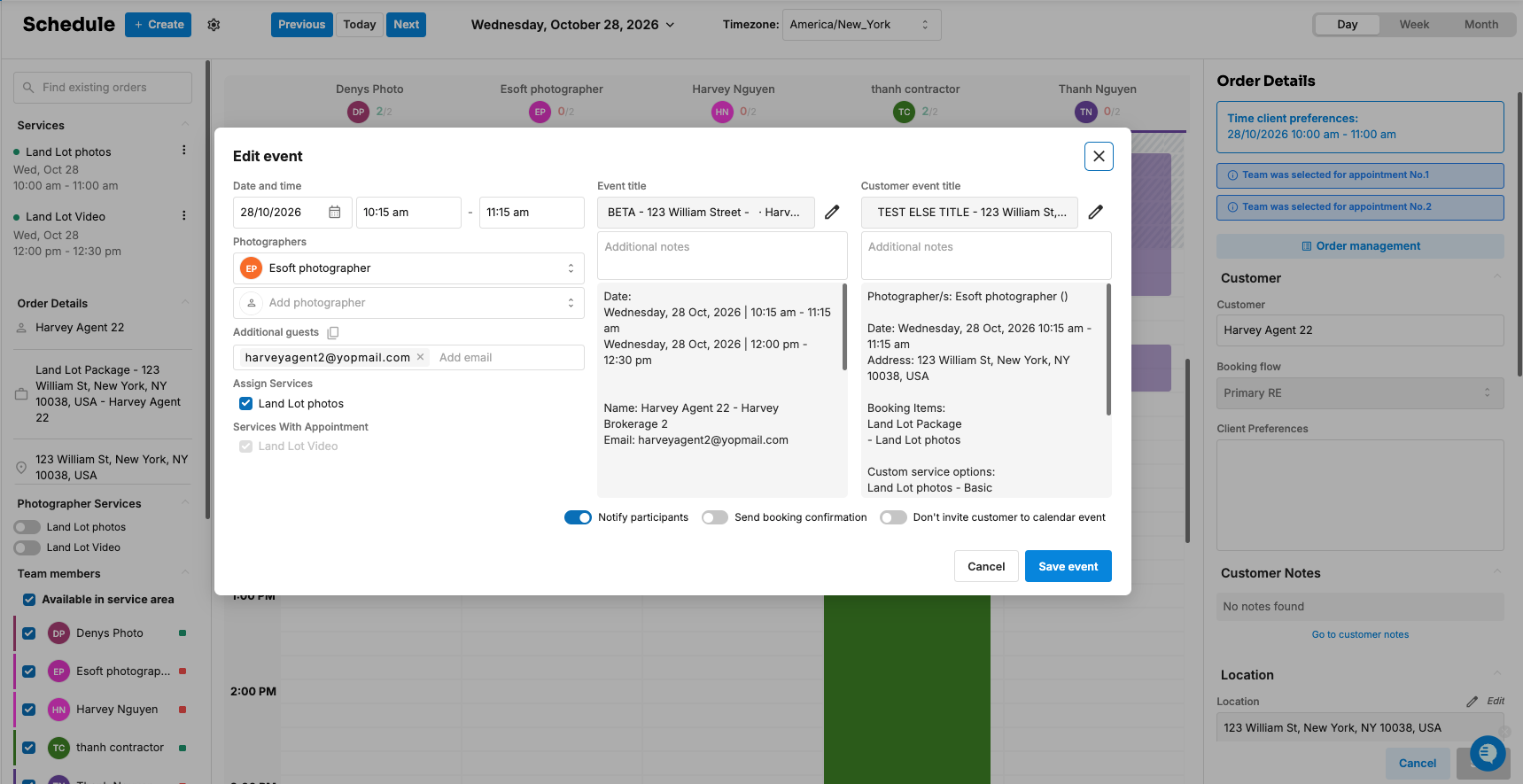
Tip: To keep the customer off the invite but keep other guests, switch on Don't invite customer to calendar event before saving.
How do I CC someone on the order's emails?
Go to Orders Management > Orders (Beta) and click the order's Order ID.
In Order Details, find the Customer section.
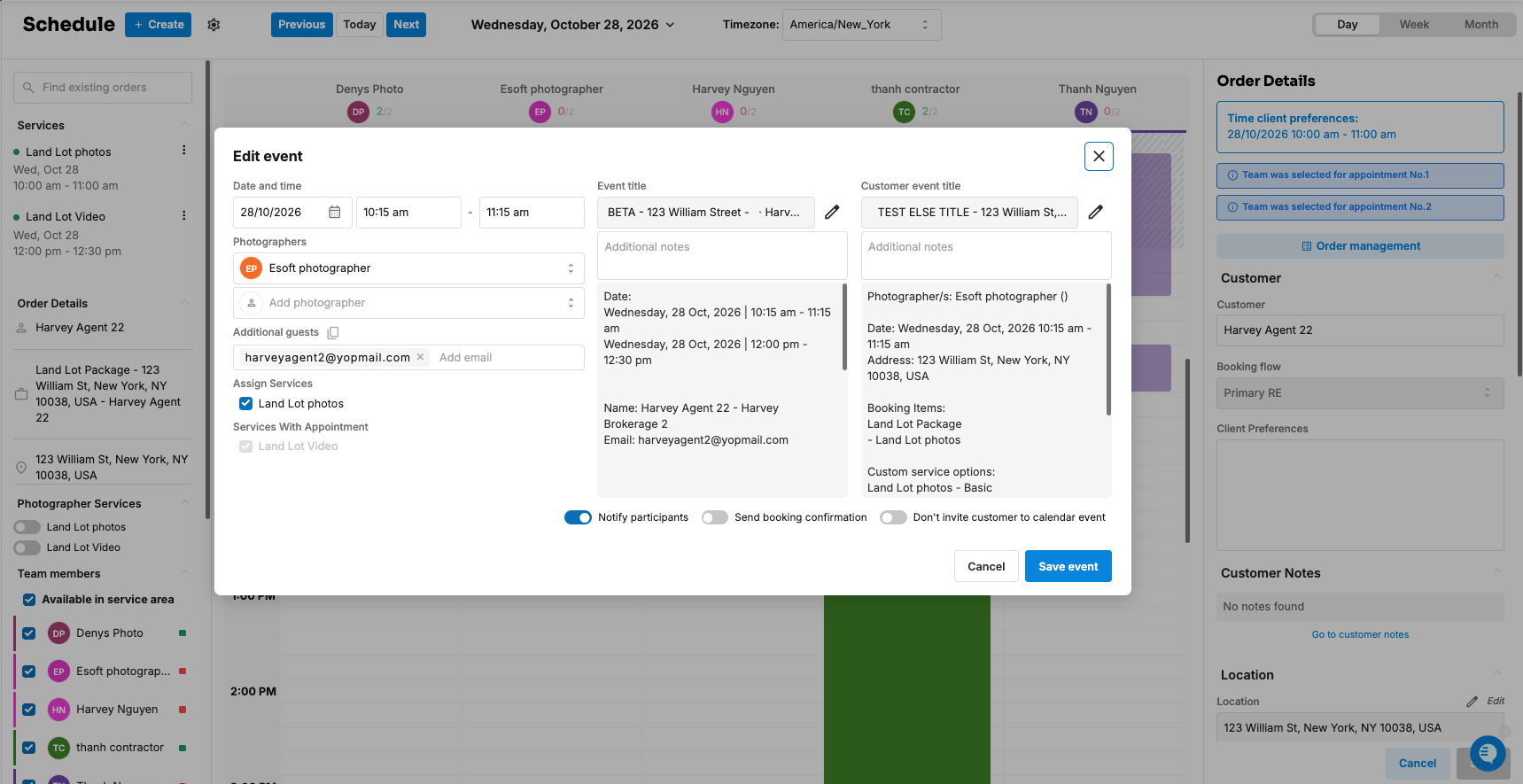
New layout: click the edit (pencil) button next to the email list line. The Email List field opens.
Original layout: open Customer and use the Email list field.
Type the email address and press Enter or type a comma.
Changes save automatically.
From now on, Tonomo copies those addresses on every email it sends the customer for this order, such as the booking confirmation, the rescheduled email and the completion email.
Where does the Email List come from?
When an order is booked, or when you switch the order to a different customer, the Email List is filled from the customer's profile: the Additional emails field ("Who else should we know or have copied on correspondence?"). Changing the Email List on one order doesn't change the profile or other orders.
To copy someone on all of a customer's future orders, add them to Additional emails on the customer's profile instead. See How to edit Customer and Branding Information?
What's the difference between guests and the Email List?
Additional guests | Email List | |
|---|---|---|
Where | Scheduler → Edit event | Order Details → Customer |
What they get | The calendar invite and updates | A copy (CC) of emails sent to the customer |
Applies to | That one appointment | Every customer email for that order |
Filled from | The customer, the Email List, the customer's profile emails and listing agents, when the event is created | The customer's profile Additional emails |
Frequently asked questions
Do I need to add someone in both places? Only if you want them to get the calendar invite and the emails. Adding an address to the Email List of an existing order doesn't add it to an event that already exists.
Why isn't the CC address getting some emails? The Email List is only copied when the email goes to the customer. Emails that only go to your team or photographers don't include it.
Can I CC someone on every email for all customers? Yes. Add a CC or BCC on the email template itself. See How Do I Edit My Email Templates?
Will a new guest get the invite straight away? Yes, if Notify participants is on when you click Save event.
Related articles