
How Do I Reschedule An Existing Order?
To change the date, time or length of a booked shoot, open the order's appointment in Tonomo's Scheduler and either drag the event to a new time or edit it with the pencil icon. Nothing is saved until you click Save event in the Edit event window. Tonomo then updates the calendar event for everyone invited, and shows you any travel fee or specific day fee that changes with the move.
At a glance
Start from Orders Management > Orders (Beta). Click the order's Order ID to open Order Details, then open the appointment in the Scheduler.
Drag the event to a new time, or click the pencil icon (Edit event) to change the Date and time.
Dragging opens Edit event with the new time filled in. Click Save event to keep it, or Cancel to put it back.
You can also change the Photographers and Additional guests in the same window.
Notify participants controls whether everyone on the event gets an updated calendar invite.
Automatically update event duration (in Configure Booking > General) lets Tonomo resize events when services or square footage change.
Customers can get an email when their shoot moves: turn on Send appointment rescheduled email.
How do I open the appointment in the Scheduler?
Go to Orders Management > Orders (Beta) and click the order's Order ID. Order Details opens on the right.
Open the appointment in the Scheduler:
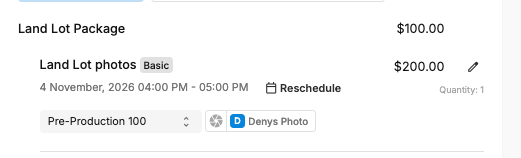
New layout: in Invoices & payments, each scheduled service shows its date and time. Click Reschedule next to it. The Scheduler opens in a new tab with that appointment selected.
Original layout: open the Schedule section and click Open in scheduler under the appointment.
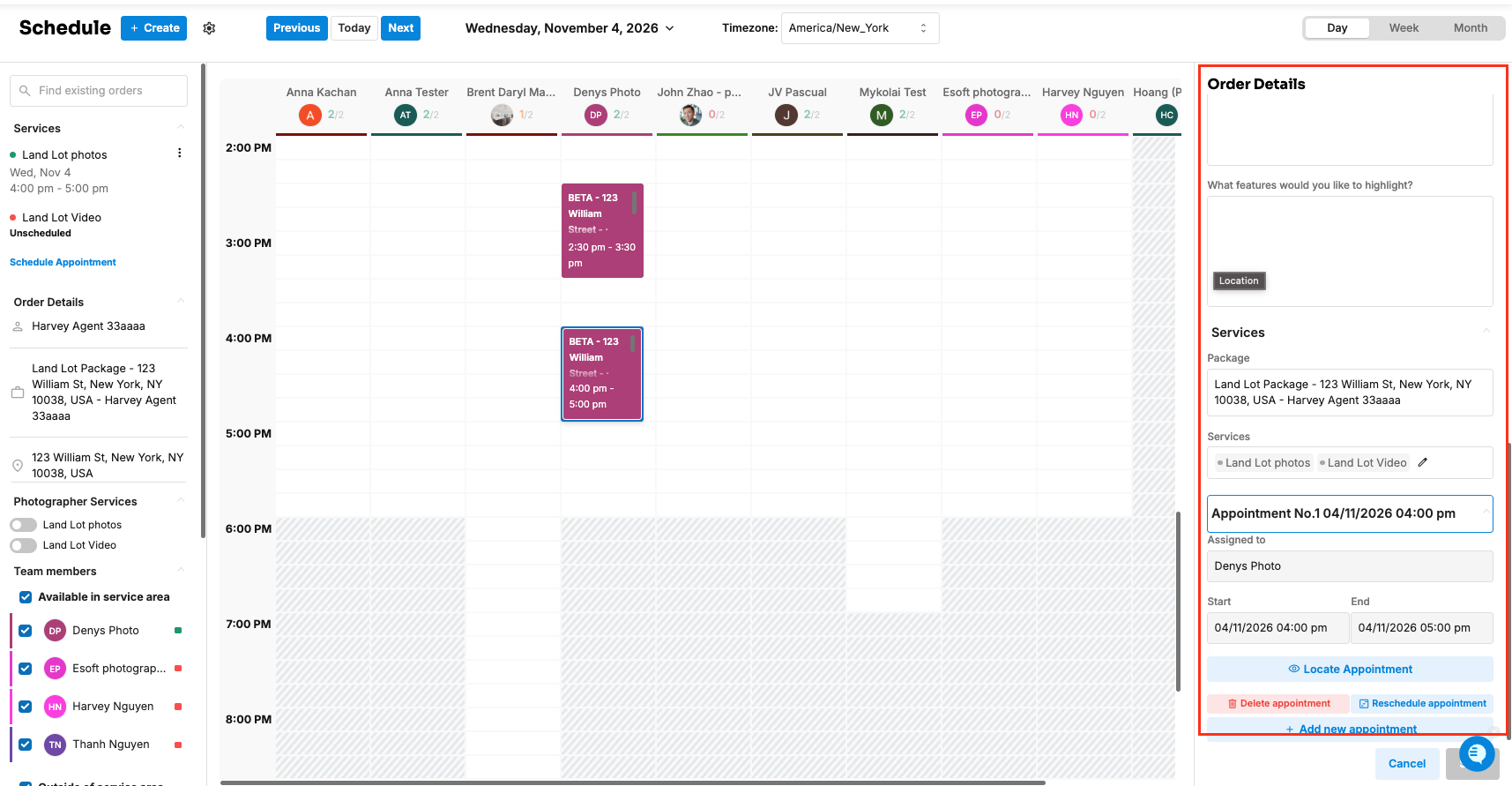
You can also open Scheduler from the left menu and use Find existing orders to search for the order. Clicking a shoot opens its Order Details in the Scheduler, with Reschedule appointment and Locate Appointment buttons.
How do I move a shoot to a new time?
Drag it:
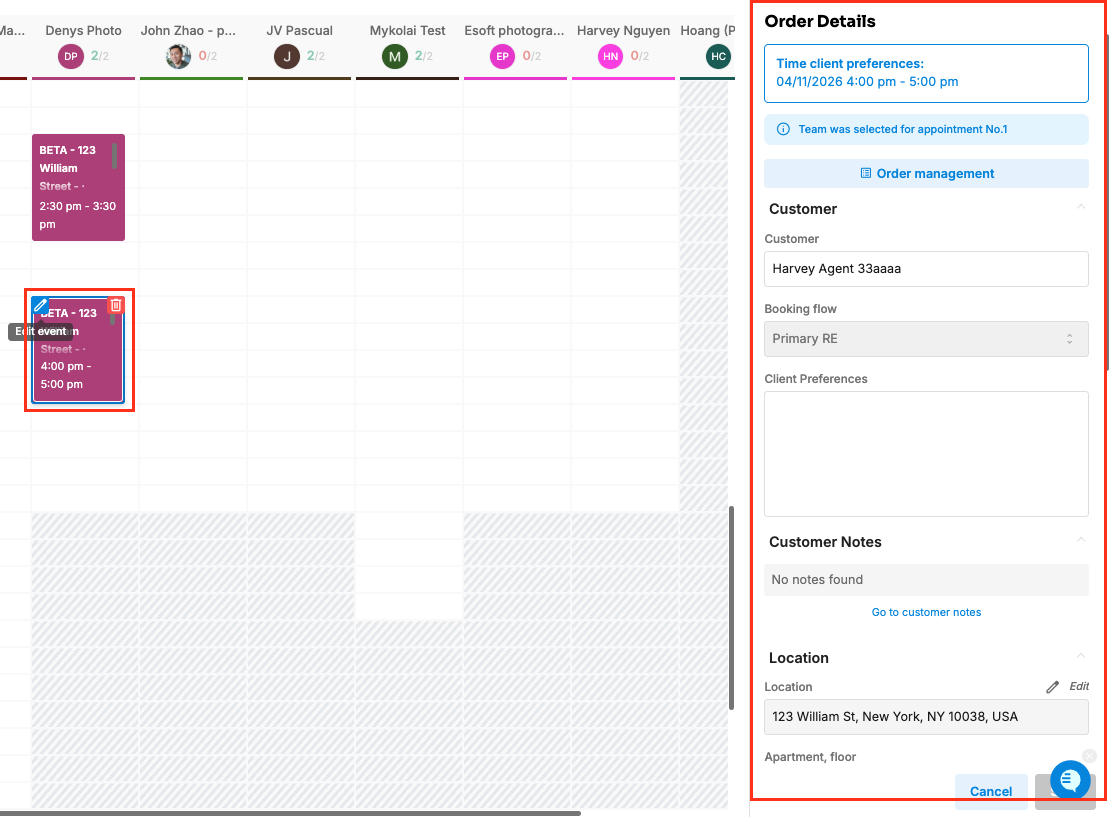
In the Scheduler, drag the event to the new time, just like in Google Calendar. To change its length, drag its bottom edge. You can also drag its top edge to change the start time.
The Edit event window opens with the new time filled in.
Check the details and click Save event. Click Cancel to put the event back where it was.
Edit it:
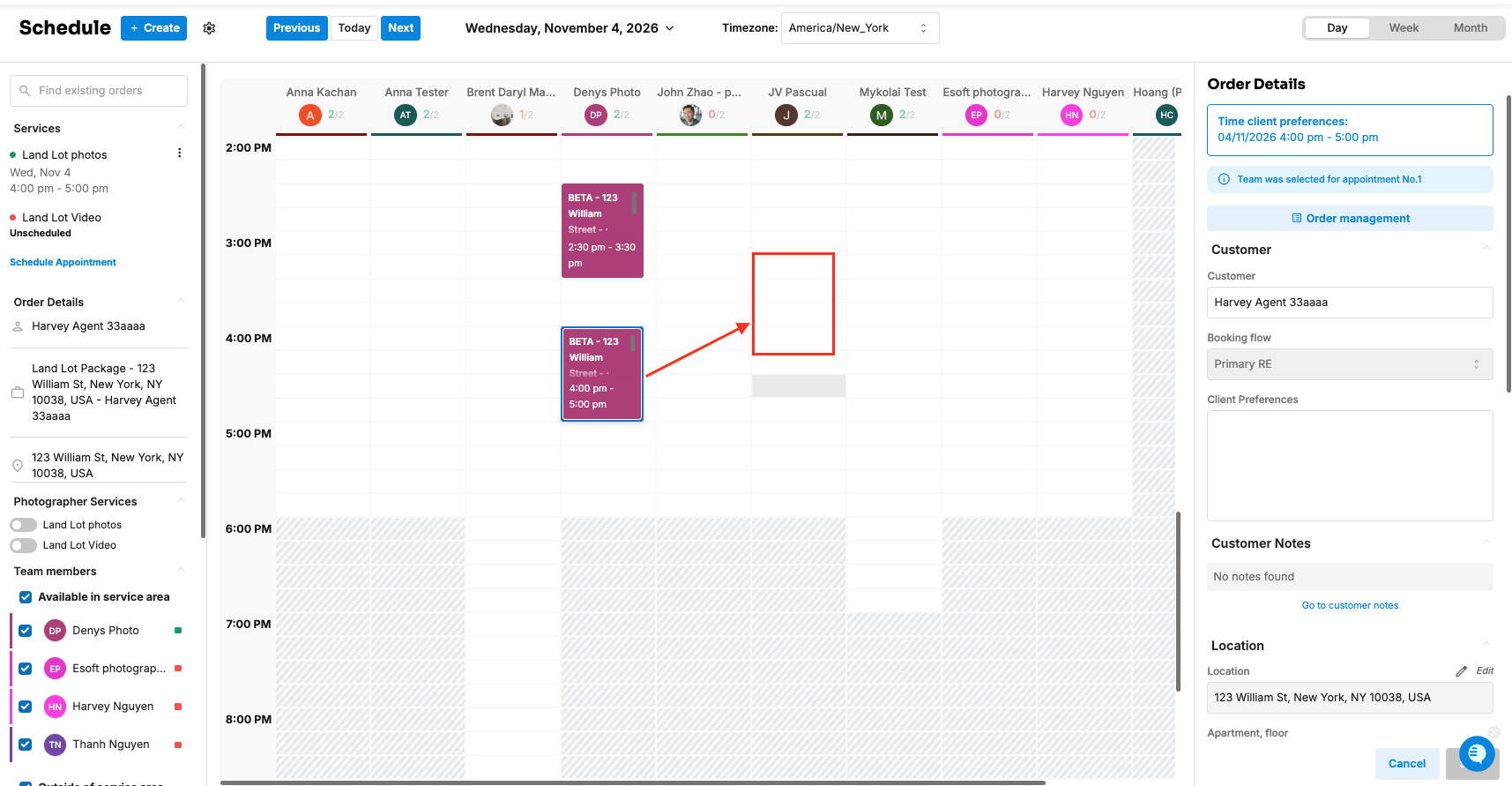
Point at the event and click the pencil icon (Edit event).
Change the Date and time: the date, the start time and the end time.
Click Save event.
What can I change in the Edit event window?
Field | What it does |
|---|---|
Date and time | The shoot date, start time and end time |
Photographers | Who's assigned. Click a name to search for someone else, or use Add photographer to add another. See How Do I Change The Photographer On An Order? |
Additional guests | Extra people invited to the calendar event. |
Assign Services | Which of the order's services happen at this appointment |
Event title and Customer event title | What your team and the customer see on their calendars |
Notify participants | Sends everyone on the event an updated invite |
Send booking confirmation | Re-sends the booking confirmation email with the new time |
Don't invite customer to calendar event | Leaves the customer off the calendar invite |
When you're done, click Save event. You'll see "Event updated successfully."
What happens to fees and the invoice when a shoot moves?
Travel fees depend on who's driving and where. Specific day fees depend on the day of the week. So a move can change what the order costs.
Before you save: if the new photographer, address, date or time changes a fee, Edit event shows a Reminder listing each change, for example Travel fee: $25.00 → $40.00 or Specific day fee: $0.00 → $50.00.
When the photographers change: Tonomo recalculates the appointment's travel fee and updates the fee lines and total on the invoice automatically.
When only the date or time changes: Tonomo records the new specific day fee on the order, but it doesn't change the invoice. If the Reminder showed a fee change, update the fee line on the invoice in Order Details yourself.
If Manual Invoice Entry is on for the order, Tonomo leaves the invoice alone.
To remove a fee you don't want to charge, delete that line on the invoice in Order Details.
What happens when a customer reschedules themselves?
If you let customers reschedule from their order page, Tonomo recalculates travel for the new time. If the new photographers have a different travel fee, the customer sees "The new photographers on this order have different travel fees. Update travel fee from [old fee] to [new fee]?" and must click Update to finish. See How Do I Let Customers Reschedule or Cancel Their Own Bookings?
Will the customer get an email?
Only if you turn it on. Go to Configure Booking > General, find the Emails card, and switch on Send appointment rescheduled email ("Send customers an email with the new details when their appointment is rescheduled"), then click Save. Click Edit Template next to it to change the wording.
When it's on, Tonomo sends it whenever the start or end time of a booked shoot changes, whether you moved it or the customer did. It isn't sent when a shoot is scheduled for the first time. Addresses on the order's Email List are copied in.
Separately, Notify participants in Edit event sends the updated calendar invite.
Do Dropbox RAW folders move with the shoot?
Yes. If you use Dropbox RAW folders, Tonomo moves the order's RAW folders when the shoot date changes, or when the photographers on the order change. This is most useful with Organize by set to Photographer, where folders sit under each photographer and shoot date. The order needs its Dropbox delivery folder in place for the move to happen. See How Do I Set Up RAW Folders in Dropbox?
How do I stop Tonomo changing event lengths automatically?
By default, Tonomo can resize calendar events when the order changes. For example, adding a service or changing the square footage can make the shoot longer. You can turn this off and manage event lengths yourself.
Go to Configure Booking > General.
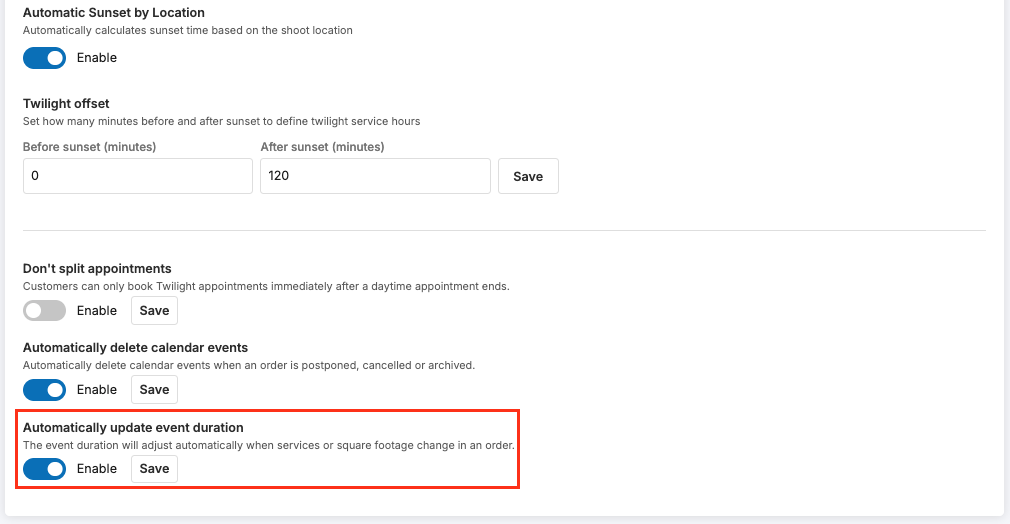
In the Scheduling card, find Automatically update event duration ("The event duration will adjust automatically when services or square footage change in an order.").
Switch Enable on or off and click Save.
When the order changes, Tonomo may ask "Calendar event for order … has changes. Update event now?" Click Update event to apply the changes, or Skip to leave the event as it is. This bar shows on the classic Orders page and on an order's full page. It doesn't appear on Orders (Beta).
If Tonomo can't work out a duration, you'll see "Can not estimate the duration. Some data is missing on the order". Check the order's services and square footage.
Frequently asked questions
Does dragging an event save it straight away? No. Dragging opens Edit event with the new time. The change is only saved when you click Save event.
Will the photographer and customer get an updated invite? Yes, if Notify participants is on when you save.
Can I reschedule a postponed order? Yes. If its calendar event still exists, move it as above. If the event was deleted, create a new one. See How Do I Recreate a Calendar Event After Postponing an Order?
Why did the travel fee change when I swapped photographers? Travel is measured from each photographer's home base, so a different photographer can mean a different fee. See How Do I Change The Photographer On An Order?
Can my customers reschedule on their own? Yes, if you allow it in the booking flow. See How Do I Let Customers Reschedule or Cancel Their Own Bookings?
Related articles