Why Doesn't My Add-On Show Up?
Last updated: September 20, 2026
Overview
If an add-on service isn't appearing on your Tonomo booking page, it's usually because it hasn't been linked to a core service yet. There are two ways to link an add-on: by category, or through the add-on's own settings.
Before You Start: Confirm It's Set Up as an Add-on
Go to Configure Booking → Services and check that the Add-on toggle is turned on for this service.
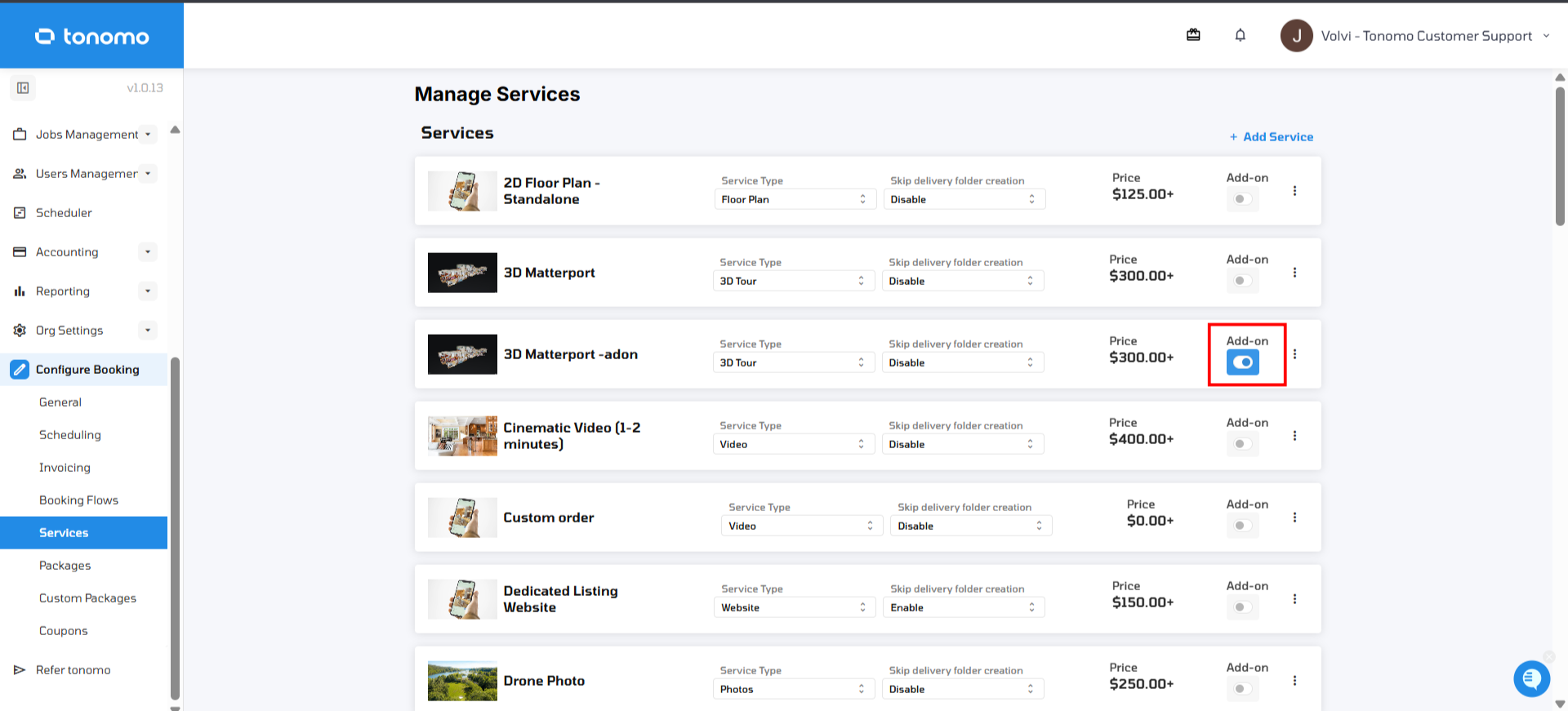
Important: If the Add-on toggle isn't turned on, this is a core service, not an add-on, and the methods below won't apply. Turn it on first if this service is meant to be an add-on.
Note: Troubleshooting a service that isn't an add-on and simply isn't showing up at all? See Why Doesn't My Service Show Up? instead — this article covers add-on-specific linking, not the initial step of adding a service to a booking flow.
Method 1: Link the Add-On to a Category
This works similarly to fixing a missing core service, with one key difference: a core service appears as soon as it's added to a category, but an add-on needs a core service already in that category before it will show up. Once that's true, the add-on becomes tied to every core service in the category — selecting any one of them will make the add-on available.
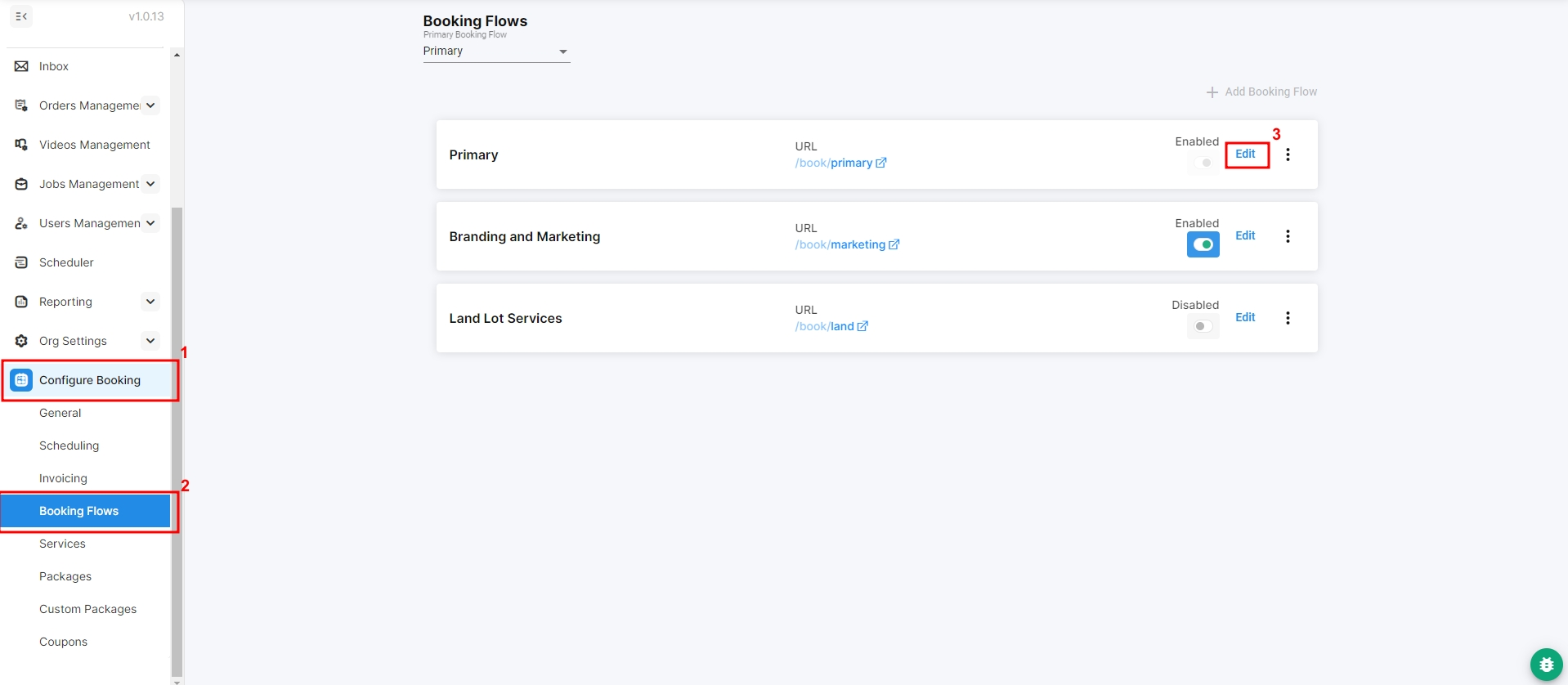
Go to Configure Booking → Booking Flows, and click Edit on the booking flow you want to update.
Open the Services tab. Find your add-on under Remaining Services on the right, and drag it into the category you want it linked to.
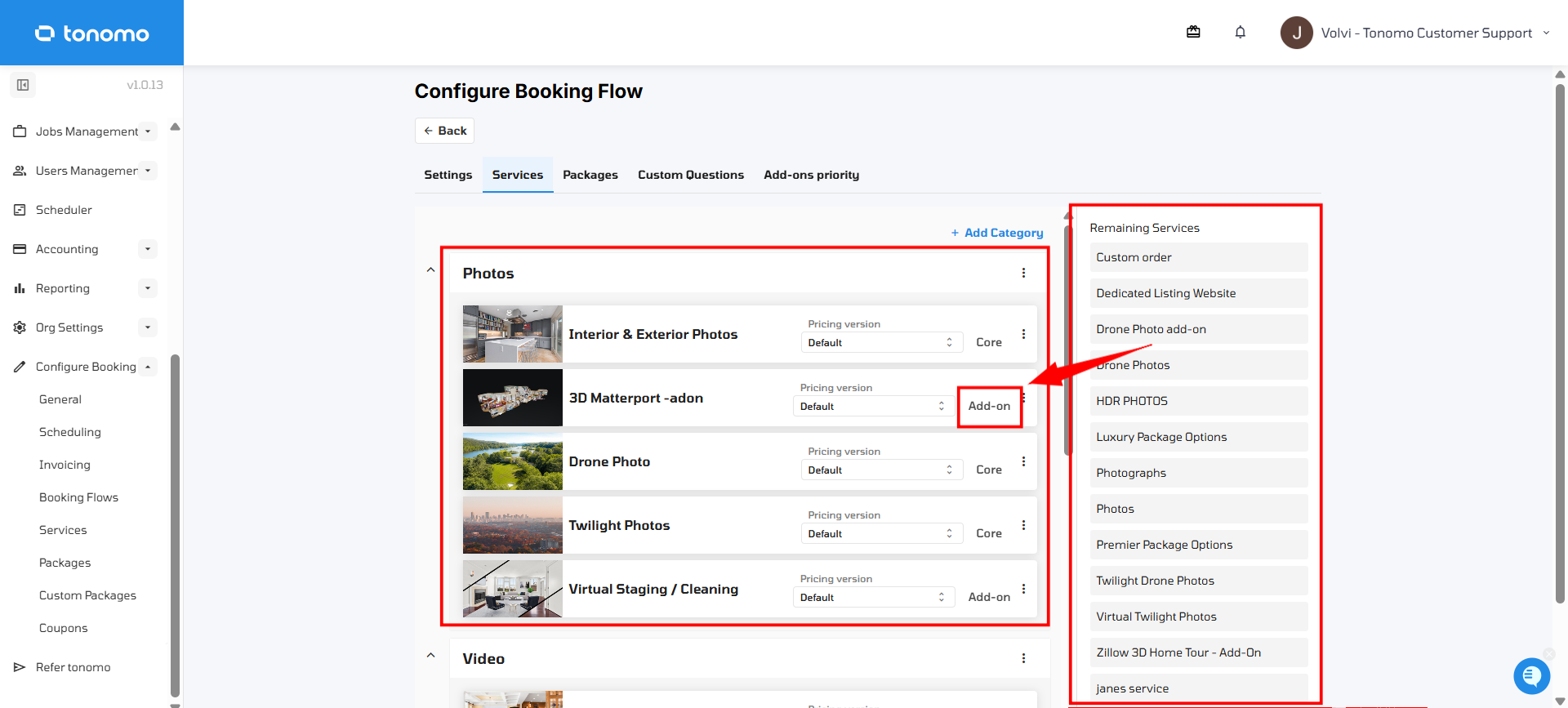
Important: The category needs at least one core service in it already, or the add-on still won't appear. Once it's added, the add-on will show up whenever a client selects any core service in that category — not just one specific one.
Method 2: Link the Add-On Through Its Own Settings
These settings only appear when editing a service that has the Add-on toggle turned on — they won't show up when editing a core service.
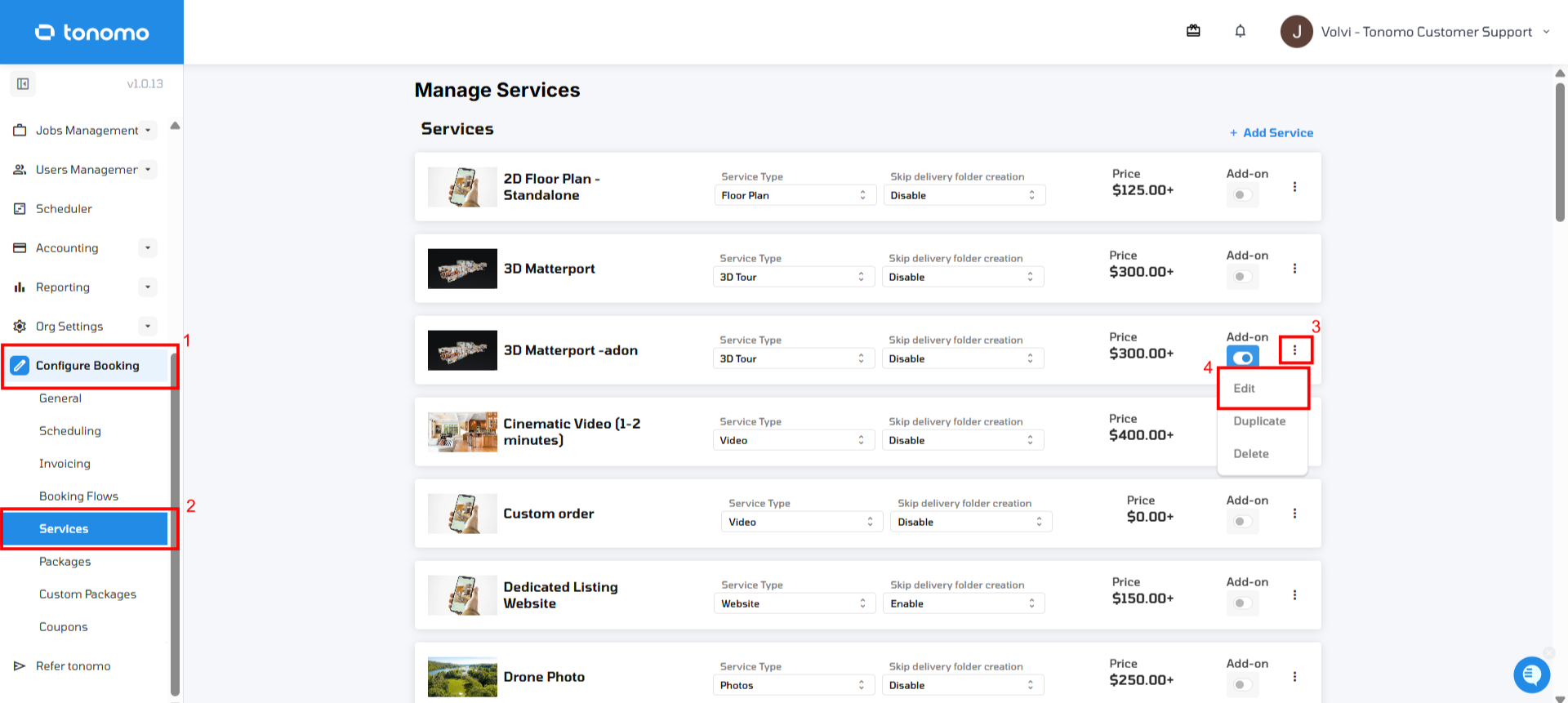
Go to Configure Booking → Services, find your add-on, click the three-dot menu next to it, and select Edit.
You'll see three settings that control when the add-on appears:
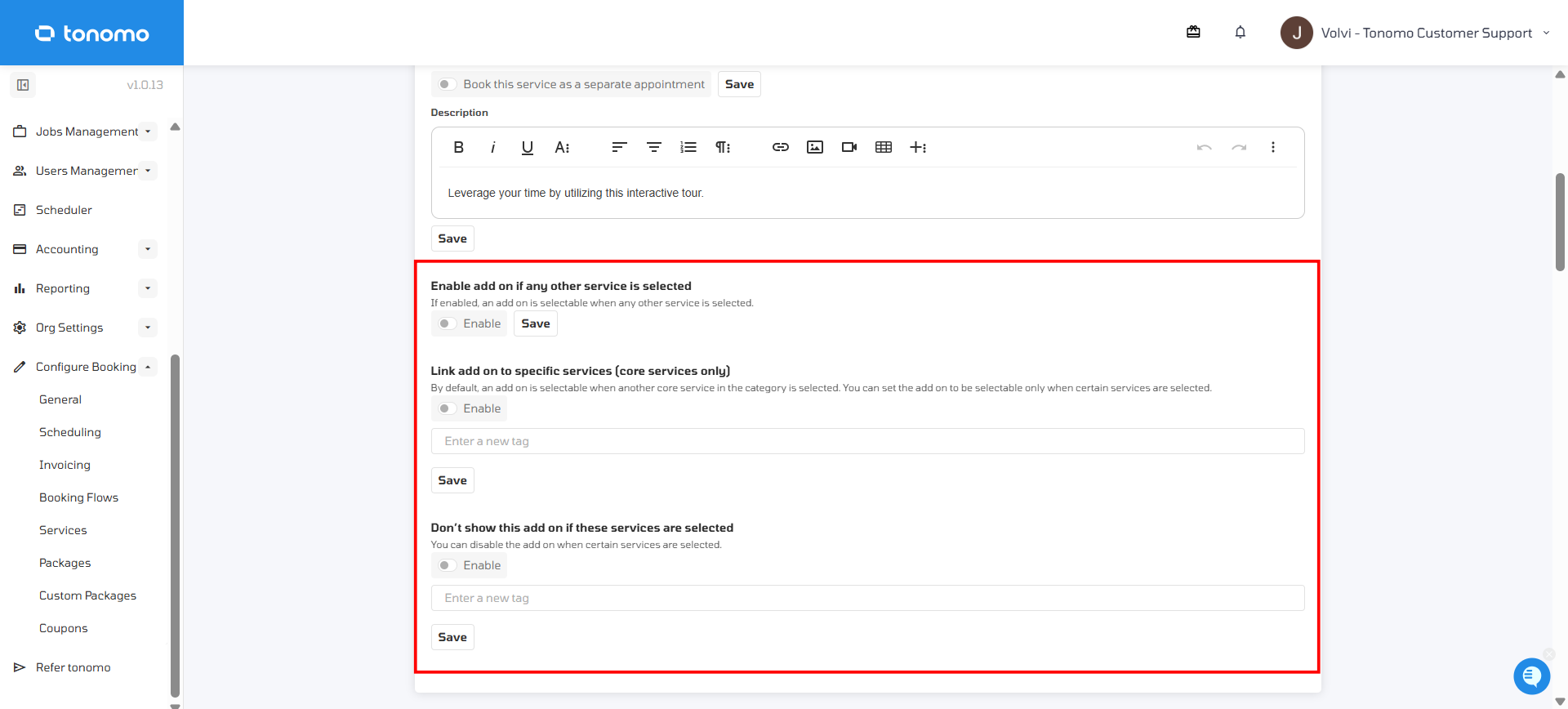
Enable Add-On If Any Other Service Is Selected
Turning this on makes the add-on appear whenever any core service is selected, regardless of which one.
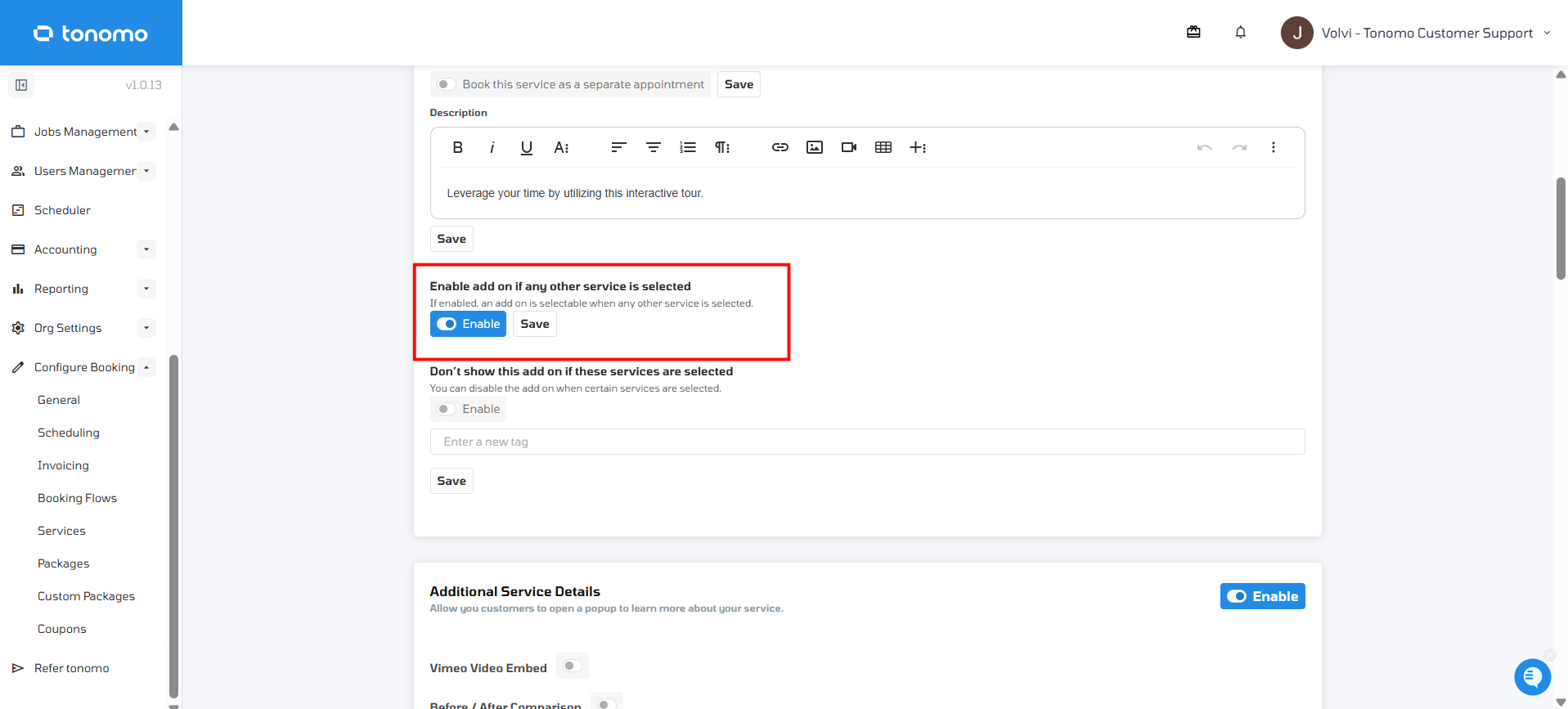
Note: Turning this on hides the Link add-on to specific services option below, since the two settings would conflict — the add-on can either show for every service or a specific set, not both.
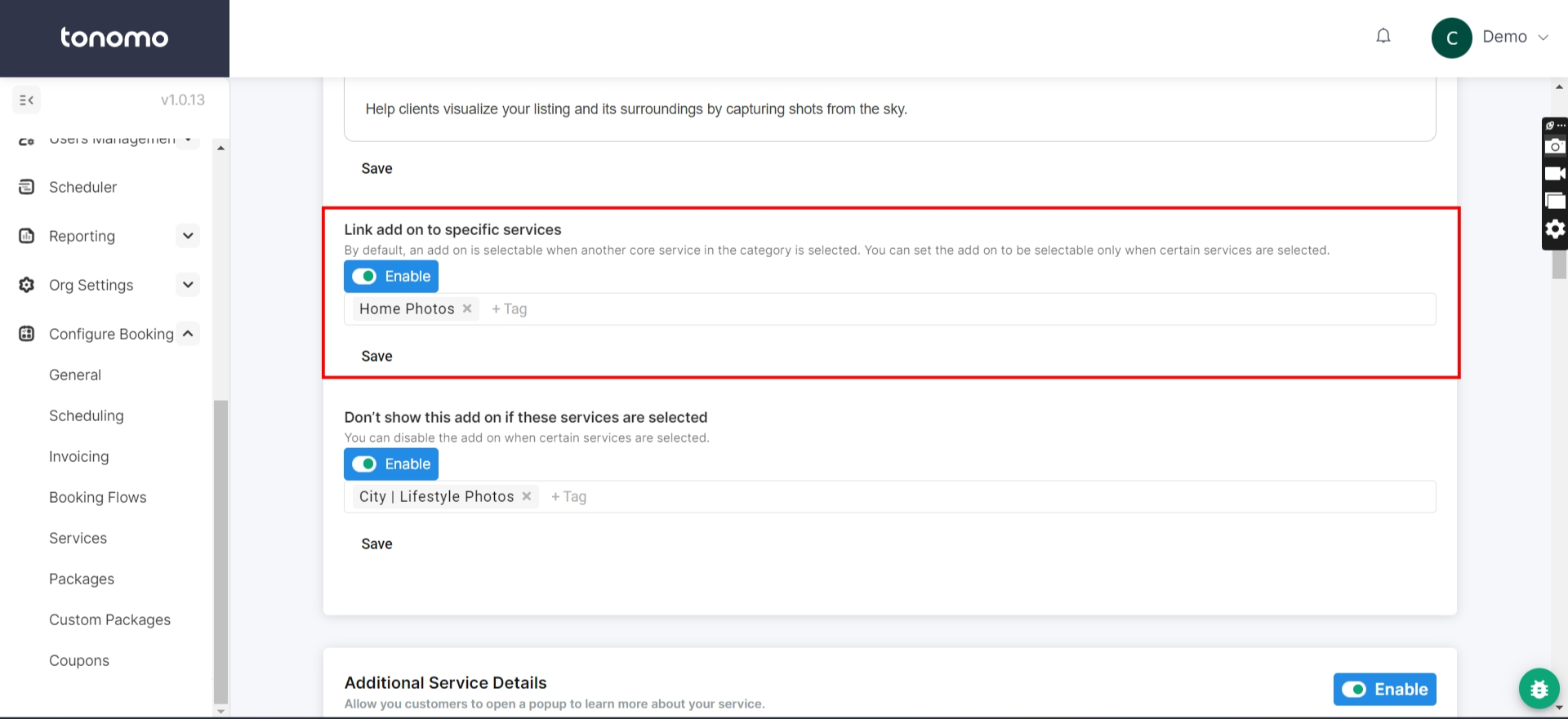
Link Add-On to Specific Services (Core Services Only)
This gives you more flexibility: it ties the add-on to one or more specific core services, so it only appears when one of those services is selected. Search for the service you want and select it to tag it.
Don't Show This Add-On If These Services Are Selected
This setting works the opposite way: it prevents the add-on from appearing when a tagged core service is selected. This is useful when you want to hide an add-on for a core service it would otherwise overlap with.
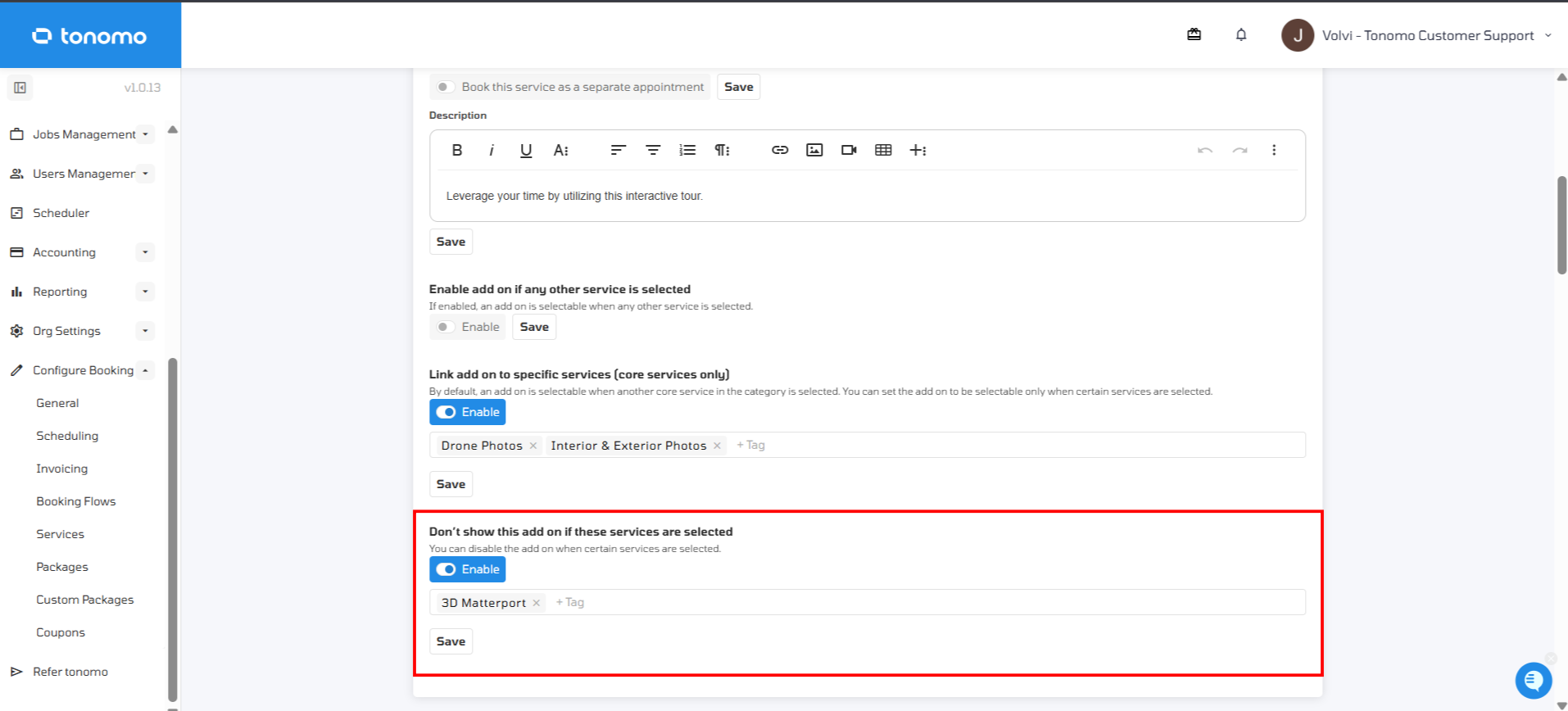
Example: If you offer 3D Matterport as both a core service and an add-on, tag the 3D Matterport core service under this setting on the add-on. That way, clients who already select the core service won't also be offered it as an add-on.
If you have any questions about linking your add-ons, reach out to Tonomo Support and we'll be happy to help.