How Do I Schedule The Completion Email And Text Message To Send Later?
Last updated: September 17, 2026
Overview
Instead of sending the project completion email the moment an order is marked complete, you can schedule it to go out at a later date and time using the Send Later option. Text message notifications support this too, so both can go out together on your schedule.
How to Schedule a Send
Complete the order as usual and open the completion email.
Check the Send Later box.
Set the Send on date and At time. Emails can be scheduled up to 3 days in advance.
Click Schedule Send.
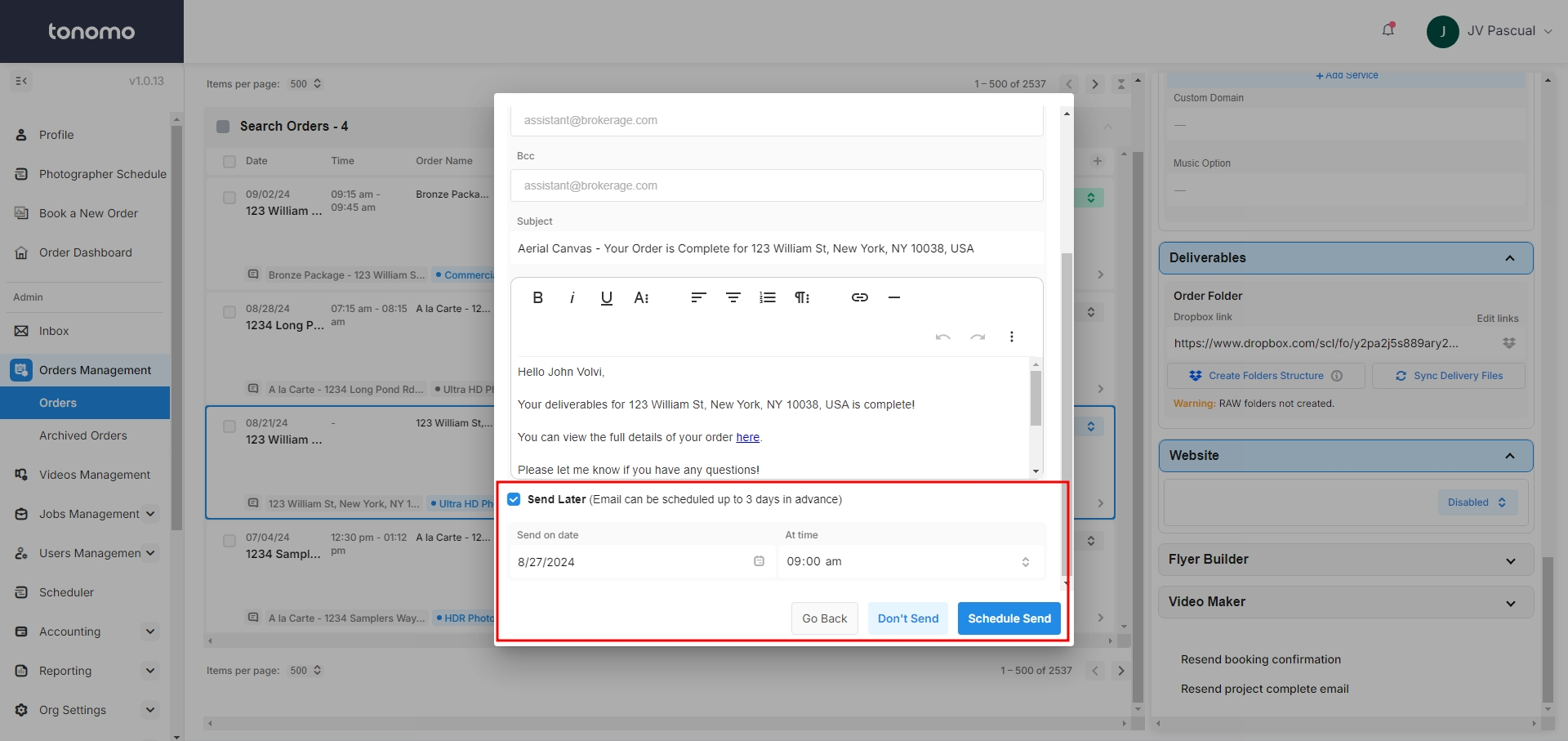
Important: There's currently no way to view or cancel a scheduled email or text message once it's been scheduled. Double-check the date, time, and message content before clicking Schedule Send — it will go out to the client automatically at the scheduled time.
Does This Work for Text Messages Too?
Yes. Text messages support the Send Later feature as well, so when you schedule the completion email, the text message notification is scheduled right along with it.
If you have any questions about scheduling emails or text messages, reach out to Tonomo Support and we'll be happy to help.