How Do I Reconnect or Change My Dropbox Account?
Last updated: September 17, 2026
Overview
Reconnecting or switching your Dropbox account can be done directly on the portal — no need to reach out to Tonomo Support for this one.
How to Reconnect Your Dropbox Account
Go to Configure Booking → General.
Find the Dropbox section.
Click Reconnect.
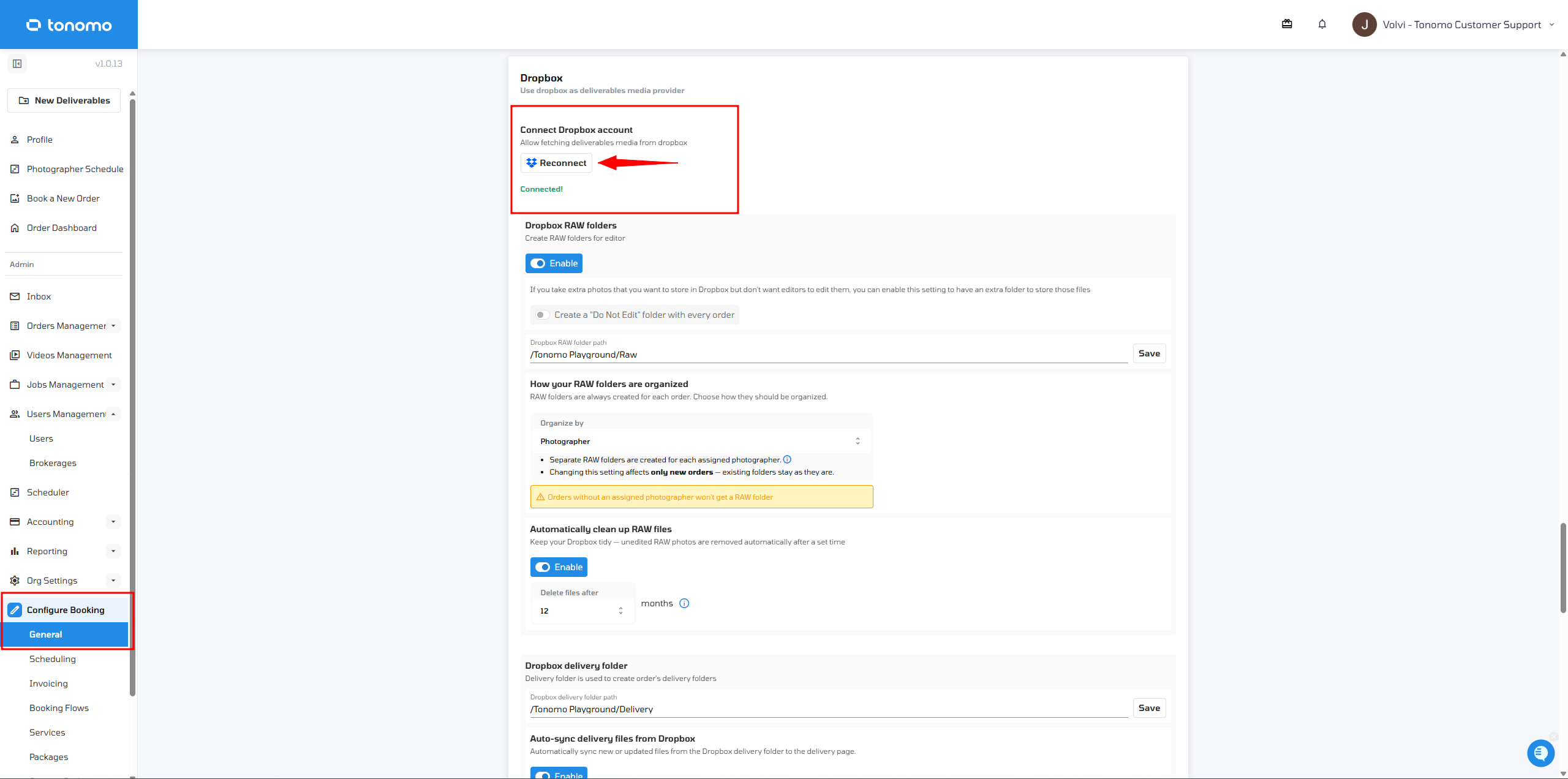
Important: Make sure you're signed in to the correct Dropbox account in your browser before clicking Reconnect.
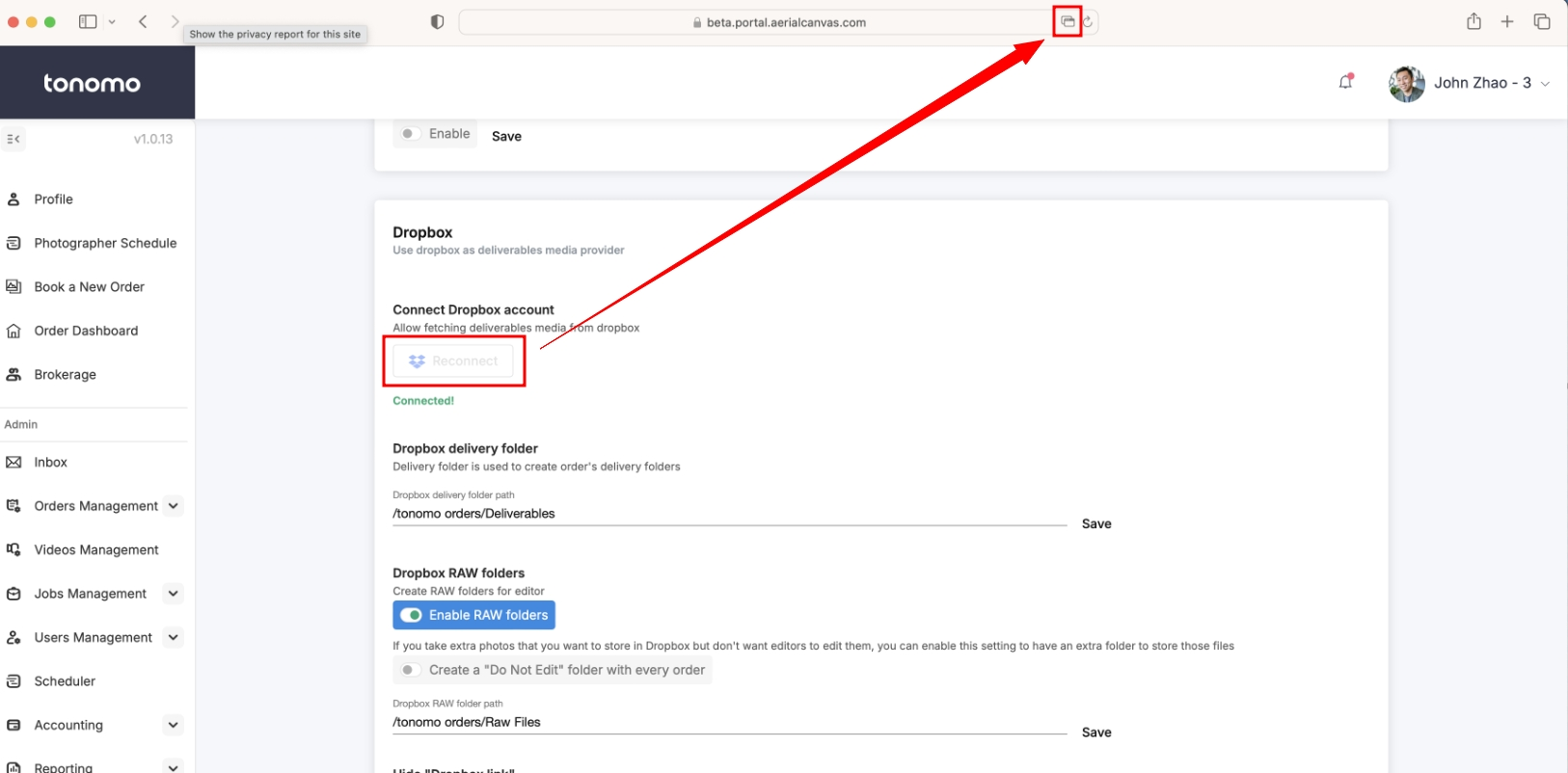
Troubleshooting: Not Redirected to Dropbox on Safari (Mac)
If you're on a Mac using Safari, clicking Reconnect might not redirect you to the Dropbox login page. This happens because of Safari's pop-up blocker.
If this happens, look for an icon in the website address bar and click it to continue connecting your Dropbox account.
After Reconnecting: Confirm Your Folder Paths
Once you've reconnected or changed your Dropbox account, confirm that your Dropbox RAW folder path and Dropbox delivery folder path still match the folder paths you're using on Dropbox. If they don't, update them to match.

Important: Folder paths and folder names should not contain any special characters. If they do, the portal won't let you save the new path.
If you have any questions about connecting your Dropbox account or updating your folder paths, reach out to Tonomo Support and we'll be happy to help.