How Do I Find and Filter Jobs?
Last updated: September 28, 2026
All your jobs are on Jobs Management > Jobs. The page has an Overview tab with every job, a tab for each job template (for example Photo Editing ( 12 )), and a Dashboard tab. Jobs are grouped by status, with escalated jobs at the top under Requires Attention. You can filter by creation date, due date, team member, customer, shoot date, service, and more, and change a job's status, due date or people right from the list.
At a glance
Go to Jobs Management > Jobs.
Tabs: Overview (all jobs), one tab per job template with its job count, and Dashboard.
Jobs are grouped: Requires Attention, Pending, In Progress, Reviewing, Completed.
By default, the list shows jobs created in the last 3 months, newest first, with completed jobs hidden.
Filter by Due Date, Team member, Completed Jobs, or search. Advanced filters add customer, shoot date, job type, service, photographer, editor and reviewer.
Change a job's status, due date, editor or reviewer directly in the list.
Choose and reorder columns in Settings.
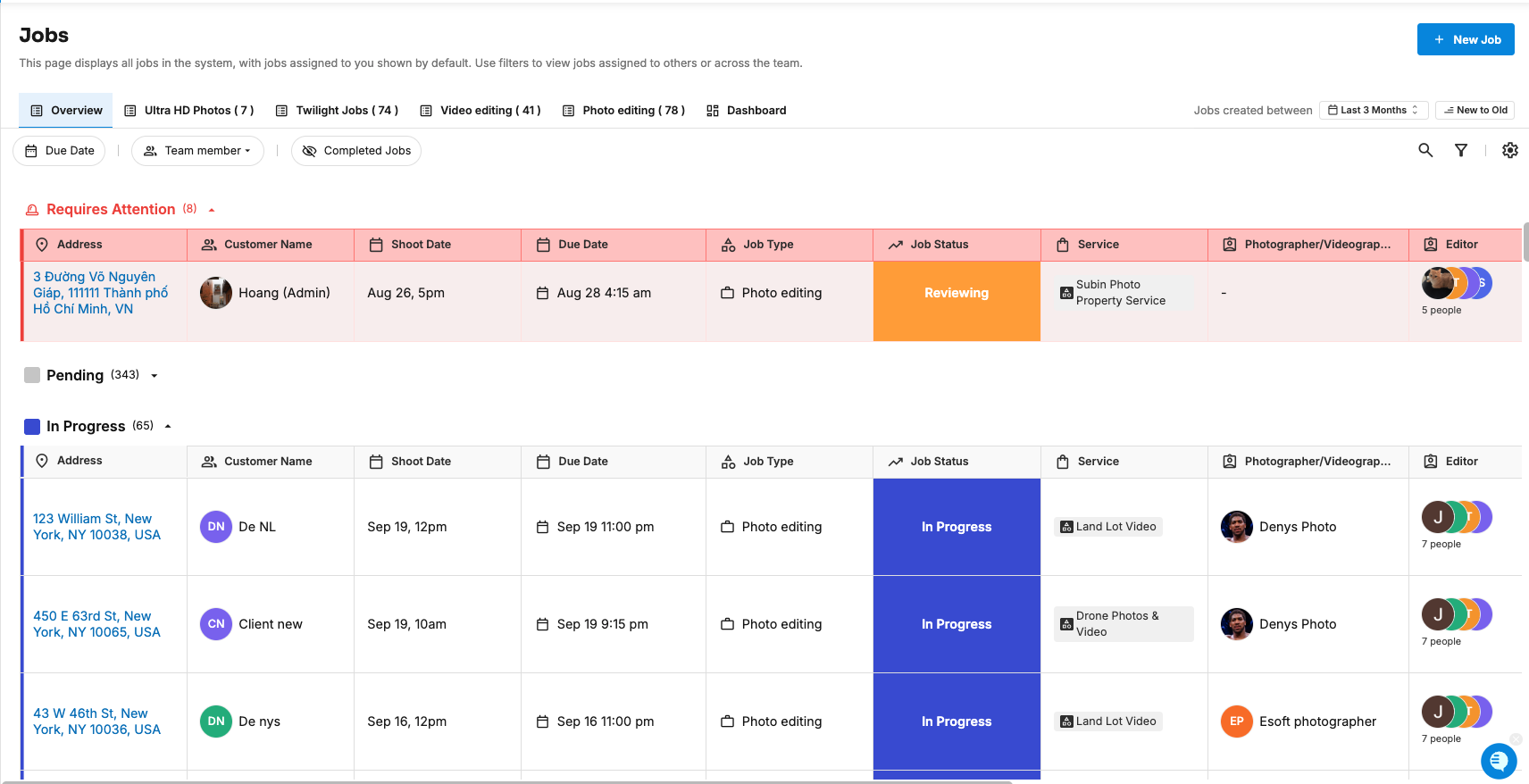
What are the tabs on the Jobs page?
Overview: every job that matches your filters, across all templates.
One tab per job template: for example Photo Editing ( 12 ) or Video Editing ( 4 ). The number is how many jobs match your current filters. Templates with no matching jobs don't get a tab.
Dashboard: what's due today and tomorrow, what's overdue or escalated, and monthly summaries. See How Do I Use the Jobs Dashboard?
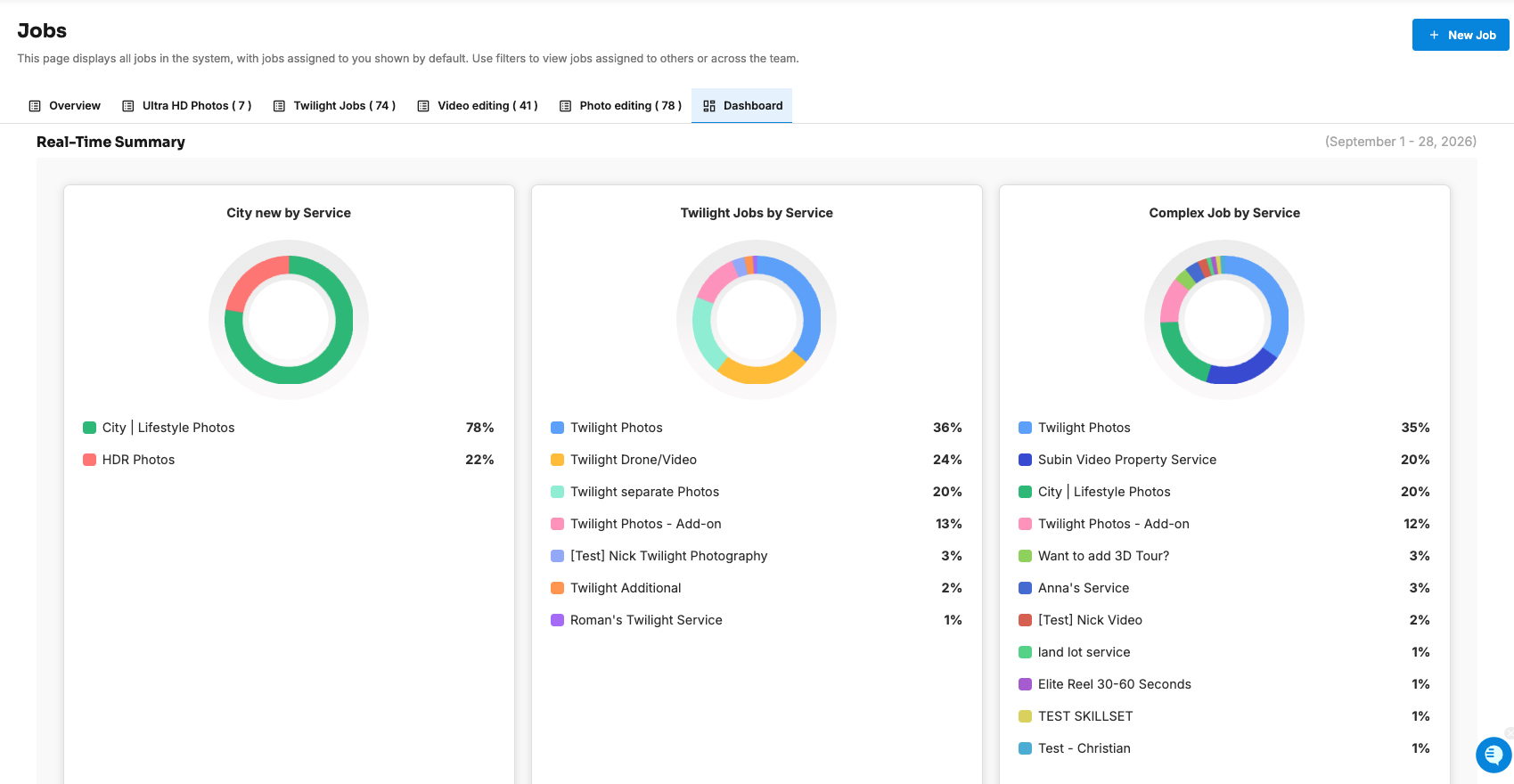
How are jobs grouped?
Within each tab, jobs are grouped by status, in this order:
Requires Attention: escalated jobs, highlighted in red
Pending
In Progress
Reviewing
Completed (only when Completed Jobs is switched on)
How do I filter jobs?
Creation date and sort order
Jobs created between: pick a date range. It starts at the last 3 months. Choose a wider range, or clear it for All time.
Old to New / New to Old: sorts by when the job was created. Newest first by default.
Quick filters
Filter | Shows |
|---|---|
Due Date | Jobs due within the date range you pick |
Team member | Jobs where that person is the photographer, editor, or reviewer |
Completed Jobs | Includes completed jobs. Hidden by default. |
Search jobs (magnifying glass) | Jobs matching your search, for example, an address or customer name |
Advanced filters
Use the advanced filter panel to narrow down by:
Customer Name
Shoot Date
Job Type (template)
Service
Photographer / Videographer
Editor
Reviewer
Tip: Your filters are saved in the page's web address, so you can bookmark a filtered view (for example, "my Video Editing jobs due this week") or send it to a teammate.
Which columns does the job list show?
Column | What it shows |
|---|---|
Address | The property address |
Customer Name | Who placed the order |
Shoot Date | When the shoot is |
Due Date | When the job is due. Click to change it. |
Job Type | The job template |
Job Status | The status. Click to change it. |
Service | The order services this job covers |
Photographer/Videographer | Who shot it |
Editor | Who's working on it. Click to change. |
Reviewer | Who reviews it. Click to change. |
Priority | High, Medium, or Low |
Information | Delivery information |
Actions | Open or archive the job |
How do I choose which columns show?
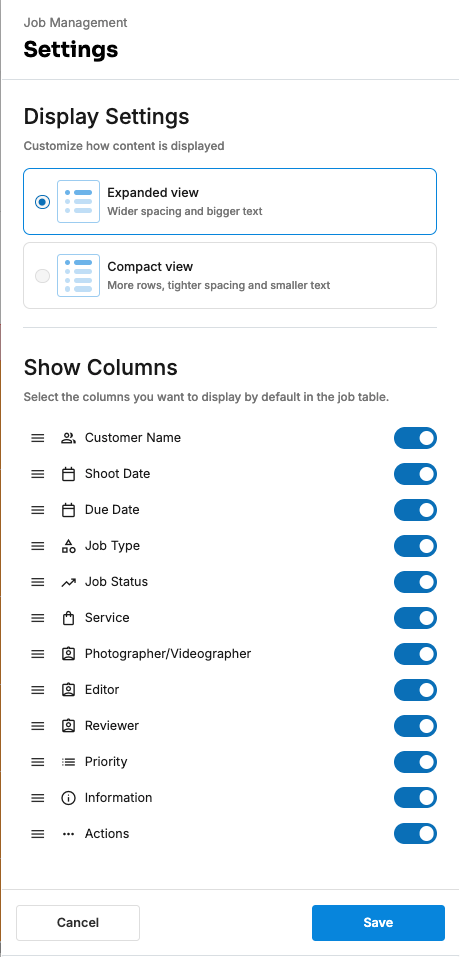
Click the settings (gear) icon next to the filters.
In Settings > Display Settings, use Show Columns to pick the columns you want, and Column Order to drag them into order.
Click Save.
Can I update jobs without opening them?
Yes. In the list you can change a job's:
Job Status
Due Date (pick a date and Due time, then Save)
Editor and Reviewer
To open a job's full details and chat, click the job. See How Do I Work on a Job?
How do I archive a job?
Under Actions, click Archive for the job.
In Archive this job? ("This job will be moved to archived and removed from the list"), click Archive.
You'll see "Job archived". Archived jobs no longer appear in the job list.
Frequently asked questions
Why don't I see a job I'm expecting? Check the filters. By default, the list only shows jobs created in the last 3 months and hides completed jobs. Also check that the template is enabled, and that the order includes one of its services. See When Does Tonomo Create a Job, and When Is It Due?
How do I see only my jobs? Choose yourself in the Team member filter. It shows every job where you're the photographer, editor, or reviewer.
Why does a job show an old address for a moment? The job list can take a few moments to catch up after an order is edited. The job's details page always shows the current information.
Related articles
How Do I Work on a Job?
How Do I Create a Job Manually?
How Do I Escalate a Job?
How Do I Use the Jobs Dashboard?