How Do I Edit, Turn Off, or Archive a Job Template?
Last updated: September 28, 2026
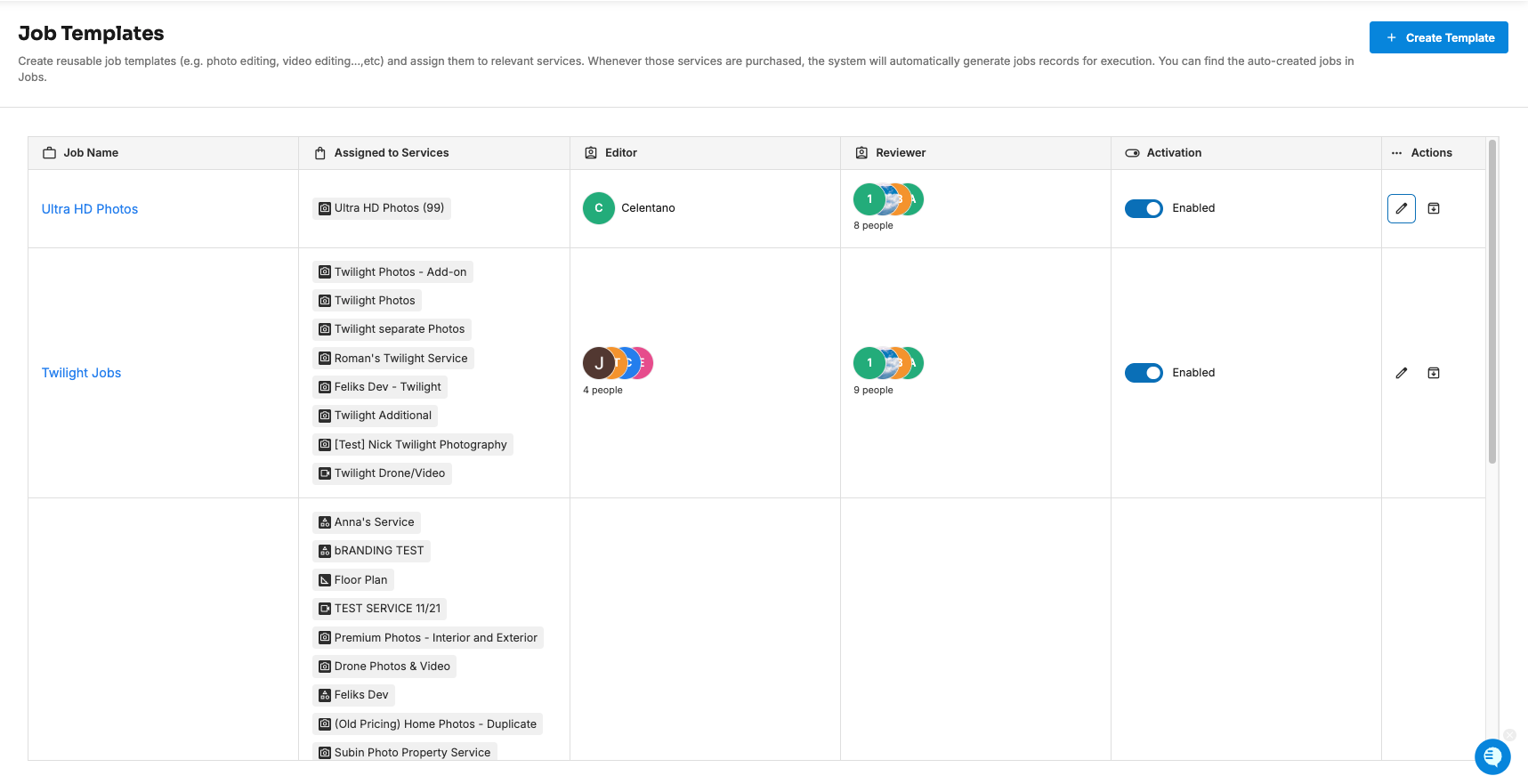
You manage job templates from Jobs Management > Jobs Templates. From the list you can change a template's editors and reviewers, switch it on or off with the Activation toggle, open it to edit anything else, or archive it. When you save changes to a template, Tonomo asks whether to update its pending jobs as well, or only jobs created from now on.
At a glance
The Job Templates list shows each template's Job Name, Assigned to Services, Editor, Reviewer, Activation and Actions.
Change editors and reviewers right from the list.
Activation switches a template between Enabled and Disabled.
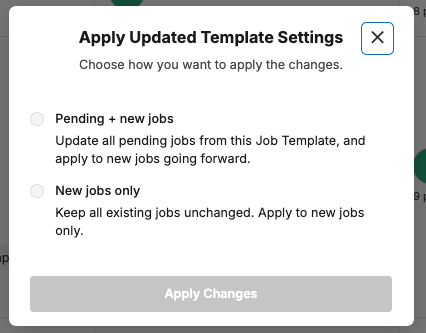
Saving an edit asks: Pending + new jobs or New jobs only.
Jobs In Progress, Reviewing or Completed are never changed by a template edit.
Archive removes a template you no longer use.
How do I edit a template?
Go to Jobs Management > Jobs Templates.
Click the template's name, or the Edit (pencil) icon under Actions.
Change anything in General, Assign Job to Services, Assign Job to Editor or Customize Information.
Save. The Apply Updated Template Settings window opens.
Choose how to apply the changes, then click Apply Changes:
Pending + new jobs: update all pending jobs from this job template, and apply to new jobs going forward.
New jobs only: keep all existing jobs unchanged, and apply to new jobs only.
What changes on pending jobs?
With Pending + new jobs, each pending job gets the template's new editors, reviewers, and due date. The due date is recalculated from that job's shoot. Jobs already In Progress, Reviewing, or Completed keep their current settings.
Jobs that haven't been created yet always follow the latest template settings.
How do I change a template's editors or reviewers quickly?
In the Job Templates list, click the Editor or Reviewer cell for the template and pick the people. Changing this setting also prompts for "Pending + new jobs / New jobs only" confirmation.
To remove the review step, clear everyone from the Reviewer cell.
How do I turn a template off?
Switch its Activation toggle to Disabled. Tonomo stops creating new jobs from it, including jobs already scheduled but not yet created. Existing jobs aren't affected. Switch it back to Enabled to start again.
How do I archive a template?
Click the Archive icon under Actions.
In Archive Job Template, confirm "Are you sure you want to archive the job template…?" by clicking Archive.
You'll see "Job Template [name] has been archived successfully."
An archived template no longer appears in the list and stops creating jobs. An archived template cannot be restored.
Should I disable or archive?
Disable | Archive | |
|---|---|---|
Stops new jobs | Yes | Yes |
Stays in the Job Templates list | Yes | No |
Easy to turn back on | Yes, with one toggle | Deleted and cannot be restored |
Best for | Pausing a template, for example, seasonally | Templates you'll never use again |
If you might need it again, disable it.
Frequently asked questions
Will editing a template change jobs my team is already working on? No. Only pending jobs can be updated, and only if you choose Pending + new jobs.
I changed the linked services. Will existing orders pick it up? Upcoming shoots that haven't had their job created yet follow the new service list. Existing jobs don't change.
I disabled a template by mistake. Are the scheduled jobs lost? The scheduled jobs that would be created while the template is disabled will not be created until the template is enabled again.
Related articles