How Do I Add a Custom Line Item To An Invoice?
Last updated: September 20, 2026
Overview
Admins and staff can add a coupon, discount, fee, or custom item directly to an order's invoice in Tonomo. All four options are available from the same place: the order's Invoices & Payments section.
Adding an Item to the Invoice
Go to Orders Management → Orders, and select the order you want to update.
With the order details open, go to the Overview tab and scroll down to the Invoices & Payments section.
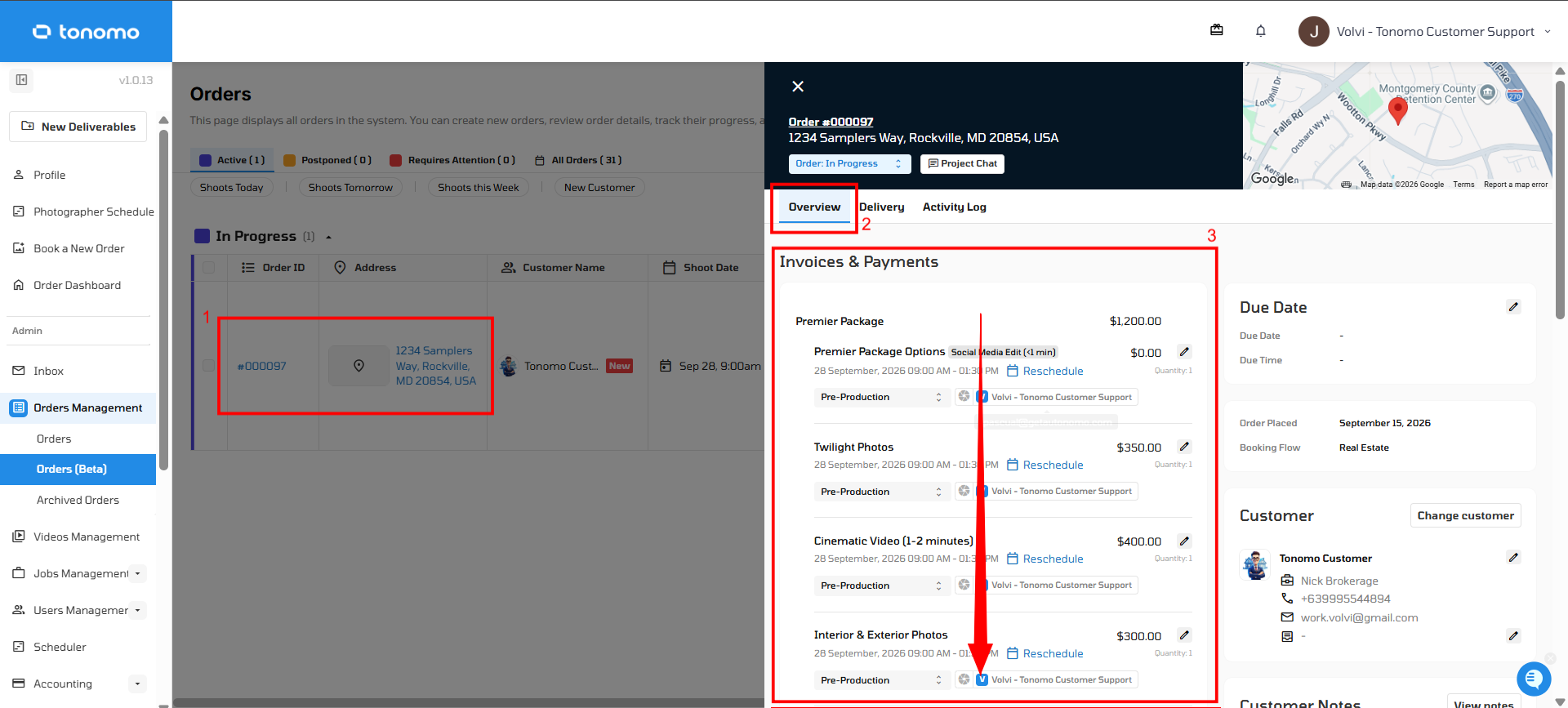
Scroll to the bottom of the invoice and click + Add custom item.
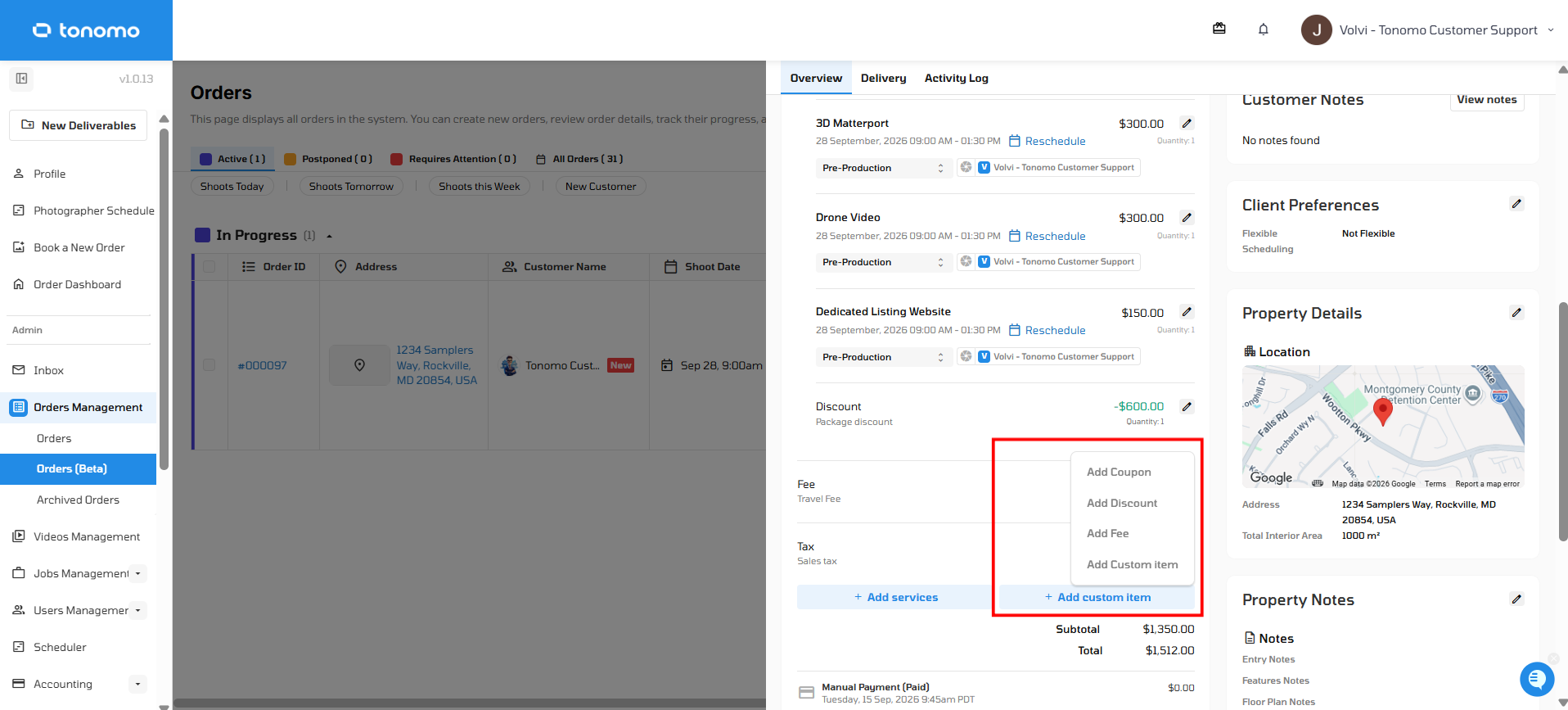
Four options will appear: Add Coupon, Add Discount, Add Fee, and Add Custom Item.
Note: Whichever option you choose, it's saved to the invoice automatically. All four types can be stacked — repeat the process to add multiple coupons, discounts, fees, or custom items to the same invoice.
The Four Ways to Add to an Invoice
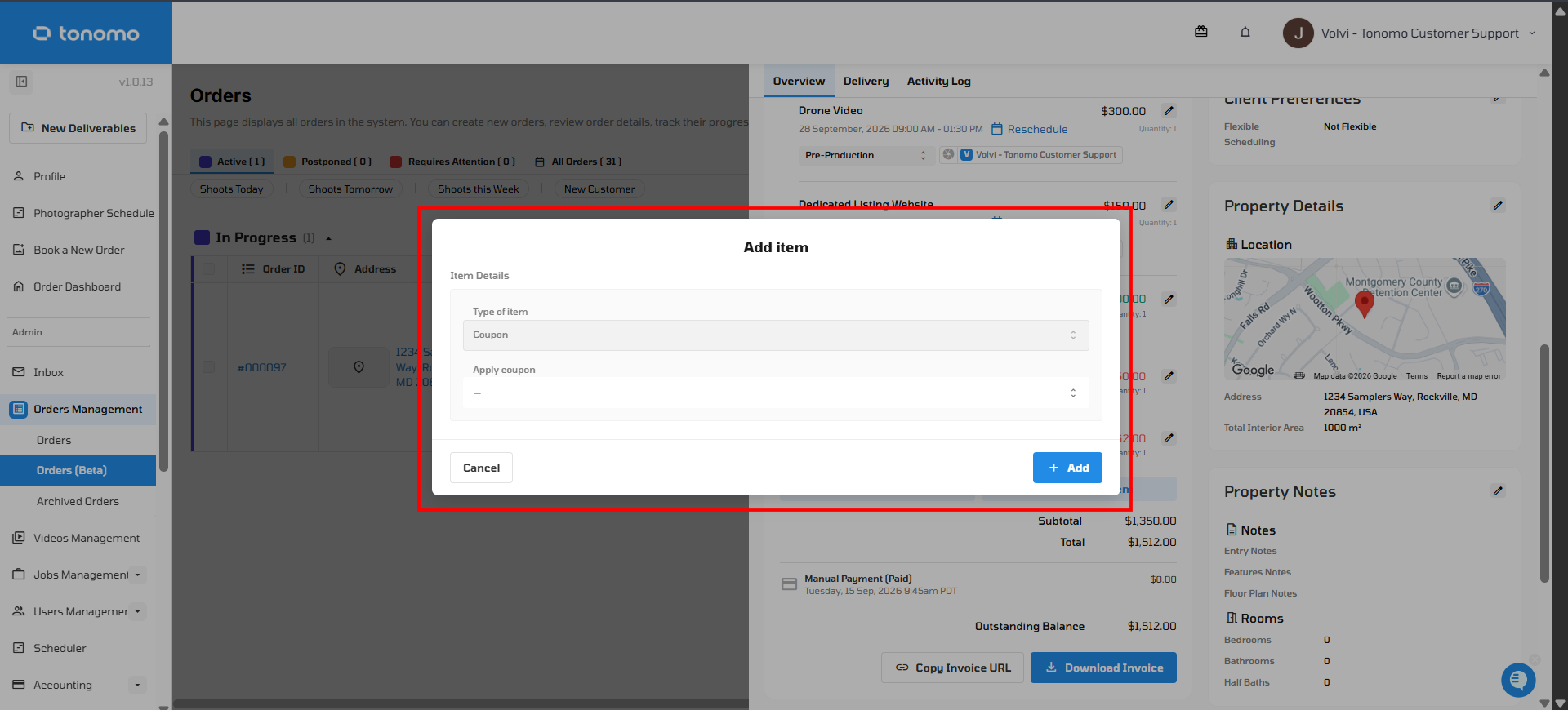
Add Coupon
Lets you select a coupon from your list of available coupons and add it to the invoice. How much it affects the total depends on how that coupon was set up.
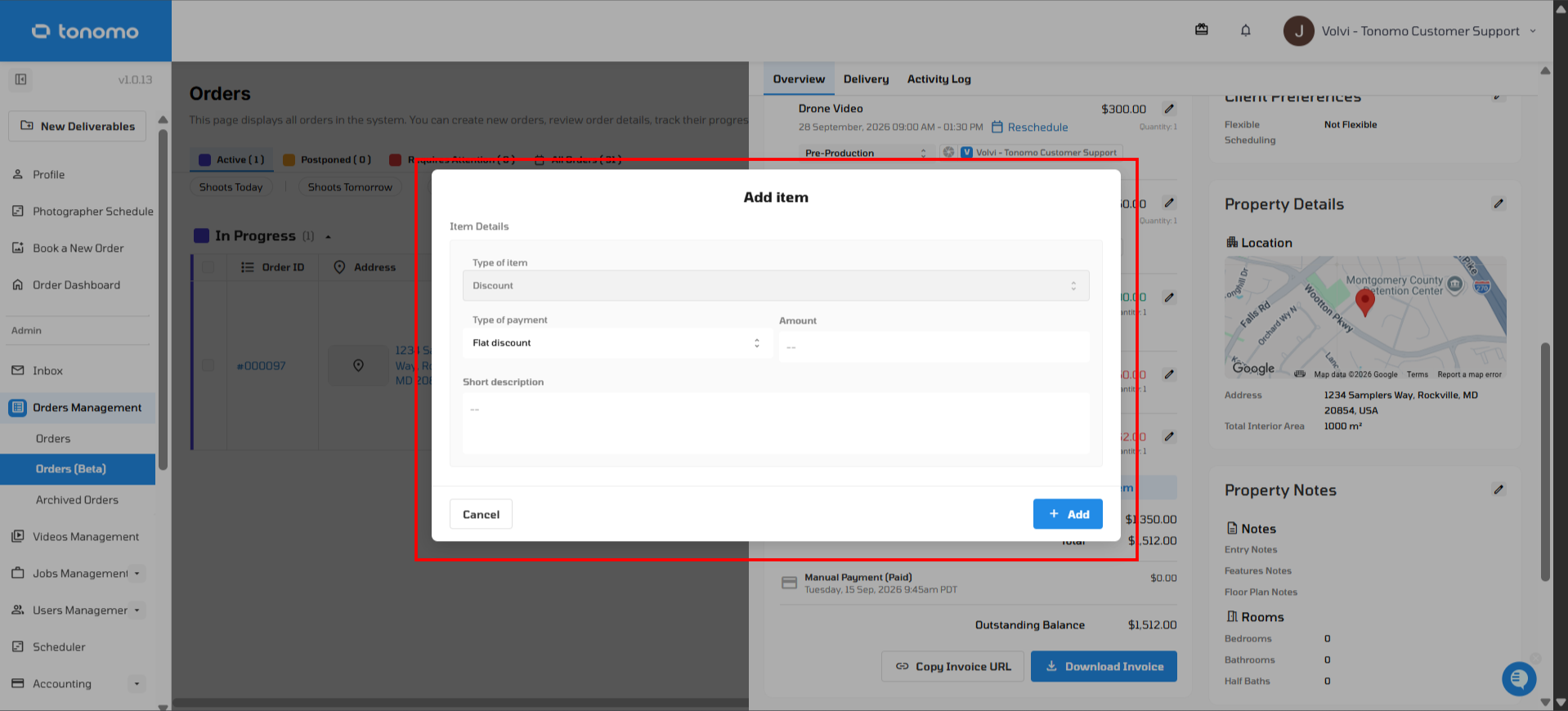
Add Discount
Lets you manually add a discount to the invoice. A discount can be set as a percentage or a fixed amount, and it's automatically applied to the invoice total.
Add Fee
Lets you add a fee to the invoice. A fee can be a flat amount, a percentage, or a transaction fee, and it's automatically calculated and added to the invoice.
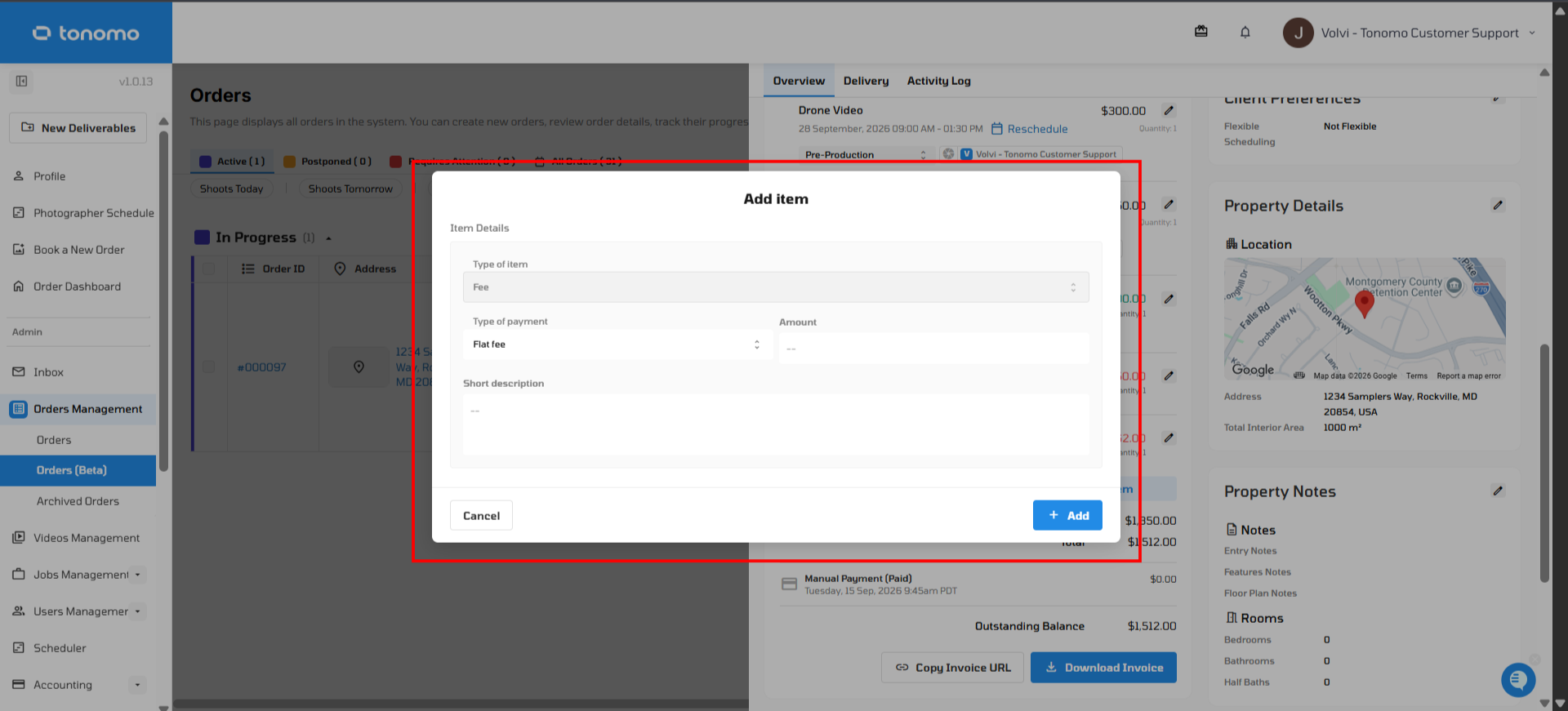
Add Custom Item
Lets you add a custom line item to the invoice. The item name is fully customizable, and a description field is available to add more detail if needed.
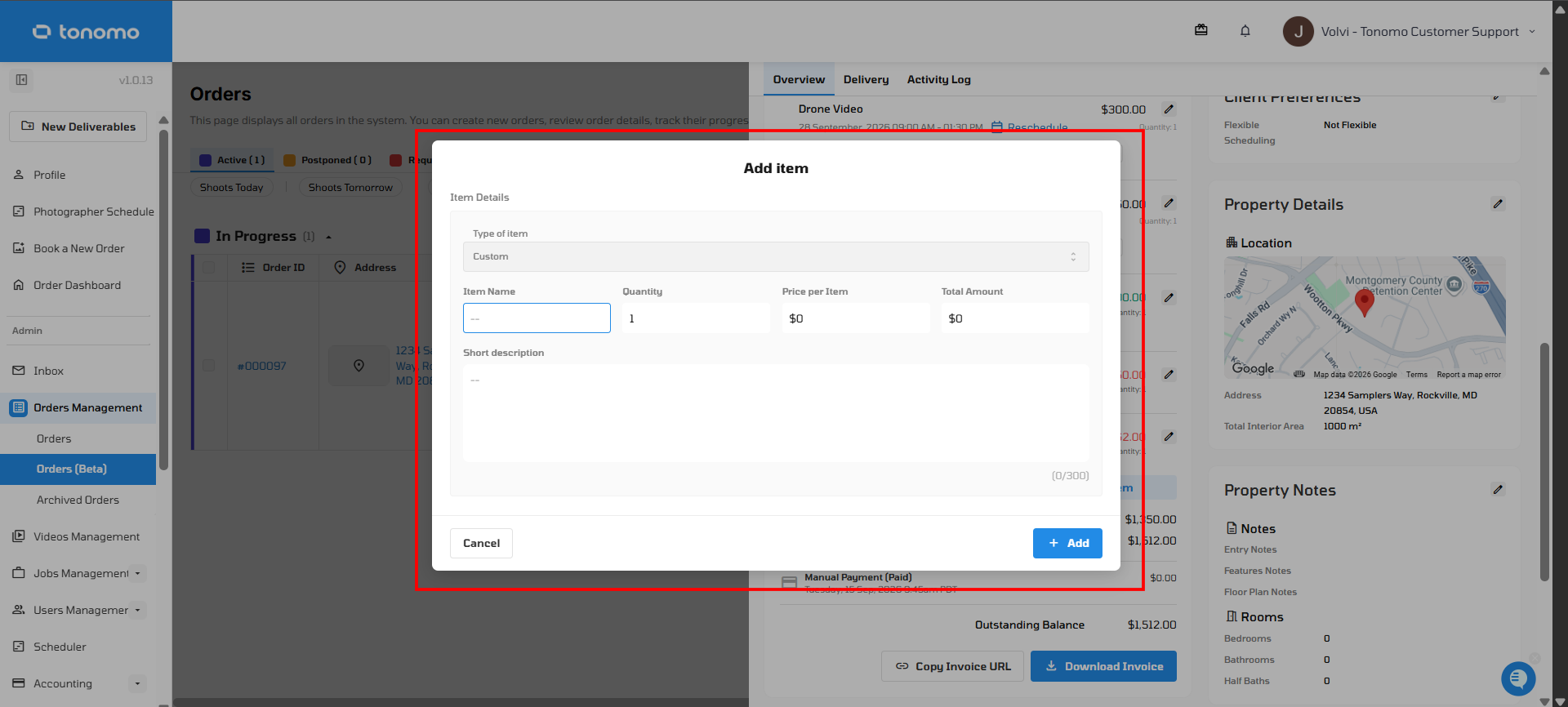
Important: The amount entered for a custom item cannot be negative.
If you have any questions about updating an order's invoice, reach out to Tonomo Support and we'll be happy to help.