How Do I Work on a Job?
Last updated: September 28, 2026
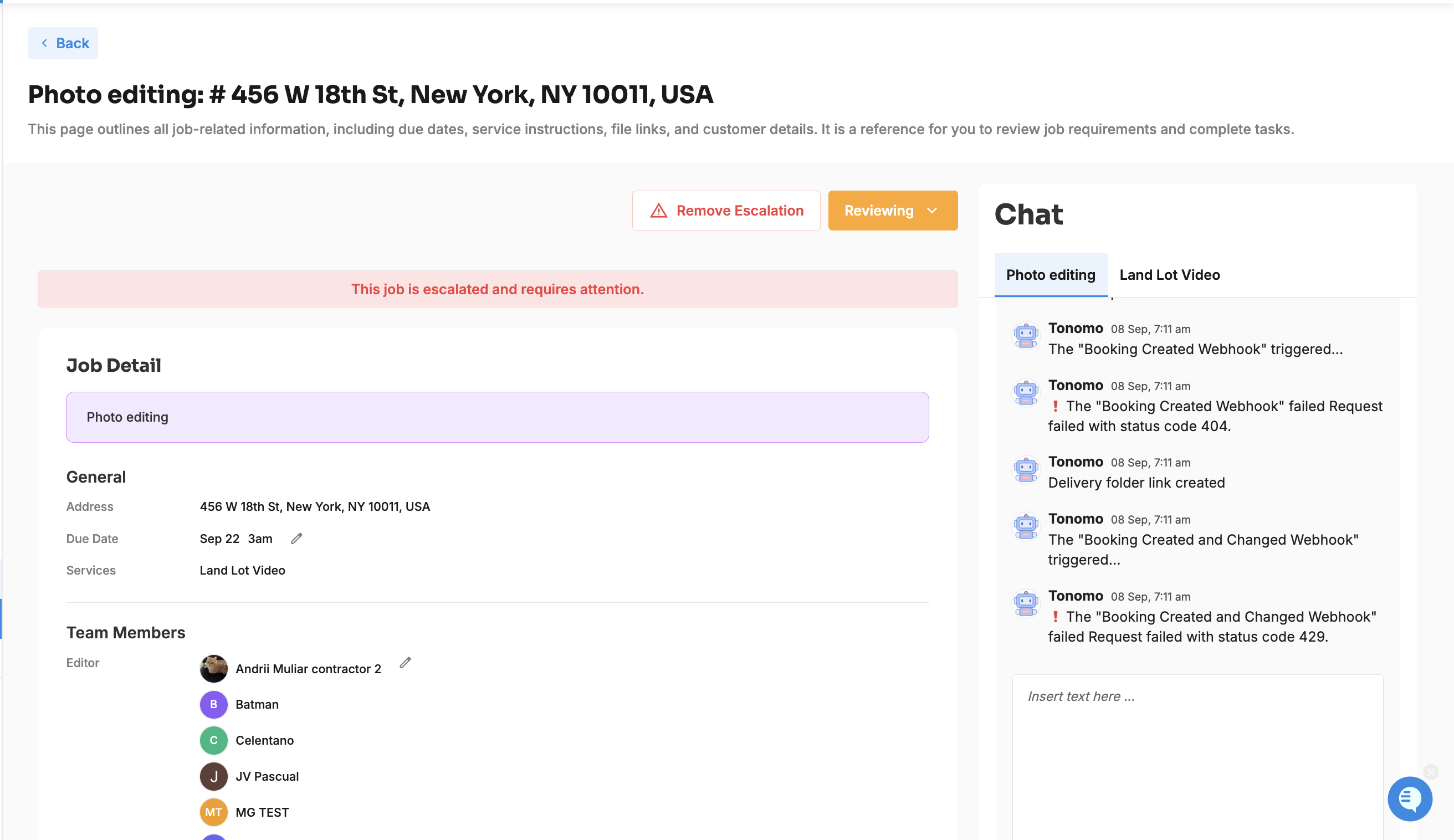
Open a job from Jobs Management > Jobs to see everything needed to do the work: the instructions, due date, services, the team, links to the raw and edited files, and the customer, branding, and order details your admin chose to show. From there, you start the job, move it through In Progress, Reviewing, and Completed, chat with the team, or escalate it if you're blocked.
At a glance
Click a job in the list to open its Job Detail page.
Pending jobs have a Start the Job button, which moves them to In Progress.
Change the status from the status button: Pending, In Progress, Reviewing, or Completed.
Files: Folder for Raw Files and Folder for Edited Files (Dropbox), or Add Final Files for Direct Upload orders.
The chat is on the right. It's the order's Project Chat, with a tab per service.
Escalate Job flags the job as needing attention.
This page outlines all job-related information, including due dates, service instructions, file links, and customer details. It is a reference for you to review job requirements and complete tasks.
What's the typical workflow?
Editor
Open the job and read the instructions at the top of Job Detail.
Click Start the Job. The status changes to In Progress.
Download the raw files from Folder for Raw Files.
Upload finished work to Folder for Edited Files, or click Add Final Files for Direct Upload orders.
Set the status to Reviewing. If the template has no reviewer, set it straight to Completed.
Reviewer
Open jobs in Reviewing. Filter by Team member and choose yourself.
Check the edited files.
Set the status to Completed, or back to In Progress with a note in the chat if changes are needed.
What's on the Job Detail page?
The sections shown depend on the template's Customize Information settings.
Section | What's in it |
|---|---|
Job Detail (top) | The job's message: the template's instructions, or the custom message added when it was created |
General | Address, Due Date (click Set a due date to change it), Services |
Team Members | Editor and Reviewer (both changeable), Photographer |
Files | Folder for Raw Files and Folder for Edited Files, or Add Final Files |
Branding Information | The customer's name, photo and contact details |
Customer Information | Basic information, client preferences, client notes |
Brokerage Information | The customer's brokerage |
Order Information | Order Number, which links to the order, plus order notes, entry notes, floor plan notes, property feature notes and rooms |
Custom Fields | Answers to custom booking questions |
Details come live from the order, so if the order changes, the job page shows the update.
How do I change a job's status?
Pending jobs: click Start the Job to move to In Progress.
Any other status: click the coloured status button and pick Pending, In Progress, Reviewing or Completed.
You can also change status from the job list.
How do I change the due date or the people on a job?
Due date: under General, click the due date (or Set a due date), choose a date and Due time, and click Save.
Editor or reviewer: under Team Members, click the name and choose someone else. Search with "Search a member…"
Where are the files?
Folder for Raw Files: the order's RAW folder in Dropbox. See Raw Folders.
Folder for Edited Files: the order's delivery folder in Dropbox. Upload finished files here.
Add Final Files: shown instead for orders using Tonomo Direct Upload. Click it to upload finished files into Tonomo. See Tonomo Direct Upload.
Frequently asked questions
Where's the chat? On the right of the Job Detail page, or below the details on smaller screens. See How Does Job Chat Work?
Something is blocking me. What should I do? Click Escalate Job and describe the problem. See How Do I Escalate a Job?
Can I get back to the job list? Click Back at the top of the page.
Why can't I see client notes on this job? Your admin chooses what shows on jobs in the template's Customize Information settings.
Related articles