How Do I Connect Dropbox To Tonomo?
Last updated: October 1, 2026
Tonomo uses Dropbox to store your team's photo and video files and deliver them to clients. You connect one Dropbox account in Configure Booking > General, and Tonomo then creates and organizes a folder for every order automatically, by photographer, date, property and service. Without a connected Dropbox account, no order folders are created and clients have no Delivery page. To deliver without Dropbox, see How Do I Upload And Deliver Media Directly On Tonomo?
At a glance
Connect in Configure Booking > General > Dropbox. You need admin access to both Tonomo and the Dropbox account.
Tonomo builds a Raw Files folder and a Delivery Files folder inside one root folder you choose.
Don't rename or move Tonomo's folders in Dropbox, or delivery can break.
Most studios use one shared Dropbox login for the whole team.
Tonomo can delete old RAW files automatically after a retention period you set.
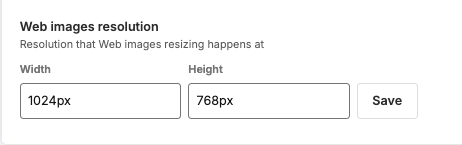
Images are resized for MLS to 2048 × 1536 px by default, keeping the original aspect ratio.
Auto-sync delivery files from Dropbox syncs finished files automatically (off by default).
Switching Dropbox accounts keeps existing Delivery pages, but has side effects (see below).
What does Dropbox do in Tonomo?
Dropbox is Tonomo's main file storage and delivery system. Once connected, it handles:
File storage: photo and video files uploaded by your team.
Client delivery: the Delivery page, where clients view and download their files.
Order media: files organized by service inside Order Management.
Backup and archiving: property media kept for future reference.
Files are stored in your Dropbox account, so they use your Dropbox storage.
What do I need before connecting?
An active Dropbox account
Admin access to that Dropbox account, to grant Tonomo permission
Enough storage for your expected file volume
Admin permission in your Tonomo portal
How do I connect Dropbox?
Step 1: Open the Dropbox settings
Sign in to your Tonomo portal as an admin.
In the left sidebar, go to Configure Booking > General.
Find the Dropbox section.
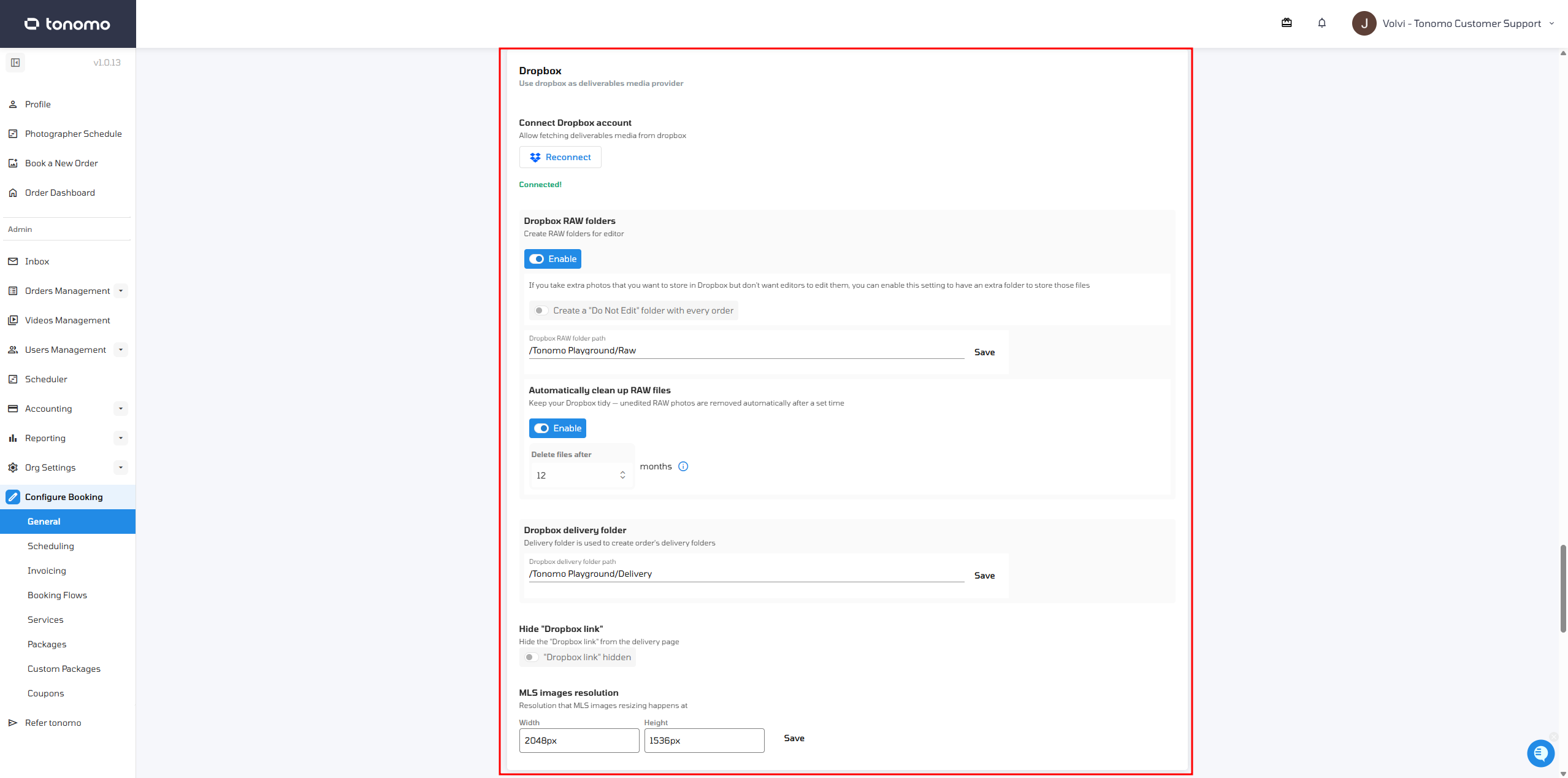
Step 2: Authorize Tonomo
Click Connect Dropbox.
In the window that opens, sign in with the Dropbox account you want to use.
Review the permissions Tonomo asks for:
read and write files in your Dropbox
create and manage folders
share folders with team members
Click Allow.
Step 3: Create your root folder
Create a root folder for all your Tonomo files. Pick an easy-to-find name, like Tonomo Files or [Your Studio Name] Media.
Link it to the Raw and Delivery sections.
Click Save.
Every future order folder and delivery folder is created inside this root folder.
Step 4: Check the connection
The integration should show Connected, with your Dropbox account's email.
Open Order Management or Delivery and check that files load.
If you see errors, see Troubleshooting below.
How does Tonomo organize the folders?
[Your Root Folder]/
├── Raw Files Folder/
│   └── Photographer Name/
│       └── Scheduled Date/
│           └── Property Address/
│               ├── Services (Photos)
│               ├── Services (Videos)
│               ├── Services (3D Tours)
│               └── …
└── Delivery Files Folder/
    └── Client Name/
        └── Property Address/
            ├── Services (Photos)
            ├── Services (Videos)
            ├── Services (3D Tours)
            └── …
Don't rename or move these folders in Dropbox. It breaks the link between Tonomo and your files, and the Delivery page can stop working for those orders.
RAW folders are only created for orders with a calendar event.
Each service's folder is based on its Service Type. See How Do I Set Up The Services I Offer?
For RAW folder settings, see How Do I Set Up Raw Folders in DropBox?
Should my team share one Dropbox login?
Usually, yes. Most studios connect one shared Dropbox login (for example admin@yourcompany.com), so everyone uses the same files through Tonomo. It's the simplest setup and avoids permission problems.
If team members also need direct Dropbox access outside Tonomo, you have two options.
Option A: Share the root folder from the admin account
Sign in to Dropbox with the admin account that's connected to Tonomo.
Open the root folder (for example Tonomo Files) and click Share.
Add your team members' email addresses.
Set their permission to Can Edit.
Click Share.
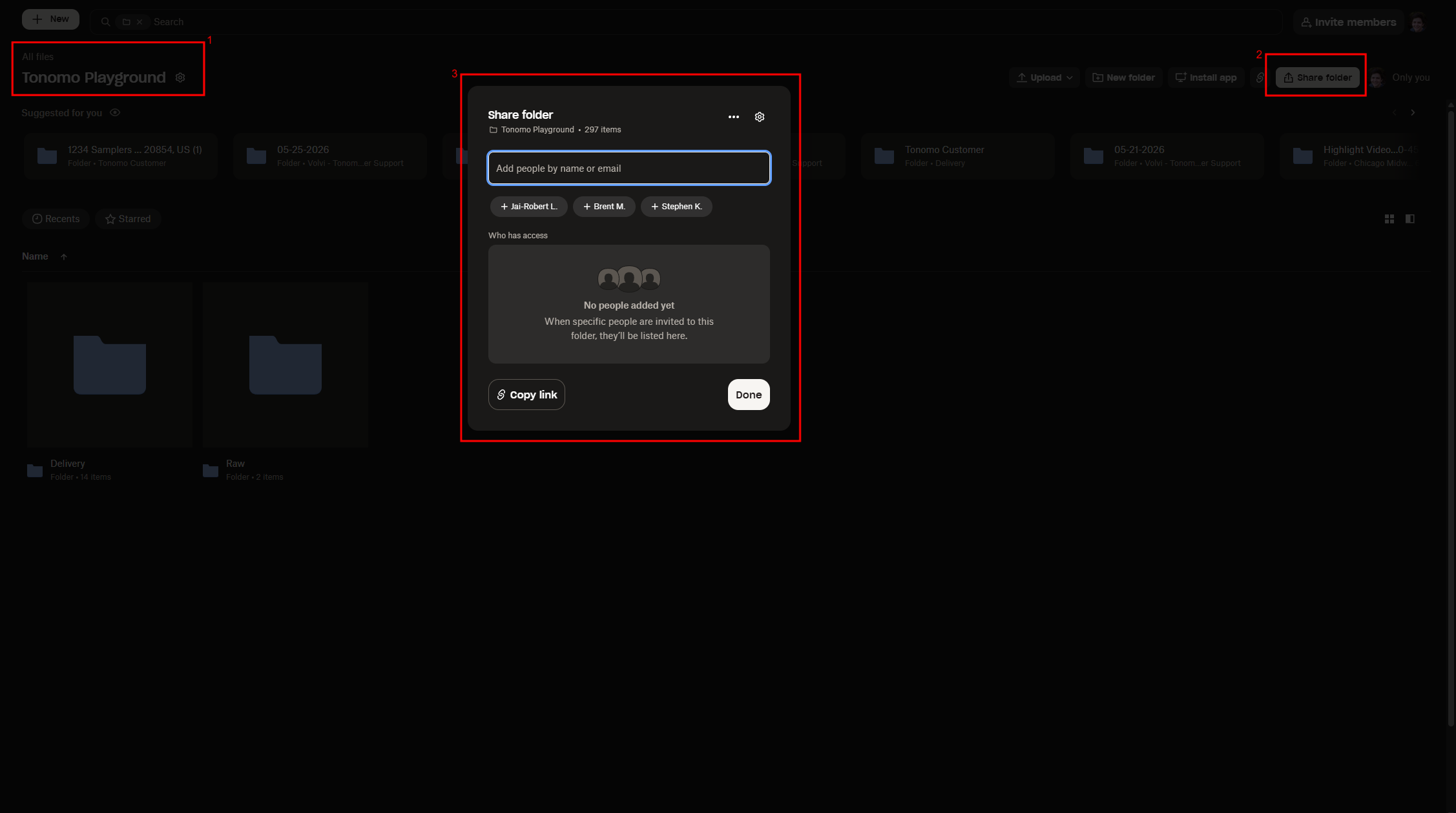
Option B: Use a Dropbox Business team plan
With Dropbox Business, add team members to your Dropbox team, and they get access to all team folders automatically. See Dropbox's documentation on adding team members.
Note: Dropbox's Free plan limits shared folders. For unlimited sharing, upgrade to Plus, Professional or Business, or use the shared admin login.
How do I switch to a different Dropbox account?
Log in to Dropbox with the account you want to connect.
In Tonomo, go to Configure Booking > General and find the Dropbox section.
Click Reconnect Dropbox.
What happens when you switch: existing Delivery pages keep working, but:
clients can't download full-size images from them
you can't resync those folders unless you recreate them
folders for In Progress and Pending orders stop working, and you'll need to recreate them manually
See also How Do I Reconnect or Change My Dropbox Account?
Can Tonomo delete old RAW files automatically?
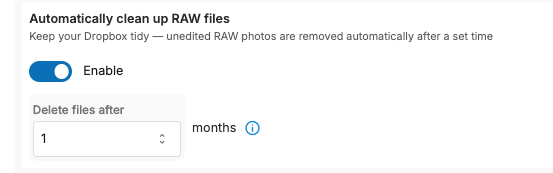
Yes. Tonomo can delete RAW files from your Dropbox after a retention period you choose, so large RAW files don't keep using your storage once you no longer need them.
Go to Configure Booking > General > Dropbox.
Set the retention period for RAW files.
Tonomo then removes RAW files once they pass that age.
Can I hide the Dropbox link from clients?
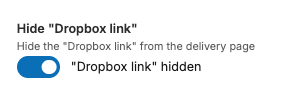
Yes. Turn on Hide Dropbox Link. Clients then see only a Download button on the Delivery page, not a link that opens your Dropbox folder. This controls how clients get their files and keeps your folder structure private.
What size are MLS images?
When Dropbox folders sync, Tonomo automatically creates resized images. The default size is 2048 × 1536 px, and you can change it. Tonomo always keeps the photo's original aspect ratio, so images are never stretched.
Troubleshooting
The Delivery page is stuck loading
Likely causes: Dropbox was disconnected or a different account was connected, or the root folder was renamed or deleted.
Fix:
Go to Configure Booking > General and find the Dropbox section.
Make sure you're logged in to the correct Dropbox account, then click Reconnect.
Check the root folder still exists with its original name.
Files don't appear in Tonomo after upload
Likely causes: the service has no Service Type, or its folder name doesn't include "Photos" or "Videos".
Fix:
Go to Configure Booking > Services and set a Service Type on every service.
In Dropbox, make sure photo and video folder names include the word "Photos" or "Videos".
Resync the order.
A team member can't open Dropbox files
They see "You don't have access to this folder."
Check they're signed in to the right Dropbox account.
Check they were added to the shared folder, not just sent an email.
If it still fails, have them use the shared admin login.
My Dropbox plan won't let me share folders
Dropbox's Free plan limits sharing. Upgrade to Plus, Professional or Business, or use the shared admin login.
For delivery links that don't generate after a sync, see Why Isn't My Delivery Link Generating After an Order Sync?
Frequently asked questions
Do I have to use Dropbox? No. Tonomo Direct Upload lets you upload and deliver files inside Tonomo without Dropbox, or alongside it. See How Do I Upload And Deliver Media Directly On Tonomo?
Can I use Google Drive or another storage service? You can upload media from these storage services to Tonomo with Direct Upload.
Does Tonomo store my files, or does Dropbox? With the Dropbox integration, files live in your connected Dropbox account.
Can each photographer use their own Dropbox? Tonomo connects one Dropbox account per portal. Team members can be given access to its root folder, or use a Dropbox Business team.
Will renaming a property folder break anything? Yes. Renaming or moving Tonomo's folders can break the Delivery page for those orders.
Related articles