How Do I Create an Appointment or Reserved Timeslot in the Scheduler?
Last updated: October 1, 2026
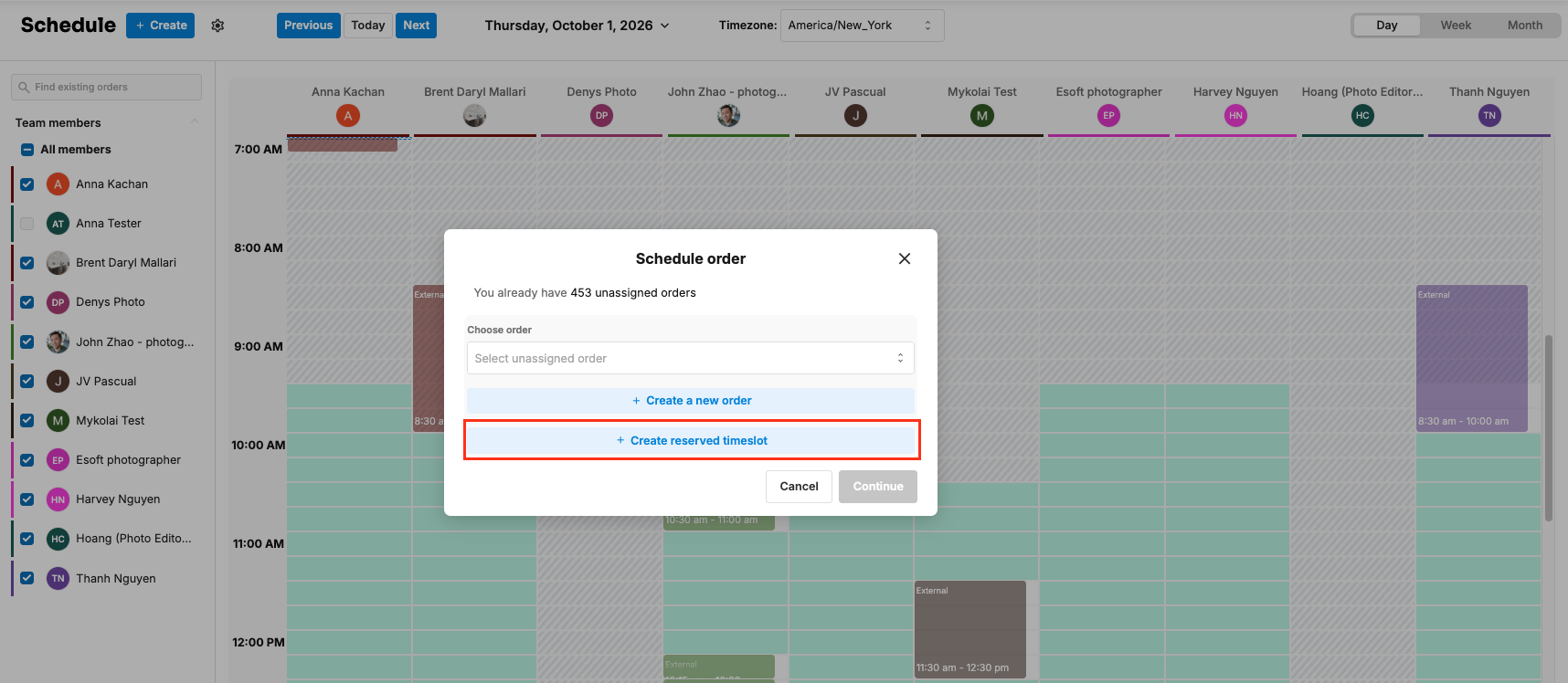
From Tonomo's Scheduler you can book time on a photographer's calendar in three ways: schedule an order that doesn't have an appointment yet, create a brand-new order, or create a reserved timeslot that holds the time before you have the property details. Click an empty time on a photographer's calendar and Tonomo opens Schedule order with all three options.
At a glance
In the Scheduler, click an empty time on a photographer's calendar to open Schedule order.
Choose order: schedule one of your unassigned orders (orders without an appointment).
Create a new order: book a new order directly on the calendar.
Create reserved timeslot: hold the time now and add the order details later.
Orders without an address can't be scheduled until the address is added.
How do I open Schedule order?
Open Scheduler from the left menu.
Click an empty time in the photographer's column you want.
Schedule order opens. If you have orders waiting for an appointment, it tells you "You already have [number] unassigned orders."
How do I schedule an existing order?
Use this for orders that were booked without a time, for example from a booking flow without Integrated Booking, or orders you created manually.
In Schedule order, open Choose order and pick from Select unassigned order.
Click Continue.
Check the appointment details (see below) and save.
Orders without a property address are greyed out. Add the address on the order first.
How do I create a new order on the calendar?
In Schedule order, click Create a new order.
Fill in the order details: customer, booking flow, location, services or package, and notes.
Save. The order is created with its appointment at the time you clicked.
This is the most flexible way for your team to book. You choose the exact photographer and time, without the booking page's thumbnails and descriptions. See How Do I Create an Order for a Customer?
What is a reserved timeslot?
A reserved timeslot holds time on a photographer's calendar when you know the date and time a client wants, but not yet the property details. Nobody else can book that time while it's held.
How do I create one?
In Schedule order, click Create reserved timeslot.
Give it a title. Tonomo uses Reserved timeslot if you leave it blank. Add a description or participants if you like.
Save.
How do I turn it into a real order?
Your team: click the reserved timeslot to open Reserved Timeslot Details, then create the order from there.
The client: send them a booking link for that timeslot. When they book through it, their order uses the reserved time instead of asking them to pick one.
What can I set on the appointment?
When you create or edit an appointment, you can set:
Photographers: who's assigned
Participants: who's invited, with Add email and Copy email list to clipboard
Assign Services: which of the order's services happen at this appointment, shown under Services With Appointment
Event title: what your team sees
Customer event title: what the client sees on their invite
Description: additional notes
Tonomo shows whether the chosen time is free for the photographer: This time is busy or This time is available.
Splitting services across appointments: an order can have several appointments, for example a daytime shoot and a twilight shoot. Use Assign Services to choose which services go to each one. See How Do I Split Services Into Separate Appointments?
Frequently asked questions
What's an unassigned order? An order without an appointment on the calendar yet.
Can I reserve time for a client who hasn't booked yet? Yes. That's what a reserved timeslot is for.
Will the client get a calendar invite? Participants in the appointment are invited. Turn off Don't invite customer to calendar event in the booking flow if you don't want the customer invited.
Related articles