How Do I Add or Remove Services on a Booked Order?
Last updated: October 20, 2026
You can add or remove services on an order after it's booked, from the Invoices & payments section of Order Details. Click Add services to add one, or open a service's edit menu and choose Delete item to remove it. When you add a service, Tonomo asks which appointment it belongs to, and can update the event duration, the invoice total and your Xero or QuickBooks invoice in the same step.
At a glance
Where: Orders Management > Orders (Beta), click the order's Order ID, then Invoices & payments in Order Details.
Add: Add services, pick the services, Save changes, choose an appointment for each one, then Save.
Remove: the service's edit button, then Delete item. The service is archived, not erased.
Invoice: the total updates automatically. If the order was paid in full and now has a balance, it becomes Partially Paid.
Event duration: follows your Automatically update event duration setting, and you can change it for each edit.
Xero / QuickBooks: if the invoice was already synced, Tonomo offers to resync it. If you skip that, the invoice is marked Out of Sync.
Who: admins and staff with full access. Invoices & payments is hidden from everyone else.
How do I add a service to a booked order?
Go to Orders Management > Orders (Beta) and click the order's Order ID. Order Details opens on the right.
In Invoices & payments, below the line items, click Add services.
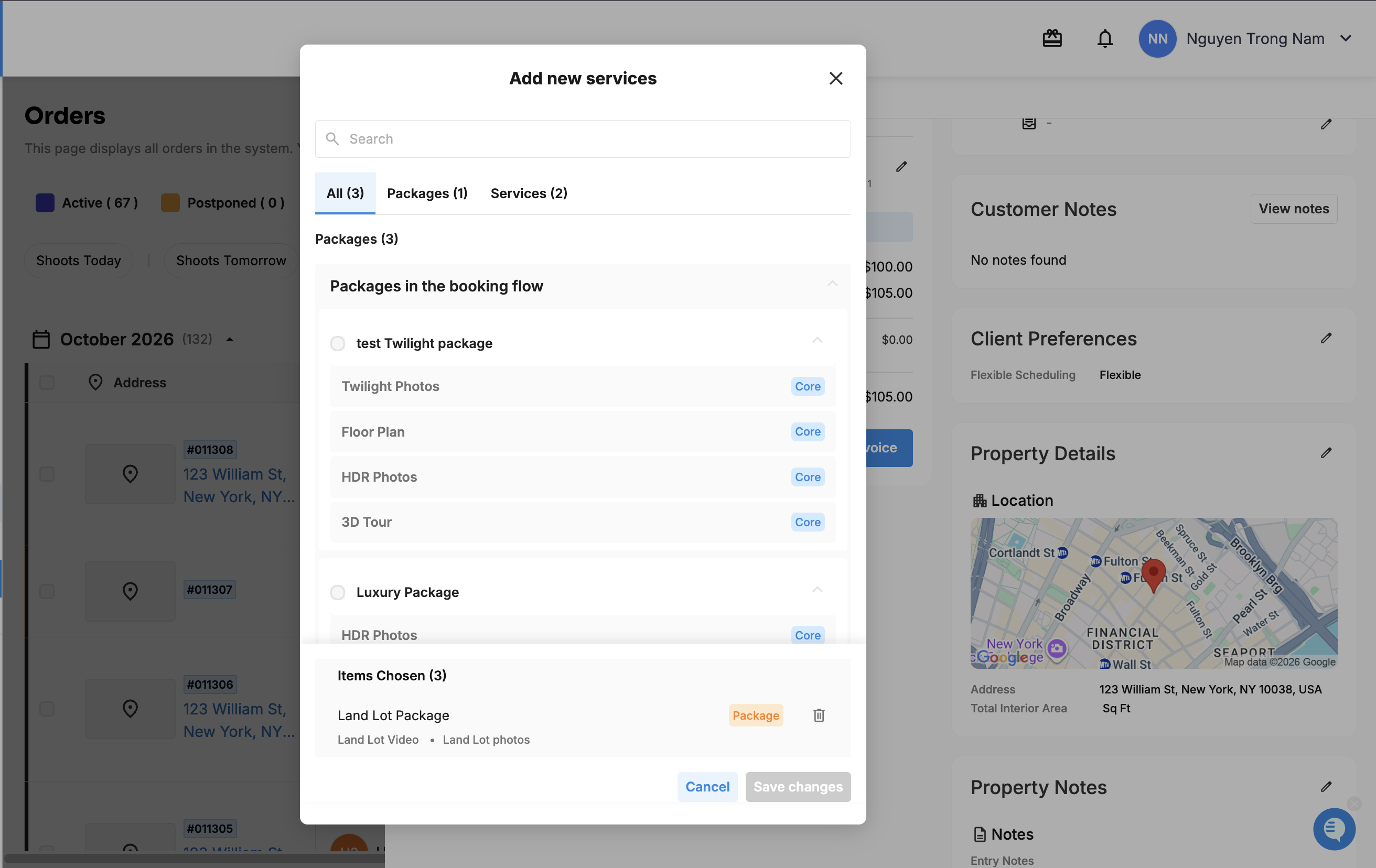
The Add new services window opens. Find the service with Search, or browse the All, Packages and Services tabs. You'll see:
Packages in the booking flow, Packages not in the booking flow and Custom packages
your service categories, plus Services not in booking flow
Select the services you want. They're listed under Items Chosen.
Click Save changes.
Under Assign services to the appointments, choose an appointment for each new service from Select appointment (see below).
Check the Auto-update settings (see below).
Click Save.
Tonomo adds the services to the invoice and records the change in the order's Project Chat, for example created task(s) Drone Photos and the price change.
How do I choose which appointment the new service belongs to?
Each new service gets a Select appointment list with:
The order's existing appointments, listed as Appointment 1, Appointment 2 and so on, with their date and time. Pick one to have the service done at that shoot.
Not Required: the service isn't tied to a shoot, for example virtual staging or a floor plan drawn from existing photos. You can still add an appointment for it later.
Add a new appointment...: opens the Scheduler in a new tab so you can book a separate shoot. See How Do I Add Another Appointment To An Existing Order?
When you add services from Order Details, each one starts on Not Required, so pick the appointment if the photographer needs to do it on site. When you add services from the Scheduler with a shoot selected, that shoot is chosen for you.
You can move a service to a different appointment later from the Scheduler. See How Do I Split Services Into Separate Appointments?
What do the auto-update settings do?
Setting | What it does | Starts |
|---|---|---|
Event duration: Adjust automatically. | Lengthens or shortens the calendar event to fit the services now on it | On or off, matching your Automatically update event duration setting |
Invoice amount: Update the total on the order. | Adds the new services to the invoice and updates the order total | On |
Invoice sync: Resync to accounting | Sends the updated invoice to Xero or QuickBooks straight away | On. Only shows when the invoice is already synced. Greyed out if Invoice amount is off. |
Worked example: an order has a 90-minute photo shoot. The agent asks for drone photos too. You click Add services, pick Drone Photos, choose Appointment 1, and leave all three settings on. The event grows to cover the drone time, the invoice goes up by the drone price, and the updated invoice is sent to Xero. If the agent had already paid the original amount in full, the order changes to Partially Paid so you can collect the difference.
If the new service includes a property website, Tonomo switches the website on for the order.
How do I remove a service?
In Invoices & payments, find the service.
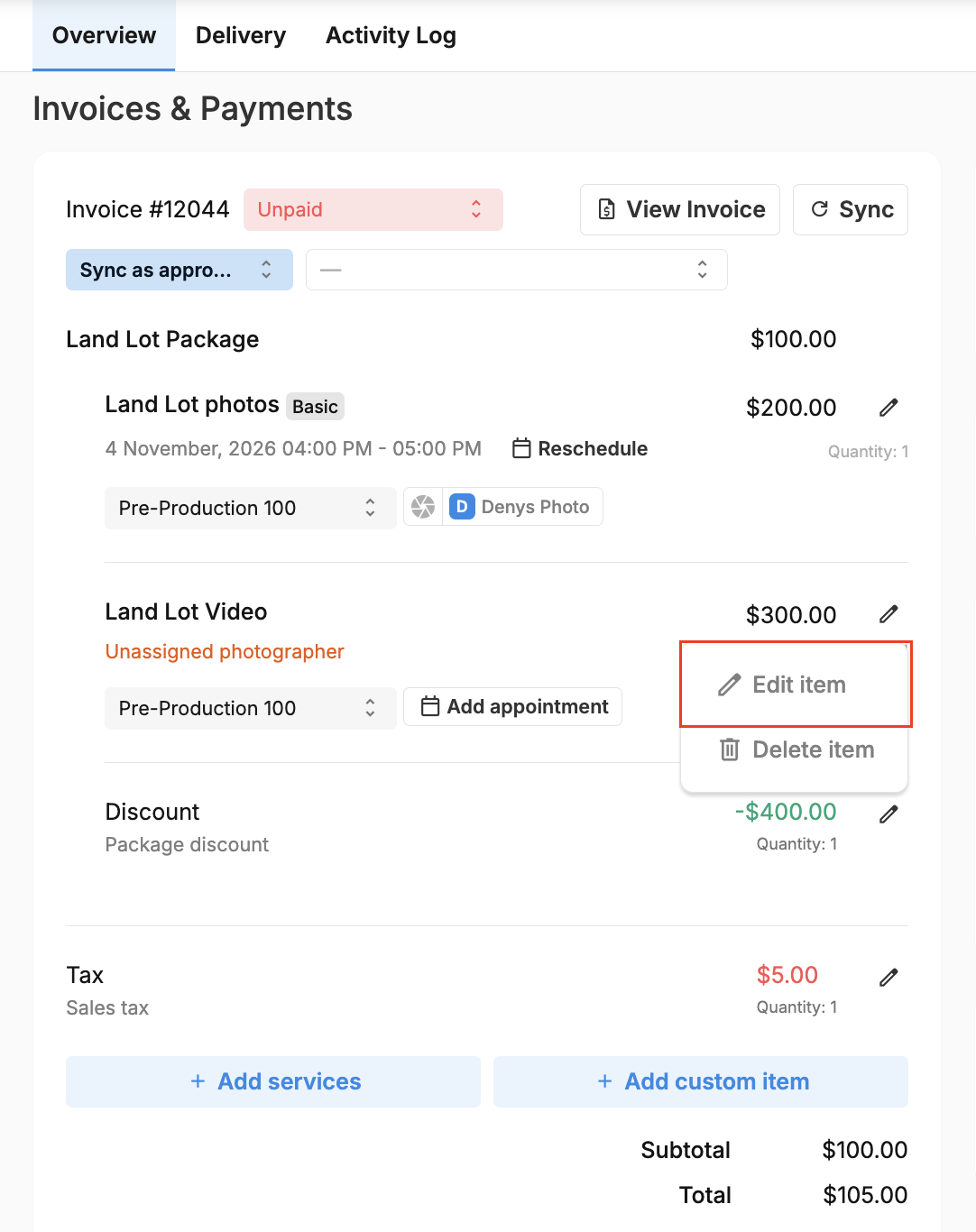
Click its edit button (the pencil next to the price), then Delete item.
Confirm the message: Are you sure you want to archive "[service]" service?
Tonomo then:
archives the service, so it leaves the order's active services but stays in the order's history
removes it from the invoice and updates the total automatically
notes archived [service] in Project Chat
asks Resync invoice to accounting? if the invoice is already in Xero or QuickBooks. Click Resync to update it there, or Cancel to leave it Out of Sync for now.
If the calendar event no longer matches the order, Tonomo queues an event update. The bar Calendar event for order: "[order]" has changes. Update event now? shows at the bottom of the classic Orders page and an order's full page, not on Orders (Beta). When you see it, choose Update event (switch on Notify participants to email the guests) or Skip.
You can also remove a service in the Add new services window: click the bin icon next to it under Items Chosen, then Save changes. When you only remove services, Tonomo saves straight away, updates the invoice, resyncs to accounting and adjusts the event duration if your setting is on.
If Manual Invoice Entry is on for the order (the invoice total was typed in by hand), Tonomo doesn't recalculate the invoice when you archive a service. The total stays as you entered it, so change it yourself if the price should drop.
How do I set the default for event duration?
Go to Configure Booking > General.
In the Scheduling card, find Automatically update event duration: The event duration will adjust automatically when services or square footage change in an order.
Switch Enable on or off, then click Save.
This sets where the Event duration switch starts each time you add services. You can still change it for a single edit.
What happens with Xero or QuickBooks?
If the order's invoice was already synced:
Adding services: with Invoice sync: Resync to accounting on, Tonomo sends the updated invoice right away. Turn it off and the invoice is marked Out of Sync.
Removing a service: click Resync when Tonomo asks. Cancel marks it Out of Sync.
To resync later, open the order's Invoices & payments and click Resync at the top right of the invoice, next to View invoice. Or go to Accounting > Invoicing and open the Out of Sync tab.
To find every order that needs attention, switch on the Accounting Status column on Orders (Beta) and filter for Out of Sync.
Frequently asked questions
Does removing a service delete it forever? No. It's archived. It leaves the invoice and the active services, and the change is recorded in Project Chat.
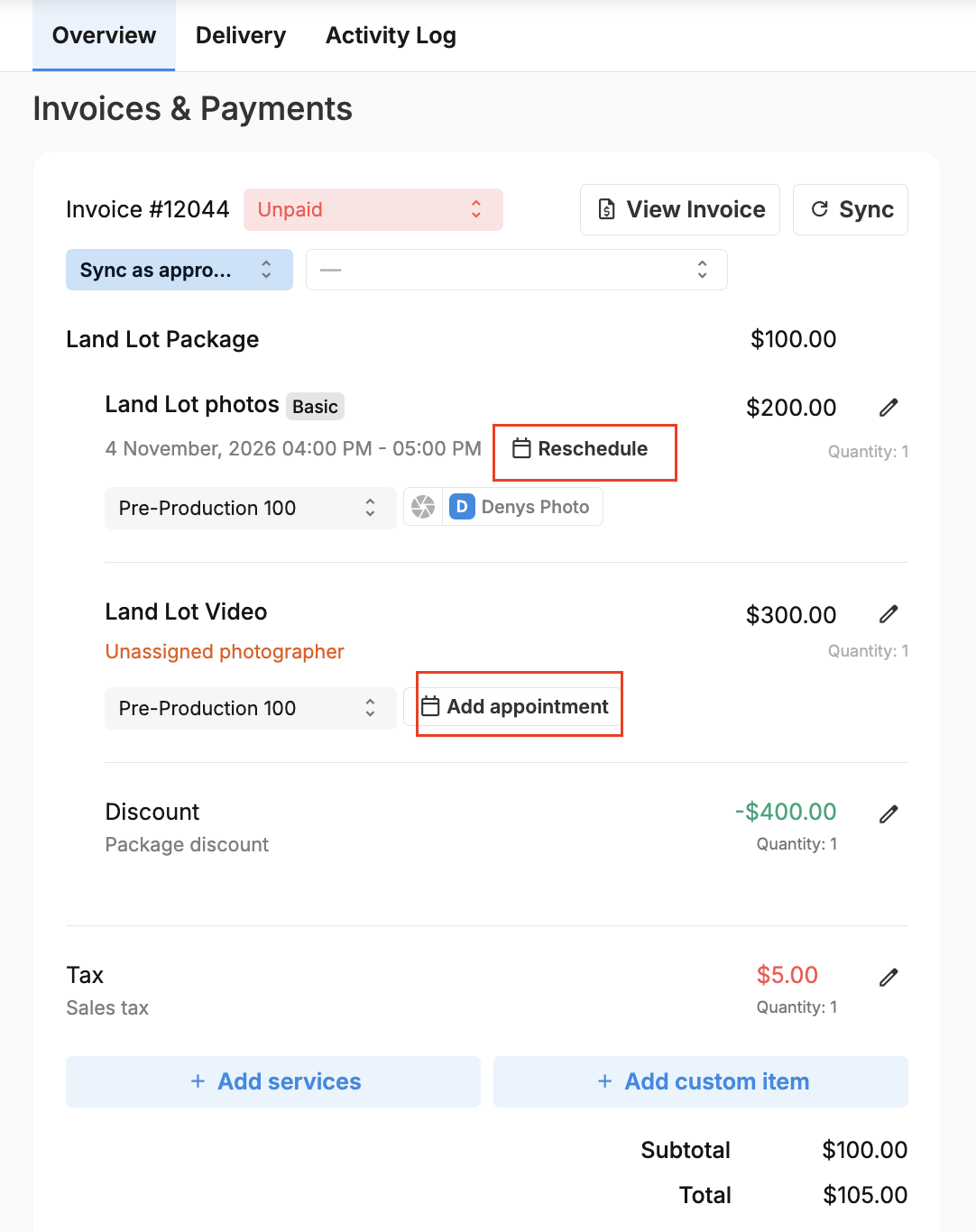
I added a service but it shows "Unassigned photographer". Why? It isn't on an appointment yet. That happens when you choose Not Required. Click Add appointment on the service line to book it in the Scheduler, or assign it to an existing shoot. See How Do I Split Services Into Separate Appointments?
Can I add services from the Scheduler? Yes. Click the shoot, then Add services under Services in the Order Details panel. You can only add services there. To remove one, use Invoices & payments in Order Details. See How Do I Edit Order Details From The Scheduler?
Can I add a service without changing the invoice? Yes. Switch off Invoice amount: Update the total on the order. before you click Save.
Why did a paid order change to Partially Paid? The order was paid in full, and the services you added left a balance. The customer pays the difference on the invoice. See How Do I View, Send and Pay an Order Invoice?
Related articles