
How Do I Edit Order Details From The Scheduler?
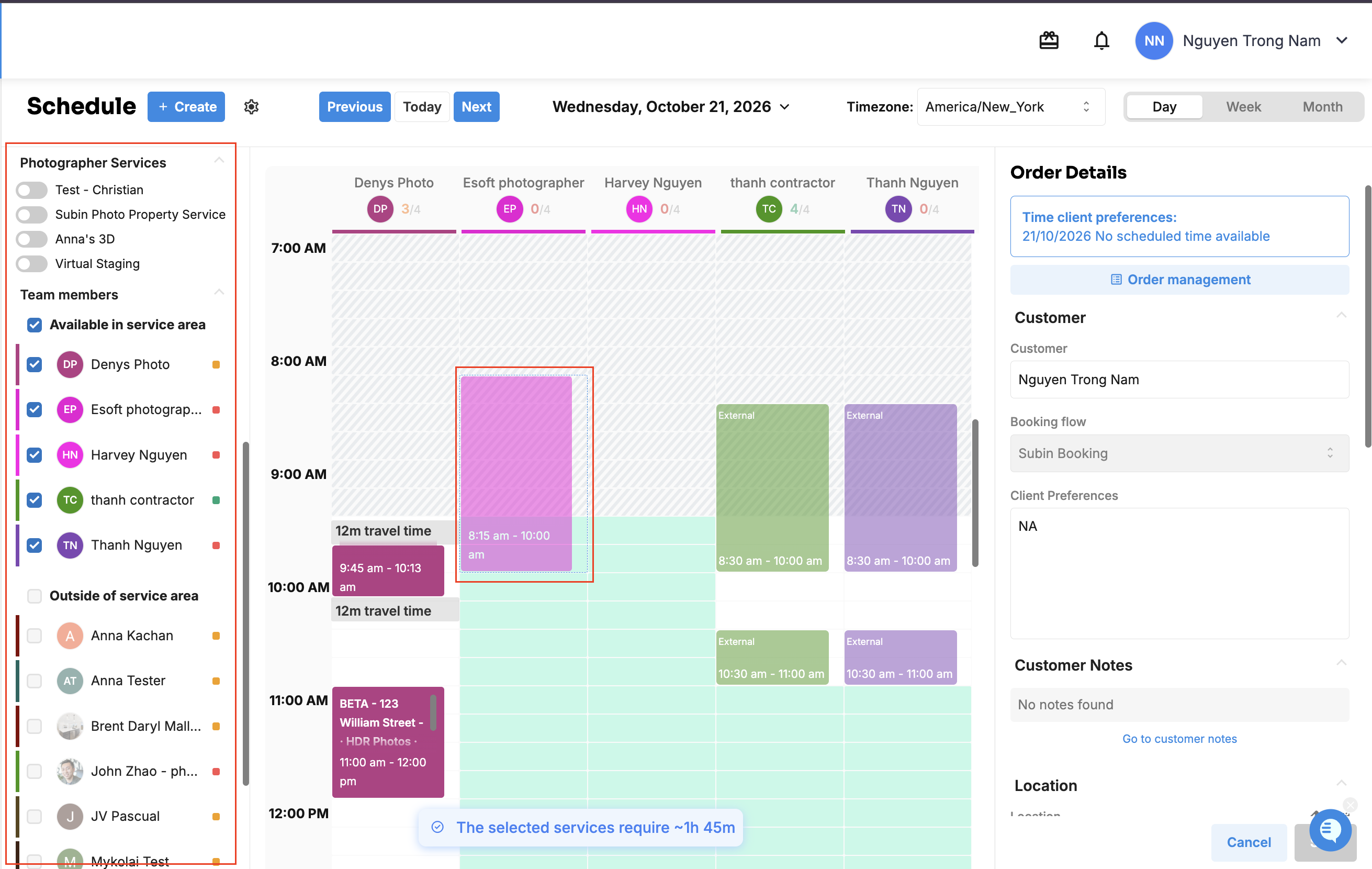
You can view and edit an order's details directly from the Scheduler, without going back to Order Management. Click any shoot, and the Order Details panel opens on the right. There you can update the customer details, client preferences, location, services, and notes, then click Save. The left panel shows the order's services, and its Photographer Services filter highlights the photographers who can do those services.
At a glance
Open it: in the Scheduler, click a shoot. Order Details opens on the right.
You can edit: Customer, Client Preferences, Location (with Edit), Apartment, floor, Total interior area, entry and feature notes, Package, and your custom questions.
Add services: Add services under Services. You can add services here, but not remove them.
Save is active once you change something. Cancel discards your changes.
Order management takes you to the order's full Order Details in Order Management.
Photographer Services (left panel): switch on a service to highlight only the photographers who perform it.

How do I see an order's details?
Open Scheduler from the left menu.
Click any shoot. You can also find an order with Find existing orders.
The Order Details panel opens on the right.
At the top you'll see Time client preferences:, the date and time the client asked for. If the client picked a photographer while booking, a note says so, for example Alex was selected by customer for appointment No.1. If they didn't, it says Team was selected for appointment No.1.
What can I change in the Order Details panel?
Section | What's there |
|---|---|
Customer | Customer name, Booking flow (locked once the order has one), Client Preferences |
Customer Notes | Your team's notes about this customer |
Location | The address, with Edit to change it. Depending on the booking flow: Apartment, floor, Total interior area, Acreage, and entry and feature notes |
Services | Package, Services with Add services, your booking flow's custom questions, and Brokerage Preferences (read-only) |
Appointments | Each appointment as Appointment No.1, Appointment No.2 and so on, plus Add new appointment |
To save:
Make your changes.
Click Save. If a required field is empty, Tonomo shows Please complete all required fields.
When you save:
If the address changed, Tonomo recalculates the travel fee for the new location. See How Do I Change The Address On An Order?
If the package, square footage or acreage changed, Tonomo updates the event's duration.
If the invoice is already in Xero or QuickBooks, Tonomo asks Resync invoice to accounting? each time you save. Click Resync to update it there. Click Cancel and your changes are still saved, but the invoice is marked Out of Sync so you can resync it later. See How Do I Check an Order's Xero or QuickBooks Sync Status?

Can I add or remove services from the Scheduler?
You can add them. Under Services, click Add services, pick the services, and assign each one to an appointment. The shoot you clicked is chosen for you. Then click Save in the panel. See How Do I Add or Remove Services on a Booked Order?
To remove a service, open the order's Order Details in Order Management (click Order Management) and use Delete item in Invoices & payments.
What's in the left panel?
When an order is selected, the left panel shows:
Services: each of the order's services, with its appointment date and time, or Unscheduled. Use Schedule Appointment to book unscheduled ones. See How Do I Split Services Into Separate Appointments?
Order Details: a summary with the customer, package, address and area.
Photographer Services: the filter below.
How do I use the Photographer Services filter?
Photographer Services sits in the left panel of the Scheduler when an order is selected. It lists that order's services, each with a switch. Use it to see quickly which photographers can do the job.
Default view: all photographer columns are active (white).
Switch a service on: photographers who perform the selected service(s) stay active. Everyone else is de-emphasized (grey). If you switch on several services, a photographer stays active only if they perform all of them.
Switch it off: returns to the default view.
The highlighting shows in the Day view, where each photographer has their own column. The Week and Month views aren't affected by the filter. The filter uses your photographer skillsets. See How Do I Set Up Photographer Skillsets?
Frequently asked questions
Why is the Save button greyed out? Nothing has changed yet. It becomes active once you edit a field.
Can I change the booking flow here? Only if the order doesn't have one yet. Once it's set, it's locked.
Who can edit order details in the Scheduler? Admin and Staff users, the same people who can use the Scheduler.
Does changing the address update the travel fee? Yes. Tonomo recalculates it when you save. See How Do I Change The Address On An Order?
Related articles