How Do I Let Customers Reschedule or Cancel Their Own Bookings?
Last updated: September 30, 2026
Tonomo lets customers reschedule or cancel their own booking from a link, without contacting you. You choose, for each booking flow, whether they can reschedule, cancel, or both, and how many hours before the shoot changes stop being allowed. When a customer reschedules, the order and calendar event update automatically, and Google Calendar sends everyone an updated invite.
At a glance
Set per booking flow in Scheduling Settings: Allow cancellation, Allow rescheduling, Hours from booking to disable rescheduling.
The cut-off applies to both rescheduling and cancelling.
Customers can only make changes while the order is Pending or In Progress, and it has a calendar event.
Changes update Tonomo automatically, and Google Calendar emails the updated invite.
Share direct Cancel and Reschedule links in emails and calendar descriptions.
How do I turn it on?
Go to Configure Booking > Booking Flows and click Edit on the booking flow.
In Scheduling Settings, switch on Allow cancellation, Allow rescheduling, or both.
Set Hours from booking to disable rescheduling, the number of hours before the shoot after which customers can no longer make changes.
Click Update settings.
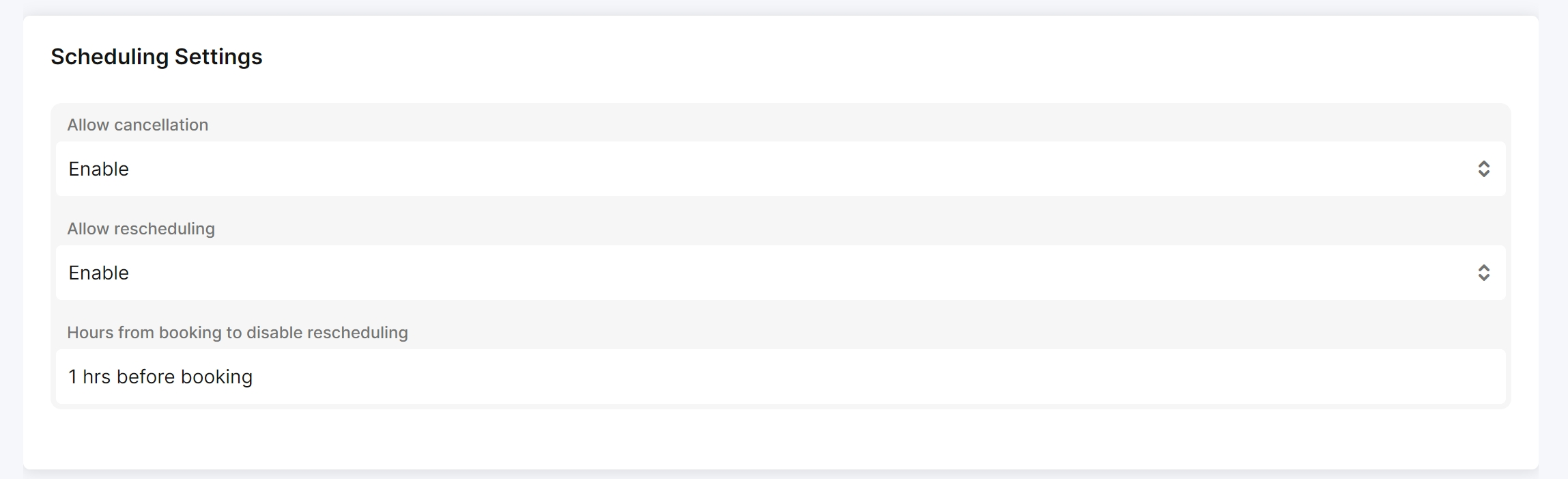
Example: with 1 hour, a customer with a 2:00 PM shoot can reschedule or cancel until 1:00 PM, but not after.
When can a customer reschedule or cancel?
All of these must be true:
The booking flow allows it (Allow rescheduling / Allow cancellation).
It's before the cut-off you set. The same cut-off applies to cancelling.
The order is Pending or In Progress. Completed, cancelled or postponed orders can't be changed.
The order has a calendar event.
What happens when a customer reschedules or cancels?
The order and event update automatically in Tonomo.
Google Calendar sends an updated event invitation to every email address on the event.
For extra email or text notifications, set them up with Zapier. See How Do I Connect Tonomo To Zapier?
How do customers find the reschedule and cancel options?
Their booking confirmation email links to their order, where both options appear. You can also add direct links to your calendar event description or any email template:
Action | Link |
|---|---|
Cancel |
|
Reschedule |
|
Replace [domain] with your own domain. In templates, Tonomo fills in {{orderId}} for every order automatically.
How do I send the link to one customer by text or outside Tonomo?
Replace {{orderId}} with that order's actual ID. To find it, open the order in Tonomo's Order Dashboard. The ID is the part of the page address between orderId= and &filter.

What does the customer see?
A page showing their order status, with Reschedule and Cancel options. Choosing Reschedule shows their current shoot time, the deadline for changes, and a calendar to pick a new date. Only available times are shown, just like when they booked.

Frequently asked questions
Can a customer cancel after the cut-off? No. The Hours from booking to disable rescheduling cut-off also stops cancellations.
Can I charge a fee for late changes? There are a rescheduling fee and fee period, but there's currently no option to set a late changes fee specifically.
Where do agents learn how to do this? Share How Do Agents Reschedule or Cancel Their Order? with them.
Does it work without Integrated Booking? Yes
Related articles