How Do I Sync My Calendar with Tonomo?
Last updated: September 29, 2026
Tonomo connects to Google Calendar so your bookings, shoot details and photographer availability live in one place. You connect one primary calendar for your company, and each photographer shares their own Google Calendar with it. Tonomo then books shoots onto photographers' calendars, respects their busy time, and turns on Integrated Booking, so agents can book directly through your booking flow. Tonomo works with Google Calendar only.
At a glance
Google Calendar applicable only. For other calendar providers, please contact Tonomo support.
Connect your primary calendar in Org Settings > Team.
Each photographer shares their main Google Calendar with the primary calendar, with Make changes to events permission.
The primary account must accept each sharing invitation in Google Calendar.
Then set up each photographer in Configure Booking > Scheduling with Setup new photographer.
Photographers can connect more than one calendar.
The primary calendar owns every event Tonomo creates, so use a shared company email.What does connecting a calendar do?
Integrated Booking: agents book directly on your team's calendars through your booking flow. See How Does Integrated Booking Work in Tonomo?
Automatic events: Tonomo creates a calendar event for each shoot and shares it with the photographer and agent.
Real availability: Tonomo only offers times when photographers are free on their calendars. See How Do I Set Photographer Availability?
Travel time: Tonomo uses event addresses to work out drive time to the next shoot.
Tonomo only needs to connect to your main calendar. Once photographers share their calendars with it, Tonomo can see and manage all of them.
Step 1: How do I connect my primary calendar?
Go to Org Settings > Team.
Follow the prompts to sign in with Google and link the account.

Which account should I use? The primary calendar owns every event Tonomo creates, and it can edit or delete those events directly. Use a generic company account such as booking@yourcompany.com or info@yourcompany.com, so you don't lose access if someone leaves, and anyone can step in during an emergency. If you don't have one, use the account of a senior team member who's likely to stay long-term.
"Less Secure App" warning? If Google shows this, follow the steps in your Google Admin Console to resolve it.
Step 2: How do I create a user account for each photographer?
An admin must create a user account before setting up a photographer's profile.
Go to Users Management > Users.
Click + New Users.
Enter the photographer's Name, Email, Phone Number and User Permission.
Permission | Best for |
|---|---|
Contractor | Photographers who only need to see their orders and receive calendar events. Recommended for most photographers. |
Staff | Team members who need more settings. Staff can access everything except Configure Booking, which is usually more than a shooter needs. |
Photographers can then log in with their phone number, their email and password, or Google with their registered email. With email and password, the first time they must click create a new account, not the log in button.
Step 3: How does a photographer share their Google Calendar?
The photographer does this in Google Calendar:
Share their calendar with your primary calendar account, for example booking@yourcompany.com.
Give it Make changes to events permission, so Tonomo can see event details and calculate travel time.
Important:
Share the main calendar, the one that appears as their email address (for example photographer@gmail.com), not a sub-calendar. Tonomo creates events on the photographer's main calendar, so a sub-calendar won't work.
Then the primary account holder must open Google Calendar and accept the sharing invitation. The shared calendar should appear in their calendar list first, and only then in Tonomo's dropdown.
For how sharing and permission levels work, see Google Calendar's help.
Step 4: How do I set up the photographer in Tonomo?
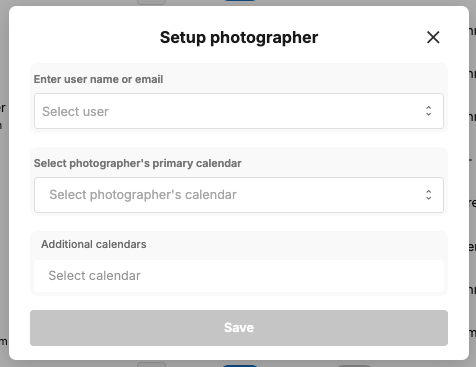
Go to Configure Booking > Scheduling. On the General tab, click Setup new photographer.
Enter the photographer's name or email in User Name or Email. Only users with Admin, Staff or Contractor permission appear.
Choose the photographer's main calendar from the dropdown.
If needed, link additional calendars so Tonomo checks those for availability too.
Toggle Enabled on.
Click Save changes.
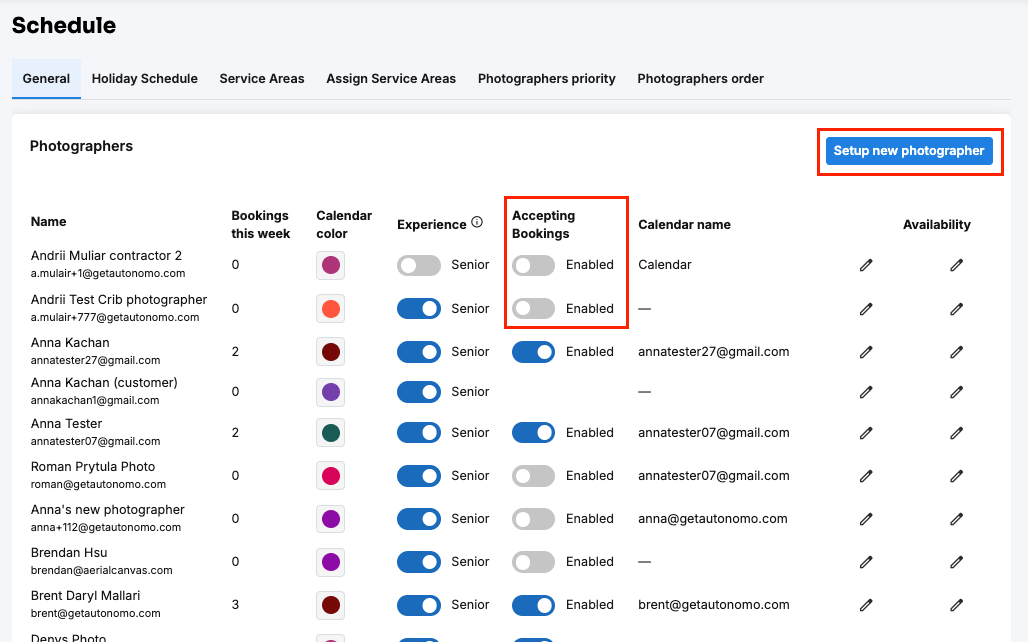
After setup, the photographer appears in the General tab's photographer table, showing their Bookings this week, Calendar color, Senior toggle, Accepting Bookings toggle, Calendar name and Availability.
Why can't I see a photographer's calendar in the dropdown?
Check these in order:
They haven't shared it yet. Complete Step 3.
The invitation wasn't accepted. The primary account must accept it in Google Calendar.
They shared a sub-calendar. They must share their main calendar, the one named with their email address.
Still missing? Accept the sharing invitation again in Google Calendar. This often fixes it.
The photographer's name disappears when I choose a calendar. They don't have a user account yet. Go back to Step 2.
I don't see the Setup new photographer button. Contact Tonomo support in your private Slack channel.
Frequently asked questions
Does Tonomo work with Outlook, iCloud or other calendars? Not currently. Tonomo integrates with Google Calendar only. Contact the Tonomo support team in your private Slack channel, to discuss options.
Can a photographer use more than one calendar? Yes. Link additional calendars on their photographer profile, and Tonomo checks all of them.
Why are a photographer's calendar events not blocking bookings? The event may be marked Free instead of Busy, or their calendar may not be shared correctly. See Why Are My External Events Not Showing in the Tonomo Scheduler?
How do I stop a photographer being booked without removing them? Turn off their Accepting Bookings toggle on the General tab of Configure Booking > Scheduling, then click Save changes.
Can Tonomo delete calendar events when an order is cancelled? Yes. In Configure Booking > General, turn on Automatically delete calendar events. It deletes calendar events when an order is postponed, cancelled or archived.
Related articles