
How Do I Partially Deliver an Order?
Sometimes part of an order is ready before the rest. For example, the photos are edited and ready to go, but the editor is still working on the video. Instead of waiting for everything to finish, you can deliver the finished files right away and send the rest once they're done. Put only the finished files on the delivery page, send the Project Complete email with a note about what's still coming, and keep the order In Progress until everything is delivered.
At a glance
Dropbox: put only finished files in the order's delivery folder, sync, then send the email.
Direct Upload: upload only finished files and Deliver. This marks the order Completed, so move it back to In Progress afterwards.
Send the email without changing the status: Deliver in the Delivery Page Link column on Orders (Beta), or Send Project Complete Email in the order's Activity Log section.
Edit the email every time. The Project Complete template is written for a full delivery, so say what's done, what's pending and when to expect it.
Track each service in Project Chat: finished services to Complete, the rest stay in Post-Production (or the status that fits).
If Auto-sync delivery files from Dropbox is on, anything you put in the delivery folder goes on the delivery page within about five minutes.
Note: You can repeat this process as many times as needed. If each service on the order has its own turnaround time, deliver each one as soon as it's ready, updating its status in Project Chat each time so you can track which services are completed and which are still pending.
How do I deliver part of an order with Dropbox?
In the order's final (delivery) Dropbox folder, only include the files that are actually ready to deliver, for example the edited photos. Don't include raw files for services that are still in progress, like unedited video footage.
Once the ready files are in the delivery folder, sync the delivery files: click Sync delivery files in the order's Delivery section (or Sync Files / Resync on Orders (Beta)). This creates (or updates) the delivery page.
Send the delivery email to your client. See How do I send the delivery email? below.
Note: The Project Complete email template is written to say the whole project has been delivered, so edit the email before sending to specify which services are done and which are still pending, including a turnaround time if you have one.
Using auto-sync? With Auto-sync delivery files from Dropbox on, Tonomo syncs any file placed in the delivery folder within about five minutes, even if you didn't mean to deliver it yet. Keep unfinished work out of the delivery folder (the RAW folder is the right place for it).
How do I deliver part of an order with Direct Upload?
If you're using Tonomo's Direct Upload instead of Dropbox, the flow is a bit different, since delivering from the upload page sends the delivery email and immediately marks the order as Completed.
Upload only the final, edited files that are ready to deliver in the order's Direct Upload area.
Click Deliver. In Deliver Project, check the invoice under 1. Review Invoice and click Next.
Under 2. Send Deliver Mail, edit the email to specify which services are done and which are still pending, including a turnaround time if you have one. Then click Send Deliverables.
Since delivering automatically marks the order as Completed, go to Orders Management > Orders (Beta), search for that order, and change its Order Status from Completed back to In Progress so it reflects that the order isn't fully done yet.
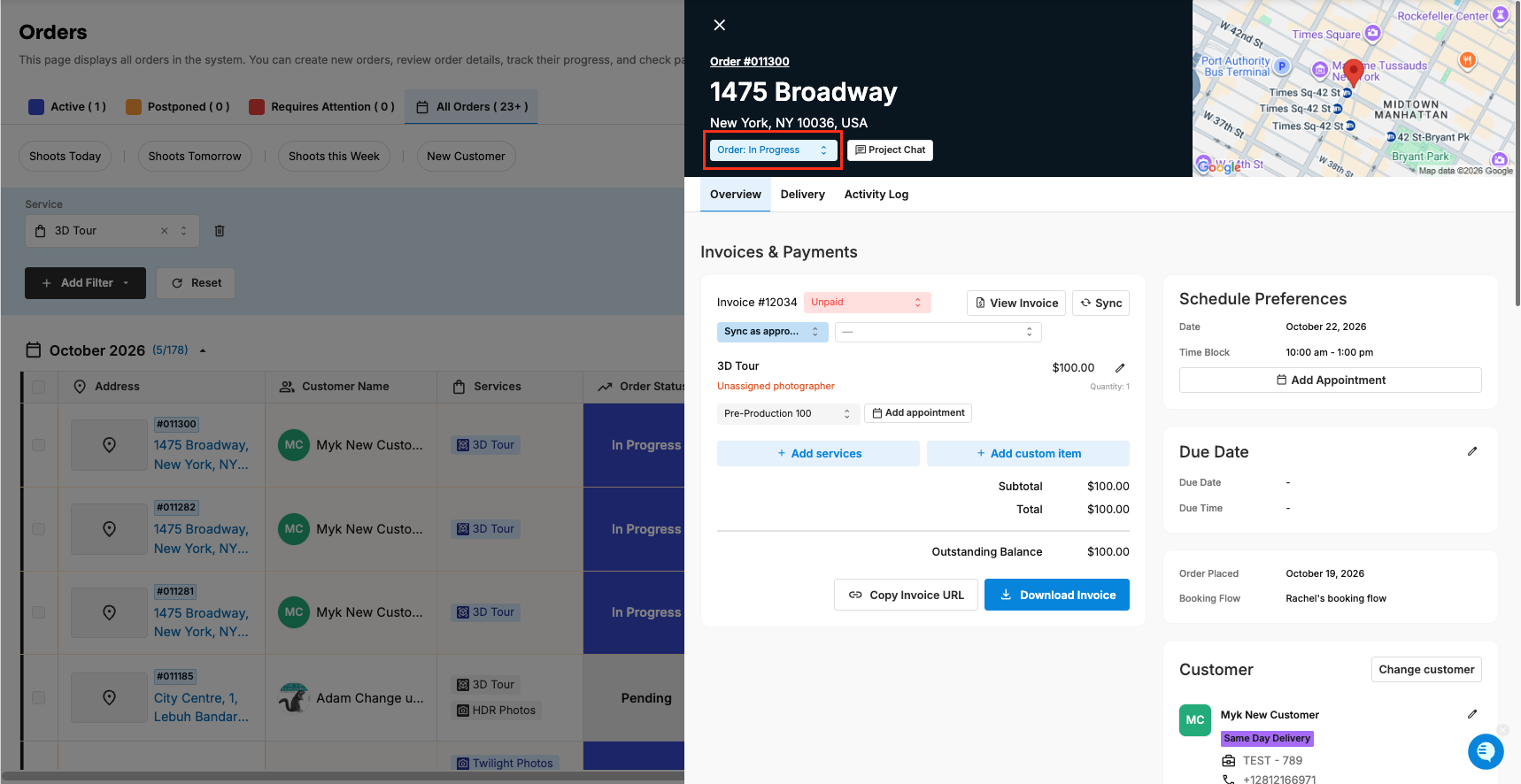
Important: Unlike Dropbox, Direct Upload doesn't have a separate sync step. Delivering from the upload page sends the email and marks the order Completed right away, so steps 3 and 4 above are necessary every time you deliver a partial order this way.
Tip: your uploaded files are saved to the order as you go. If you'd rather not change the status at all, upload the finished files without clicking Deliver, then send the email with Deliver on Orders (Beta) (see below).
How do I update each service's status?
In Project Chat (open the order's Order Details and click Project Chat at the bottom), update the status of each service individually to reflect what's actually ready. Move the finished service, for example Photos, to Complete, and leave the remaining service, like Video, under Post-Production or whatever status fits where it's at.
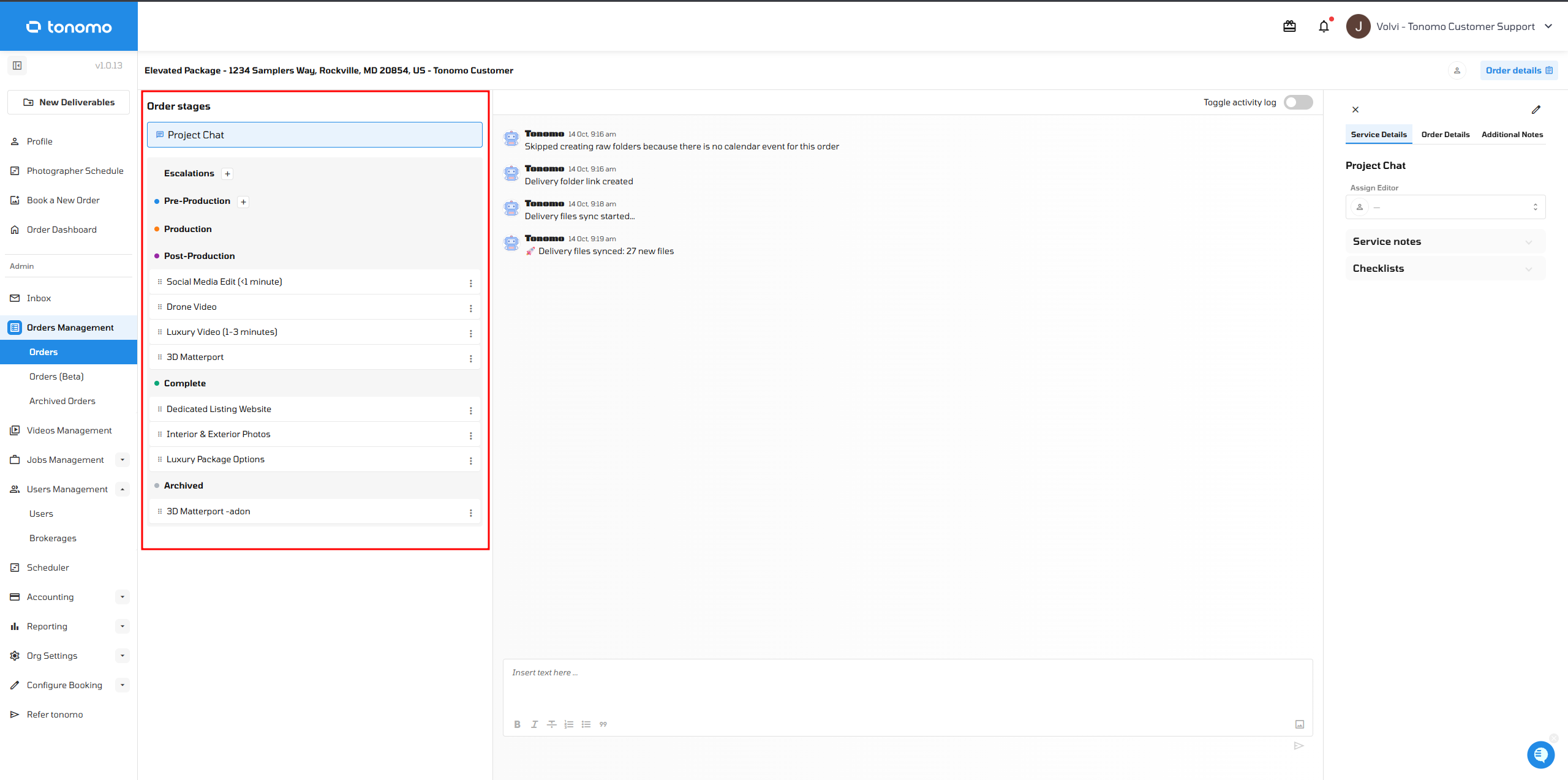
Your team may have renamed these statuses. See How Do I Rename Order, Payment and Service Statuses?
How do I send the delivery email?
There are three ways to send the delivery email once the ready files are synced. Each opens the Project Complete email for you to edit before it goes.
From Orders (Beta) (simplest): in the order's Delivery Page Link column, click Deliver (or Redeliver if you've sent it before). The order status doesn't change.
From the Activity Log: open the order's Order Details, go to the Activity Log section and click Send Project Complete Email. The order status doesn't change. (This button only shows when Send Project Complete Email is switched on in Configure Booking > General.)
By completing the order: change the Order Status to Completed, which opens the Project Complete email, then move the order back to In Progress since it isn't fully done yet.
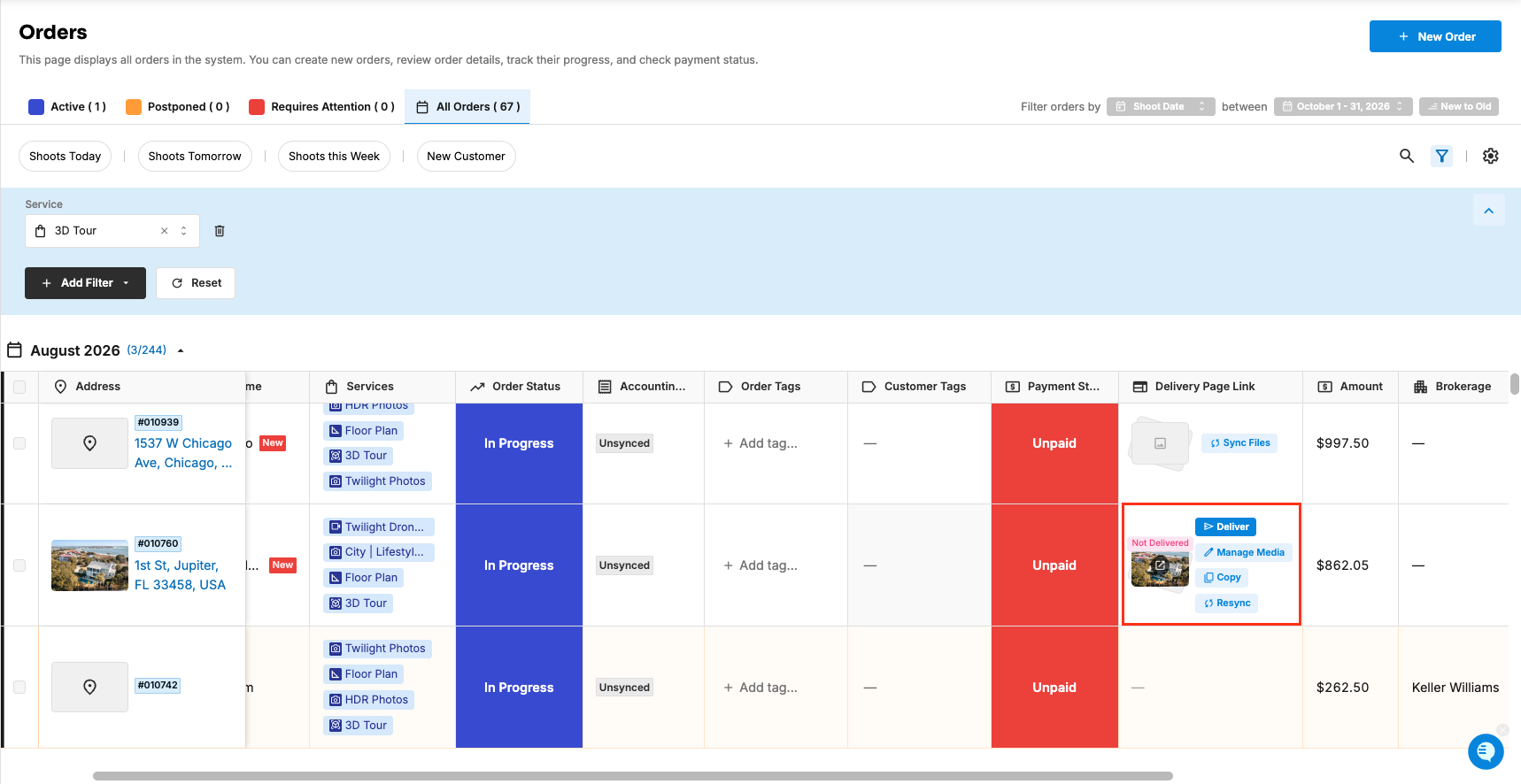
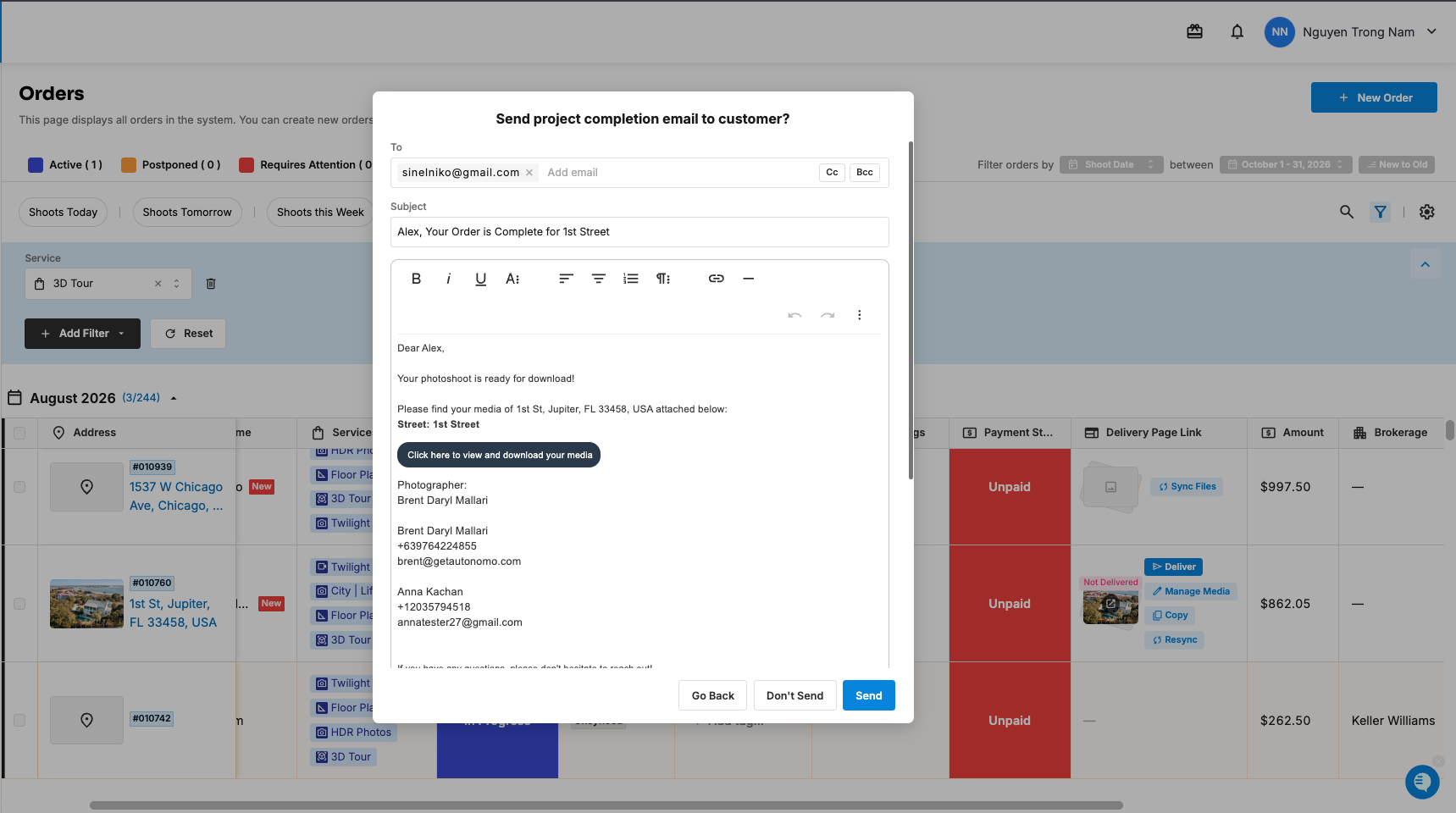
Note: The first two methods are usually simpler, since they send the delivery email directly without moving the order status to Completed and back to In Progress.
Whichever you use, the email pops up before it sends. Edit it to specify which services are being delivered and which are still pending, including a turnaround time for the pending services if you have one, so your client knows what to expect. Then click Send.
Example: "Your photos are ready to view and download using the link below. Your drone video is still being edited and will be delivered by Friday."
How do I remove raw files I synced by mistake?
If you accidentally synced raw files, for example raw video footage that wasn't ready yet, you can remove them from the Delivery section.
Click Edit links in the order's Delivery section.
Go to the relevant file type's section (for example Video), click Edit on the link, then click Delete.
Click Save to keep your changes.
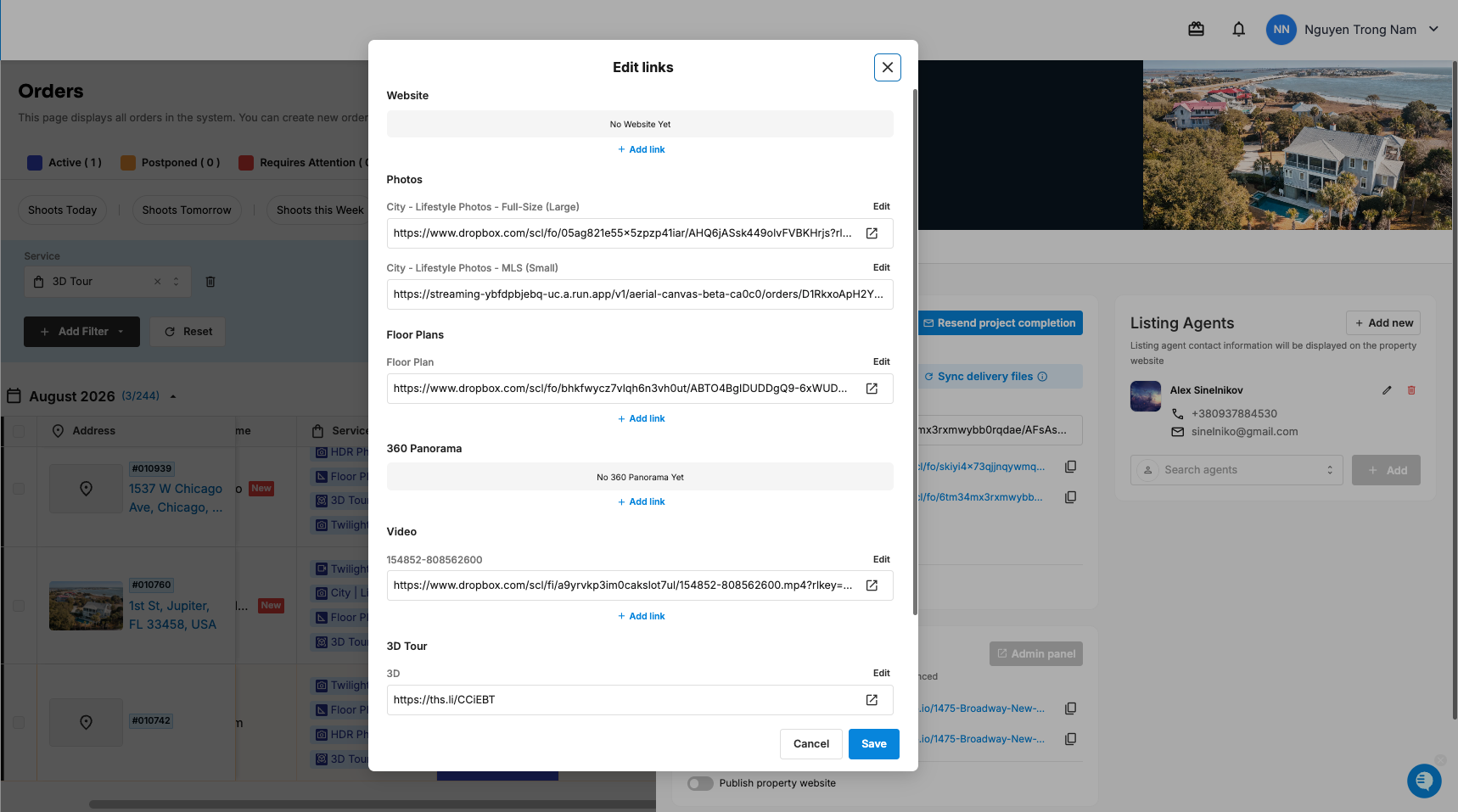
Once that's done, the file is removed from your delivery page.
Also take the file out of the Dropbox delivery folder. Each sync rebuilds the delivery page from the folder, so a file that's still there comes back the next time you sync, or within minutes if auto-sync is on. Move it to the RAW folder until it's ready.
For Direct Upload, delete the file in the order's Direct Upload area instead (open it with Manage Media on Orders (Beta), or Edit in the order's Delivery section).
Frequently asked questions
Can I partially deliver more than once? Yes. Repeat the steps each time a service is ready, and send a new email each time.
Will moving the order back to In Progress hide the files I delivered? No. The delivery page and its link keep working regardless of the order status.
Can I change the email wording for partial deliveries permanently? The same Project Complete template is used for every delivery, so it's best to edit it in the popup each time. To change the default wording, see How Do I Edit My Email Templates?
What happens when the last service is ready? Add its files, sync (Dropbox) or upload them (Direct Upload), send the final email, and move the order to Completed.
Related articles