How Do I Set Up The Services I Offer?
Last updated: September 29, 2026
Services are the individual things customers can book from you in Tonomo, such as Home Photos, 3D Scans or Aerial Video. Each service has its own price for each property size, the time your team spends on site, what you pay the photographer and editor, and how its files are delivered through Dropbox. Every service is either a core service that can be booked on its own, or an add-on that's only offered alongside a core service.
At a glance
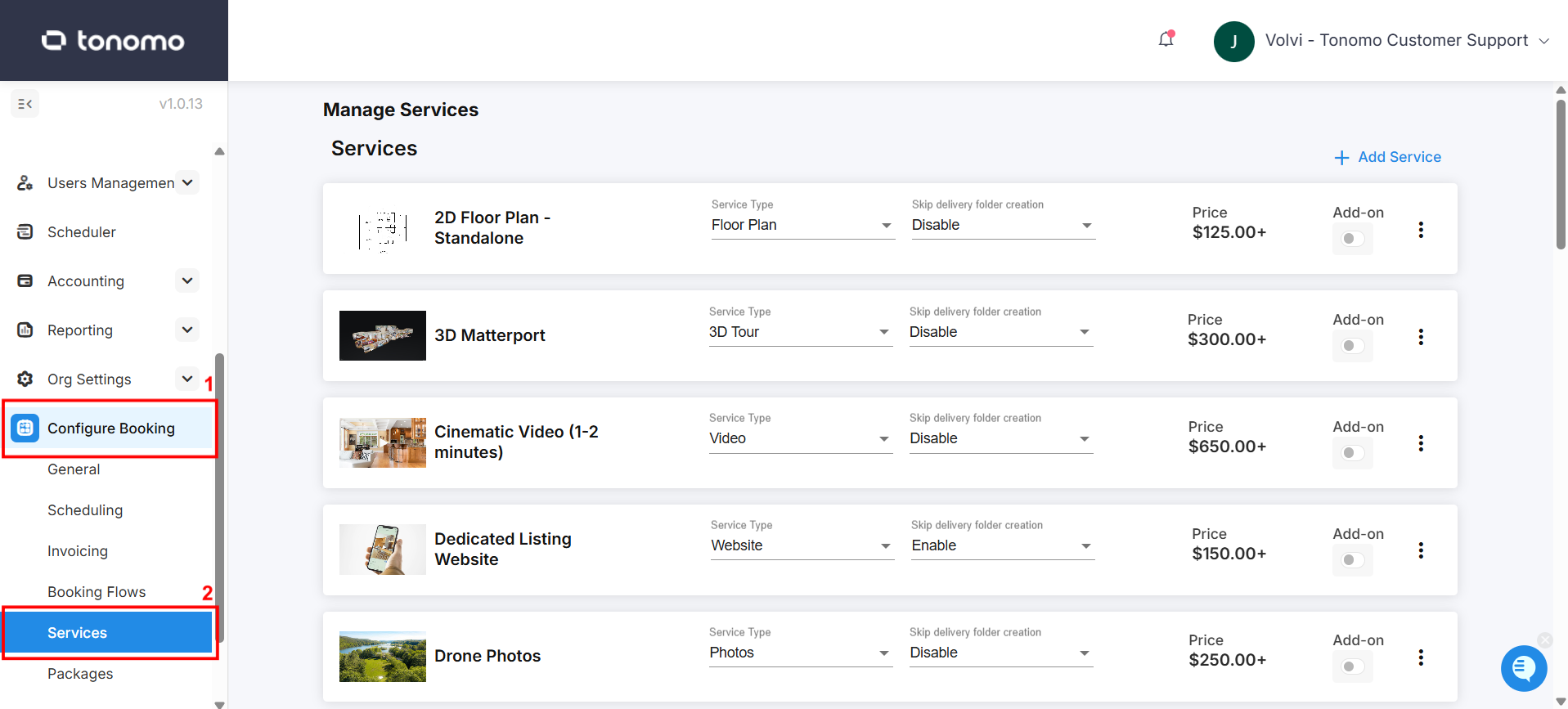
Services are set up in Configure Booking > Services, organized into categories.
Core services appear on the main booking page. Add-ons appear in a pop-up after a customer picks a core service.
Prices and scheduled hours are set per square footage tier, or per custom tier (for example, per photo).
Service Type must be set on every service for Dropbox folders to work. Video services route to a separate video workflow.
A red box around a service means something is missing that could break booking.
A new service must also be added to a category in each booking flow before customers can see it.
You don't need to get everything perfect the first time. Set up the main pieces, then refine them over time.
What's the difference between a core service and an add-on?
Core service: a standalone service someone can order by itself and get a finished product, such as a 30 Second Highlight Video.
Only core services appear on the main booking page.
If a service must be bookable à la carte, on its own without another service first, it has to be a core service.
Add-on: an upsell or extra that only makes sense with another service. For example, Virtual Staging needs Home Photos, so it's an add-on.
Add-ons only appear in the suggested add-ons pop-up after the customer selects a core service.
Core service | Add-on |
|---|---|
Photos | Virtual Staging |
2D Layout | Illustrated 2D Layout |
30 Second Highlight Video | 15 Second Agent Intro/Outro |
Some of this is your preference. For example, if you only do 2D layouts alongside a 3D Matterport, make 2D Layout an add-on instead of a core service.
Tip: To offer the same service both ways, duplicate it. Set one copy as a core service and the other as an add-on, and add the core copy to your booking flow.
How do I add a service?
Core services and add-ons are set up the same way. Add-ons get a few extra settings at the end.
Go to Configure Booking > Services.
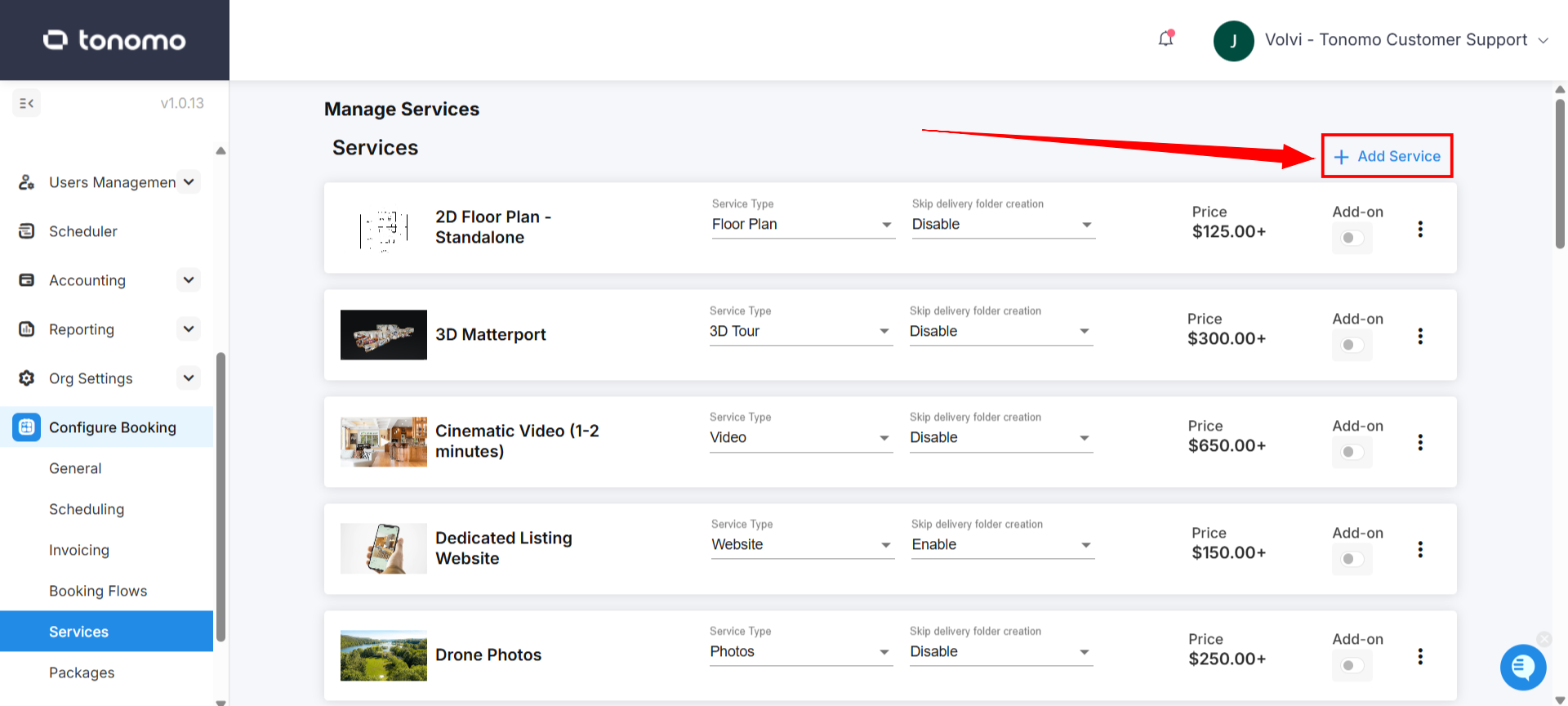
Expand the category the service belongs in, and click + Add Service.
Fill in the general information (below).
Set pricing, scheduling, and payouts (below).
Click Save.
Add the service to a category in each booking flow where it should appear. See Why Doesn't My Service Show Up?
General Information
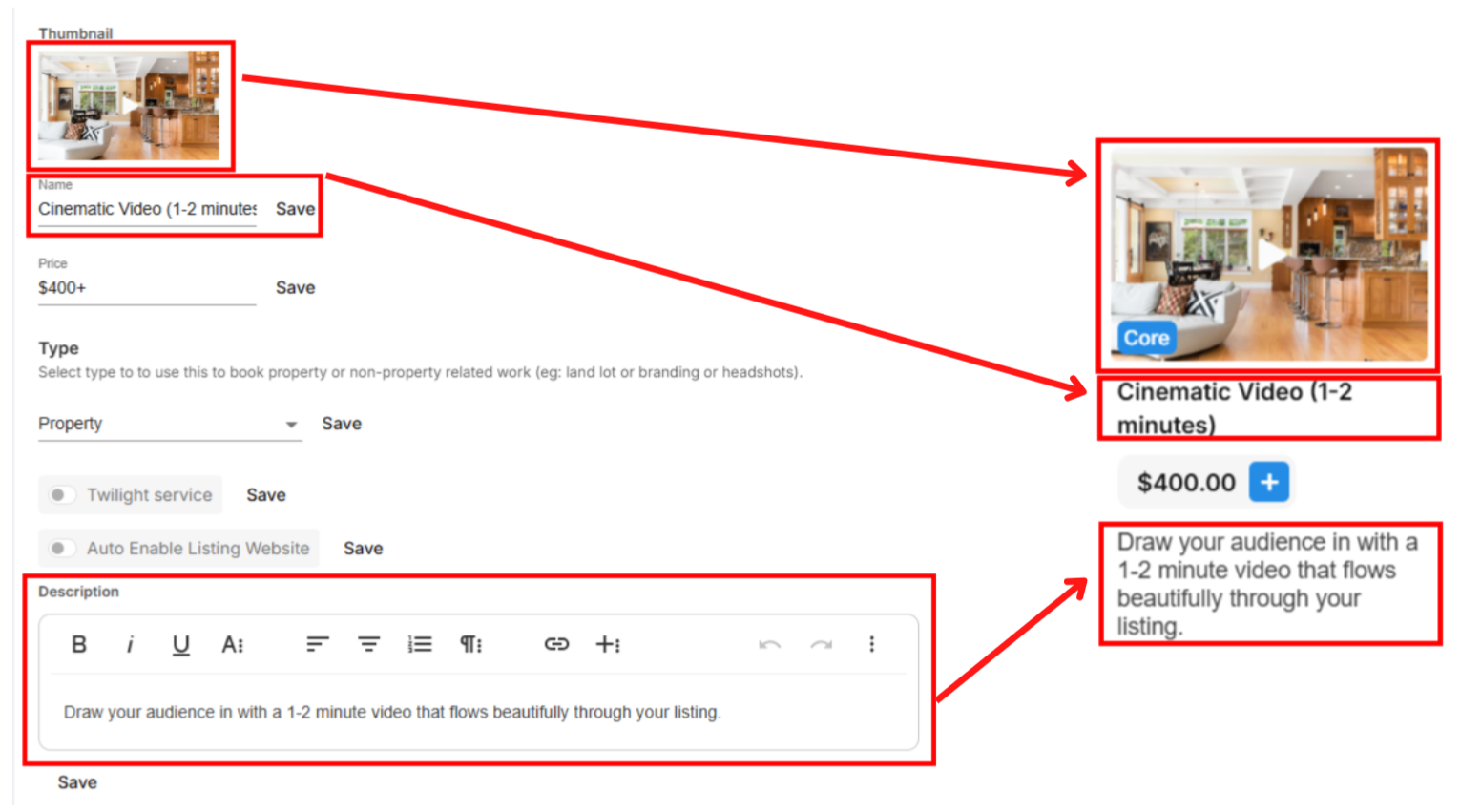
This is what agents see when they browse your services.
Thumbnail: displayed at 190 × 127 px. Upload at 1280 × 850 px for best quality.
Title
Description: keep it to one short sentence, just enough to tell it apart from your other services without turning booking into a wall of text.
Price: only used for services with custom tiers. Tier prices are added on top of it.
To add a video, a before/after slider, a gallery or a longer description that agents can open while booking, see How Do I Show Extra Photos And Details On A Service?
How do I set a service's price?
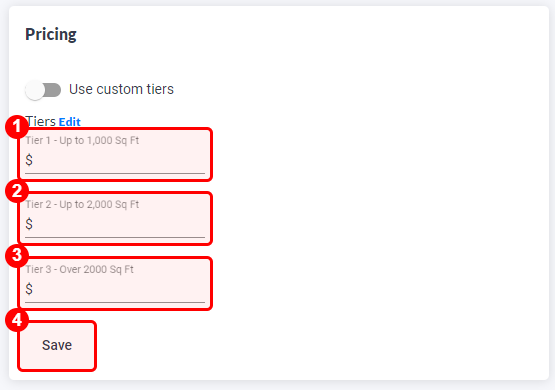
Price by square footage (default)
Scroll to the pricing section and enter a price for every square footage tier. These prices also feed Order Management and Reporting. Click Save.
The tiers come from your square footage setup. To change them, click the blue Edit button next to "Tiers". See How Do I Display Or Hide Pricing On My Booking Page?
Same price for every size: enter the same amount in each tier. This suits services like lifestyle photos.
Price by custom tiers (not by square footage)
Turn on Use custom tiers to price a service by something other than size.
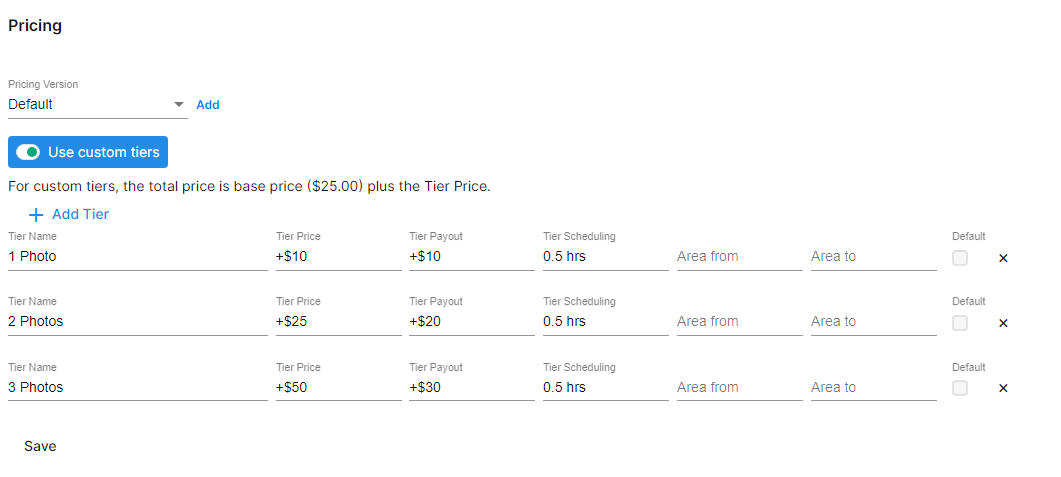
Without square footage. Example: price by the number of photos.
Each tier's name is the option, for example "2 Photos". Then set its price and the hours needed. Hours can differ per tier.
The tier price is added to the service's base price. With a base price of $25 and a tier price of $25, an agent choosing that tier pays $50.
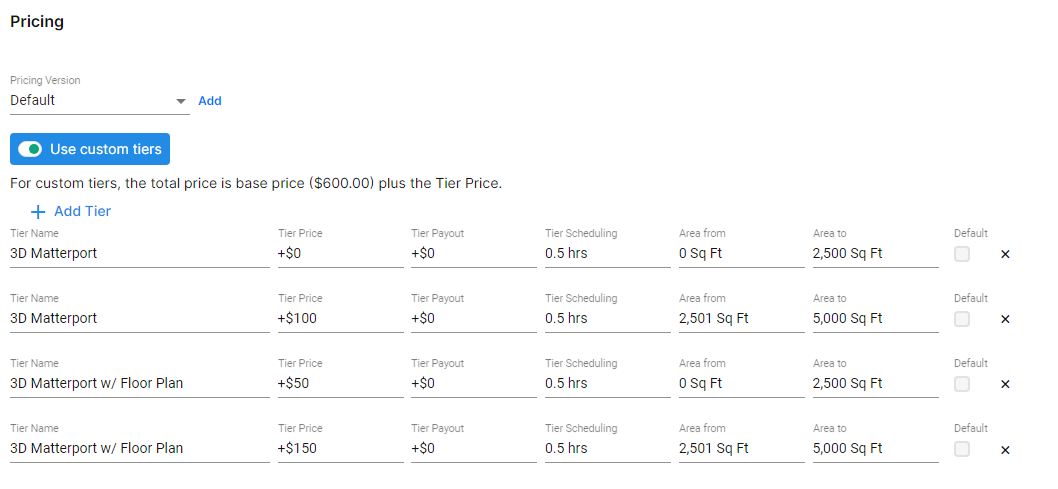
With square footage. Example: price 3D Matterport by property size, with a named tier for each size range.
For each tier, set a name, a square footage range, a price, a payout and scheduling hours.
Agents only see the tier that matches the size they enter. A 1,000 sq ft booking sees one tier, and a 2,600 sq ft booking sees another.
Leave Area to blank on the last tier to cover every size above it.
The tier price is added to the base price. With a base price of $600, an agent booking 3D Matterport w/ Floor plan for a 2,501–5,000 sq ft property pays $750.
Click Save after editing.
How long does Tonomo book a service for?
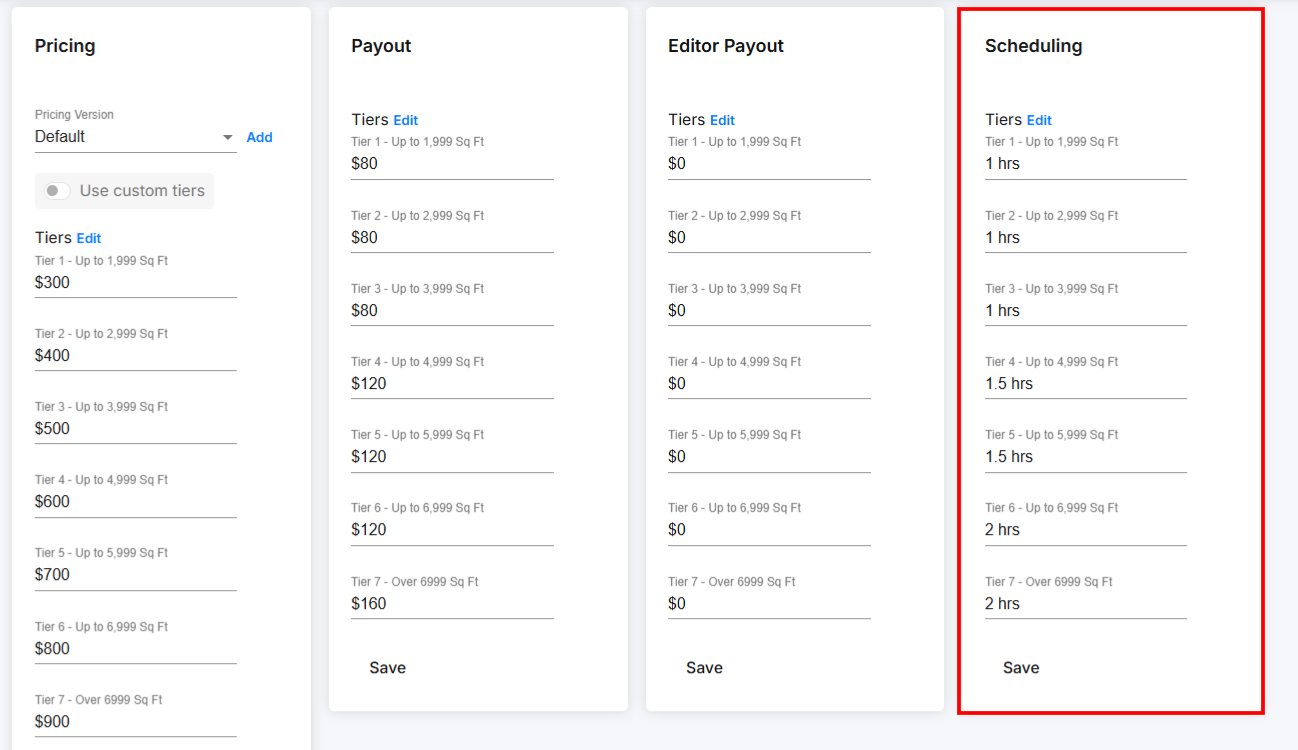
Set Scheduling Tiers: the hours your team spends on site for each tier. This doesn't include editing or project management time.
Click each tier, enter your estimate, and click Save. You can change it later.
These hours set how long the time slots are that customers see when they book. For example, two 1-hour services show 2-hour slots. See How Does Integrated Booking Work in Tonomo?
[Screenshot: scheduling tiers | alt: "Scheduling tiers with on-site hours per square footage tier"]
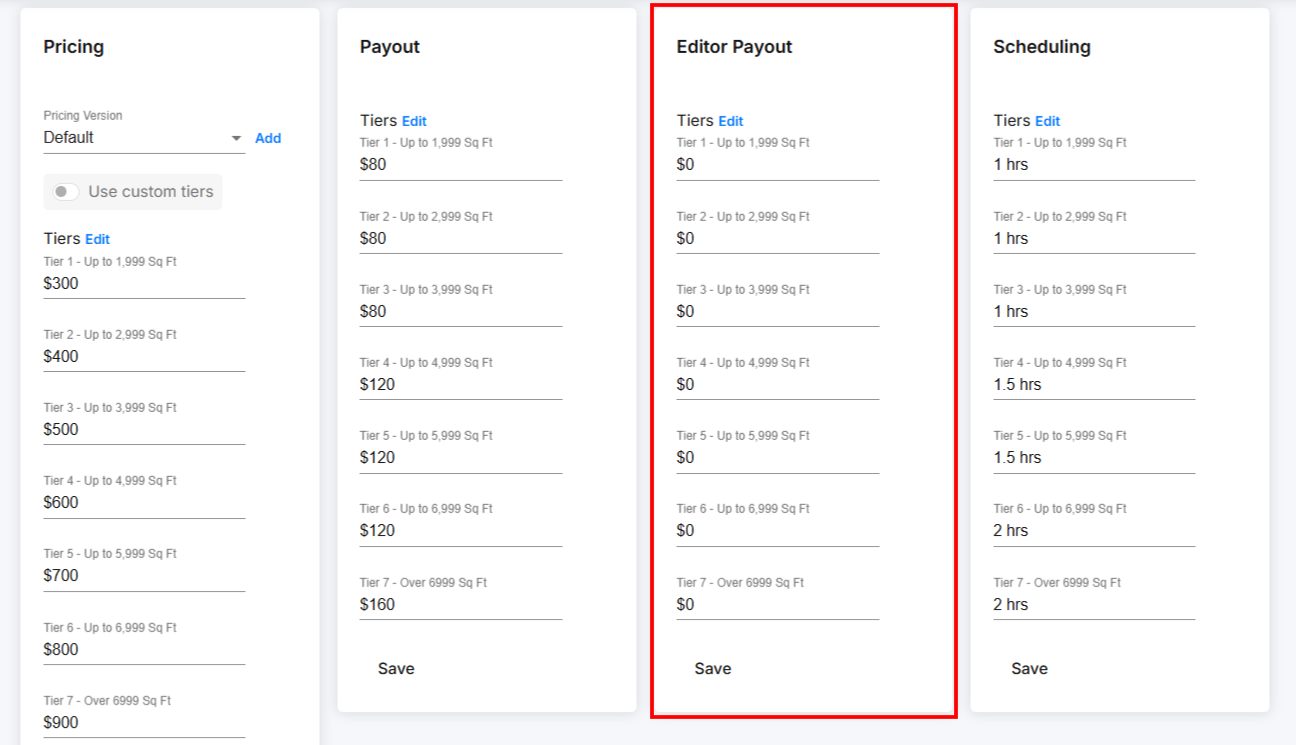
How do I set what photographers and editors are paid?
Contractor Payout (Tier Payout): what you pay the photographer or staff member for this service at each tier. It appears automatically in Contractor Reporting.
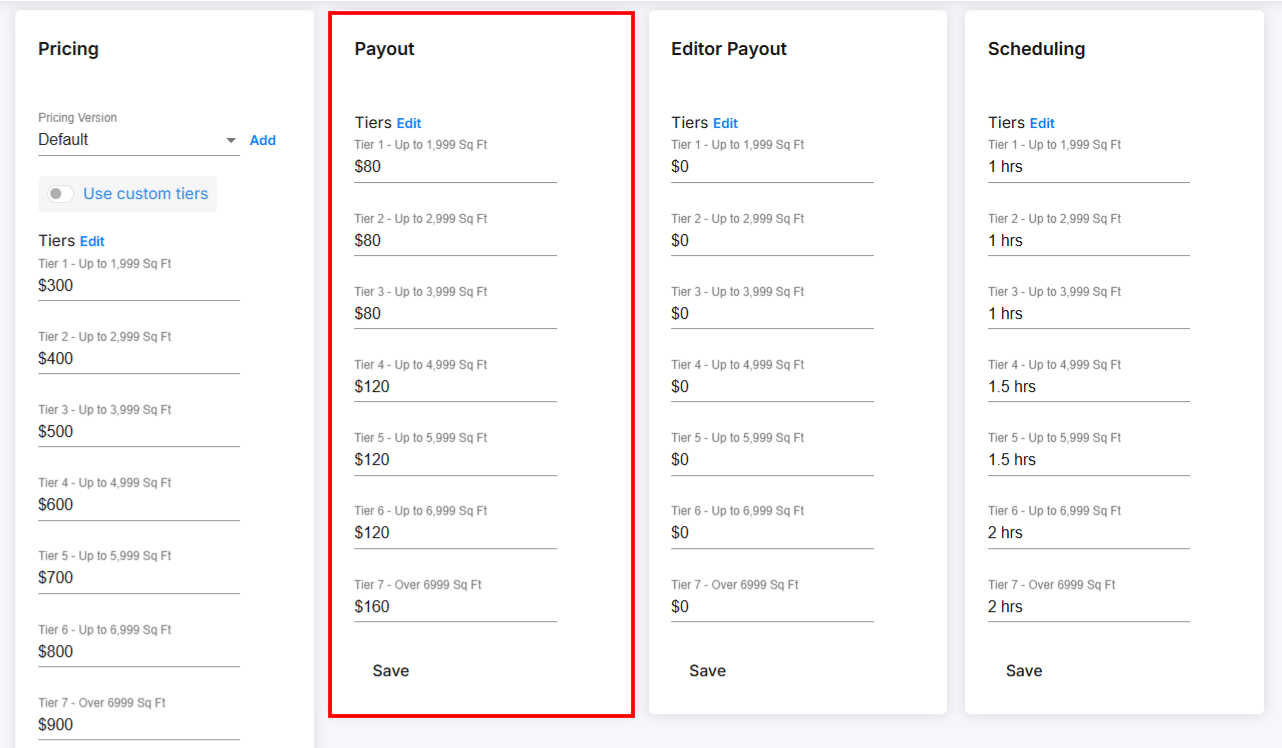
Editor Payout: what you pay the editor for completing the job. [CONFIRM: appears in Editor Reporting]
Why do I need to set a Service Type?
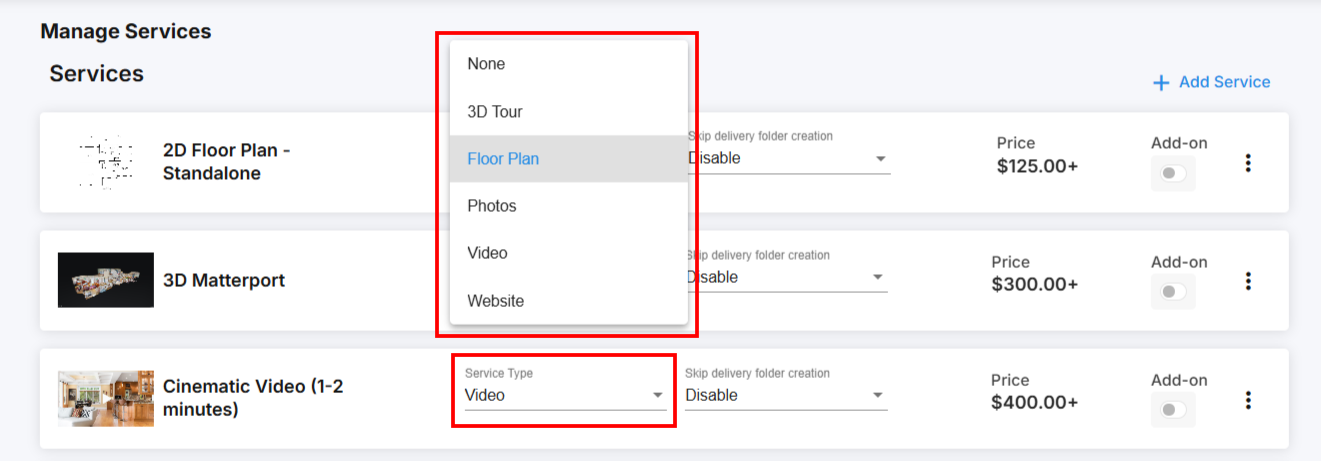
The Service Type tells Tonomo how to create and sync Dropbox folders for the service. Every service needs one.
Go back to your list of services.
Choose the right option from the Service Type dropdown for each service.
If an option you need is missing, contact Tonomo support.
A missing Service Type is a common reason files don't appear in Tonomo after upload. See How Do I Connect Dropbox To Tonomo?
Can a service skip its own delivery folder?
Yes. Tonomo normally creates a Dropbox delivery folder for each service. To skip it, set Skip delivery folder creation to Enable.
This is common for Virtual Staging, which is usually delivered inside the Home Photos folder.
How do I set up an add-on?
After adding your services, go to Configure Booking > Services.
Toggle Add-on on for the service.
Click Edit and choose when the add-on appears.

When can an add-on appear?
Setting | What it does |
|---|---|
Enable Add-On if Any Other Service is Selected | Shows the add-on with any core service. Hides the "link to specific services" setting. |
Link Add-On to Specific Services (Core Services Only) | Shows the add-on only with the core services you choose. Example: Drone Twilight Photos only with Twilight Photo. |
Don't Show This Add-On if These Services are Selected | Hides the add-on if any listed core service is in the order. This overrides both settings above. |
You can also attach add-ons to a whole category in a booking flow's settings, and they're then linked to every core service in that category.
Remember:
Add-ons are linked to services, not packages. A linked add-on is suggested whenever its service is booked, whether on its own or inside a package.
Add-ons only ever appear in the suggested add-ons pop-up, never next to core services on the main booking page.
Why doesn't an add-on show when a package is booked?
It must be linked to at least one core service inside that package. Check Link Add-On to Specific Services. See Why Doesn't My Add-On Show Up?
Common add-on setups
Add-on only available in packages: don't link it to any service. Add it directly to the packages instead.
Cheaper add-on inside packages: create an internal service used only in packages, such as Real Estate Photography – Package, and link the free or discounted add-on only to it. Keep a separate full-price add-on linked to your regular services.
Don't offer the same thing twice: if 3D Floor Plan is both a core service and an add-on, use Don't Show This Add-On if These Services are Selected. The add-on then disappears once the core version is chosen.
How do I make a service a twilight service?
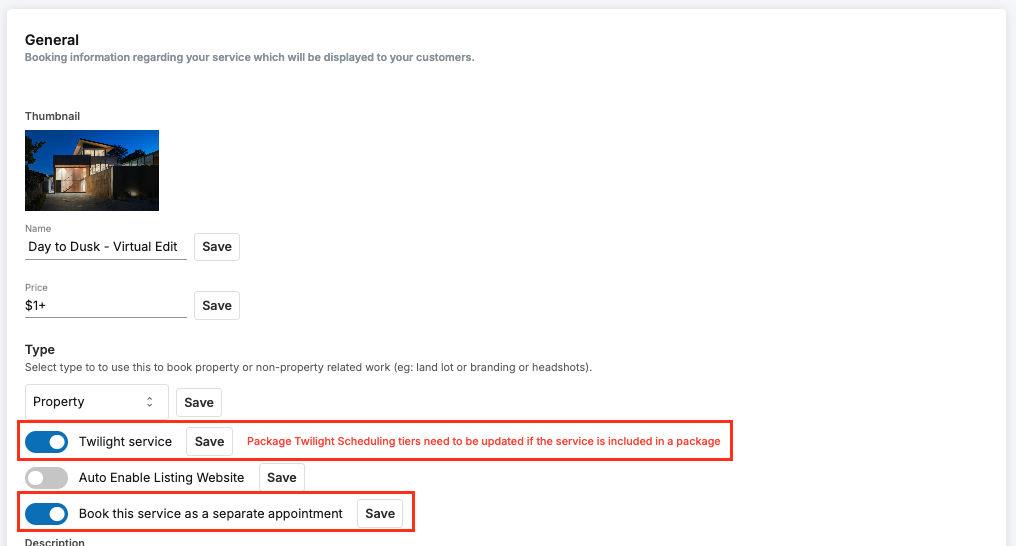
Edit the service, and in the General box toggle on Twilight Service. Customers can also book it as a separate appointment. See How Do I Schedule Twilight Shoots At a Separate Time?
What does a red box around a service mean?
It's a misconfiguration alert. Something that could break booking is missing. Tonomo checks for:
Price
Pricing tiers
Scheduling tiers
It doesn't flag every empty field, only those that could stop the service being booked.

Frequently asked questions
Can an add-on be booked on its own? No. Add-ons only appear after a core service is chosen. To make something bookable on its own, set it up as a core service.
I created a service. Why can't customers see it? Creating a service doesn't add it to your booking flows automatically. Add it to a category in each booking flow's settings.
Can a service take longer for bigger homes? Yes. Set different hours in each scheduling tier.
Can the same service be both a core service and an add-on? Yes. Duplicate it, and set one copy as core and one as an add-on.
How do I send video jobs to my video editors? Set the service's Service Type to Video.
Related articles