How Do I Set Photographer Availability?
Last updated: September 29, 2026
Tonomo works out when each photographer can be booked from two sources: busy events on their connected Google Calendar, and the working hours you set for them in Tonomo. A photographer is only offered for a time slot when both show them as free. You set working hours in Configure Booking > Scheduling by clicking Edit next to the photographer.
At a glance
Calendar: events marked Busy block time. Events marked Free don't.
Working hours: set per weekday in Configure Booking > Scheduling > Edit. You can add several ranges per day.
No working hours set means the photographer is available during all of your company's availability hours.
Timeslots Preset offers only specific start times for a photographer.
The same screen sets each photographer's Home Base (for travel fees) and Time Zone.
Use the calendar for one-off conflicts and working hours for weekly patterns.
How does a photographer's calendar affect availability?
With Integrated Booking, a key test for whether a photographer can take a booking is their connected calendar at the requested time.
Busy events block availability. A daily 12:00 PM lunch marked Busy on their calendar means Tonomo won't schedule them then. This applies whether or not the event has an address.
Free events don't block anything. Most calendars let you mark events as available (Free) or Busy, and Tonomo only blocks for Busy. This is how Google Calendar works. Set reminders you don't want to block bookings to Free.
Addresses are used for travel time. Add an address to any calendar event, and Tonomo automatically uses it to calculate travel time to the photographer's next appointment. The address is only used for travel time, not for availability.
Grey events in Tonomo's schedule are items on the photographer's calendar that aren't shoots, such as a Tuesday – Q&A meeting. If an agent tries to book during one, Tonomo won't assign that photographer.
As you add photographers, their availability builds into a visual schedule, so you can see at a glance who's free and when.

How do I set a photographer's working hours?
Go to Configure Booking > Scheduling and stay on the General tab.
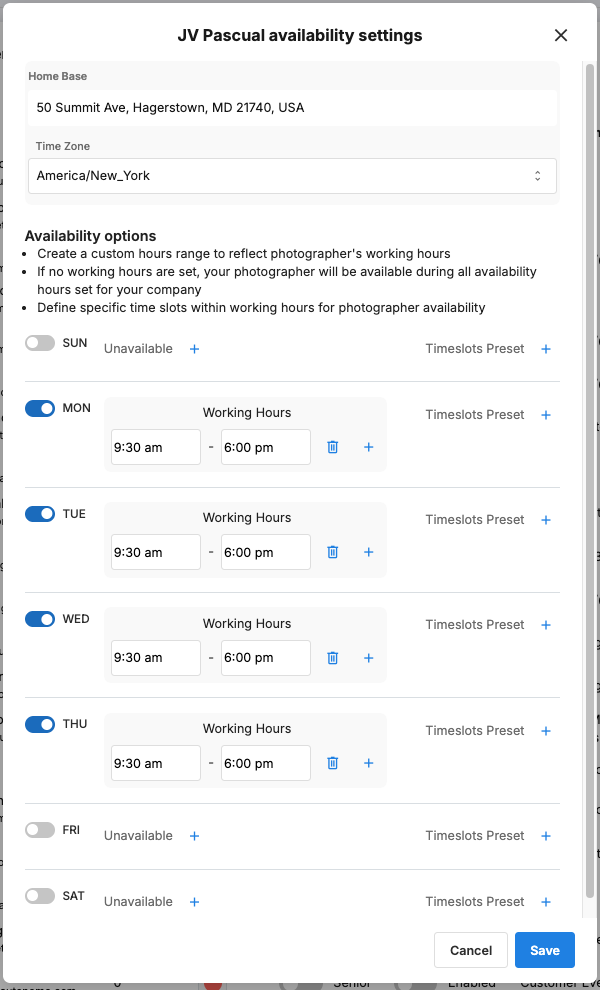
In the photographer table, click Edit in that photographer's Availability column. The [Name] availability settings window opens.
Under Availability options, switch on each weekday they work.
For each day, add one or more Working Hours ranges (start and end time). Use the + button to add another range, for example to allow for a lunch break.
Click Save.
Examples
Unavailable every Monday 12:00–1:00 PM, but available all day the rest of the week: give Monday two ranges, for example 8:00 AM–12:00 PM and 1:00–6:00 PM.
Never works Fridays: switch Friday off.
What if I don't set any working hours?
Every photographer starts with no working hours. If no working hours are set, the photographer is available during all the availability hours set for your company, meaning your Daylight hours in Configure Booking > General. An empty schedule doesn't mean "never available". It means no extra limits.
Should I use working hours or the calendar?
Situation | Use | Why |
|---|---|---|
A pattern that repeats every week (never works Fridays, starts at 10 AM on Tuesdays) | Working hours in Tonomo | Set once and applied every week |
A one-off conflict (a doctor's appointment, a day off) | A Busy event on their calendar | Tonomo blocks it automatically, with no settings to change |
A company-wide day off | Holiday Schedule | Blocks everyone at once. See How Do I Set Company Holidays in the Schedule? |
Working hours are meant for standard, repeatable schedules.
What are timeslot presets?
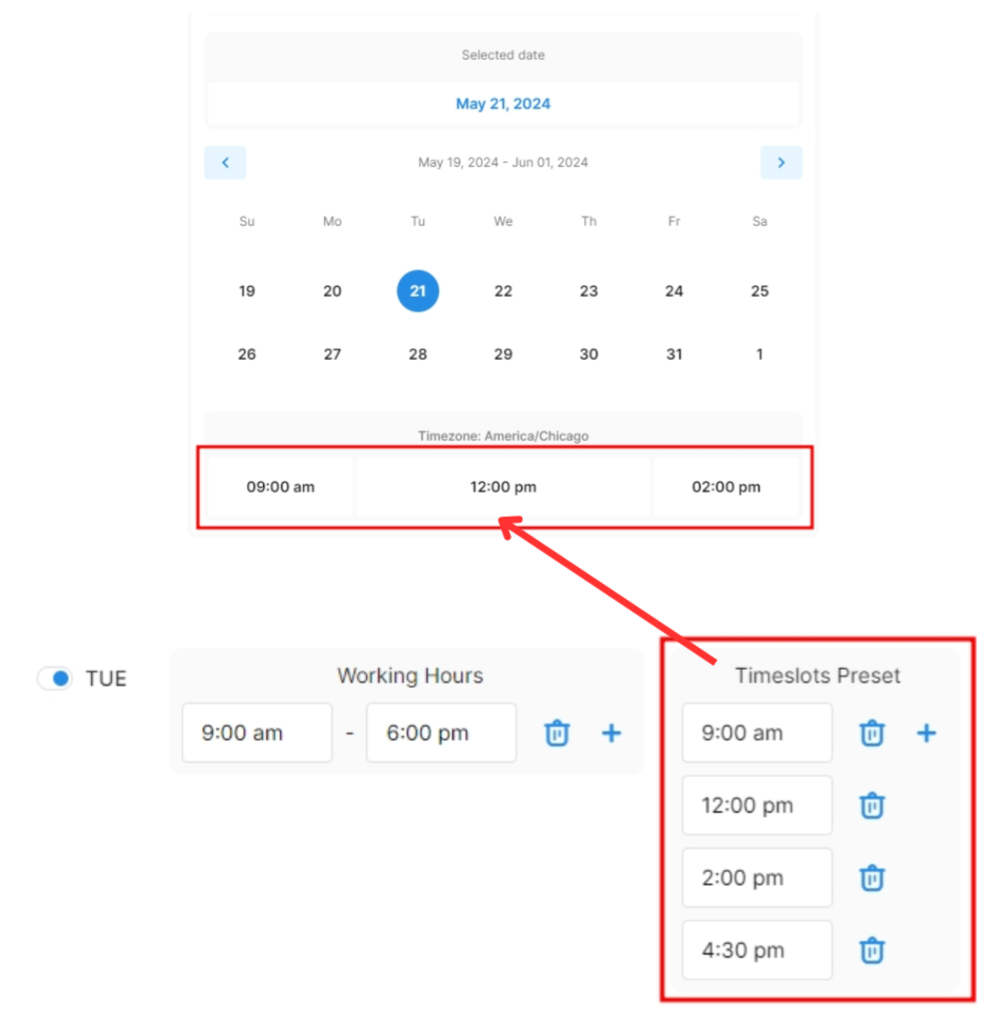
Timeslots Preset lets you offer specific start times for a photographer instead of Tonomo's regular time-slot steps. It works like a set of time blocks, so you control exactly when that photographer can be booked. For example, you might only offer 9:00 AM and 1:00 PM on Saturdays.
In the photographer's availability settings, find the weekday.
Under Timeslots Preset, click + and add the times.
Click Save.
Presets must fall within the photographer's working hours and can't overlap. If they do, you'll see "Times overlap with another set of times."
The regular step between time slots for everyone is set by Time slots interval on the General tab of Configure Booking > Scheduling. The minimum is 15 minutes.
What else is in a photographer's availability settings?
Home Base: the address travel fees are calculated from for this photographer. Pick it from the dropdown, or you'll see "Please select location from dropdown". See How Do I Set Up Travel Fees For My Bookings?
Time Zone: the photographer's time zone.
Why does a photographer show as available when they shouldn't?
Check these in order:
The calendar event is marked Free. Change it to Busy.
They have no working hours set. They're available across all your company hours. Add working hours.
Their calendar isn't shared or connected correctly. See Why Are My External Events Not Showing in the Tonomo Scheduler?
Showing as unavailable when they should be free? Check for Busy events on their calendar, their working hours, holidays, and your booking flow's Max travel time. A job further from their home than that excludes them. See How Do I Set Up Recommended Time Slots?
Frequently asked questions
Does an event need an address to block time? No. Any event marked Busy blocks time. Addresses are only used to calculate travel time.
Can a photographer have different hours on different days? Yes. Working hours are set per weekday, with as many ranges as you need.
Can I stop a photographer being booked entirely? Turn off their Accepting Bookings toggle on the General tab, then click Save changes.
How do I block a whole day for everyone? Use the Holiday Schedule tab.
Related articles