
How Do I Set Up Raw Folders in DropBox?
Tonomo can create a Dropbox folder for every order's RAW (unedited) files, so your photographers know where to upload and your editors know where to find them. Turn on Dropbox RAW folders in Configure Booking > General, in the Dropbox card. Tonomo then builds a RAW folder for each new order, with one subfolder per service, and moves it automatically if the shoot date or the photographer changes.
At a glance
Where: Configure Booking > General > Dropbox > Dropbox RAW folders. Dropbox must be connected first.
Location: set by Dropbox RAW folder path. If you leave it empty, Tonomo uses a Raw Files folder next to your delivery folder.
Organize by: Order (one folder per order, named by address) or Photographer (photographer, then shoot date, then address). New portals start on Order. Changing it affects only new orders.
When folders appear: automatically once the order is In Progress and has an address, a customer, a calendar event and at least one service. You can also click Create Folders Structure in Order Details.
With Organize by Photographer, an order needs a scheduled appointment with a photographer, or it gets no RAW folder.
Extras: an optional Do Not Edit folder in every order, and Automatically clean up RAW files after 1 to 24 months.
Cancelling an order deletes its RAW and delivery folders from Dropbox.

How do I turn on RAW folders?
Go to Configure Booking > General.
In the Dropbox card, make sure your Dropbox account is connected. (See How Do I Connect Dropbox To Tonomo?)
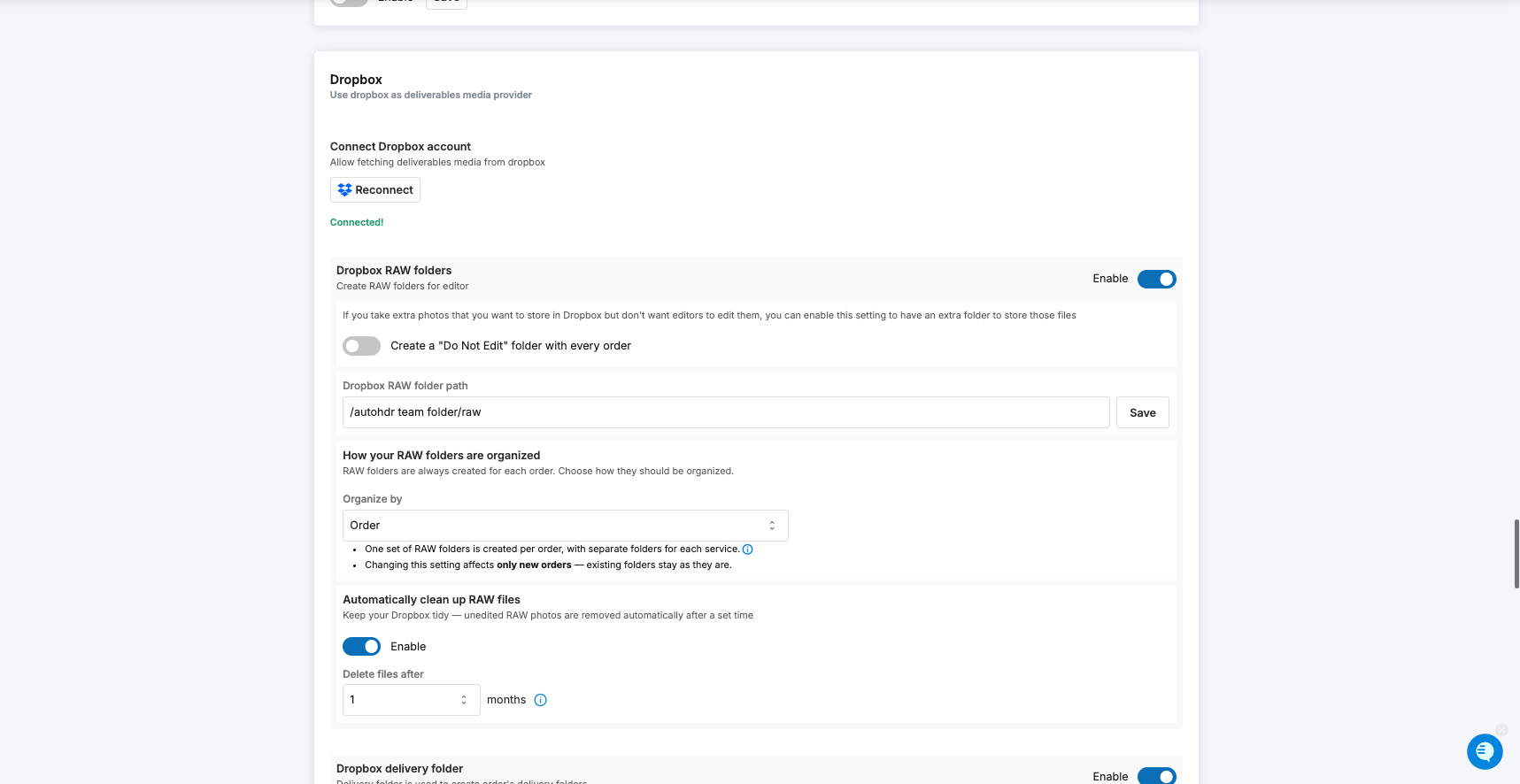
Next to Dropbox RAW folders ("Create RAW folders for editor"), switch on Enable. The change saves straight away.
Optional: in Dropbox RAW folder path, type the folder where RAW folders should go, then click Save.
Choose how the folders are organized under Organize by (see below).
From then on, every new order that gets its Dropbox folders also gets a RAW folder.
Where in Dropbox do the RAW folders go?
By default, Tonomo creates a folder called Raw Files next to your Dropbox delivery folder. For example, if your Dropbox delivery folder path is /Tonomo, RAW folders go in /Raw Files.
To use a different folder, type its path in Dropbox RAW folder path and click Save:
Write it as a folder path, not a link, starting with a slash. For example: /Studio/Raw Files.
Use letters, numbers, spaces, hyphens and underscores only.
The path is inside the Dropbox account connected to Tonomo. A folder in another Dropbox account won't work.
How are RAW folders organized?
Under How your RAW folders are organized, pick an option from Organize by. Hover the info icon next to the description to see a preview of the folder structure.
Organize by | Folder structure | Good to know |
|---|---|---|
Order | Raw Files / Property address / one folder per service | Each order gets its own folder at the top level, named by address. It doesn't depend on a photographer being assigned. |
Photographer | Raw Files / Photographer name / Shoot date / Property address / one folder per service | Orders are nested under each photographer and shoot date. Tonomo warns: "Orders without an assigned photographer won't get a RAW folder". |
Details:
Photographer name is the name on the photographer's profile (or the first part of their email if they have no name). If the appointment has two photographers, Tonomo uses the first photographer on the appointment.
Shoot date uses your portal's date format, for example 12-01-2026.
Property address includes the unit or suite number if there is one. If two orders share an address, the second folder gets (1) added to its name.
Service folders: Tonomo creates one folder for each service on the order that has a Service Type. Services without a Service Type, or with Skip delivery folder creation set to Enable, get no folder. See How Do I Set Up The Services I Offer?
Each RAW folder also gets a deliverables shortcut that opens the order's delivery folder, so editors can jump straight to where finished files go.
Changing this setting affects only new orders. Existing folders stay where they are. Orders that already had a RAW folder before your portal could choose an organization keep the photographer layout.
When does Tonomo create the RAW folder?
Tonomo creates an order's Dropbox folders, RAW and delivery together, automatically when the order is moved to In Progress and has:
a property address
a customer
a calendar event (a scheduled appointment)
at least one service
Until then, Order Details shows "Dropbox folder not created yet." with the same checklist.
To create the folders yourself: open the order from Orders Management > Orders (Beta) by clicking its Order ID. In Deliverable Files, click Create Folders Structure.
Tonomo posts "Delivery folder link created" in the order's Project Chat when it's done. The RAW folder then shows as Raw files in Order Details, and as Raw Files in the File Links column on Orders (Beta).
If you don't use integrated booking: orders from a booking flow without Use integrated booking arrive as time requests, not scheduled appointments, so they have no calendar event yet. Create the appointment in the Scheduler, and Tonomo creates the folders. With Organize by Order, you can also click Create Folders Structure without an appointment.
Why wasn't a RAW folder created?
If the delivery folder exists but the RAW folder doesn't, Order Details shows "Raw folder cannot be created. Please schedule an appointment and add a photographer". Tonomo also posts the reason in Project Chat:
Message in Project Chat | What to do |
|---|---|
Skipped creating raw folders because there is no calendar event for this order | Schedule an appointment for the order. |
Skipped creating raw folders because there is no assigned photographers | Add a photographer to the appointment. |
Skipped creating raw folders because the photographer's name and email undefined | Add a name to the photographer's profile. |
Could not create delivery folders — the Dropbox delivery folder path is not configured. | Fill in Dropbox delivery folder path in the Dropbox card and click Save. |
The first three only happen with Organize by Photographer. Once the problem is fixed, click Create Folders Structure, or reschedule or update the order, and Tonomo tries again.
Do RAW folders move when the shoot changes?
Yes, with Organize by Photographer. When the shoot date changes, or the photographers on the order change, Tonomo moves the order's RAW folder to the new photographer and date folder. Files inside move with it, so nobody has to re-upload.
With Organize by Order, the folder is named by address only, so it stays where it is when the date or photographer changes.
See How Do I Reschedule An Existing Order? and How Do I Change The Photographer On An Order?
What is the "Do Not Edit" folder?
If your photographers take extra shots that you want to keep in Dropbox but don't want edited, switch on Create a "Do Not Edit" folder with every order. It appears under Dropbox RAW folders once RAW folders are on. Tonomo then adds a Do Not Edit folder inside each new order's RAW folder.
Can Tonomo delete old RAW files automatically?
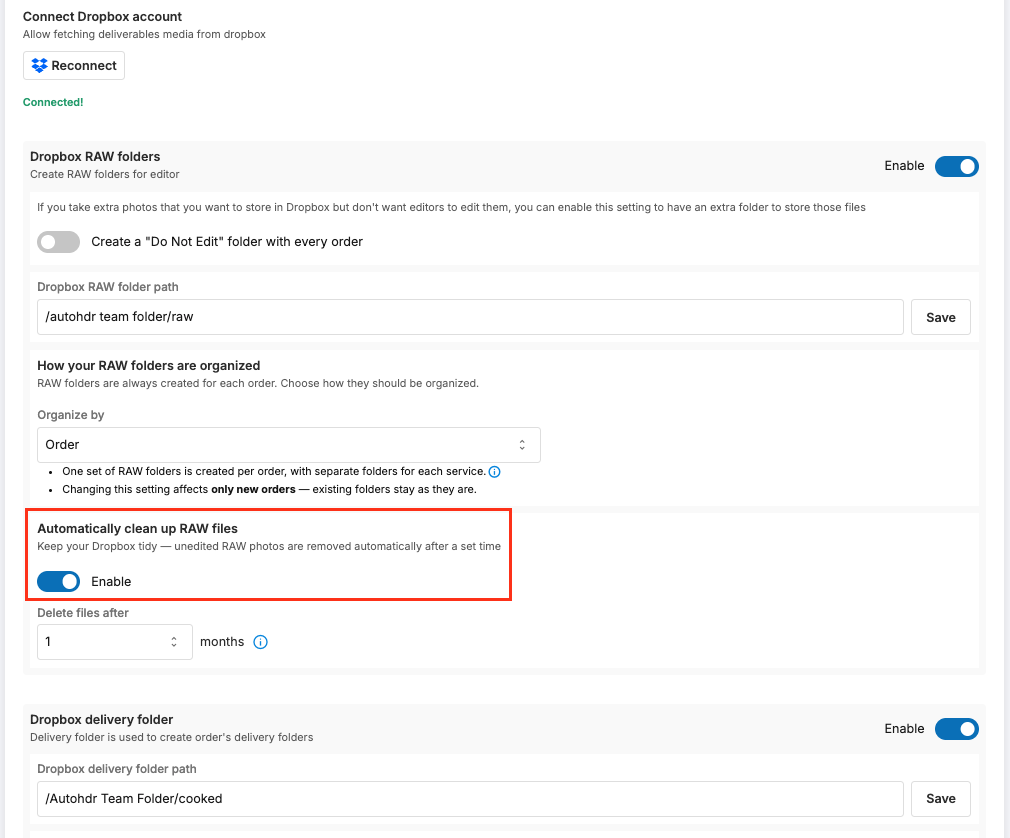
Yes. Under Automatically clean up RAW files ("Keep your Dropbox tidy — unedited RAW photos are removed automatically after a set time"):
Switch on Enable.
In Delete files after, choose 1 to 24 months. The default is 12.
How it works:
The timer starts when the order is delivered to the customer. When it ends, Tonomo deletes the files inside that order's RAW folder. Delivered (final) files aren't touched.
It applies only to orders delivered from the day you switch it on. Older orders are never affected.
If you shorten the period, Tonomo asks "Reduce retention from 12 months to 6 months?" and warns that "Orders past the new retention will be deleted on the next daily run." Click Continue to confirm.
If you don't see this setting, contact Tonomo support.
Frequently asked questions
Do I need Dropbox delivery folders for RAW folders to work? You need a Dropbox delivery folder path saved, because Tonomo creates the RAW and delivery folders together. You can still deliver final files through Direct Upload: switching off Dropbox delivery folder doesn't affect RAW folders. See How Do I Upload and Deliver Media Directly in Tonomo?
Will changing Organize by move my existing folders? No. It affects only new orders. Existing RAW folders stay where they are.
Two photographers shot the same order. Where does the RAW folder go? With Organize by Photographer, Tonomo creates one RAW folder under the first photographer on the appointment. With Organize by Order, the folder doesn't depend on the photographer.
What happens to RAW folders when an order is cancelled? Tonomo deletes the order's RAW and delivery folders from your Dropbox. Download anything you need first. See How Do I Cancel An Order?
Can Tonomo tell an editing service (like AutoHDR) when RAW folders are ready? Yes. Paste the service's webhook URL in Configure Booking > General > Webhooks > Dropbox webhooks > Dropbox folders, then click Save. Tonomo sends it the order's RAW and delivery folder links when the folders are created or changed. It only sends once the order has both folders.
Related articles