What is Jobs Management in Tonomo?
Last updated: September 28, 2026
Jobs Management is where your team tracks the post-production work on each order in Tonomo, such as photo editing, video editing and floor plan drafting. You set up job templates once and link them to your services. Whenever a customer books one of those services, Tonomo creates a job automatically, with the editor, reviewer, due date and instructions already filled in. Your team then works each job from Pending through to Completed.
At a glance
Find it in the left sidebar under Jobs Management, with two pages: Jobs and Jobs Templates.
Job templates are the rules: which services create a job, when, who works on it, who reviews it and when it's due.
Jobs are the work: one job per template, per shoot, on each order.
Job statuses: Pending, In Progress, Reviewing and Completed. Escalated jobs are also flagged Requires Attention.
Job priority: High, Medium or Low.
Each job's chat is the order's Project Chat, so nothing said about a job is hidden from the order.
Jobs Management is available to Admin and Staff users. Customers never see it.
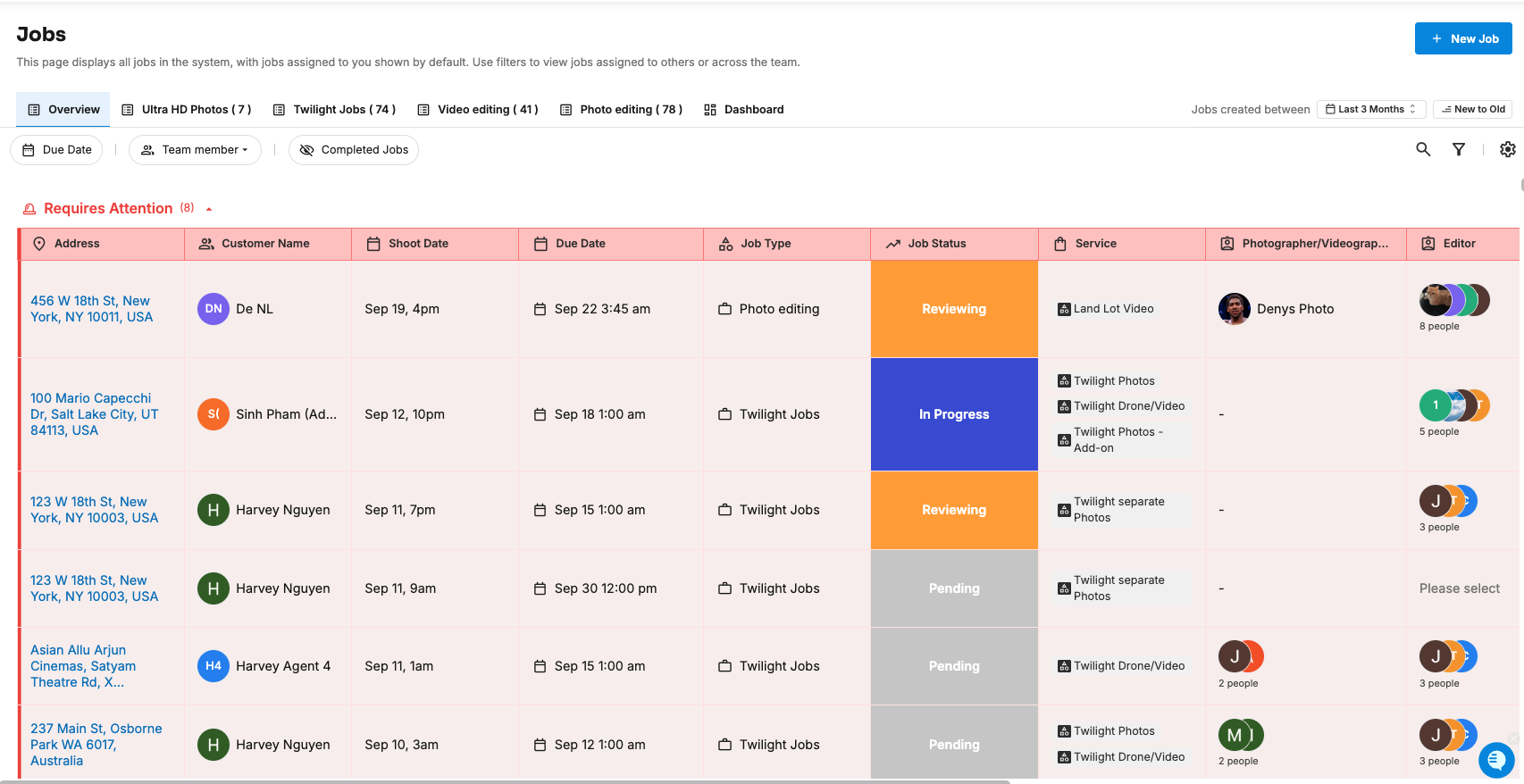
How does Jobs Management work?
You create a job template. For example, Photo Editing, linked to your Home Photos service, due 1 business day after the shoot at 6:00 PM, assigned to your editor, and reviewed by your project manager.
A customer books a matching service. Tonomo sees the order includes Home Photos.
Tonomo creates the job at the time you chose, for example 1 hour after the shoot. The due date, editor, reviewer and instructions come from the template.
The editor starts the job. They click Start the Job, and it moves to In Progress.
The editor sends it for review. They set the status to Reviewing.
The reviewer checks the work and sets the job to Completed.
Along the way, anyone on the job can chat with the team in the job's chat, or escalate the job if something is blocking them.
What's the difference between a job template and a job?
Job template | Job | |
|---|---|---|
What it is | A reusable rule, set up once | One piece of work on one order |
Where | Jobs Management > Jobs Templates | Jobs Management > Jobs |
Example | "Video Editing, for any order with a Highlight Video" | "Video Editing for 123 Main St, due Friday" |
Contains | Linked services, timing, due date rule, default editors and reviewers, what info to show | The order, its matching services, status, priority, due date, assigned people, chat |
Created by | An admin or staff member | Tonomo automatically, or someone by hand |
See How Do I Create a Job Template?
What do the job statuses mean?
Status | Colour | Means |
|---|---|---|
Pending | Grey | The job has been created, but nobody has started it |
In Progress | Purple | Someone is working on it |
Reviewing | Orange | The work is done and waiting for the reviewer |
Completed | Green | The job is finished |
Requires Attention | Red | The job has been escalated. This is added on top of its status. |
Requires Attention isn't a status you choose. A job gets it when someone escalates it, and loses it when the escalation is removed. See How Do I Escalate a Job?
What does job priority do?
Each job is High, Medium or Low priority, so your team knows what to pick up first. Jobs Tonomo creates automatically are Medium. When you create a job by hand, you choose the priority, and it starts at Medium.
Who can use Jobs Management?
User type | Access |
|---|---|
Admin | Full access: jobs and job templates |
Staff | Full access: jobs and job templates |
Contractor | Can be assigned as an editor or reviewer. [CONFIRM: The Jobs Management menu isn't shown to Contractor users. Can they open jobs they're assigned to?] |
Customer | No access. Customers never see jobs. |
Any team member can be picked as a job's editor or reviewer.
How do jobs connect to orders?
A job always belongs to one order. The job details page shows that order's live information: the property address, customer, services, photographers, and the Dropbox or Direct Upload folders. It also links back to the order itself.
Services: a job only covers the order's services that its template is linked to. If an order has Home Photos and a Highlight Video, the Photo Editing job covers Home Photos, and the Video Editing job covers the video.
Chat: the job's chat is the order's Project Chat, plus a tab per service. Messages show on the order too.
Several jobs per order: an order can have one job from each matching template, and one per shoot. If an order has two shoot dates, it can have two Photo Editing jobs.
Frequently asked questions
Does Tonomo create jobs automatically? Yes. When an order includes a service linked to an enabled job template, Tonomo creates the job at the time set on that template.
Can I create a job by hand? Yes. Click New Job on the Jobs page. See How Do I Create a Job Manually?
Can customers see jobs? No. Jobs are only visible to your team.
Is Jobs Management turned on for every Tonomo account? Currently Jobs Management is open on request for beta participants
Related articles