How Do I Prevent Last-Minute Bookings?
Last updated: September 30, 2026
Tonomo lets you set a minimum booking notice, so agents can't book a shoot with less warning than your team needs. By default, there's no minimum: an agent could book a shoot just 30 minutes before it starts. Set Prevent last minute bookings in Configure Booking > Scheduling to the number of hours' notice you want. It applies to every booking flow.
At a glance
Go to Configure Booking > Scheduling, General tab, Prevent last-minute bookings.
Enter the number of hours in advance clients must book, for example, 24 for a day's notice.
0 (the default) means no minimum.
One setting for all booking flows.
Click Save changes.
How do I set a minimum booking notice?
Go to Configure Booking > Scheduling and open the General tab.
Under Prevent last-minute bookings ("Clients must book this amount of hours in advance"), enter the number of hours.
Click Save changes.
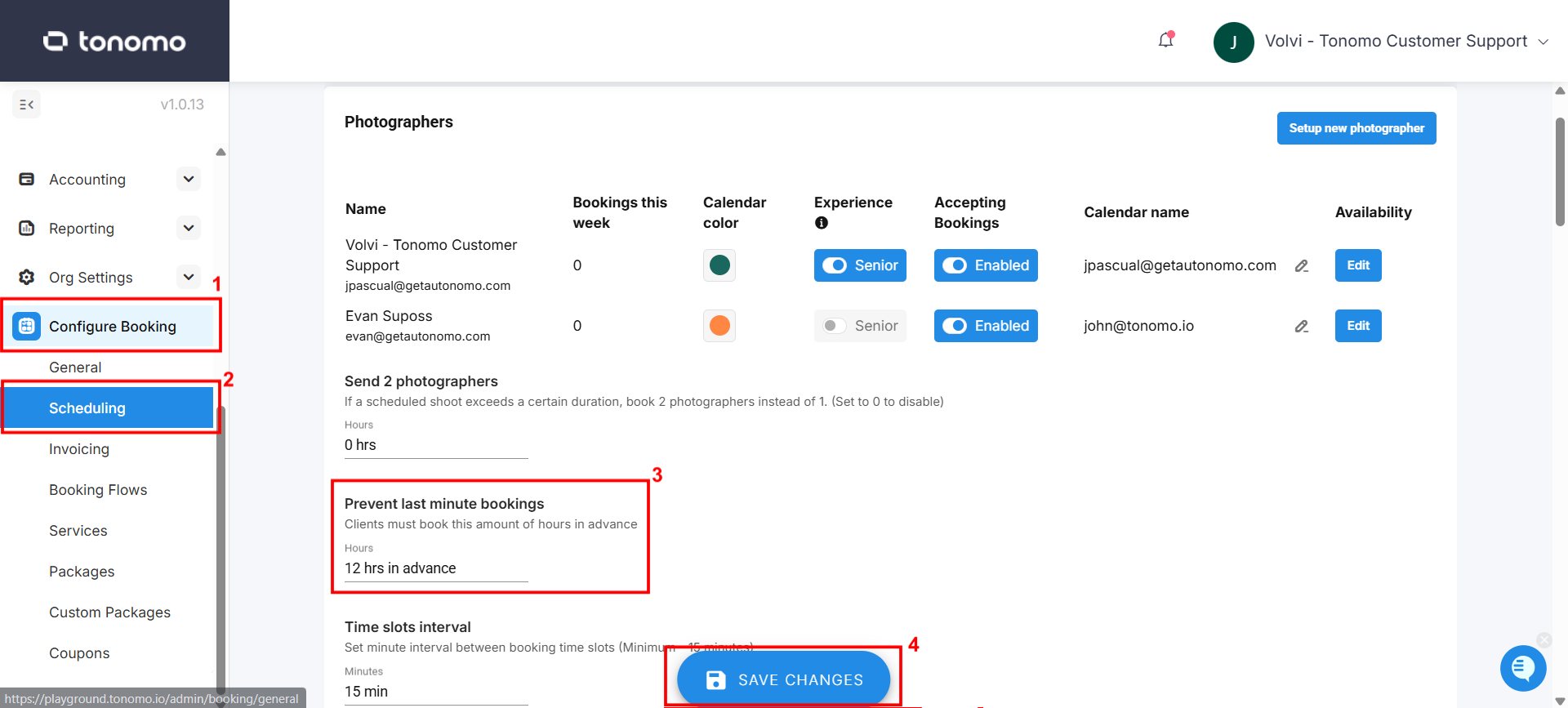
This gives your team time to prepare for upcoming shoots. Leave it at 0 to allow bookings with no minimum notice.
What should I set it to?
Enter | Clients must book at least |
|---|---|
0 | No minimum (the default) |
2 | 2 hours ahead |
24 | 1 day ahead |
48 | 2 days ahead |
Time slots inside the notice period simply don't show to clients.
Frequently asked questions
Does it apply to every booking flow? Yes. It's one setting in Configure Booking > Scheduling, used by all booking flows.
Can my team still book a last-minute shoot for a customer? Admins can override when booking a new order.
Can I block whole days instead? Yes. Use Set days available for booking in a booking flow to block days like weekends, or the Holiday Schedule for specific dates.
Related articles