How do I Set Company Holidays in The Schedule?
Last updated: September 30, 2026
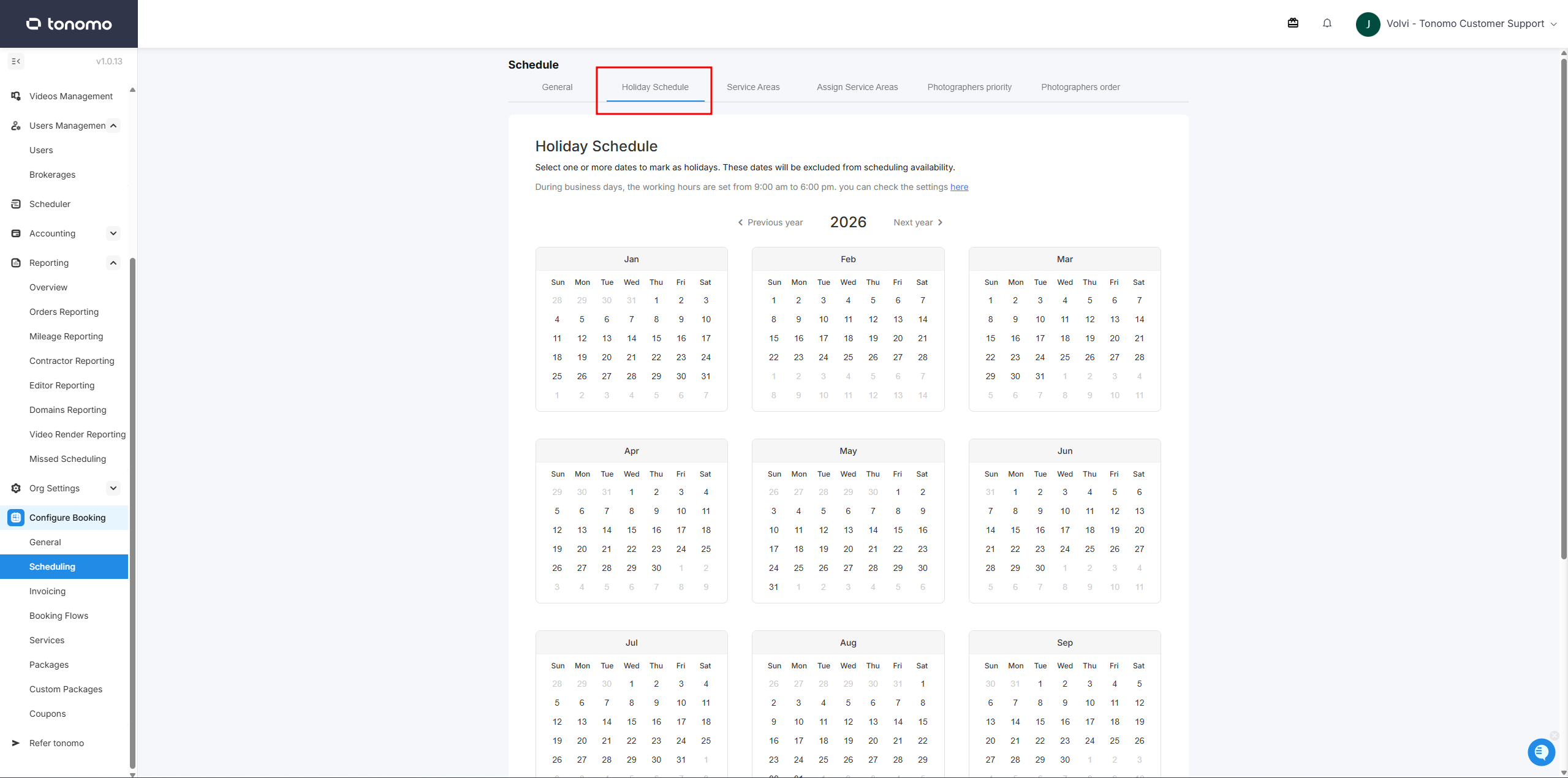
Tonomo's Holiday Schedule lets you block specific dates for your whole company, such as public holidays, a team off-site or a closure, so nobody can be booked on them. You pick the dates on a yearly calendar in Configure Booking > Scheduling, give a reason, and Tonomo removes those dates from scheduling availability for every photographer and booking flow.
At a glance
Go to Configure Booking > Scheduling > Holiday Schedule.
Click any dates on the year calendar. You choose the days, so you're not limited to a preset list.
Click Set Holidays and add a Reason for holiday (required).
Holidays are specific dates. Add next year's from the Next year view.
Holidays block all photographers. For one person's day off, use their calendar instead.
Click an existing holiday to see, or remove from your holiday list.
How do I add holidays?
Go to Configure Booking > Scheduling and open the Holiday Schedule tab.
Use Previous year and Next year to find the right year.
Click each date you want to block. You can pick one or several.
Click Set Holidays.
Enter a Reason for holiday (required), for example Off-site meeting or Christmas Day, and save.
You'll see "Holiday schedule updated."
To start over before saving, click Clear Selection.

How do I see or remove holidays?
Click any date that's already a holiday to open your holiday list. It shows each holiday's Date and Reason for holiday for that year. Click the delete icon next to a holiday, then Save.
If you haven't added any, the list says "No holidays have been configured yet."

Do holidays repeat every year?
No. Each holiday is a specific date. At the end of the year, go to Next year and add the next year's date
Which hours are affected?
Holiday dates are removed from scheduling availability entirely. The Holiday Schedule page also shows your normal business-day working hours ("During business days, the working hours are set from … to …"), with a link to change them in Configure Booking > General.
Can I block time for just one photographer?
Yes, but not with holidays, which apply to everyone.
A one-off day or time off: add it as a Busy event on that photographer's connected calendar, and Tonomo won't book them then.
A day they never work: switch that weekday off in their working hours.
See How Do I Set Photographer Availability?
Frequently asked questions
Is there a list of public holidays to choose from? No. You choose the exact dates yourself on the calendar.
Can I block half a day? No. Holidays are whole dates. For part of a day, use a Busy calendar event.
Can customers still book the day before or after? Yes. Only the dates you select are blocked.
Related articles