How Do I Set Up Service Areas for My Photographers?
Last updated: September 30, 2026
Service areas let you draw the regions you cover on a map in Tonomo, then assign each photographer to the areas they work in. Bookings only go to photographers who cover the property's address. Clients who enter an address outside all your areas see a message you write, for example explaining how to contact you. You set them up in Configure Booking > Scheduling on the Service Areas and Assign Service Areas tabs.
At a glance
Service Areas tab: draw, rename, hide or remove areas, and switch on Enable Service Areas.
Assign Service Areas tab: choose which areas each photographer covers. One photographer can cover several areas.
You can create as many areas as you need.
Drawing an area and enabling service areas are two separate saves.
Clients outside every area see your Custom Message for Out-of-Area Bookings, or a default message with your email.
How do I create a service area?
Go to Configure Booking > Scheduling and open the Service Areas tab.
Click + Add.
Name the service area and click Apply.
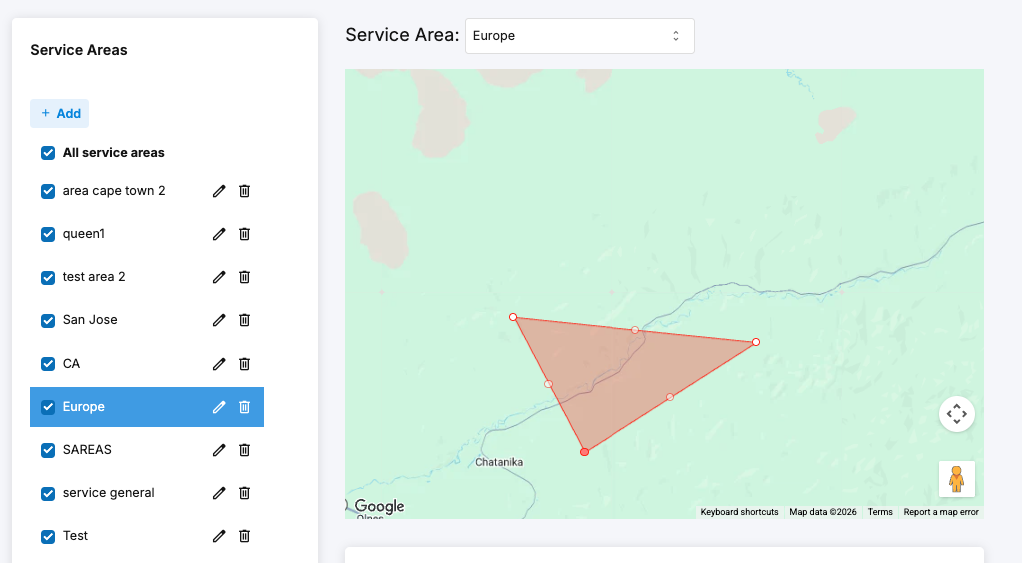
On the map, click to drop points around the region you cover, and close the shape once it's outlined.
Click Save changes.

How do I change an area later?
Drag its corner points, add new points, or drag the whole shape, then click Save changes again. To rename or remove an area, use the options next to it in the All service areas list.
How do I switch service areas on?
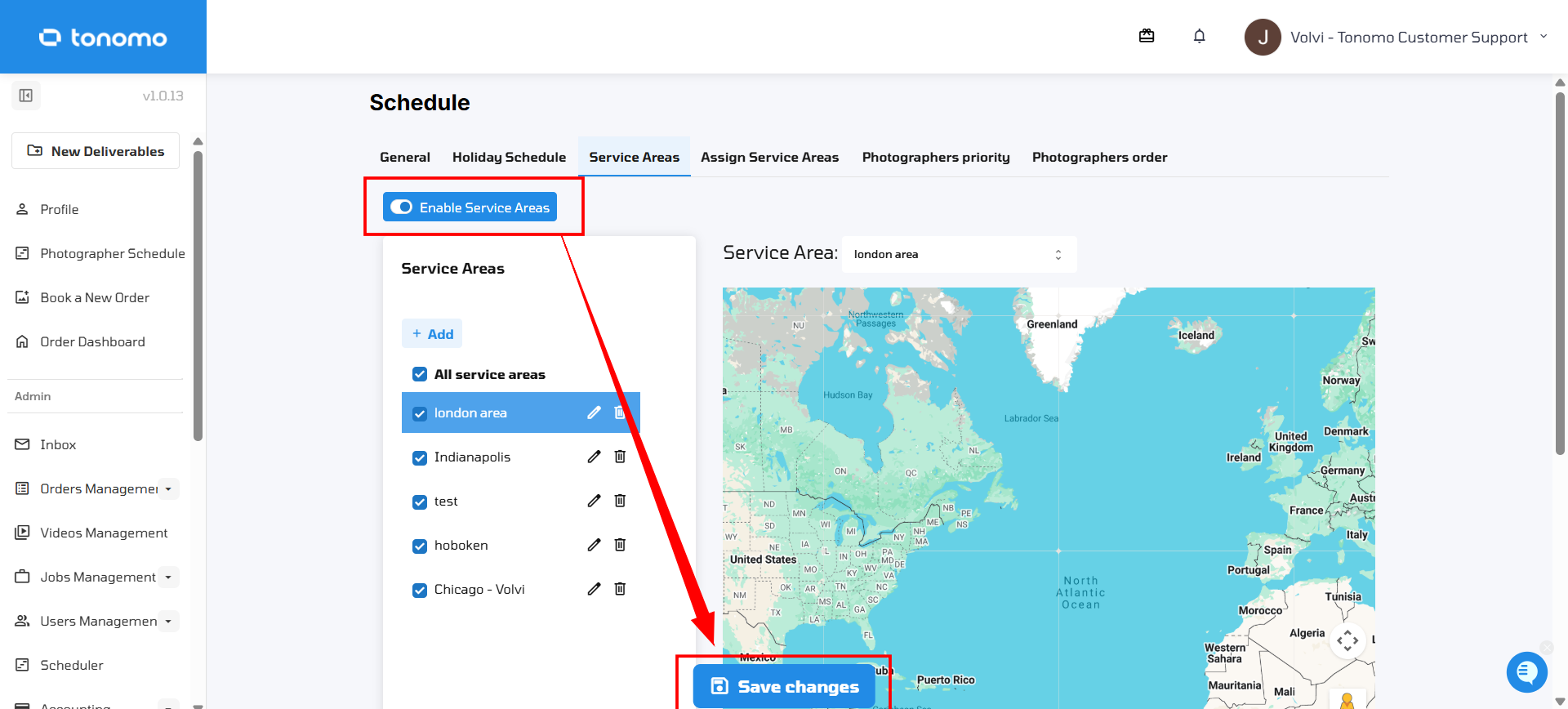
Switch on Enable Service Areas and click Save changes.
Important: creating an area and enabling service areas are two separate saves. Click Save changes after drawing your area, then switch on Enable Service Areas and click Save changes again.
How do I assign photographers to areas?
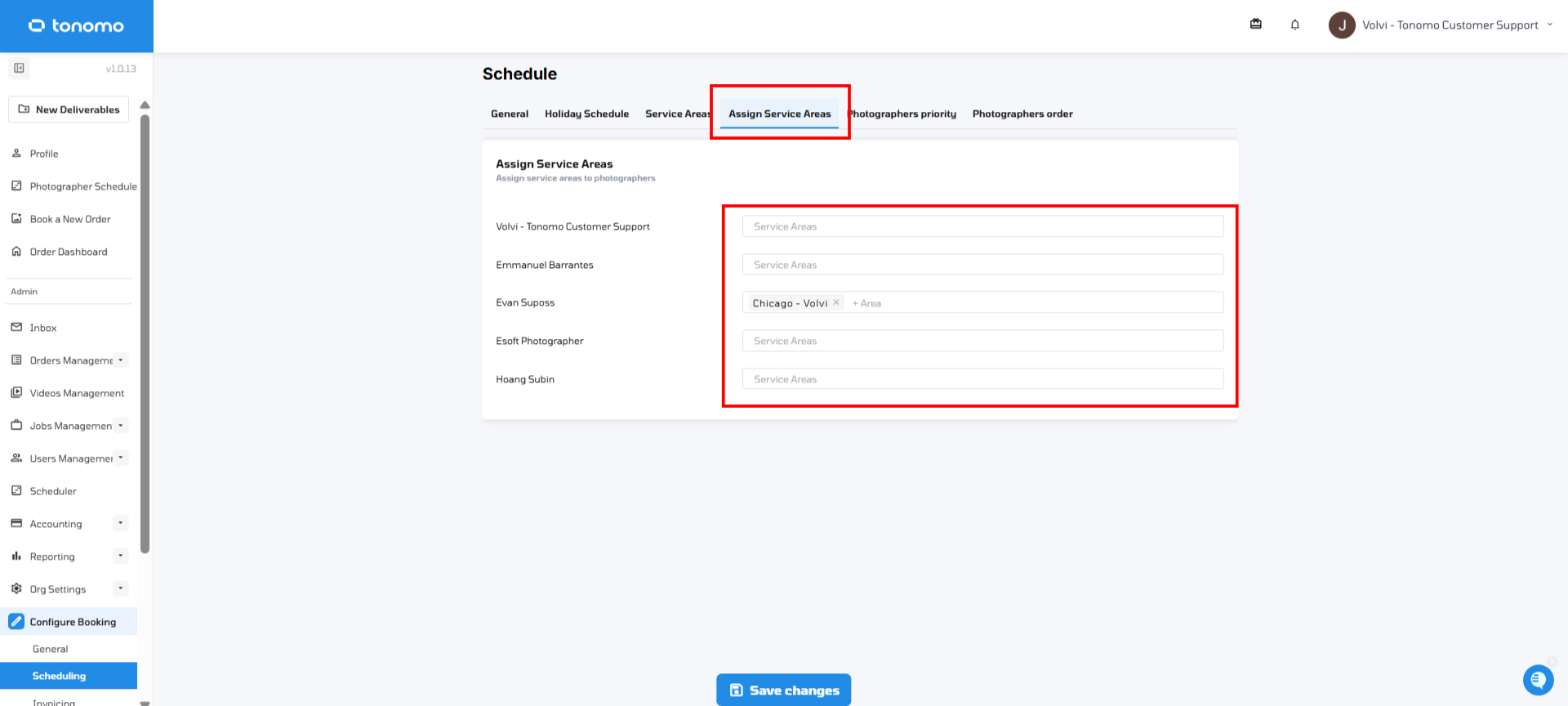
Open the Assign Service Areas tab ("Assign service areas to photographers") to see your photographers.
In a photographer's Service Areas field, start typing an area's name and select it.
Add more areas if they shoot in more than one location.
Click Save changes.
What do clients see if they're outside every area?
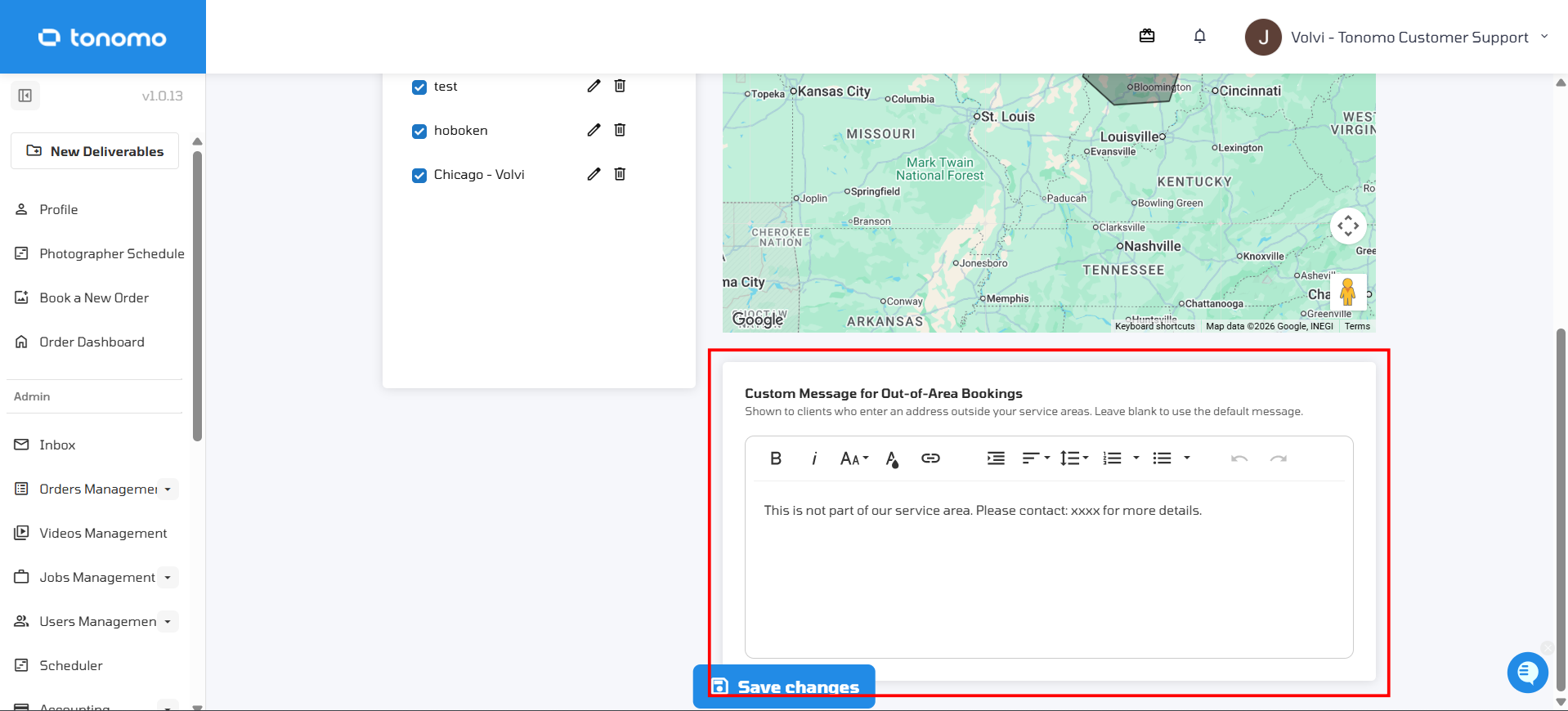
When a client enters an address outside all your service areas, Tonomo shows a message instead of time slots.
To write your own: on the Service Areas tab, scroll to Custom Message for Out-of-Area Bookings, type your message (for example, that their address isn't covered and how to reach you), and click Save changes. Leave it blank to use Tonomo's default message, which includes your company email.
Does hiding an area delete it?
No. If an area is cluttering the map, untick it in the list on the left. This only hides it from the map. It doesn't delete the area or unassigns it from any photographers.
Frequently asked questions
Can a photographer cover more than one area? Yes. Add as many areas as you need to their Service Areas field.
What if a photographer has no area assigned? They will not be able to book.
Can my team still book an out-of-area address? Admins can override the service area check when booking for a customer.
Do service areas work with two-photographer shoots? Yes. Both photographers must cover the property's area.
Related articles