How Do I Set Up Recommended Time Slots?
Last updated: September 30, 2026
Recommended time slots reduce photographer drive time. When a customer books, Tonomo highlights the times when a photographer already has a shoot nearby. If the customer picks one of those recommended times, Tonomo waives the travel fee for addresses that would normally be charged one. You turn it on per booking flow in Scheduling & Travel time settings.
At a glance
Set per booking flow: Configure Booking > Booking Flows > Edit > Scheduling & Travel time settings.
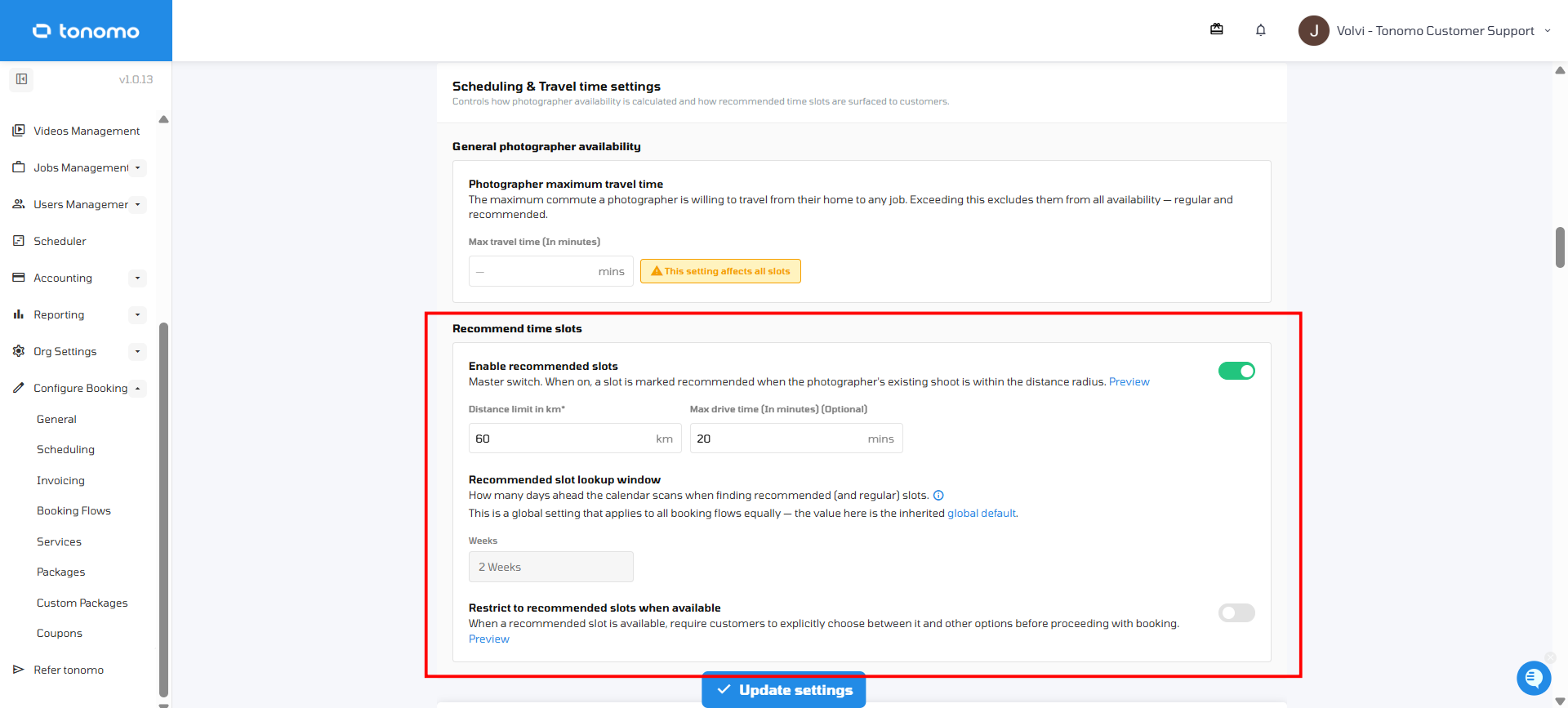
Enable recommended slots, then set Distance limit (required) and, optionally, Max drive time (In minutes).
Booking a recommended slot waives the travel fee.
Max travel time (In minutes) is the longest commute from home a photographer will make to any job. It affects all slots.
Recommended time slot range (in weeks) sets how far ahead Tonomo looks. It's one setting for all booking flows, in Configure Booking > General.
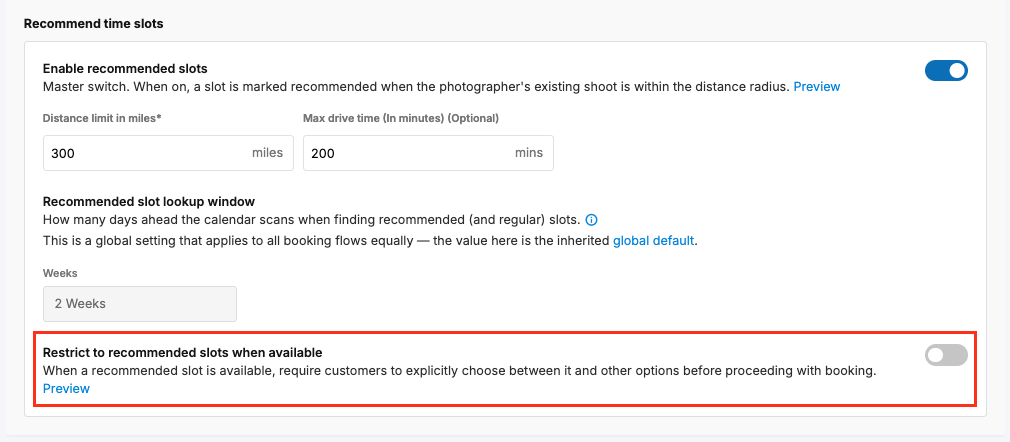
Restrict to recommended slots when available makes customers choose explicitly. While it's on, customers can't pick their own photographer.
How do I turn on recommended time slots?
Go to Configure Booking > Booking Flows and click Edit on the booking flow.
Scroll to Scheduling & Travel time settings ("Controls how photographer availability is calculated and how recommended time slots are surfaced to customers").
Under Recommend time slots, switch on Enable recommended slots. This is the master switch: a slot is marked recommended when a photographer's existing shoot is within your distance radius.
Set Distance limit (required). This is how close an existing shoot must be for a slot to count as recommended. It's shown in your portal's distance unit (km or miles).
Optionally, set Max drive time (In minutes) to also cap how long the drive between the two shoots can be, even inside the distance limit.
Click Update settings.
Click Preview next to a setting to see what customers will see.
What is Max travel time?
In the same section, General photographer availability has Max travel time (In minutes): the longest commute a photographer is willing to make from their home to any job.
This setting affects all slots. If a job is further than this, the photographer is excluded from all availability for it, recommended and regular.
It's set per booking flow, and the travel is measured from each photographer's Home Base. See How Do I Set Photographer Availability?
How far ahead does Tonomo look for slots?
Recommended time slot range sets how many weeks ahead the calendar scans for recommended slots, and for regular slots too. It's one setting for all booking flows. Change it in Configure Booking > General, in the Scheduling section. Each booking flow shows the global value.
What does "Restrict to recommended slots when available" do?
When a recommended slot is available, customers must explicitly choose between it and the other options before they can finish booking. This nudges more bookings into recommended slots, which cuts drive time and waives more travel fees.
Important: while this is on, customers can't choose their own photographer, even if Allow customers to select photographers is enabled.
Frequently asked questions
Does a recommended slot always remove the travel fee? It waives the travel fee for locations that would normally have one. See How Do I Set Up Travel Fees For My Bookings?
Is the distance limit in km or miles? It follows your portal's distance unit.
Why is a photographer never offered for far-away jobs? The job is probably further from their home than the booking flow's Max travel time.
Are "Nearby distance limit" and "Nearby travel time" different settings? No. These are older names for Distance limit and Max drive time.
Related articles